
Set up your home theater with confidence. This short article explains the simplest path for clean audio and steady video. The preferred link is HDMI ARC or eARC when your devices support it.
Modern receivers act as the hub of a home system. They take inputs from Blu‑ray players and consoles, decode surround audio, and send video onward to the screen. One HDMI cable between units often delivers the best single‑cable experience and remote control ease.
Remember ventilation. Leave clear space around the chassis so the unit does not overheat during long movies or game sessions. Wire speakers to the outputs and a subwoofer to the Sub Out (Pre Out) for deep bass.
This intro previews what follows: port ID, speaker wiring, TV and unit settings, calibration tips, and simple fixes for common handshake and lip‑sync issues. By the end you will feel ready to finish the setup in your home.
What You’ll Learn and Why It Matters for Your Home Theater
These takeaways focus on practical choices that boost your system’s sound and simplify setup. You’ll learn simple planning steps: read manuals, map gear locations, and pick the correct cables. Small prep saves time and prevents common mistakes.
The receiver organizes sources, decodes modern formats like Dolby Atmos and DTS:X when supported, and routes audio and video for a smooth viewing experience. Understanding this role makes diagnostics and upgrades easier.
HDMI versions matter. Use HDMI 2.0 or 2.1 for 4K HDR bandwidth and advanced return channels. Good cables keep video stable and audio reliable for streaming, gaming, and movies.
- You’ll map inputs so sources play through the system and the screen shows the right picture.
- Calibration tips (Audyssey, YPAO) help lock in clear dialogue, balanced bass, and proper surround depth.
- Learn when ARC/eARC fixes lip‑sync or bandwidth limits, and when optical or coaxial are better alternatives.
For gear recommendations and model guidance, see the best AV receivers guide. This article gives a compact roadmap from prep to troubleshooting so your home theater reaches its potential.
Before You Start: Prep, Safety, and Gear Checklist
Take a few minutes now to prepare the space, tools, and power sources. Turn off and unplug both the TV and receiver before handling any cables or ports. This reduces the risk of shorts, pops, and other surprises during setup.
Power, placement, and ventilation
Receivers run hot. Leave at least a few inches of clearance around the chassis for airflow. Place the unit where vents aren’t blocked by shelves or fabric.
Use a surge protector or quality power strip. This protects the system and any powered subwoofer from spikes.
Cables and adapters you may need
- HDMI (High Speed/Ultra High Speed): needed for 4K/HDR and ARC/eARC support.
- Optical (Toslink) for digital audio when HDMI isn’t available.
- RCA or a 3.5mm headphone adapter for older analog outputs.
- Bring extra speaker wire and measure runs with slack for tidy routing.
Read the manual and check ports
Skim each device manual for model-specific notes on ARC/eARC, CEC names, and audio output options. Verify which ports your TV and receiver actually have—label cables before hooking them up.
Know Your Ports: Receiver and TV Connection Basics
The back panel hides the ports you need for every source and screen. Scan labels and color codes before plugging devices in. That saves time and prevents wrong inputs.

HDMI IN vs HDMI OUT
HDMI IN ports accept consoles and players. The single HDMI OUT, often labeled Monitor/ARC/eARC, sends picture and return audio to the display.
Digital audio options
Optical (Toslink) and coaxial inputs carry multichannel digital audio when ARC is unavailable. Use them as reliable alternates for specific sources.
Analog and legacy ports
RCA line inputs handle older line-level gear. A dedicated Phono input plus Signal GND lets a turntable work without an external preamp.
Legacy video and network
Component and composite are last resorts; they need separate audio feeds. For network streaming, use the Ethernet jack for stability and screw-on posts for Wi‑Fi/Bluetooth antennas.
- Inspect the back carefully; labels often match common devices.
- Plan which HDMI port on the display supports ARC/eARC and route the output there.
Best Method: Connect via HDMI ARC/eARC for Simplest Audio Video Setup
For most setups, ARC or eARC creates the simplest path for high‑quality sound from the display back into your system. Use the HDMI port labeled ARC/eARC on the screen and the receiver’s HDMI OUT (Monitor/ARC) for the return channel.
Use a certified High Speed or Ultra High Speed HDMI cable to reduce handshake problems. Ultra High Speed supports HDMI 2.1 features; High Speed works for many ARC uses but may limit high‑bitrate formats.
Enable CEC and ARC/eARC in both devices’ menus so the display remote can control power and volume. Make sure the display’s audio output is set to ARC/eARC and internal speakers are off so sound flows through the receiver.
- Keep runs short and avoid sharp bends for reliable video and audio signals.
- If lip‑sync remains, use the receiver’s A/V sync adjustment to nudge timing.
- ARC works well for built‑in streaming apps; eARC adds bandwidth for Dolby TrueHD/Atmos and fixes many sync issues.
| Feature | Use Case | Recommended Cable | Notes |
|---|---|---|---|
| ARC | Standard streaming and surround formats | Certified High Speed HDMI | Good for most setups; limited bandwidth versus eARC |
| eARC | High‑bitrate audio (Dolby TrueHD, Atmos) | Ultra High Speed HDMI | Higher bandwidth and improved lip‑sync handling |
| No ARC | Older displays or incompatible gear | Any appropriate HDMI for video; separate digital audio if needed | Use optical/coaxial or analog as fallback |
Alternatives When ARC Isn’t Available
When ARC isn’t an option, alternate audio paths keep sound flowing from your screen. Use these options to preserve surround formats or at least clean stereo playback.
Optical (Toslink) is the most common fallback. Run an optical cable from the display’s digital audio out into the matching input on the receiver. Expect support for Dolby Digital and DTS, but not the highest‑bitrate lossless formats that eARC can pass.
Coaxial digital audio uses an RCA‑style plug with a center pin. Choose this when a device lacks optical. It carries digital sound reliably and often matches optical in format support.
Analog outputs (RCA or a headphone jack) are last resorts. Use a 3.5mm‑to‑RCA adapter if the screen only offers a headphone port. Keep analog cable runs short and match left/right on the receiver for clean stereo sound.
- Set the screen’s audio output to Optical/External or PCM when format issues appear.
- Remove optical port caps and seat plugs fully to avoid no‑sound errors.
- Label the receiver input in the menu so you can select the right source quickly.
how to connect av receiver to tv: Step-by-Step Connection Walkthrough
Start by planning the physical setup: map ports on the back of the receiver and lay cables so they stay neat. Label each cable for quick ID.
Connect sources first. Plug game consoles, Blu‑ray players, and streaming boxes into the receiver’s HDMI IN ports. Any labeled HDMI input will work for a player.
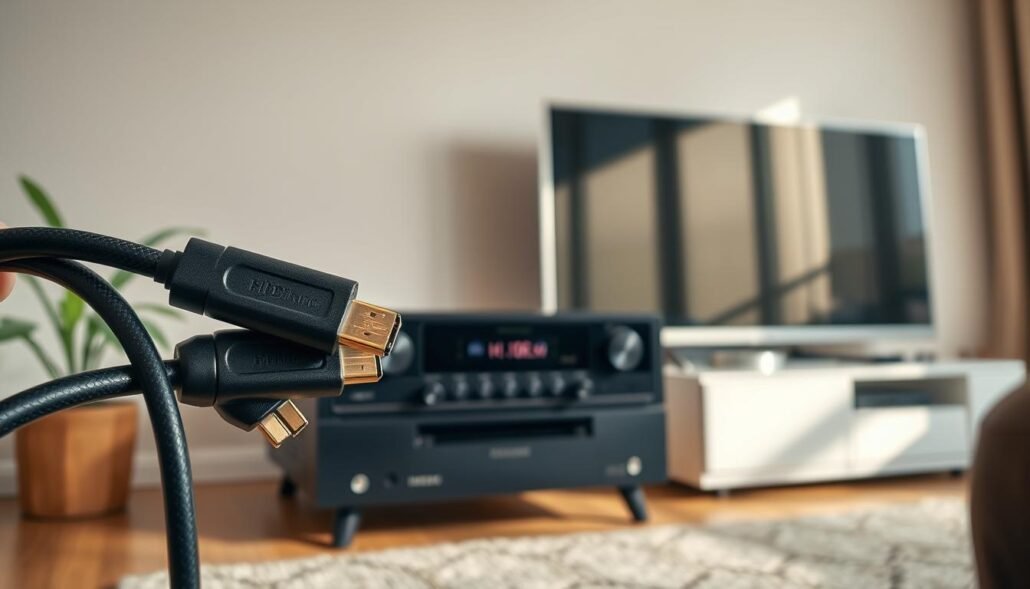
Next, run a single HDMI cable from the receiver’s HDMI OUT (Monitor/ARC/eARC) into the TV’s HDMI input you intend to use daily. This one cable carries both video and return audio when ARC/eARC is active.
- Power on sequence: turn on the receiver, then the screen, then each source.
- Select the matching HDMI input on the screen and confirm you have picture.
- Make sure the TV audio output is set to ARC/eARC or the chosen digital path so audio plays through your speakers.
- If video appears but audio does not, confirm the receiver input matches the player’s HDMI IN port.
- Wire the subwoofer to Sub Out (Pre Out) and speakers to the binding posts, matching red/black polarity.
Example setup: game console → receiver HDMI IN; receiver HDMI OUT (ARC) → TV. Speakers on the binding posts and sub via Sub Out. Check the receiver’s on‑screen menu appears on the display; if not, recheck the HDMI OUT cable and selected input.
Final check: verify picture and audio from each player, then proceed with input naming and basic sound checks before calibration for a smooth home theater experience.
Hooking Up Speakers and Subwoofer for Surround Sound
Proper speaker wiring is the foundation of any satisfying surround sound setup. Start by matching the red and black binding posts on the receiver with the same colors at each speaker. This keeps polarity correct and preserves clear imaging.
Label each run before you route it. Route speaker wire neatly, avoid kinks, and trim only after final placement to prevent stress at terminals. Tighten posts firmly, twist stray strands, or use banana plugs for a clean, safe connection.
For the subwoofer, run a single RCA cable from the receiver’s Sub Out (Pre Out) to the sub’s LFE/Line In. Most subwoofers are powered and use this line-level feed rather than speaker connectors.
- Connect Front Left/Right, Center, and Surround channels to their labeled posts for correct imaging and envelopment.
- Place the sub near a front wall, then use a sub crawl or small adjustments to reduce boom and fill gaps.
- Leave ventilation space around the receiver and plan wire runs; labeling reduces setup errors in any home theater.
Dial In Your Settings: TV and Receiver Menus That Matter
Tweak menu options now to make daily use of your home theater smooth and intuitive. Start with the screen’s audio output and a few receiver choices so sound routes correctly and the remote works as expected.
TV audio output: switch from TV speakers to ARC/Optical
In the TV menu set audio output from internal speakers to ARC/eARC or Optical. Then enable CEC so the display remote can power the receiver and change volume.
Receiver input assignments and naming
Open the receiver menu and assign each physical port to the device it hosts. Rename inputs (for example, “PS5” or “Blu-ray”) so navigation is fast and clear.
Audio modes, bass management, and HDMI considerations
Select Auto or Bitstream on players and the receiver for best format pass‑through. Use bass management to set speaker sizes and crossovers (80–100 Hz is common). Confirm HDMI versions support your needs and use certified cables.
- Try center enhancement if dialog lacks clarity.
- Enable night or dynamic compression for late‑night listening.
- If audio drops, re-seat connectors and simplify processing.
- Save or back up receiver settings when available.
| Setting | Menu Location | Quick Tip |
|---|---|---|
| Audio output | TV → Sound | Choose ARC/eARC or Optical |
| Input naming | Receiver → Input Assign | Use device names for ease |
| Bass management | Receiver → Speaker Setup | Set crossover 80–100 Hz |
Calibrate and Troubleshoot for the Best Experience
Run the auto‑calibration first. Place the setup mic at ear height in the primary seat and follow the on‑screen prompts from Audyssey or YPAO. This sets distances, levels, and crossovers so the system balances itself.
Set the subwoofer knob near the midpoint before calibration and tell the receiver which speakers and height channels you have. Accurate speaker type and placement info helps the system deliver consistent surround sound.
If you get no sound, check these quick fixes. Make sure the TV audio output is set to ARC/eARC or Optical and that the HDMI cable runs from the receiver’s HDMI OUT into the display’s ARC/eARC port. Power‑cycle the display and receiver to clear handshake errors, then re-enable CEC and ARC in each menu.
- Re-seat optical plugs until they click; remove caps to avoid silent links.
- Use the receiver’s A/V sync setting if lip‑sync persists; eARC often reduces timing issues.
- For weak bass, confirm Sub Out routing, check the subwoofer cable and phase switch, and try a slight relocation.
- Consult the manual for model‑specific menu names and troubleshooting steps.
| Issue | Quick Check | Fix |
|---|---|---|
| No sound from speakers | TV audio mode and HDMI routing | Set TV output to ARC/eARC or Optical; confirm HDMI OUT → ARC port; power‑cycle devices |
| Handshake/CEC fails | CEC and ARC settings in menus | Disable then re-enable CEC/ARC; try another certified HDMI cable |
| Lip‑sync delay | Audio delay on receiver | Adjust A/V sync on the receiver; use eARC where available for better timing |
| Weak or boomy bass | Sub Out connection and phase | Check cable, set phase, adjust level, and move the sub slightly |
Final tip: after any major moves or furniture changes, re-run calibration and review menu settings. For features worth looking for in the next model, see this short guide on desirable options and system capabilities: features you will want in your next AV.
Conclusion
This article gives a simple, repeatable workflow: route sources into the receiver, route the receiver output via HDMI ARC/eARC, wire speakers by channel, hook the sub to Sub Out, then run an auto‑calibration pass.
Industry tips matter—read manuals, pick certified cables, and label inputs so future upgrades fit the same pattern. Make sure you use tidy wiring and short HDMI runs to reduce handshake issues.
Use the examples here as a template for swapping players or consoles. When problems occur, retrace the signal path and menu settings in the same order you set up the system.
Enjoy your home theater—balanced dialog, solid bass, and immersive surround that keeps the sound receiver and sound systems working together for a great viewing experience at home.
FAQ
Which cable gives the clearest audio and easiest setup for a home theater?
HDMI using ARC or eARC provides the best audio quality and simplest control. A single certified High Speed or Ultra High Speed HDMI cable carries multichannel audio and video, supports Dolby Atmos and DTS:X, and usually enables TV remote control via CEC.
My TV lacks ARC/eARC — what are practical alternatives?
Use an optical (Toslink) or coaxial digital cable for multichannel compressed audio, or RCA/3.5mm analog outputs for stereo. Optical can’t pass lossless formats like some Dolby TrueHD signals, so coaxial or dedicated HDMI switchers with audio extraction may be better for older sets.
Where should the receiver and speakers sit for best ventilation and sound?
Place the receiver on a flat, ventilated surface with several inches clearance on all sides and avoid enclosing it in a tight cabinet. Keep speakers at ear height where practical and follow recommended placement: left, right, and center at screen level, surrounds slightly above listening position, and the subwoofer near a wall or corner for stronger bass.
How do I wire speaker terminals and maintain correct polarity?
Use the same gauge speaker wire for all speakers, strip about 1⁄2 inch insulation, and match red/positive to red and black/negative to black on both receiver and speaker terminals. Correct polarity keeps soundstage and bass tight; reversed leads cause weak, muddy audio.
Can I connect multiple HDMI sources to the receiver and still send video to the TV?
Yes. Plug game consoles, Blu‑ray players, and streaming boxes into the receiver’s HDMI IN ports, then run the receiver’s HDMI OUT (Monitor/ARC) to the TV. The receiver switches sources and passes the selected video to the TV while handling audio.
How do I enable ARC or eARC and CEC on my devices?
In the TV menu, enable ARC or eARC and turn on HDMI‑CEC (brands call it Anynet+, Bravia Sync, Simplink, etc.). On the receiver, enable ARC/eARC and any power/control features. After enabling, power cycle both devices and select the correct TV input and receiver input.
My TV shows video but no sound from the receiver — what should I check?
Verify HDMI is in the ARC/eARC port on both devices, confirm CEC/ARC is enabled in both menus, and ensure the receiver input matches the TV output. Test with another HDMI cable, check TV audio output is set to external speakers or ARC, and try optical if HDMI audio isn’t working.
Is an auto‑calibration tool necessary and how does it help?
Auto‑calibration systems like Audyssey, YPAO, or Dirac measure speaker levels, distances, and room reflections with a mic and apply EQ and time alignment. They greatly improve balance and clarity, especially in non-ideal rooms. Manual tweaks are still useful after calibration.
Which subwoofer connection should I use and where’s best place for it?
Use the receiver’s Sub Out (LFE Pre Out) with an RCA cable for the cleanest low‑frequency signal. Placement near a front corner or wall typically increases bass output; move the sub and listen for smooth, even bass without boominess, and adjust crossover and phase settings on the receiver.
Can analog sources like turntables work with my modern receiver?
Yes, if the receiver has a phono input with a built‑in preamp. If not, use an external phono preamp between the turntable and an RCA line input, and be sure the turntable’s ground wire is attached to avoid hum.
Do HDMI versions matter for 4K, HDR, and advanced audio formats?
Yes. HDMI 2.0 supports 4K/60Hz and HDR formats; HDMI 2.1 adds higher bandwidth for 4K/120Hz, VRR, and full eARC for uncompressed object audio. Use cables and devices that match your desired resolution and audio format to avoid limitations.
What speaker wire gauge should I choose for typical home theater runs?
Use 16 AWG for runs under 50 feet and 14 AWG for longer runs or higher power speakers. Heavier gauge (lower number) reduces resistance and preserves power delivery to the speakers.
How do I assign and name inputs on my receiver for easy use?
In the receiver’s input assignment menu, map each HDMI or analog input to a source name (Blu‑ray, Game, TV). This makes on‑screen selection intuitive and helps the receiver route audio and video correctly.
If there’s lip‑sync delay, how can I fix it?
Enable audio delay or lip‑sync adjustment in the receiver or TV menu. If using eARC, it should reduce delay, but you can fine‑tune milliseconds until audio aligns with the picture.
What should I check before buying cables and adapters?
Confirm the HDMI version needed, the length, and certification (High Speed/Ultra High Speed). For optical/coaxial, ensure both devices have matching ports. For speaker wire, pick an appropriate gauge and length with secure connectors or bare ends for binding posts.
Are software updates important for my receiver or TV?
Yes. Firmware updates can improve HDMI compatibility, add audio codecs, fix handshake issues, and enhance streaming or network features. Check the manufacturer’s site or menu periodically and apply updates as available.


