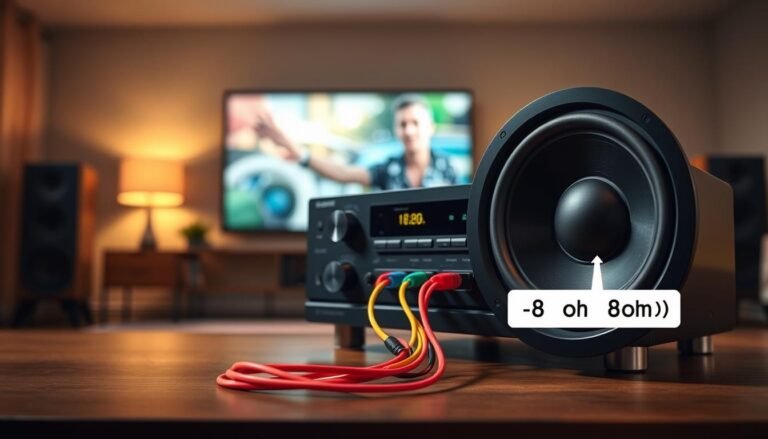
This page gives clear, step-by-step guidance for safe diagnostics. Expect systematic checks of wall outlets, cords, connectors, and low-voltage supplies to narrow the likely fault.
Safety first. Use a multimeter on 200V AC for 120V wall power and 200V DC for about 29V from adapters. Run continuity tests only after disconnecting power to avoid shorts.
We explain which tests matter, how to read AC versus DC ranges, and why each code-related clue helps pinpoint whether the issue is external (outlet, breaker, GFCI, or cord) or internal (adapter, internal fuse, or board).
Also important: watch for scam support contacts. Rely on official support pages and report suspicious posts through community tools rather than calling unknown numbers.
Key takeaways: simple safety steps, correct meter settings, and when to contact official support.
Understand the “Check Power Cord” error and prepare for safe diagnostics
Such alerts commonly point to interrupted current flow along the plug, cord, or adapter, or to a device-side sensing of unstable voltage. This usually means power delivery between the wall and the device is interrupted or unstable, though an internal code can also trigger the warning.
Safety first. Unplug the device and work in a dry area. Make sure the device is powered off before any continuity test. Avoid touching energized parts or letting probes short across conductors.
Start with simple tools: a digital multimeter with AC, DC, and continuity functions, a flashlight to inspect wiring and plugs, and access to the breaker panel or nearby GFCI reset. Gather model and adapter labels for later reference.
Quick checklist before testing
- Verify outlet voltage with meter set to 200V AC; expect ~120–130V if live.
- Measure adapter on 200V DC for labeled outputs (some supplies show ~29V DC).
- Continuity tests only after unplugging; confirm both conductors and avoid probe shorts.
- Document model numbers, cord labels, and printed ratings so measured values can be compared with specs.
Start at the wall: verify power, resets, and obvious issues
Begin at the wall to confirm the outlet is delivering steady mains before testing cords or adapters. This rules out household wiring as the source of the fault and narrows the next steps.
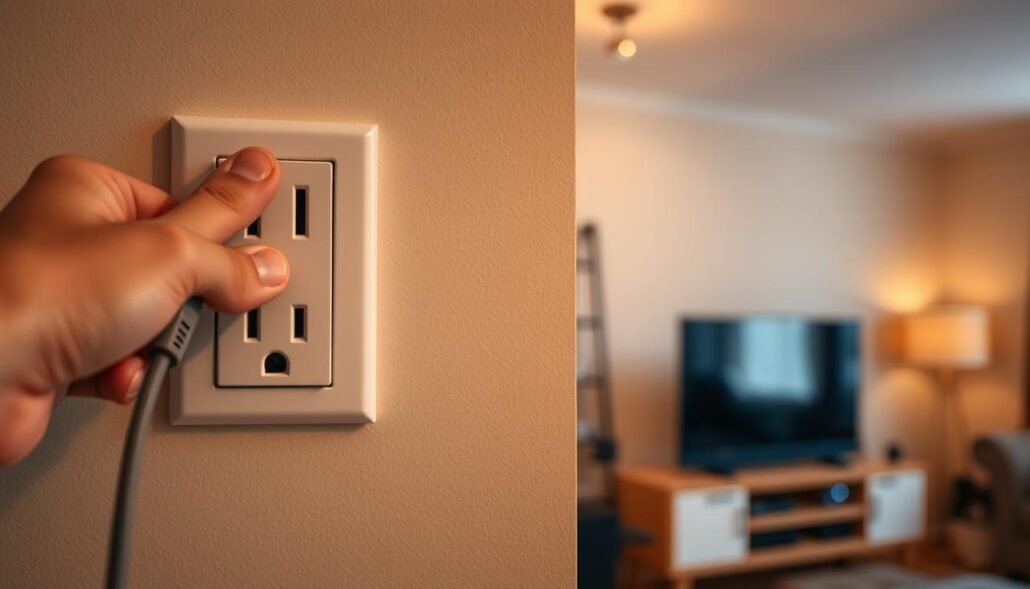
Confirm live power at the outlet
With nothing plugged in, set your multimeter to 200V AC and carefully probe the outlet slots. A stable reading near 120–130V verifies that wall voltage and the immediate circuit are good.
Reset GFCI or circuit breaker and recheck
If the meter shows 0V or a fluctuating reading, locate upstream GFCI receptacles and press the reset button, then re-test the outlet. Check the service panel for a tripped breaker; flip it fully off and back on to ensure the circuit is restored.
- Test a second known-good outlet on a different circuit if readings are inconsistent.
- Inspect the outlet face and plug fit for looseness or discoloration; heat damage can cause intermittent contact and trigger the device code.
- Document the exact meter reading so you can compare values later if the device still reports an issue.
If any outlet is physically damaged or the GFCI will not reset, stop and contact a licensed electrician rather than continuing at the wall. A good outlet reading lets you proceed to cord and adapter checks with confidence.
How do I fix a “Check Power Cord” error? Inspect and test the cord itself
Inspect the entire cord and its ends for signs of wear, then plan the electrical checks.
Visual inspection
Look for kinks, flattened sections from furniture, frayed jacket material, or exposed wire strands.
Check plug blades for bending, darkening from heat, or a loose fit at both the wall and device ends.
Any damage or loose connections can trigger the same on-screen code and should be treated seriously.
AC voltage test at the female end
With the outlet already verified, unplug the cord from the device. Set the meter to 200V AC and insert probes into the female end.
A steady reading near 120–130V confirms the cord is passing mains power correctly. A 0V reading suggests an internal break and requires further checks.
Continuity tests with power disconnected
Remove all power. Test continuity end-to-end for both hot and neutral conductors. Place one probe on a blade at the wall plug and the other in the matching slot at the device end, then repeat for the second conductor.
Both paths must show continuity. If either fails, replace the cord with a properly rated, UL-listed alternative rather than attempting repair.
- Gently flex the cord near each end while testing to reveal intermittent opens from failed strain relief.
- Confirm the cord’s amperage and temperature ratings match the device to avoid overheating under load.
Rule out the power supply or adapter: low‑voltage output and fuse checks
Next, isolate the adapter by checking its low‑voltage output and any in-line protection before assuming the device is at fault.
Set your multimeter to 200V DC and measure at the connector end. A stable reading near the adapter label (for example, ~29V DC) means the supply is delivering the correct voltage.
If the reading is 0V while the outlet and power cord passed earlier tests, power off and open the low‑voltage plug as designed. Test the raw wires directly; a proper DC reading on raw wires with 0V at the plug points to a failed connector assembly.
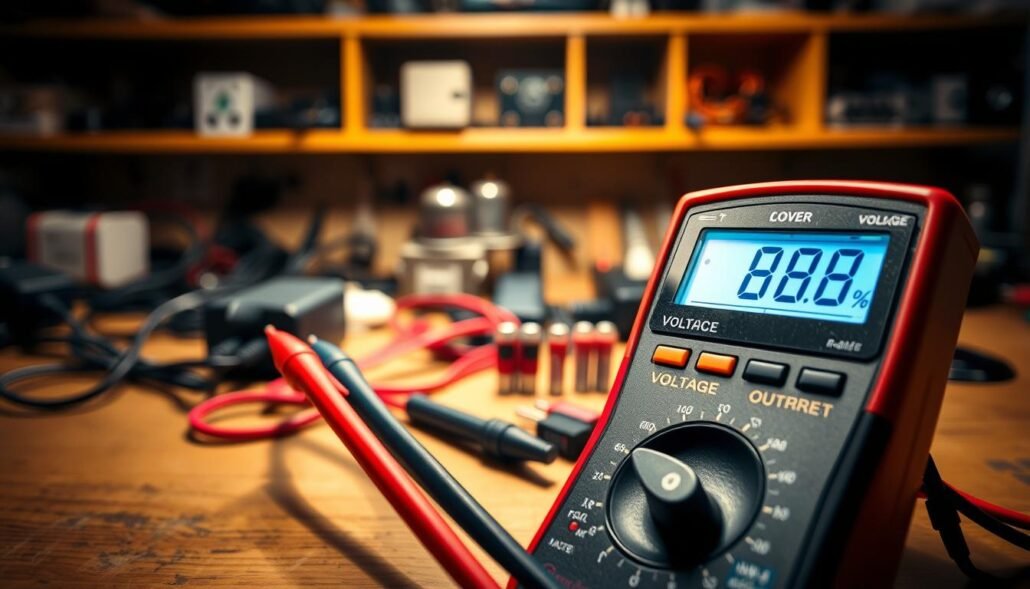
If 0V persists on the raw wires, check the adapter for an internal, serviceable fuse. Older supplies with screws may allow fuse replacement after testing continuity. Replace any open fuse with the same rating and re-test output.
Note: sealed modern adapters normally lack replaceable fuses. If a sealed unit shows 0V on known‑good input, replace the adapter with one matching the original specs.
- Verify continuity across each connector path before re-terminating or replacing the plug.
- Inspect the wire strain relief at the adapter end for fatigue; intermittent breaks can give false positive readings.
- Only press the power button once connections, polarity, and the DC reading are confirmed. If the device still shows the same code or no response, the fault is likely internal to the device.
If cord and supply pass: device-side steps and when to contact support
When external checks show correct voltage and continuity, shift attention to the device itself. Confirm the main power switch or the front power button responds. Press the button and watch whether any status lights change state or blink.
Document any behavior. Note whether lights blink in patterns, if the code appears instantly or after a delay, and which button presses have effect. These details help support triage.
Before calling support
- Check user‑accessible fuses or removable panels per the official support page; follow model-specific steps only.
- A recurring on‑screen code or unresponsive lights despite known good supply often means an internal board fault or sensor issue.
- Avoid deep disassembly unless manufacturer instructions allow it; opening sealed units can void warranties.
Contact verified manufacturer support using the brand’s official site and avoid phone numbers or emails posted by unknown third parties. Report suspicious posts with forum tools and gather model, serial number, adapter part, and test readings to speed resolution.
If the device shows no lights and the button gives no response, professional service is the safest next step to prevent further damage.
Conclusion
Conclusion
Conclude by confirming the chain from the wall outlet to the device so you can isolate any remaining issue. Start with the wall reading and then move along each cord end and connector.
Target readings matter: a steady 120–130V at the outlet and DC near the adapter label (for example, ~29V) show external power is good. Perform continuity only with power off and inspect each visible wire for wear.
If the breaker or GFCI needs a reset, re-test the same circuit before assuming internal fault. Re-check buttons and lights after any change to see if the code clears.
Final checklist: outlet good, cord continuity confirmed, adapter DC verified, connector secure — then contact official manufacturer support with your test information if the device still will not power on.
FAQ
What does the “Check Power Cord” message usually mean?
That message commonly indicates a problem in the power path — the wall outlet, the cord, the adapter/transformer, or the device’s input. It can appear on TVs, printers, and appliances when voltage is absent, wiring is damaged, or the low‑voltage supply fails to deliver the rated DC output.
What safety steps should I take before testing anything?
Always unplug the device and switch off the circuit breaker or GFCI before opening panels or performing continuity checks. Keep hands and tools dry, work in a well‑lit area, and use insulated tools. If you’re unsure, contact a qualified technician or the manufacturer’s support line.
Which basic tools are useful for diagnosing the issue?
A multimeter capable of AC/DC voltage and continuity is essential. A flashlight helps inspect connectors, and access to the breaker panel or GFCI outlet is useful for resets. For adapter checks, a small replacement lead or bench power supply can help isolate the problem.
How do I verify the wall outlet is providing power?
With the multimeter set to 200V AC, measure between hot and neutral; a typical U.S. outlet reads about 120V AC. If you get no reading, reset the GFCI and breaker, then test again. If the outlet still shows no voltage, avoid testing further and call an electrician.
What should I look for during a visual cord inspection?
Check for cuts, frays, melted insulation, bent or corroded blades, and loose or wobbly connections at both the wall plug and the device end. Replace the cord if any physical damage or exposed conductors are visible.
How do I test AC at the cord’s female end?
With the device unplugged from its female connector, carefully measure AC between the cord’s hot and neutral pins while the plug remains in the live outlet. Expect about 120–130V AC. If voltage is absent here but present at the outlet, the cord or its internal wiring is at fault.
How is a continuity test performed on the cord?
Disconnect power and set the meter to continuity. Probe each plug blade at the wall end and the corresponding pin at the device end. A continuous beep or near‑zero resistance confirms conductor integrity. Replace the cord if continuity fails on any conductor.
What if the adapter or transformer is the suspected cause?
Measure the DC output at the adapter’s barrel connector with the meter set to the expected DC range. The reading should match the adapter’s rated voltage (for example, ~29V DC). If it reads 0V or far below the rating, inspect any in‑line fuse and replace the adapter if the fuse and connector check out but output is incorrect.
How do I check the adapter’s in‑line fuse?
With the adapter disconnected from mains, open the fuse holder if accessible and test continuity across the fuse with a meter. No continuity means the fuse is blown; replace with an identical type and rating. If the fuse is intact but no DC output, replace the adapter.
What connector issues should I examine on plugs and barrels?
Look for bent center pins, loose barrel sleeves, corrosion, or worn contacts that prevent a snug fit. Test plug continuity and ensure polarity matches the device’s requirements. Replace damaged connectors or use an OEM replacement cable or adapter.
After cord and adapter tests pass, what device steps remain?
Reset the device by unplugging it for several minutes, press any reset button if present, and power on. Run any built‑in diagnostics or firmware updates if available. If the message persists, the internal power supply or board may be faulty and require professional repair.
When should I contact manufacturer support?
Contact official support when internal repairs are needed, the device is under warranty, or you encounter safety risks. Use contact details from the manufacturer’s website to avoid scams. Provide model, serial number, observed voltages, and steps you already performed.