
Quick overview: A common scenario is a DirecTV receiver that sees the Spectrum SSID but fails after the password is entered. The menu may show Network service with “no network service available.” This signals several likely causes.
The most frequent problems include a Wi‑Fi security mismatch, band limits, DHCP assignment errors, or a disabled network module on the receiver. These issues can leave devices visible but unable to join the network at home.
This guide offers clear, repeatable steps you can run on the receiver and router. You will see how to verify the SSID and password, check router security settings, test the 2.4 GHz band, and try a temporary Ethernet link. Follow safe tests so other devices keep working.
What you’ll get: targeted diagnostics that map symptoms to causes, and practical steps that restore internet access with minimal disruption.
• Rule out simple mistakes first, then move to targeted router and receiver checks.
• Test security modes, frequency band, and DHCP before replacing hardware.
Why won’t my receiver connect to Wi‑Fi? Understanding the problem and your intent
If the set-top lists the wireless name yet fails to finish authentication, check a few compatibility points first. A device that sees the SSID but stops at the password step usually faces a security-mode mismatch (for example, WPA3 vs. WPA2), unsupported broadcast band (many older units do not use 5 GHz), or DHCP not issuing an IP address.
Confirming whether other devices can access the same network helps separate a device-specific problem from a broader outage. If a phone or laptop joins fine, focus on router settings that affect only legacy devices: security mode, 2.4 GHz broadcast, and hidden SSID options.
- Keep changes reversible: switch security to WPA2 or enable mixed mode, test 2.4 GHz, then revert later.
- Check addressing: a 169.254.x.x address on other clients signals DHCP failure.
- Watch interference: channel congestion and nearby devices can block stable access.
These steps restore access with minimal disruption and point to the exact settings that control the outcome: SSID name, password, security mode, band, and DHCP.
Quick checks before deeper troubleshooting
Simple verification steps can isolate whether this is a device or network problem. Run these quick checks first to save time and avoid unnecessary changes.

Verify Wi‑Fi is on, Airplane mode is off, and the correct network is selected
On Windows, enable wifi from the taskbar and confirm Airplane mode is off (Settings > Network & Internet > Airplane mode).
Check the settings screen for the exact network name before trying to join. Similar SSIDs and guest nets can mislead tests.
Double‑check the wireless password and re‑enter after selecting Forget network
In Settings > Network & internet > Wi‑Fi > Manage known networks, select the SSID and click Forget.
Then reconnect and enter the password manually. This clears cached credentials and common typos.
Test another device on the same network to isolate device vs. network issues
- Try a phone or laptop on the same SSID. If they work, the problem is device-specific.
- Reboot the modem and router in order: power off both, wait 30+ seconds, power modem first until lights stabilize, then power the router.
- If dual‑band SSIDs exist, try the alternate band (2.4 GHz vs 5 GHz). Use the WPS button only when both ends support it.
- Check the receiver’s network service indicator; a “no network service available” message may mean a local module fault.
Network and router causes that block a receiver from joining Wi‑Fi
A visible SSID does not guarantee access — router settings and interference often stop the join. Start with the basics: power cycling the modem and router in the proper order refreshes ISP service and clears stale sessions that can silently block new clients.
Proper reboot: unplug router and modem, remove the modem battery if present, wait 30 seconds, power the modem first until lights stop blinking, then power the router. Wait a few minutes before testing the wireless network.
Band selection and compatibility
Many set‑top models only support the 2.4 ghz band. If the device fails while on a 5 ghz SSID, switch it to the 2.4 ghz SSID for testing.
Security, SSID broadcast and filters
Use WPA2‑PSK/AES for broad compatibility. WPA3‑only or TKIP mixes can block older adapters.
Temporarily disable MAC filtering and hidden SSID settings if the device sees the name but stops at the password step.
Interference, channels and DHCP
Change crowded channels via the router admin or use a Wi‑Fi analyzer to find cleaner frequencies. Cordless phones and microwaves can affect the band.
If a client shows a 169.254.x.x address, DHCP did not assign an IP; verify DHCP is enabled and lease pool size on the router.
Firmware, network mode and guest policies
Update router firmware from the vendor website and confirm the network mode (for example, 802.11n) matches the device capabilities.
Also check guest network isolation and local access rules; these can allow association but block normal internet service. Record each change and the time so you can roll back quickly if other clients have problems.
Receiver and adapter issues that prevent connection
Begin with a quick inspection of the network adapter and system reports for missing or flagged hardware. If the network service shows “no network service available,” the internal adapter may be disabled or failed. On Windows, missing entries or exclamation marks in Device Manager point to driver or hardware faults.
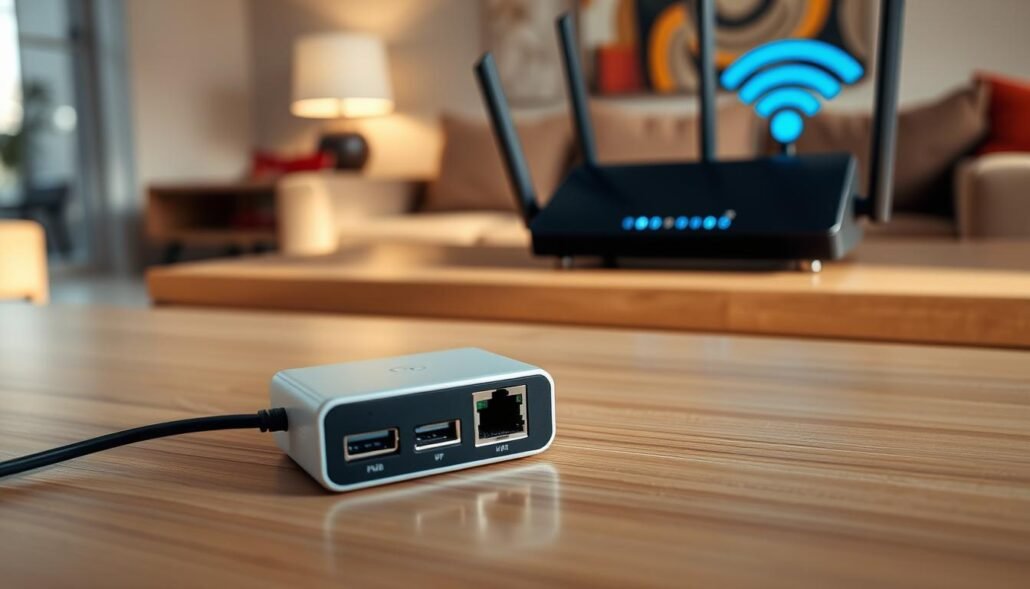
Check if the network service/adapter is detected and enabled
For external USB adapters, reseat the plug and try a different port. For internal modules, confirm the card and antenna leads are seated. Update, reinstall, or roll back drivers when Device Manager shows errors.
Power and placement: antenna, signal strength, and line-of-sight
Position the antenna for clear line‑of‑sight to the router. Move the device closer if signal or speed is poor. Small shifts often yield big improvements in signal‑to‑noise.
Preferred band, roaming aggressiveness, and power management settings
Set the preferred band to 2.4 GHz when older adapters struggle on 5 GHz. Disable aggressive power saving: uncheck “Allow the computer to turn off this device to save power” and set wireless adapter power to Maximum Performance.
- Confirm network service is active before changing router settings.
- Try a known‑good adapter to isolate hardware faults.
- Keep SSID, security type, and passphrase consistent for successful authentication.
Advanced diagnostics and fixes on Windows and the network
Use a set of Windows admin commands and router tests to clear common network stack faults. These steps act on the adapter and the router so you can narrow the issue quickly.
Reset TCP/IP, renew IP, and flush DNS
Open Command Prompt as administrator and run these commands in order:
- netsh winsock reset
- netsh int ip reset
- ipconfig /release
- ipconfig /renew
- ipconfig /flushdns
Reboot after the sequence and check whether the adapter gets a proper address.
Ping the default gateway
Use ipconfig to find the Default Gateway (for example 192.168.1.1). Then ping that address.
Consistent replies with 0% loss mean the device reaches the router and the problem is likely DNS or WAN. Packet loss or no reply points at the router or Wi‑Fi layer.
Driver repair, proxy, and network reset
If connectivity failed after a Windows update, roll back or uninstall the adapter driver in Device Manager and install the latest driver from the vendor’s website.
Turn off any manual proxy (Settings > Network & Internet > Proxy) and verify DNS. Try a public DNS if name resolution fails.
Use Network reset only as a last resort — it removes adapters and returns network settings to defaults. Plan to reconfigure VPNs or virtual switches afterward.
When to try Ethernet and power settings
Plug in an Ethernet cable to confirm WAN access. If wired works, the problem is Wi‑Fi or adapter hardware.
Also set Wireless Adapter Settings to Maximum Performance so power management does not suspend the adapter during use.
Note: Record adapter name, driver date, and any error messages. Follow steps one at a time when testing streaming or video so you can identify the single change that fixes the problem.
Conclusion
, Close the process by verifying compatibility, running simple resets, and logging each change.
Start with the basics: confirm the security mode and test the 2.4 ghz band if a device fails on a 5 ghz SSID. Forget and rejoin the network, then reboot modem and router in the proper order.
Check DHCP and IP address — a 169.254.x.x address shows the router did not assign a lease. Inspect the adapter and antenna, and set power options so the adapter stays active.
Use advanced steps only if needed: run netsh/ipconfig resets, ping the gateway, and roll back or update the driver and router firmware from the vendor website.
Tip: try Ethernet to confirm internet access, keep notes of each change, and share exact error text and model details when asking for help.
FAQ
Why is my receiver not joining the home wireless network?
Check that the receiver’s Wi‑Fi radio is turned on, Airplane mode is off, and the correct SSID is selected. Reboot the receiver, then try selecting the network and entering the wireless password exactly. If another phone or laptop connects fine, the problem is likely the device or its adapter.
How do I know if it’s a 2.4 GHz vs. 5 GHz band issue?
Look up the receiver’s specs or the network list. Many receivers only support 2.4 GHz. If the router uses a 5 GHz‑only SSID or has band steering enabled, create or enable a 2.4 GHz network or set the router to broadcast both bands with distinct SSIDs.
What should I try before doing advanced troubleshooting?
Power cycle the modem and router (unplug 30 seconds, then plug back in). On the receiver, choose Forget network, reselect the SSID, and re-enter the password. Confirm another device connects to the same SSID to isolate whether the issue is the network.
Why does the receiver show an IP address like 169.254.x.x?
That address means DHCP failed and the device assigned a fallback link‑local IP. Reboot the router, check DHCP settings, or assign a correct static IP in the receiver’s network settings within your router’s subnet and gateway range.
Could router security settings block the device?
Yes. Older receivers may not support WPA3 or certain mixed modes. Set the router to WPA2 (AES) or enable legacy compatibility. Also ensure the SSID is broadcast (not hidden) and MAC filtering is disabled or the device’s MAC is allowed.
What role do channel congestion and interference play?
Crowded channels, cordless phones, microwaves, and neighbors can weaken or disrupt the signal. Move the router away from interference sources, change the wireless channel in router settings, and place the receiver closer to the router for testing.
How can I verify the receiver’s wireless adapter is functioning?
Check the device’s network settings or adapter menu to confirm it’s detected and enabled. On devices with removable USB adapters, reseat the adapter and try a different USB port. If possible, test with a known working USB Wi‑Fi adapter or Ethernet connection.
When should I update firmware or drivers?
Update the router firmware if connection problems persist or the router shows known bugs. Update the receiver’s network adapter drivers (or firmware) on the manufacturer’s website. If a recent update caused issues, try rolling back the driver.
What Windows network commands help diagnose and fix issues?
Use Command Prompt as admin to run: ipconfig /release, ipconfig /renew, ipconfig /flushdns, netsh int ip reset. Ping the router’s gateway to check reachability. These steps refresh TCP/IP and can restore DHCP leases.
Should I try Ethernet or a network reset?
Yes. If Ethernet works, the problem is wireless. A network reset on the receiver or a factory reset of the router can clear persistent misconfigurations. Back up settings before resetting the router and note the Wi‑Fi name and password.
Why does the receiver show the SSID but refuse to authenticate after entering the password?
This points to a mismatch in security type, wrong password, or timing issues during handshake. Confirm the password, match encryption (WPA2/AES), and try disabling advanced features like WPS or WPA3 temporarily. Reboot both devices after changes.
What else can I check if signal strength is poor?
Inspect antenna orientation and placement, reduce obstructions, and avoid metal or thick walls between router and receiver. Consider a Wi‑Fi extender, mesh node, or repositioning the router higher for better line‑of‑sight and stronger RSSI readings.
When is it time to contact ISP or device support?
Contact the ISP if multiple devices lose internet after router reboot or the modem shows no service. Contact the receiver or adapter manufacturer if the device never detects networks, fails after firmware updates, or shows hardware errors. Have model numbers and firmware versions ready.


