
This short guide explains what that flashing message means and how to get sound back at home fast.
UE22 often appears after a failed firmware update. If you did not start an update, a universal remote or a wrong button press can place the unit into update mode.
Start with low-risk checks: press Home or Menu to exit, power-cycle the unit, and reassign inputs. If those steps fail, run the input setup or perform a factory reset before attempting an update.
If audio stays muted while video plays, field reports tie this issue to a failing TI DSP on some Pioneer models. That scenario may need board service or a trade-in.
This article walks you through safe at-home diagnostics, simple firmware options, and when to contact U.S. support so you can restore audio without getting stuck.
User intent and what you’ll learn in this troubleshooting guide
A few quick checks will often separate a software hiccup from a hardware fault. This guide targets home theater owners who see a persistent display message and want a clear, time-efficient plan to restore audio without paying for needless service.
Follow a concise path from simple exits and input checks to a controlled factory reset and firmware options. The manual points to a failed update or accidental update mode as the usual cause. We turn those steps into plain language so you can act with confidence.
What you’ll get:
- An ordered checklist that minimizes risk to settings and saves time.
- How to view front-panel and on-screen cues so you don’t worsen the issue.
- Quick tests to isolate HDMI versus S/PDIF and confirm whether the unit still passes video but fails audio.
- Guidance on when to escalate to service, and what details to document for support.
Onkyo receiver: What is the “UE22” error code?
UE22 usually signals that a firmware update failed or the AVR entered update mode. You may see the message on the front display while video still plays. That pattern suggests the audio path is affected but the video processor remains functional.
The manual recommends pressing Home or Menu to exit update mode when the unit entered it by mistake. Many owners report the unit still responds to remote commands, which helps you test exits before deeper steps.
How it appears and what to note
- The display can show the UE22 phrase continuously even if picture is OK.
- Accidental entry often happens via wrong button sequences, commonly from universal remotes.
- Record the exact display wording, model and serial number, and whether the message appears at startup or later.
If menus remain accessible, take photos and capture firmware version. If the front display is frozen with the message, follow the quick checks and factory reset steps before attempting another update.
| Observation | Likely meaning | Next action |
|---|---|---|
| Message at power-on | Failed or interrupted update | Try Home/Menu, then power-cycle |
| Message after hours of use | Possible emerging firmware or hardware issue | Document timing and attempt safe reset |
| Video fine, no audio | Audio path affected but unit alive | Test remote response; capture photos for support |
Common symptoms that accompany UE22
A frequent sign is brief audio interruptions that grow longer over time. Reports show this pattern often leads from intermittent muting to permanent silence.
Typical behaviors to watch for:
- Audio drops out intermittently, then stops completely while the unit still powers on and switches sources.
- HDMI inputs commonly carry video but lose audio, pointing to a fault after HDMI switching in the digital path.
- Individual channels may mute first, with the whole sound field failing as the problem progresses.
- Brief bursts or pops can precede silence; over time those bursts become rarer and quiet dominates.
- The receiver’s controls and meters may act normal even though no output reaches speakers or headphones.
- S/PDIF can show the same failure, helping isolate the fault to internal processing rather than cables.
- Noise artifacts are often absent in mature failures; you may hear nothing despite on-screen signal indicators.
| Symptom | Likely clue | Quick test |
|---|---|---|
| Video but no audio | Processing-stage fault | Swap inputs and check pre-outs |
| Intermittent muting | Thermal/aging component | Cold-start test |
| Silence with normal meters | Decoded audio not reaching amps | Try headphones or pre-out |
Document inputs affected and whether output returns after a cold start to speed diagnosis of the underlying problem.
Likely causes: from software to hardware
Field reports and manuals point to two main paths: software interruption or a failing DSP on the audio board. Start by treating software causes as low-risk and easy to test. If those checks fail, hardware becomes more likely.
Accidental update mode and incomplete firmware
At the software level, a partial or interrupted update can leave the unit stuck in update mode. This may happen after a brief power loss during an update or via an unintended button sequence from a universal remote.
Why it matters: Corrupted firmware can freeze audio processing while video still plays, so recovery steps focus on safe reset and reapplying firmware before assuming a hardware fault.
DSP chip and board failures reported
Extensive owner reports tie many cases to a Texas Instruments dsp that sits on the audio processing board. When that chip or board degrades, audio mutes even though switching and video continue to work.
Signs of a hardware issue: silence after normal playback, brief audio after a cold start that fades as components heat, or repeated failures across years of use.
Heat, age, and operating time as contributors
Thermal cycling and cumulative years of run-time accelerate solder fatigue and component aging. A marginal dsp chip can pass audio when cool but fail as heat builds.
That pattern often moves intermittent muting into permanent silence over time.
- Software: interrupted update or accidental update-mode entry.
- Hardware: failing dsp, chip or audio board components.
- Contributing factors: heat, long operating years, and solder fatigue.
| Cause | Typical sign | Immediate check |
|---|---|---|
| Incomplete firmware/update mode | Message appears after update or power loss | Exit update mode, power-cycle, attempt controlled update |
| Failing DSP chip on audio board | Video OK, no audio; brief sound after cold start | Test pre-outs/headphones; document behavior and model |
| Heat / long years of use | Intermittent muting that worsens over time | Cold-start test and monitor thermal patterns |
Quick checks before you dive into repairs
A short checklist can save time and prevent unnecessary repairs. Run these low-risk steps first to see if the unit returns to normal before attempting a factory reset or firmware update.
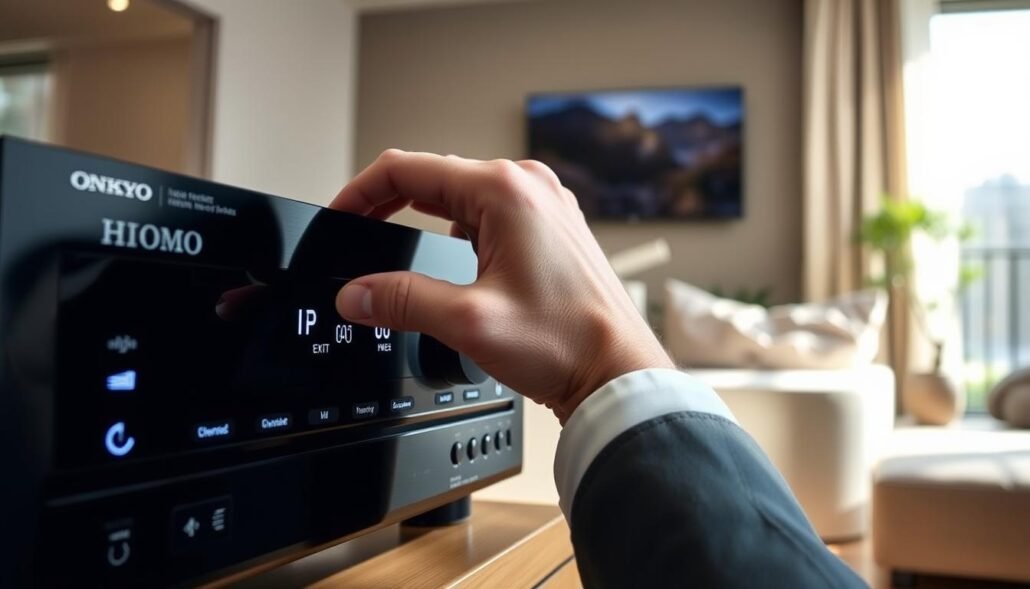
Exit update mode: Press the Home or Menu button on the front panel or remote. This often clears a stuck update and restores audio quickly.
- Verify remote codes: If you use a universal remote, confirm the programmed code matches your exact model. Wrong mappings can trigger unintended sequences.
- Power cycle: Shut down, unplug for a few minutes, then reconnect. Note how long it takes for audio to return and whether the message reappears.
- Reassign inputs: Follow the manual’s input mapping steps to make sure sources are assigned correctly. A misassigned input can look like silence.
- Check cables and speakers: Reseat HDMI and digital cables at both ends. Confirm speaker wiring, speaker A/B settings, and channel trims.
- Try multiple sources: Test HDMI and S/PDIF paths to see if any input delivers audio. If all fail, move to a controlled factory reset per the manual.
| Quick action | Why it helps | Next step |
|---|---|---|
| Home/Menu press | Exits update mode quickly | Test audio immediately |
| Power cycle | Clears transient faults | Observe return time |
| Reassign inputs | Makes source mapping correct | Retest sources |
Tip: Restore network connectivity only when you plan a controlled firmware update. A stable connection reduces update failure and saves time.
Step-by-step: try a factory reset and reconfiguration
Begin by restoring default settings to clear any corrupted configuration that can accompany this display message. Follow the manual sequence (p.55) exactly so the unit returns to factory defaults without partial steps.
Factory reset per the manual (return to defaults)
Use the documented sequence on page 55. Perform the reset while the unit has stable power. After the reset, do a simple power cycle to make sure the system initializes cleanly.
Re-run input setup and speaker configuration
Set only essential items first: language, network, and basic input assignments (see p.28). Then run the speaker setup to pick the correct pattern and confirm each speaker wiring and terminal.
- Run channel test tones and verify each speaker plays.
- Set input format for HDMI and S/PDIF and disable extra processing while testing.
Re-test audio on multiple sources and inputs
Test at least three sources across different inputs to rule out a bad cable or port. If program audio fails but test tones work, record that discrepancy—it’s a useful diagnostic clue.
If audio returns briefly then mutes, note the time and conditions; this helps distinguish a software reset success from a thermal or hardware problem.
| Step | Why it helps | Next action |
|---|---|---|
| Factory reset (p.55) | Clears corrupted settings | Power-cycle and reconfigure |
| Speaker setup | Confirms physical wiring | Run channel tones |
| Multi-source test | Rules out single input faults | Document results and messages |
If the message returns after these steps, move to the controlled firmware update section or consult service. For additional model notes and support links, see detailed model guidance.
Firmware update paths that can clear UE22
If basic troubleshooting doesn’t restore audio, a disciplined firmware approach can be the next safe step. The manual lists a controlled firmware process as a last resort when exits, input setup, and a factory reset fail.
Choose network update only with a stable connection. A flaky network can interrupt an update and worsen the problem. If you have any doubt, prefer a USB method.
- USB update: Format the drive per the manual, place the exact firmware file at the required path, and confirm the model match before inserting the drive.
- Network update: Use this only if your router and internet are stable. Avoid wireless with high packet loss.
- Do not force update mode unless the service instructions for your specific model require it. Forced sequences plus a power interruption can brick the unit.
- Disconnect extras: Remove nonessential HDMI and USB devices to prevent input conflicts during the update.
- Power stability: Ensure a clean power source and never switch off mid-update.
If an update fails or won’t start: verify file integrity, try a different USB drive, and reboot the unit before retrying. If the update starts but fails, note the stage and any messages shown. Keep a copy of the firmware file and your notes; that record helps support or service.
| Situation | Best action | Why it helps |
|---|---|---|
| Network update available | Use only with stable connection | Reduces chance of interruption during transfer |
| USB method | Format drive, verify file, use manual path | Often more reliable than wireless update |
| Update fails to start | Check file, try another USB, reboot and retry | Eliminates drive or file-corruption causes |
| Repeated failures | Stop attempts and contact support | Prevents bricking and documents fault for repair |
When UE22 signals a DSP hardware fault
If audio vanishes after normal playback and software fixes don’t help, suspect a board-level failure. Many field reports tie this pattern to a failing digital signal processor that mutes sound while video and controls remain active.
Real-world evidence includes a reviewer who traced a problem on a popular Pioneer SC-61 to a faulty Texas Instruments dsp chip that stopped decoding audio.
How board problems showed up in owners’ reports
- Symptoms begin intermittent and then move to full audio mute even though video still passes.
- Pioneer once supplied board-level replacements for affected models, but over several years those parts became scarce.
- Owners of older Pioneer Elite units and platform-sharing models reported similar failures after many years of use.
What to check and ask support
| What to record | Why it matters | Next step |
|---|---|---|
| Age in years and purchase date | Impacts warranty and goodwill | Include with service request |
| Model/serial and photos of display | Helps identify historic advisories | Ask about parts and board availability |
| Whether resets/updates were attempted | Distinguishes software vs board issue | Stop further updates if board fault suspected |
If a dsp or board fault is confirmed, ask support about current parts stock, expected turnaround, and trade-in options. For units past warranty, compare repair lead times and parts cost with upgrading to a modern unit that offers current features.
Audio and video behavior to help you diagnose
Video may stay active while sound vanishes; that split behavior points to different internal paths. Internal routing often carries video through a separate chain, so a working picture does not guarantee the audio path is healthy.
Why video can pass while audio remains muted
Measurements from a Pioneer AVR review showed video processing can continue even when the audio DSP stops decoding. This happens because video switching and audio decoding are handled on different boards or chips.
Testing S/PDIF versus HDMI for consistent failure
Start with HDMI sources. If multiple hdmi inputs show clear video but no audio, the problem likely lies in internal audio processing rather than the cable or source.
- Compare an spdif input: if spdif is also silent, the shared audio path or DSP is suspect.
- Try headphones and pre-outs; silence on both points to a fault before amplification stages.
- Watch output during warm-up: sound that drops out after a few minutes suggests thermal degradation.
- Note any clicks, relay actions, or on-screen prompts when audio fails; these clues help service narrow the fault.
- After testing, restore original inputs and labels to keep further diagnosis clean.
| Observed behavior | Likely area | Quick test |
|---|---|---|
| Video present, no audio | Audio processing/DSP | Swap hdmi inputs; test spdif |
| Audio works briefly, then mutes | Thermal/component aging | Cold-start test; monitor time to mute |
| Headphones and pre-outs silent | Before amp stage (processing) | Check digital inputs and firmware state |
Safe troubleshooting checklist you can try today
Follow a short, manual-backed routine at home to narrow down whether this is a software or hardware issue.
Start with vents and ventilation. Give the receiver several inches of clearance and remove dust. Overheating can turn intermittent audio into a repeatable failure over time.
Exit update mode, then power-cycle. Press Home or Menu to leave update mode, unplug or switch power off, wait a full minute, and then test audio on a simple, known-good input like a TV app.
Reseat and swap cables. Reseat HDMI and digital cables, and try a different cable and port for each test to cover a lot of easy failure points quickly and safely.
- Reassign inputs in setup so source mapping matches your components.
- Factory reset if settings may be corrupted, then configure one input and two speakers first.
- Test headphones and pre-outs to see if the processing or amplifier stage is affected.
- Avoid rapid on/off cycles; allow time between changes to protect relays and capacitors.
| Action | Why it helps | Next step |
|---|---|---|
| Ventilation check | Reduces thermal failures | Clean dust, restore clearance |
| Home/Menu + power-cycle | Exits update mode, clears transient faults | Retest known-good input |
| Reseat cables & reassign inputs | Covers common setup mistakes | Try alternate cable/port |
If audio returns only briefly, note how long and under what conditions. If the error message comes back after all safe steps, stop and capture photos of the display, model and serial. Keep a simple log of actions and times — it saves a lot of time when you contact support or service.
Service options in the United States
When service becomes necessary, start by understanding parts availability and realistic turnaround times.
If your unit is out of warranty, expect parts for older models to be scarce. Owners report that Pioneer once shipped replacement DSP boards but later shifted to trade-in offers when stock ran out.
Open a repair ticket with the brand and include photos, model and serial numbers, plus a short troubleshooting log. Ask authorized centers whether they have parts on hand and for an estimated repair time in days.
| Option | Typical price | Turnaround |
|---|---|---|
| Board repair | Varies; request itemized quote | Depends on parts; often days–weeks |
| Brand trade-in | Discounted replacement offers (example: VSX-LX504 ~ $540) | Quicker if parts unavailable |
| Full replacement | Compare retail price vs repair | Immediate after purchase |
Tip: Compare quoted repair price and any warranty on repaired parts with trade-in offers. Factor shipping and diagnostic fees into the total so you can choose the best value.
Replacement considerations if repair isn’t viable
When repair isn’t a clear win, focus on matching or upgrading essential features. Start by listing how many channels you need and which video features matter most.
Channel count matters if you plan Atmos or DTS:X. A 9.2-capable unit keeps future expansion simpler than a 7.2 choice. If budget limits you, confirm pre-outs so you can add amplification later.
HDMI, video, and modern features
Check HDMI version and eARC behavior. Look for 4K/60 support, HDR formats, and gaming features like ALLM/VRR if you game. These video and hdmi items affect daily use more than raw power alone.
Thermal design and brand reliability
Pick models known for good ventilation and firmware updates. A robust thermal design reduces failures over years of heavy use. Compare brands and model histories when weighing price versus longevity.
- Confirm inputs and easy renaming/reassignment for many sources.
- Match room size, speakers sensitivity, and needed amplifier headroom.
- Compare model families: Pioneer SC-LX701/801/502, Marantz SR7011, Denon AVR-X4400H as direct options to match or exceed a 9.2 SC-1522-K.
- Weigh replacement price against future-proofing to avoid another swap soon.
| Factor | What to check | Why it matters |
|---|---|---|
| Channel | 7.2 vs 9.2, pre-outs | Expansion and Atmos speaker support |
| HDMI / video | 2.0/2.1, eARC, ALLM/VRR | TV audio flow and gaming features |
| Thermal & brand | Design, update history | Reliability and fewer future repairs |
| Price | Repair quote vs new model price | Value and long-term ownership cost |
Preventing future issues: best practices
A few steady habits around heat control and firmware timing cut failure risk over years. Keep maintenance simple and regular to avoid repeat problems.
Ventilation and heat management for AVRs
Allow clear airflow. Leave several inches above and to the sides and avoid closed shelves that trap heat.
Clean intake and exhaust paths often. Dust buildup raises internal temperatures and accelerates wear over years.
Update firmware safely and avoid interruptions
Schedule any firmware update when house power is stable. Avoid storms or times when someone might turn off power mid-process.
Prefer USB updates when possible; a local file is a safer way than an unstable network transfer.
Cable, input, and power hygiene to reduce stress
- Label and route cables to reduce strain on HDMI and digital input connectors.
- Reseat speaker and digital connections periodically to prevent oxidation-related dropouts.
- Use a quality surge protector or UPS to protect against brief power events that can corrupt firmware.
- Power down the system if unused for long stretches to reduce heat cycling.
| Action | Why it helps | Easy check |
|---|---|---|
| Ventilation | Reduces internal heat | Measure clearance and clean dust |
| Controlled update | Prevents interrupted installs | Use USB or stable wired network |
| Cable care | Prevents intermittent failures | Label and reseat connections |
Model-specific notes and brand context
Shared platform choices often explain why similar faults appear across related models. After acquisition, many pioneer designs were folded into sibling product lines. That history helps explain a lot of repeated behavior on certain avr families.
Design trade-offs matter. Some pioneer units process internally at 48 kHz when effects are active. Reviews linked that choice to stress on a Texas Instruments dsp on shared boards. Over several years, that combination proved sensitive to heat and age.
Practical takeaways for owners
- Compare model revision numbers and board IDs before assuming a single fix.
- Proactive ventilation and cautious firmware updates extend component life.
- Past support programs used board swaps; when parts ran out, brands offered trade-ins instead.
- Record your purchase year and any prior service—this helps when you ask about goodwill or out-of-warranty options.
| Issue | Impact | Check |
|---|---|---|
| Shared dsp/board design | Multiple models show same silence | Compare board lot and revision |
| 48 kHz internal processing | Added stress over years | Improve ventilation and monitor |
| Parts scarce | Trade-in offers replace repairs | Ask brand support about stock |
Technical sidebar: why a failing DSP mutes audio
A failing digital processor often silences all channels even though the display and video stay active. Field reports link this to TI dsp degradation on some model families. Measurements show video routing can remain OK while audio processing fails.
Signal path overview: inputs, DSP, DAC, amps
The usual path: input selection (HDMI, S/PDIF, analog) feeds the DSP for decoding and processing. That processed stream goes to DACs, then to amplifier stages and speaker outputs.
If the dsp chip stops passing valid frames, nothing reaches the DACs and all speaker outputs go silent at once.

Why it can start intermittent and become permanent
- Early faults show as intermittent audio that may return after a power cycle. This reflects marginal component response to temperature.
- Progressing wear turns intermittent muting into permanent silence at startup.
- Supporting parts—power regulation, clocks and board interconnects—can mimic a failed dsp if they degrade.
- Firmware updates can tweak behavior but cannot restore a physically failing chip.
- Testing pre-outs and headphones helps confirm the mute occurs before amplification.
| Observation | Likely area | Quick check |
|---|---|---|
| Video OK, no sound | DSP / processing | Test pre-outs/headphones |
| Sound returns after cold start | Thermal margin | Monitor time to mute |
| Firmware changes no fix | Physical chip or board | Document and contact service |
What to document before contacting support
A clear record helps support assess warranty options and speed a fix. Gather a few concrete items before you call so the agent can triage quickly and avoid back-and-forth. A tidy file of photos, dates, and steps tells a complete story at a glance.
Error display photos, serial and purchase info
Take sharp photos of the front display and any on-screen messages. Capture the full model name and serial number in one frame if possible. Include the purchase date and retailer to help confirm warranty or goodwill options.
Steps tried and outcomes
List each action you attempted and the result. Note Home/Menu exits, input reassignment, a factory reset, and any firmware attempts. Add the exact file name or firmware version used.
- Record how many times audio returned and for how many days or minutes after power cycles.
- Note the year of purchase and any prior repairs; this context affects repair paths.
- Describe the unit’s environment: cabinet clearance, ventilation, and surge protection in use.
- List cable types and inputs tested (HDMI, S/PDIF) and which inputs showed video but no sound.
- Attach short videos showing the display plus lack of audio when possible.
| Item | Why it helps | Example |
|---|---|---|
| Photos | Visual proof of the message | Front display + on-screen view |
| Model & serial | Identifies board and parts | Full model string, serial number |
| Actions tried | Prevents repeated steps | Factory reset, firmware attempt, outcomes |
Close your note with the preferred resolution—repair, trade-in, or guidance—and add preferred contact windows. That focused packet saves days of email and moves your case faster toward a solution.
Conclusion
Wrap up with a clear path so you can decide fast between quick at-home fixes and longer support options. This short view helps you tell a recoverable software problem from deeper hardware trouble and saves you time when weighing next steps.
Start low-risk: exit update mode, reset, reconfigure, then try a careful firmware update only if needed. If symptoms persist, a failing DSP or board on certain Pioneer-era units is the likeliest cause.
In the United States, outcomes range from paid service (when parts exist) to brand trade-in programs. Keep good documentation; it speeds service, proves history, and helps decide if a targeted replacement for your home theater is the better way forward.
FAQ
How does the UE22 message typically show up on my AVR display or TV?
The message appears as “UE22” on the front panel or as an on-screen alert during power-up or when the unit enters update/firmware mode. It often accompanies muted audio and may prevent normal menu access.
Could a failed firmware update cause this fault?
Yes. An interrupted or corrupted firmware update can leave the system stuck in an update state and trigger that display. Attempting the same update again or forcing a proper USB/network update often clears it if no hardware fault exists.
What symptoms usually come with UE22 besides the code itself?
Common signs include no audio or intermittent cutouts, HDMI video passing while audio is missing, channels dropping over time, and eventual total silence from the amplifiers.
Why might HDMI show video but not audio when this happens?
Video can pass through the HDMI switcher and scaler while the DSP or audio processing path is failed or disabled. That leaves picture intact but mutes the decoded audio stream or preamp outputs.
Could age or heat be why this started after years of use?
Yes. Heat and long operating hours accelerate component wear. Capacitors, solder joints, or DSP-related components can degrade over years, increasing the chance of faults that present as this message.
What quick checks should I try before opening the unit or seeking service?
Power-cycle the unit, disconnect HDMI and other sources, try Home/Menu or input buttons to exit update state, test with the original remote or verify universal remote codes, and try a factory reset per the manual.
How do I perform a proper factory reset and reconfigure afterward?
Follow the model-specific reset steps in the manual to return defaults, then re-run input setup and speaker configuration. After reset, test multiple sources (HDMI, optical, analog) to confirm audio paths.
If a firmware update is recommended, what are safe update paths?
Use the manufacturer’s USB or network update procedure exactly as documented. Ensure a stable power source, avoid interruptions, and use the correct firmware file for your model. If an update fails, retry with a verified file or contact support.
When does UE22 indicate a hardware failure rather than software?
If firmware reflash and factory reset don’t help and symptoms persist—especially intermittent to permanent audio loss—the issue likely lies in DSP or board-level hardware. Field reports often point to DSP chip or main board failures on affected models.
Are replacement boards or DSP chips still available for older units?
Availability varies. Some manufacturers and third-party repair shops offered board replacements in the past, but parts have become scarce for older models. Repair options may be limited and more costly than replacement in many cases.
How can I test whether the problem is HDMI-specific or a broader audio path fault?
Try alternative audio inputs: S/PDIF (optical/coax), analog RCA, or a USB audio source. If these also fail, the fault sits in DSP/DAC or preamp/amp sections. If only HDMI audio fails, inspect HDMI board and settings like passthrough/eARC options.
What documentation should I collect before contacting manufacturer support or a repair shop?
Photograph the front display and any on-screen messages, note the model and serial number, record purchase date and warranty status, and list troubleshooting steps you’ve tried and their results.
If repair cost is high, what should I consider when choosing a replacement unit?
Compare channel count needs (7.2 vs 9.2), HDMI features (4K/8K, eARC, HDMI 2.1), gaming features (ALLM, VRR), thermal design and long-term reliability, and brand service reputation. Balance features against budget and how long you expect to keep the unit.
What preventative measures reduce the risk of this issue recurring on future AVRs?
Keep good ventilation, avoid stacking heat-generating equipment, update firmware carefully with stable power, unplug or use surge protection during storms, and perform periodic reboots instead of leaving the unit under constant heavy load.


