This short guide explains what the HDMI Error shows on TX‑NR units and what you can check right away. In June 2012, OnkyoUSA issued a firmware advisory for several models after internal memory failures caused intermittent video and audio issues.
The update dated 6/8/2012 fixed memory faults but reset settings to factory defaults. Dealers said the install took about ten minutes, yet some systems still showed “No Signal,” audio‑only, or video‑only results.
You’ll learn the simple signal path from player to AVR to display and quick front‑panel and on‑screen checks to rule out a cable or input mixup. We also note useful workarounds used in the field, such as the Sub HDMI Out and a power‑on routine that improved success for many.
Follow the steps here to diagnose the problem, update firmware safely, and restore stable video and audio at home today.
Understanding the HDMI Error on Onkyo TX-NR Receivers
A sudden “No Signal” on your screen usually means the display stopped getting a valid video feed even though audio may still play. This split—picture gone but sound present—points to where the problem lives in the signal chain.
What a blank screen and dropouts indicate
Short losses of picture often happen when the system fails to complete a tight handshake. The devices must exchange EDID and HDCP keys within a small window of time, and a mismatch can blank the video while audio remains.
Why handshakes fail
HDCP authentication, CEC commands, timing differences, and even internal memory faults can all trigger a renegotiation. Legacy internal memory issues from a 2012 advisory showed that faulty memory could destabilize the HDMI pipeline. After firmware fixes many units improved, but intermittent edge cases persisted.
- Dolby Digital and other bitstreams sometimes force a re-handshake when the player switches formats.
- A slow-locking display can delay picture appearance, making the issue seem worse.
- Any single component can trigger a chain-wide renegotiation and ripple failures through the system.
Knowing these mechanics helps you decide whether the player, AVR, or display is most likely at fault and which checks to run next.
Past context: 2012 firmware advisories for TX-NR414/515/616/717/818 models
In June 2012, the manufacturer issued a public advisory after reports of intermittent faults tied to internal memory on certain AV units. A firmware update was posted that day and made available via network and USB to correct a portion of internal memory that could stop working.
Key points from the notice
- The affected models included TX‑NR414, TX‑NR515, TX‑NR616, TX‑NR717, and TX‑NR818, all from the same product line.
- Applying the firmware will reset the unit to factory defaults, so note passwords and settings before you start.
- People on the forum reported the update took about 10 minutes end‑to‑end, though a June 5 network build shared the same code body.
What happened after the update
Most units accepted the firmware, but in some cases a lingering No Signal error or audio/video mismatch remained. Dealers used the Sub HDMI Out as a same‑day workaround while investigations continued.
| Item | Reported behavior | Typical action |
|---|---|---|
| Internal memory fault | Intermittent drops and re‑handshakes | Firmware update via network/USB |
| Post‑update state | Some units lost custom settings | Write down settings; restore after update |
| Temporary fixes | Power‑on quirks; a lot of HDMI symptoms in some setups | Use Sub HDMI Out or enable Network Standby selectively |
If your unit is from those years ago, apply all current updates and track system behavior by day and input. That timeline helps support triage if further service is needed.
Main causes of HDMI issues in home AVR setups
Many HDMI problems in a home AV setup trace back to simple wiring or timing mismatches between components. A poor cable or a weak connection can pass audio while failing video at higher resolutions.
Field reports from the 2012 forum noted “No Signal,” audio‑only, and video‑only symptoms after updates. Dealers sometimes found success by using the Sub HDMI Out. Network Standby helped power‑on timing but occasionally added oddities.
- Marginal cables and long runs that lose bandwidth at high refresh rates.
- Port compatibility or HDCP/EDID mismatches between player, AVR, and display.
- CEC control or power sequencing that changes inputs or timing unexpectedly.
- Environmental factors—tight racks, heat, or bent connectors—degrading signal integrity.
| Cause | Symptom | Quick fix |
|---|---|---|
| Bad cable/length | Video drops; audio may remain | Swap to a short, certified cable |
| Handshake/firmware mismatch | Intermittent locks or no picture | Standardize formats; update firmware |
| Timing/CEC quirks | Inputs switch or fail at power‑on | Disable CEC or change power‑on sequence |
Quick checks before deep troubleshooting
Start with quick checks that take only a few minutes and often find simple faults before you dive deeper.
Confirm inputs, outputs, and the correct cable path first. Verify the path from player to AVR input, then from the AVR main output to the TV input. Make sure the display shows the selected input on its screen today.
Basic verification steps
- Look at the front panel to confirm the receiver displays the right input and an audio lock before blaming video.
- Swap to a short, certified cable to rule out faulty or long cables quickly.
- Try the Sub HDMI Out to the same TV input; dealers in 2012 reported this often restored picture as a fast diagnostic.
- If audio appears but no picture, toggle the AVR output or switch inputs to force a fresh handshake.
Power cycle sequence to clear temporary faults
Turn off all gear, unplug power for 60 seconds, then power on in this order: display first, receiver second, player last. Many users found that unplugging power briefly cleared a No Signal screen.
| Check | What to look for | Quick action |
|---|---|---|
| Cable path | Player → AVR input → AVR main output → TV | Confirm inputs and swap to known‑good cable |
| Front display status | Input name and audio format lock | Use menu status pages to confirm detection |
| Output test | Main output fails but Sub works | Use Sub HDMI Out to verify video stage |
| Resolution sensitivity | High rates may drop video while audio stays | Reduce player output to 1080p/60 and retest |
Check and update firmware on your Onkyo receiver
Open the setup menu and verify the current firmware version so you know whether an update is needed.
Network update: access the menu and verify versions
Navigate to the setup section that lists software or system info. If a network update appears for your model, follow the on‑screen prompts.
Keep the avr powered and wait; field reports show this process takes about time—roughly 10 minutes—and should not be interrupted.
USB update: when the network option doesn’t appear
If no network entry shows, download the correct USB firmware file for your model from the support site. Copy it to a FAT‑formatted drive and use the unit’s USB update routine.
After updating: confirming completion and what to expect on first boot
Many units reset to factory settings; re-enter input names, speaker setup, and network credentials after the boot finishes.
- Don’t cut power mid‑process. If progress halts, follow any on‑screen advice, then power cycle if instructed.
- Re‑test player and display at a conservative resolution and watch for handshake or hdmi instability affecting video or audio.
- Keep a lot of notes on versions before and after. If issues or an error persist, contact support with serial and firmware details for your receivers.
| Action | Expected result | Next step |
|---|---|---|
| Network update | On‑screen progress | Wait ~10 minutes |
| USB update | Manual install | Confirm version in menu |
| Post‑update | Factory reset possible | Re‑enter settings |
Important: backing up and restoring your settings after a reset
Before you update firmware, capture your current menu pages so you can rebuild settings if a reset occurs.
Document every key value you rely on: input assignments, speaker distances and levels, network credentials, and any custom video options.
Snap photos of relevant screens or export what the unit allows. This saves a lot of time when you restore the system and reduces guesswork.
- Restore essential settings first to validate stability; add nonessential tweaks later.
- Keep a dated record of the configuration so you can answer questions from support or a technician.
- Plan a short test run: verify each input, surround mode, and video path before returning the product to regular use.
| Action | Why it matters | Suggested order |
|---|---|---|
| Document inputs & names | Reduces confusion during restore | Do first |
| Save speaker distances/levels | Ensures correct audio balance | Do second |
| Record network credentials | Needed for updates and streaming | Do third |
| Test basic playback | Confirms stable baseline | Allow dedicated test time |
If you manage multiple similar units, create a standard checklist to apply the same proven configuration each time. For reference and service notes, consult the support pages.
HDMI handshake best practices: TV, receiver, and player order
Proper startup order is a simple way to reduce handshake errors between TV, AVR, and player. A consistent sequence lets the display advertise its capabilities before negotiation starts.
Recommended startup sequence to stabilize video and sound
Power on the display first. Wait until its input and on‑screen menus are fully visible.
Next, power the AVR and let it complete its boot and input detection. Finally, start the player.
If the display is slow to lock, add a short delay before the player so EDID and HDCP settle.
When audio works but video doesn’t (and vice versa)
- Sound but no picture: briefly switch the AVR’s HDMI output to the Sub output or another compatible output to force a fresh handshake.
- Picture but no sound: toggle the player’s audio between bitstream and PCM to see which setting the AVR accepts.
- Start with a conservative resolution (1080p/60) and stereo PCM. After video is stable, step up to Dolby Digital or higher formats.
| Action | Why | Quick result |
|---|---|---|
| Staged power on | Lets display report capabilities | Cleaner handshake |
| Switch output briefly | Forces renegotiation | Often restores picture |
| Limit CEC during testing | Prevents simultaneous starts | Isolates faulty link |
Keep notes on which way worked best for your exact gear. Different brands handle handshakes with slightly different timing, and documenting results helps you repeat a successful routine.
Onkyo receiver: How do I fix the “HDMI Error” on TX-NR models?
Start with simple, hands‑on checks that often reveal whether the problem is a bad cable, a menu setting, or a firmware fault.
Step-by-step: cables, firmware, reset, and settings to review
Inspect and reseat all HDMI cables. Then test with a short, certified cable. Many failures look like a serious fault but start with marginal cables.
Update the unit’s firmware if an update is available. The process may reset settings and takes roughly ten minutes. If you would like a quick test after updating, restore only essential settings first.
- Power cycle in order: display, receiver, player to clear stale handshakes.
- Set the player to 1080p/60 and audio to PCM for initial testing; move to bitstream and surround after stability.
- Confirm input assignments and HDMI output selection in the menu; misassignments mimic hardware issues.
- If Main HDMI Out shows “No Signal,” try the Sub HDMI Out to the same TV input as a temporary workaround.
| Action | Why | Result |
|---|---|---|
| Swap cable | Eliminates marginal connections | Often restores picture |
| Use Sub HDMI Out | Bypasses main output stage | Quick temporary picture |
| Power cycle | Resets handshake | Clears transient issue |
If symptoms persist on one player or input, document the combinations and times. Swap players and test direct to the TV to isolate the AVR path. Escalate to support with your firmware version, serial number, and a short fault log.
HDMI cables, lengths, and quality considerations
Cable quality often decides whether a setup passes full video bandwidth or only audio.
User and dealer reports from 2012 showed swapping outputs or cords sometimes cleared a “No Signal.” That history highlights cable integrity alongside firmware state.
Keep runs short and simple. Use certified high‑speed cables for typical rack‑to‑TV distances. Longer runs lose a lot of signal and make errors more likely.
For long runs, choose active or optical solutions as the best way to maintain high‑bitrate video and multichannel audio. Avoid inline adapters and extra couplers; each link adds insertion loss.
- Test suspect links with a known‑good short cable; if stability improves, replace the suspect cable.
- Don’t overpay for brand names; judge price and product by certification and build for the required length.
- Label and date cables so you can track aging. New players or components may stress bandwidth differently, revealing weak links.
| Type | Best for | Notes |
|---|---|---|
| Passive high‑speed | Short runs | Cost efficient; reliable for 1080p |
| Active cable | Long runs | Maintains video and audio integrity |
| Optical/HDMI extender | Very long or difficult routes | Right way for high bitrate and Dolby Digital content |
Receiver menu settings to verify for audio and video
Check a few menu entries before assuming hardware failure; many problems hide in misassigned inputs or output choices.
Input mapping and output resolution
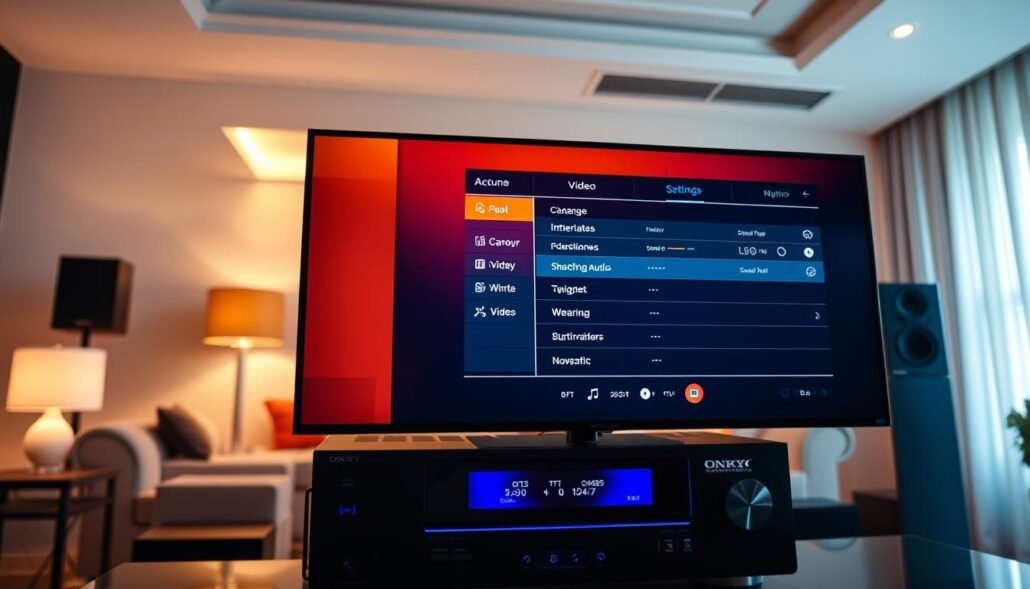
Open the main menu and confirm Input Assign so each player is mapped to the correct HDMI input and screen label. Mislabels can make a working source look dead.
Set the output resolution to Follow (Auto) or lock it to a value your display supports. If video drops, try a lower resolution for stability, then step up.
Passthrough, ports, and audio format selection
Verify passthrough and which output (Main/Sub) is active so EDID is passed correctly. A wrong port can send video to the wrong display.
- Start with PCM: set the player to PCM for tests. This often avoids handshake issues with bitstream formats.
- Then test Dolby Digital: switch to bitstream and compare if audio or lock times differ.
- Disable CEC/ARC during testing to remove extra variables, then re-enable once stable.
Processing, firmware, and saving changes
Turn off extra audio processing and lip‑sync adjustments while isolating a problem. Less processing reduces points of failure.
Confirm firmware version in the setup menu after updates so you know which build you are testing. Save your settings after each change so you can revert quickly if needed.
| Check | Why | Quick action |
|---|---|---|
| Input Assign | Maps source to screen | Correct mapping |
| Output resolution | Stability vs. capability | Use Follow or lower res |
| Audio format | Bitstream vs PCM behavior | Test PCM first, then Dolby Digital |
CEC/ARC settings: RIHD, TV audio return, and standby behavior
Network Standby can make your system come alive faster by keeping parts partially awake. Dealers noted that enabling it solved some power‑on problems but introduced timing edge cases in other installations. Test both modes to see which works best for your setup today.
RIHD (Onkyo’s CEC) lets devices control each other. This convenience can also cause unwanted input switching or commands during boot. Disable RIHD while troubleshooting to see if stability improves.
Practical checks and quick options to try
- ARC port: confirm the TV uses the ARC‑labeled HDMI and that both sides enable audio return. If unsure, disable ARC to simplify the link.
- Standby vs full power: compare a full power cycle with a wake from standby. If a problem appears only after standby, timing or CEC commands are likely involved.
- Audio baseline: force TV audio to PCM stereo when ARC is active. Once stable, try Dolby Digital return to confirm format handling.
- Selective CEC: enable only the features you want (power sync, input control) rather than the full set to reduce surprises.
| Setting | Why it matters | Test action |
|---|---|---|
| Network Standby | Speeds handshake after wake; can expose timing bugs | Try off vs on; log behavior and time to failure |
| RIHD / CEC | Automatic control across devices; may switch inputs | Disable during troubleshooting; re-enable selectively |
| ARC | Routes TV audio back to AVR; needs correct port and format | Use PCM for baseline, then test Dolby Digital |
Source device and display setup: players, TVs, and screen settings
Begin troubleshooting at the source: set the player’s output to a safe resolution and simple audio format before testing through the AVR. This lowers handshake complexity and narrows where issues occur.
Blu‑ray/player output formats, frame rate, and color space
Set the player to 1080p/60 and 8‑bit color for initial tests. Use PCM audio first, then switch to Dolby Digital to confirm bitstream behavior.
Reduce frame rate or color depth if the screen blanks. If one player model triggers dropouts, test a different player on the same input and cable to isolate the source.
TV/Display HDMI ports, HDCP versions, and picture mode conflicts
Try alternate HDMI ports on the display; ports vary in capability and some enable ARC, which changes negotiation. Also confirm HDCP compatibility and disable motion processing or VRR while testing.
| Check | Why it matters | Quick action |
|---|---|---|
| Player output | Limits handshake complexity | Lock to 1080p/60, PCM then test Dolby Digital |
| TV port used | Ports differ in features and HDCP | Try non‑ARC port and compare |
| Picture mode/settings | Color space or HDR can force conversions | Use standard/full RGB or disable HDR pass‑through |
| Firmware | EDID/HDCP updates fix real‑world issues | Keep player and display current |
Testing, isolating, and documenting the issue over time
Begin by removing variables: test a single player connected directly to the display. This confirms whether a component in the chain causes the fault.
- Connect the player straight to the screen to verify stable video and audio. If stable, reintroduce the AVR to isolate the failing link.
- Swap one thing at a time—cable, port, or setting—so each pass shows which change made a difference.
- Run content that switches formats (menu to feature) to observe mid-stream renegotiation, including one Dolby Digital check.
Document, repeat, and report
Keep a daily log with exact time, input, format, and case notes. Repeat tests at different times of day to rule out thermal or power variables.
Capture photos of on-screen messages and status screens. Write focused questions for support—did the issue appear with one player, one input, or one content type? Summarize findings so support can reproduce the way you saw the fault.
Differences across TX‑NR models and production years
Two units that look identical from the front can behave very differently once powered and connected.
Production runs and component choices can change across the line. Some years used different HDMI chipsets or memory chips. That hardware change alone can alter handshake timing and EDID parsing.
Integrators reported three TX‑NR616 units showing intermittent dropouts while another unit from the same line, installed a month earlier, did not. This pattern highlights how small internal differences matter.
Why some units show problems while others don’t
Minor firmware or hardware variances affect how an avr parses a player’s EDID and locks onto a Dolby Digital stream. Later production years often include improved firmware and updated components that reduce failures.
Capture serial numbers when you document a fault. Two products with identical front panels may still differ by production run, and that detail helps support or repair decisions.
| Factor | Effect | Action |
|---|---|---|
| HDMI chipset revision | Changes handshake timing | Try alternate player or lower resolution |
| Memory/firmware build | EDID parsing and stability vary | Check release notes; apply updates |
| Model year | Later years often more stable | Consider upgrade if stability is priority |
| Player/display pairing | Some combinations work better | Test different inputs and defaults |
Community insights: what people reported on the Onkyo forum
Users on the support boards described both fast recoveries and frustrating repeat symptoms after updating.
Many people said the June firmware applied in about ten minutes. After reconfiguring settings, a lot of systems returned to normal and several posters offered thanks for the quick action.
Other people kept seeing lingering issues, such as a “No Signal” error, audio‑only or video‑only scenes, especially after wake or input switching.
Successful updates, remaining issues, and dealer workarounds
- Dealers often used the Sub HDMI Out as a practical workaround to restore picture when the main output failed.
- Network Standby helped some power‑on sequences today but increased HDMI instability for others.
- Keeping players and displays updated reduced a lot of handshake anomalies, particularly during format changes.
- Switching a player from bitstream (Dolby Digital) to PCM altered stability in many reports.
- Threads stressed that a single thing—like a bad cable or wrong port—can mimic larger faults, so a stepwise check is best.
| Topic | Community report | Common action |
|---|---|---|
| Update time | Applied in ~10 minutes for many | Reconfigure settings; test inputs |
| Remaining issues | No Signal or audio‑only/video‑only | Try Sub output; swap cables; log events |
| Power behavior | Network Standby mixed results | Test on vs off per setup |
| Player formats | Bitstream vs PCM changed results | Start with PCM, then test Dolby Digital |
When to contact Onkyo support or consider service
If local troubleshooting hasn’t cleared the fault, it’s time to prepare a clear case before contacting support. Document exact symptoms, firmware version, input-by-input behavior, and any steps you tried.
Bring focused questions to the call so the technician can act quickly. Note dates, times, which player triggered the issue, and whether swapping outputs delivered a temporary fix—dealers once reported customers holding final payment until the problem was resolved.
Out‑of‑warranty checklist and tradeoffs
- Compare the estimated repair price (parts + labor) to current models on the same product line.
- Ask service about typical turnaround time and whether a loaner or temporary bypass (player→TV + TV ARC for audio) is available for a month.
- If an HDMI board is suspected, request flat‑rate repair options and parts availability before approving work.
- If the issue repeats across different models, test whether one common player or display is the root cause.
| Question to ask | Why it matters | Expected answer |
|---|---|---|
| Is my serial in a known affected range? | May qualify for bulletin or goodwill service | Yes / No and any bulletin ID |
| Flat‑rate for HDMI board | Helps weigh repair vs replacement | Fixed price + parts ETA |
| Turnaround time | Impacts living with a bypass | Days or weeks estimate |
Share concise logs if you want escalation to engineering. Keep receipts and service records to support any goodwill adjustments and to help decide whether the repair price justifies staying with the current unit or moving to a newer model.
Conclusion
A clear routine—cable check, firmware install, and staged power‑on is a reliable way to restore stable video and audio in most systems.
Start with simple player settings: set output to 1080p/60 and PCM. Verify a short, certified cable and try the Sub HDMI Out or a staged power sequence if an error appears. Keep notes of what worked; those records save a lot of time.
Community threads from past years and forum posts offer practical tips you can apply at home today. If problems persist after careful testing, weigh service versus replacement based on age, downtime tolerance, and cost difference.
Thanks for following a methodical approach. thx, thx.
FAQ
What does the “No Signal” screen and intermittent audio/video dropouts indicate?
These symptoms typically point to a failed HDMI handshake between components. That can show as HDCP negotiation problems, mismatched CEC signals, timing issues, or faults in the unit’s internal memory that store HDMI states. Check cables and power sequence first to rule out simple causes.
Why do HDMI handshakes fail — is it HDCP, CEC, timing, or internal memory?
All of those can cause failures. HDCP version mismatches block video. CEC/RIHD conflicts can confuse device control and switching. Poor timing during power-up prevents a clean handshake. Older firmware and corrupted internal memory have also been documented to cause intermittent HDMI errors on certain TX-NR series units.
What was the 2012 advisory for TX‑NR414/515/616/717/818 models?
In 2012 the manufacturer issued a notice about intermittent operational issues tied to internal memory handling. The advisory recommended firmware updates and cautioned that applying firmware could reset settings to factory defaults, so users should back up preferences.
Will a firmware update reset my settings?
Yes — some updates restore factory defaults. Always record your input assignments, speaker settings, and custom tweaks before updating so you can restore them afterward.
What common causes create HDMI problems in a home AVR setup?
Frequent causes include damaged or low‑quality HDMI cables, devices with incompatible HDCP versions, improper input/output routing, CEC conflicts, outdated firmware, and intermittent internal hardware faults.
What quick checks should I run before deep troubleshooting?
Confirm each device is on the correct input/output and that the cable path runs receiver → TV (or Sub HDMI Out when used). Try a different HDMI cable, use a different TV HDMI port, and power-cycle components in the correct order.
What is the correct power cycle sequence to clear temporary faults?
Turn off all devices. Unplug the receiver and display for 30 seconds. Plug the display in and turn it on first, then power on the source (Blu‑ray, game console), and finally the AVR. This helps ensure a stable handshake.
How do I check and update firmware on my unit via network?
In the setup menu look for “System” → “Network Update” or “Firmware Update.” Connect the receiver to your home network, select the network update option, and follow on‑screen prompts to verify and install the latest version.
What if the network update option is missing — can I use USB?
Yes. Download the correct firmware file from the manufacturer’s support site onto a FAT32 USB stick. Insert the stick into the receiver’s USB port and follow the manual’s USB update procedure. If unsure, consult the PDF instructions for your exact model.
How do I confirm a firmware update completed successfully?
After reboot the receiver will display the new firmware version in the System or Info menu. Expect a longer first boot while the unit initializes; verify inputs and sound afterward and reapply your saved settings if needed.
How should I back up and restore settings after a reset?
Manually record key settings (input assign, speaker distances/levels, network, and custom presets). Some models allow export/import via USB — check the manual. After a reset or update, re-enter values or import the saved file to restore behavior.
What startup sequence stabilizes video and sound between TV, AVR, and player?
Power on display first, then the source device, then the AVR. If using ARC, enable TV‑side ARC/CEC after the devices are powered. This order reduces timing conflicts during HDMI handshakes.
Audio works but video doesn’t (or vice versa) — what should I try?
Swap HDMI cables and ports, confirm output resolution from the source matches the display, disable passthrough on the AVR to test direct connection, and try toggling CEC/ARC settings because these commonly affect only video or only audio.
What step‑by‑step actions resolve the “HDMI error” on TX‑NR units?
Checklist: 1) Replace with a high‑speed HDMI cable. 2) Power cycle in correct order. 3) Update firmware (network or USB). 4) Reset the unit to factory if firmware alone fails, then reconfigure settings. 5) Test single‑component connections to isolate the failing link.
When is using the Sub HDMI Out a useful workaround?
If the main HDMI output fails to pass video but audio works, routing video via the Sub HDMI Out to the TV can restore picture while keeping audio routed through the AVR. Use this temporarily while diagnosing the root cause.
How do cable length and quality affect HDMI reliability?
Long or poor‑quality cables increase signal degradation and handshake failures. For lengths over 15 feet, use certified high‑speed cables or active/optical HDMI solutions to maintain stable HDCP and 4K/HD signals.
Which menu settings should I verify for sound and picture?
Check Input Assign, Video Resolution/Output, HDMI Passthrough, and Audio Input settings. Confirm decoding options like Dolby Digital vs. PCM on the player and ensure sample rates match the AVR’s capabilities.
How do CEC/ARC and Network Standby affect behavior?
CEC (RIHD) can automate switching but also introduce control conflicts; try disabling it to isolate problems. Network Standby lets devices wake via network but can create power‑on timing issues that interfere with HDMI handshakes.
What should I verify on source devices and displays?
Confirm player output formats (bitstream vs. PCM), resolution and frame rate settings, and color space. On the TV, check which HDMI ports support HDCP/ARC and whether picture modes like HDR or motion smoothing conflict with the AVR’s passthrough.
How can I test and document the issue to find the failing link?
Run single‑component tests: connect source → TV directly, source → AVR only, and try alternate cables and ports. Log each test, firmware versions, and time of failure to spot patterns that point to a device or cable.
Why do some TX‑NR units fail while others do not?
Variations in production runs, firmware levels, and use cases explain differences. Units with older firmware or heavy CEC/ARC usage showed issues more often than updated, lightly configured systems.
What did users report on the community forums about fixes and workarounds?
Forum reports include successful resolution via firmware updates, temporary relief using Sub HDMI Out, and cases requiring service for hardware faults. Dealers sometimes reprogram or replace boards when software steps failed.
When should I contact support or consider professional service?
Contact support if firmware updates, resets, and cable swaps don’t fix intermittent errors. If the unit is out of warranty, weigh repair costs versus replacement — common failing parts and labor can become costly compared with newer models.