Symptom: your television powers down but an AVR or soundbar stays on. This breaks the power sync that CEC is supposed to provide.
Quick reality check: HDMI convenience works great when brands match, but mixed setups often show inconsistent power behavior. Many makers hide CEC under a brand name in menus.
This short guide focuses on the power-off handshake, not volume quirks. It applies whether the control feature is listed as CEC or a manufacturer label.
By receiver we mean the typical U.S. living-room hub: an AVR, a soundbar acting as a receiver, or an HDMI-ARC/eARC audio unit. Pick the right device before troubleshooting.
The fastest path saves time: verify settings, reset cables and ports, then isolate the single device that breaks the chain. CEC faults can look remote-related because commands ride over hdmi and mimic remote signals.
What to expect next: a step-by-step checklist you can run at home in one sitting with no special tools.
Why HDMI-CEC power sync fails in real-world home theater setups
In many home setups, a single misconfigured device breaks the expected power handshake.
What it does: CEC is a simple communication protocol that sends commands over an HDMI cable so one device can change another device’s state. The specific command family that matters is System Standby, which tells linked devices to enter standby together.
Partial support and defaults: Manufacturers often brand CEC with trade names (Anynet+, SimpLink, BRAVIA Link) and may not implement every command. Many tvs and devices ship with CEC off or only partially enabled, so the system never sends or never obeys the standby command.
Weakest-link reality: A streaming stick, console, cable box, or an HDMI switch can block or override the chain. Poor cable fit or a marginal pin 13 connection can also cause intermittent behavior.

| Cause | Typical effect | Quick check |
|---|---|---|
| CEC disabled | No standby commands sent | Enable CEC in menus |
| Partial implementation | Volume works but standby fails | Check device firmware |
| Faulty switch or cable | Intermittent or no control | Test direct TV-to-receiver link |
Confirm HDMI-CEC is supported and enabled on your TV, receiver, and connected devices
Begin with a quick inventory: does each HDMI device expose a CEC option in its menus?
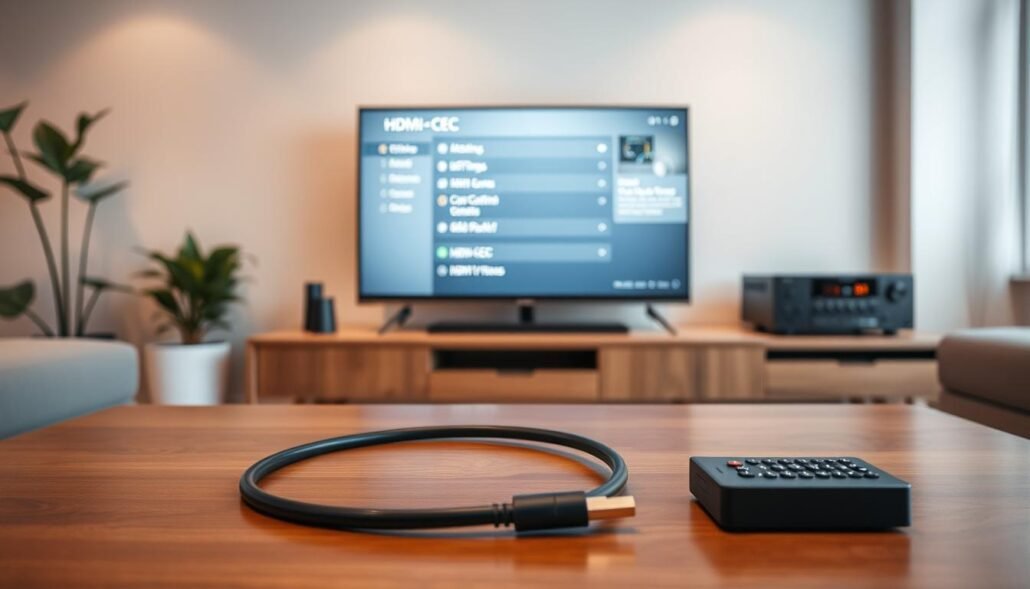
Search for brand names, not the literal label. Many tvs hide CEC under trade names like Anynet+, SimpLink, BRAVIA Sync, or simply “CEC.” Look in General, External Device Manager, or HDMI areas of the menu.
Find the CEC setting under the brand name on your TV menu
Example path for Samsung: Settings → General → External Device Manager → Anynet+ (HDMI‑CEC) → On. Use similar paths on other models to find the toggle and enable it.
Check receiver and soundbar HDMI toggles and ARC/system audio
Receivers and soundbars usually have an HDMI control toggle plus an ARC/eARC or system audio setting. If ARC is tied to the same toggle, turning control off can also cut audio over HDMI.
| Component | What to check | Why it matters |
|---|---|---|
| TV | Brand-named CEC in menu | Sends standby commands |
| Receiver | HDMI control + ARC link | May accept or block power-off |
| Streaming box / console | Per-device CEC/power options | Can ignore or force standby |
Verify each HDMI device’s CEC setting, especially consoles and streaming boxes
Game consoles often default to off. Streaming sticks may enable CEC by default. Check every device and record current settings before changing anything.
Use the TV remote as a quick test: if the remote changes receiver volume but not power state, the link that handles standby is likely blocked. Document what’s enabled on TV, receiver, and each device to avoid guesswork.
How to resolve HDMI-CEC power sync problems
Start by resetting power to clear any stuck HDMI handshakes between devices. A short, ordered restart often restores the standby signal without deeper changes.
Power-cycle the whole system
- Turn off all components and the remote-controlled power strips.
- Unplug TV and receiver from power and disconnect all hdmi cables.
- Wait 60–120 seconds, plug the TV back in first, then reconnect hdmi and power devices one at a time.
Update firmware and verify settings
Update the TV, receiver, and every box or streamer. Firmware patches often fix cec and power bugs. After updates, re-check each device’s control setting.
Cable, switches, and rebuilding the chain
Inspect hdmi cable fit and swap to a known-good hdmi cable if connectors are loose or pins look bent.
Temporarily remove any switches or adapters; cheap hardware can block the single conductor used for cec signaling.
Reconnect only TV ↔ receiver first. Test power-off with the remote. Add one device at a time and repeat the test to find the problem source.
| Action | Why it helps | Quick test |
|---|---|---|
| Power-cycle | Clears stuck handshakes | Turn TV off, watch receiver follow |
| Firmware update | Fixes protocol bugs | Check version and retry power-off |
| Swap cable | Removes physical faults | Use known-good hdmi cable |
Sanity check: use the TV remote to power down and watch whether the receiver follows within a few seconds. Repeat 2–3 times to confirm stability.
Device-specific fixes for common setups in the United States
Targeting specific brands and boxes often solves stray power or input behavior faster. Below are concise, menu-level steps you can try for the most common setups in U.S. homes.
DIRECTV receivers and clients
Older H/HR receivers: open MENU → Settings & Help → Settings → Display → Video → HDMI Control Off.
C‑series Genie clients: use MENU → Settings → Display → Video → HDMI Control Off.
When to use this: disable that box if you see random input swaps or devices waking unexpectedly. Turning off HDMI control on a single box often stabilizes the whole link for a quick diagnosis.
Gemini boxes
Gemini boxes do not provide an on‑box toggle to disable HDMI Control. The correct workaround is to turn off CEC in your TV menu (search the TV menu for the brand name used by your maker).
Trade‑off: disabling CEC at the TV removes control for all connected devices, so use this when the Gemini is the main box or when other devices can be controlled separately.
Xbox and PlayStation consoles
Xbox Series X/S: Settings → General → TV & display options → TV & A/V power options → HDMI‑CEC. Keep it enabled but adjust sub‑toggles like “Console turns on other devices” or “Other devices can turn console off” to avoid control conflicts.
PlayStation 5 / PS4: Settings → System → HDMI → Enable HDMI Device Link. Toggle this off to test whether the console is preventing other devices from entering standby.
| Device | Menu path | Why try it |
|---|---|---|
| DIRECTV H/HR | MENU → Settings & Help → Settings → Display → Video → HDMI Control Off | Stops stray commands from that receiver |
| DIRECTV C-series | MENU → Settings → Display → Video → HDMI Control Off | Quick diagnostic for power/input problems |
| Gemini | No on‑box toggle; disable TV CEC in TV menu | Necessary because box lacks a control setting |
| Xbox | Settings → General → TV & display options → HDMI‑CEC | Fine‑tune who can wake or power down devices |
| PlayStation | Settings → System → HDMI → Enable HDMI Device Link | Toggle to test console influence on standby |
- After each change, use your normal remote to power the set off and watch whether the receiver and any attached box follow.
- Test each change one at a time and wait a short time between attempts to confirm stable behavior.
Conclusion
A steady power handshake starts with clean settings, solid connections, and a simple reboot sequence.
Confirm each device has its control setting set correctly, then power-cycle the chain to clear stuck signals. Next, isolate one box at a time to find the single component that breaks standby.
Treat HDMI switches and adapters as early suspects; removing them often restores normal behavior. If the setup only works with one device disconnected, keep that device’s control disabled or restrict its power permissions rather than disabling CEC everywhere.
Practical caution: turning control off can stop ARC audio. If audio breaks, re-enable control and use per-device power options so sound stays intact.
Quick stable-setup checklist: firmware up to date, known-good hdmi cable and cables, minimal adapters, and one designated device allowed to control power.
FAQ
Why does HDMI-CEC power sync fail in home theater setups?
Multiple brands implement Consumer Electronics Control differently. One device may not pass standby or power commands correctly, firmware can be inconsistent, and HDMI cables, switches, or adapters can break the command chain. These real-world factors cause inconsistent power sync between TV, receiver, and sources.
What does HDMI-CEC do and why does “System Standby” matter?
CEC lets devices send basic commands like power, input select, and play/pause over HDMI. System Standby is the function that asks all linked devices to enter standby. If System Standby is disabled or blocked on any device, the chain stops and some gear stays powered on.
Why might one device break the HDMI-CEC chain while others work?
A single device with partial CEC support, outdated firmware, or a poor HDMI port connection can fail to relay commands. Even if most gear looks fine, the weakest link prevents full two-way control and power-off propagation.
How can I confirm CEC support and enable it on my TV, receiver, and devices?
Look in each device’s settings for the brand name used for CEC (e.g., Anynet+ for Samsung, Bravia Sync for Sony, Simplink for LG, Viera Link for Panasonic, HDMI Control for many receivers). Enable HDMI Control, System Audio or ARC/CEC options on the receiver and enable CEC on streaming boxes, consoles, and set-top boxes.
Where is the HDMI-CEC setting located on different TV brands?
Each brand uses its own menu label. Examples: Samsung = Anynet+, Sony = Bravia Sync, LG = Simplink, Panasonic = Viera Link. Check the TV’s settings under General, External Inputs, or HDMI settings and toggle the control feature on.
What receiver and soundbar settings affect ARC and CEC link behavior?
Enable HDMI Control or CEC on the receiver, enable ARC or eARC if using the TV’s audio return, and turn on System Audio or HDMI Audio Control. Make sure the receiver’s standby and auto-power settings allow it to respond to TV commands.
How do I verify CEC on game consoles and streaming boxes?
Check system or display settings on consoles: Xbox and PlayStation list HDMI power or CEC options under system settings. Streaming devices like Roku, Apple TV, or Amazon Fire have HDMI control options in their settings. Disable or enable as needed to match your system behavior.
What is the first step to resolve HDMI-CEC power problems?
Power-cycle the entire setup. Turn off and unplug the TV, receiver, and all HDMI devices for 30–60 seconds, then power them up in this order: TV, receiver, then sources. This resets CEC handshakes and often restores correct behavior.
How important are firmware updates for restoring HDMI-CEC functions?
Very important. Manufacturers regularly fix CEC bugs in firmware. Update the TV, AV receiver, soundbar, game consoles, and streaming boxes to the latest firmware or system software to improve compatibility.
Could a bad HDMI cable cause control failures?
Yes. Loose, damaged, or low-quality HDMI cables can disrupt the CEC and ARC signals. Test with a known-good high-speed HDMI cable, and ensure tight connections at each port.
Should I remove HDMI switches or adapters during troubleshooting?
Yes. HDMI switches, splitters, or adapters can block CEC commands. Connect the TV directly to the receiver and reconnect sources one at a time to isolate the faulty intermediary.
What does rebuilding the HDMI-CEC chain involve?
Disconnect all HDMI cables, enable CEC on each device, then reconnect devices one at a time and power them up. This forces each device to rediscover the others and establishes fresh CEC handshakes.
How can input routing or “One Touch Play” override power-off commands?
Some devices use one-touch or auto-play features that switch inputs and send power commands when a new source wakes. This can keep the receiver powered on. Disable One Touch Play or automatic input switching on the source or TV to prevent conflicts.
Can I set which device sends standby commands to avoid conflicts?
Yes. Adjust per-device power options so only one device (usually the TV or the receiver) controls standby. Disable CEC on other devices that try to send conflicting commands to create a single reliable controller.
Where do I disable HDMI Control on DIRECTV receivers?
In DIRECTV menus, go to Settings & Help → Settings → Display & Sound or HDMI settings. Look for HDMI Control or CEC and turn it off to stop the receiver from sending power or input commands to the TV or AVR.
What should I do if a Gemini box cannot disable HDMI Control directly?
If the box lacks a CEC toggle, disable HDMI Control on the TV or receiver instead. Alternatively, use a high-quality HDMI cable with no CEC passthrough or place a small CEC blocker inline to prevent the box from sending commands.
Which Xbox and PlayStation settings affect power control over HDMI?
On Xbox, check Settings → General → Power mode & startup and toggle the HDMI-CEC option. On PlayStation, go to Settings → System → HDMI → Enable HDMI Device Link. Disable or enable these to match your desired power behavior.