
What this means: A High-bandwidth Digital Content Protection handshake has failed when a source, an AVR, and a TV or other device try to verify protected content. The result can be a black screen, a blocked playback message, or reduced video quality when streaming.
Most troubleshooting steps aim to reset the HDMI/hdcp handshake, boost signal reliability, and confirm every device in the chain supports the version needed for the content. Think source players, the AVR unit, the television, and any inline accessories.
Expect common symptoms: sudden blackouts, a note that playback is blocked, or a forced downgrade in resolution. These problems often look random because timing, cable quality, power-up order, or quick input switching can break authentication.
This guide avoids illegal workarounds. It focuses on supported, safe steps that restore normal playback of protected content over hdmi and keep your setup compliant.
What an HDCP error on an AVR means and why it happens
Protected playback depends on a fast permission check. This layer of digital content protection sits above the physical cables. HDMI carries the video, while the protection layer confirms devices may show the content.
HDCP across HDMI, DVI, and DisplayPort
Beyond HDMI, DVI and DisplayPort can carry protected signals too. Adapters or mixed-interface setups can introduce compatibility problems that look like HDMI faults.
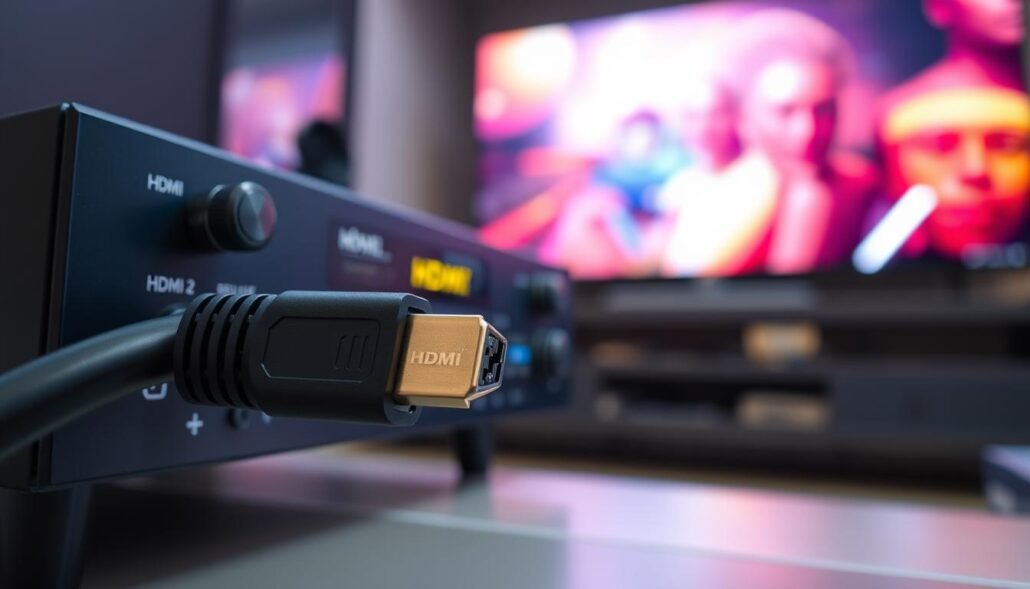
The handshake and the AVR’s role
The source, AVR, and display negotiate keys and capabilities in milliseconds. If that handshake is interrupted, playback can stop or fall back to lower quality.
Many AVRs act as a repeater. They must authenticate upstream to the source and downstream to the TV, which doubles the points where a mismatch can occur.
Typical causes and on‑screen messages
Common causes include loose connectors, marginal cable bandwidth, outdated firmware, mismatched HDCP versions, and accessories that fail to pass authentication.
- Netflix: “HDCP Unauthorized. Content Disabled.”
- Disney+: “Disney+ has detected an HDCP issue that is preventing your content from playing.”
- Roku: “HDCP Error Detected: To play this content, all HDMI connections must support High‑bandwidth Digital Content Protection (HDCP).”
- Apple TV: “This content requires HDCP for playback.”
- Prime Video: warnings that playback will fall back to Standard Definition if requirements aren’t met.
Next step: Most issues are solvable by isolating the failing link — source, AVR, display, cable, or settings — rather than replacing everything at once.
How do I fix an “HDCP Error” on my AVR?
Start with a controlled power cycle. Power off the TV, AVR, and source, unplug each for 30–60 seconds, then power the TV first, then the AVR, and last the source. This forces EDID and the handshake to renegotiate and often clears transient errors.
Check physical connections next. Reseat every HDMI connection end-to-end and inspect each hdmi port for loose fit, bent pins, or damage. A marginal connection can interrupt authentication even when video sometimes appears.
- Swap inputs on the AVR and try a different TV port to isolate a faulty port.
- Replace suspect cables with certified, high-bandwidth hdmi cables rated for 4K/HDR to prevent dropouts during heavy transmission.
- Temporarily remove switches, splitters, extenders, or capture devices; simplify the signal path to a single cable from source to display through the AVR.
Update firmware on each device (AVR, TV, and source). Then review HDMI settings: set inputs and signal format to Auto unless you must force a specific mode. Finally, make sure the title and app require protected content playback for full resolution.
| Step | Action | Why it helps |
|---|---|---|
| Power cycle | TV → AVR → Source after unplug | Forces fresh handshake and EDID readout |
| Connections | Reseat and inspect ports/cable | Removes intermittent contact and bent pins |
| Signal chain | Remove intermediaries; use certified cable | Eliminates non‑compliant devices that break transmission |
Confirm HDCP compliance and version compatibility across all devices</h2>
The chain will only pass protected streams at the level of its weakest device, so document each device’s protection version first.
Check specs for the source, the AVR, and the display to verify each is hdcp compliant. Note the listed versions and any firmware notes that mention protection support.
Remember the AVR acts as a repeater: its HDMI board must authenticate upstream and downstream. If the AVR lacks the required version, it can prevent playback even when source and display match.
- For 4K/UHD streaming, many apps expect hdcp 2.2 across the entire path.
- hdcp 2.3 is the newer standard tied to HDMI 2.1 for 8K and 4K@120Hz, but real playback depends on content enforcement.
- Newer versions usually negotiate backwards, yet this can reduce HDR, frame rate, or resolution.
| Check | Why it matters | Action |
|---|---|---|
| Source | Must advertise compatible version | Confirm model spec and firmware |
| AVR | Repeats keys both ways | Verify HDMI board version |
| Display | Controls final output | Ensure display supports required version |
If any device lacks the needed version, the long‑term fix is replacing or routing around the non‑compliant component. Otherwise, focus on cables, firmware, and settings to restore full protected content playback.
AVR-specific scenarios that commonly trigger HDCP issues
When multiple displays and sources meet in one AVR, mismatched protection versions and timing gaps can cause playback interruptions.
Streaming sticks through mixed-brand displays
Streaming sticks routed via an AVR into a different-brand TV can expose delicate EDID and protection negotiation limits. A single streaming stick may work fine directly, yet fail when the AVR must translate between brands.
Blu-ray player, consoles, and quick source switching
Jumping rapidly between a cable box, a blu-ray player, and a game console can confuse the AVR’s state machine. The result is a brief black screen, lost audio, or reduced video until the chain renegotiates.
Wireless casting, long runs, and adapters
Many premium apps block casting protocols, so mirroring may show a black screen while other apps play. Long HDMI runs or fiber extenders add latency that can time out authentication. Adapters between HDMI, DVI, or DisplayPort often lack consistent protection support and produce flicker or failures.
- Mitigations: reduce mirroring complexity, slow source changes, use certified short or active cables, and verify each device lists required protection versions.
- These AVR cases map back to common causes: version mismatch, timing/handshake instability, and non‑compliant intermediate hardware.
| Scenario | Common symptom | Quick mitigation |
|---|---|---|
| Mixed-brand chain | Intermittent screen blackouts | Test direct connection; update firmware |
| Fast source switching | Audio drops, video stalls | Pause between switches; allow renegotiation |
| Long transmission/adapters | Random dropouts or lower quality | Use certified active extenders or shorter runs |
Conclusion
A protected playback fault usually signals a chain mismatch, not a single broken part. Check each link so the source, AVR, and TV can authenticate together. That alignment keeps hdcp negotiations working and prevents service interruptions.
Quick checklist: power-cycle in order, reseat and inspect HDMI, replace suspect cables, remove extra splitters, and update firmware. These moves have the highest impact on restoring protection and smooth content playback.
Before buying gear, test the source directly to the display, then add the receiver back to identify which device fails authentication. This saves time and expense.
Once the chain is compliant, hdcp and protection run quietly in the background and you should stream content without black screens or quality drops across your devices.
FAQ
What does an HDCP error on an AVR mean?
An HDCP error indicates a failure in the digital content protection handshake between source, AVR (acting as a repeater), and display. It means one device won’t authenticate the protected stream, so video or audio may be blocked or downgraded.
Why does the handshake fail when the AVR is between the source and TV?
AV receivers pass the protected signal through and must re-authenticate with both source and display. Mismatched HDCP versions, poor HDMI connections, or timing issues from long cables, splitters, or extenders can interrupt that handshake.
Which devices commonly show HDCP error messages?
Streaming players like Roku and Apple TV, apps such as Netflix, Disney+, and Prime Video, Blu-ray players, and game consoles are frequent sources of protected content that can trigger HDCP errors if any link in the chain fails.
What’s the correct power cycle order to reset the HDCP handshake?
Turn everything off. Power on the display first, then the AVR, then the source device. Allow each device to fully boot before powering the next. This forces a fresh handshake and often fixes transient authentication faults.
Could a faulty HDMI cable or port cause the issue?
Yes. Damaged cables, worn HDMI ports, or poor contacts can break the encrypted signal. Reseating cables, trying different HDMI ports, and replacing suspect cables with certified high-speed or Ultra High Speed HDMI cables often resolves the problem.
Should I remove splitters, switchers, or capture cards from the chain?
Yes. Any intermediary device can interfere with HDCP. Simplify the path: connect source → AVR → TV directly. If the issue disappears, add devices back one at a time to identify the culprit.
Do firmware updates help with HDCP compatibility?
Absolutely. Manufacturers update AVR, TV, and source firmware to improve HDCP handling and add support for newer versions like HDCP 2.2 or 2.3. Check Yamaha, Denon, Marantz, Sony, LG, Samsung, Roku, Apple, or your device vendor for updates.
Can HDCP version mismatches cause a loss of 4K or HDR content?
Yes. Protected 4K/UHD often requires HDCP 2.2 or later. If one device supports only an older version, the system may drop resolution, block HDR, or show a black screen until versions align end-to-end.
Are newer HDCP versions always backward compatible?
Newer versions are generally backward compatible, but practical limits exist. Some implementations restrict certain features or resolutions, and vendor firmware can introduce quirks that still prevent full compatibility.
What role do adapters and DVI/DisplayPort links play?
Adapters and non-HDMI links can lack proper HDCP support or introduce timing issues. Use HDCP-capable adapters and avoid mixing DVI or passive DisplayPort converters when sending protected content through an AVR.
How do long cable runs, extenders, or fiber links affect HDCP?
Long runs and extenders add delay and signal degradation, which can break timing needed for the handshake. Use active/extender solutions rated for HDCP, shorten runs where possible, and test with direct connections.
What settings should I check on the AVR and TV that might force an unsupported HDCP version?
Look for HDMI mode settings, “Enhanced HDMI,” deep color, or legacy compatibility options. Some TVs let you force a specific HDCP behavior; set HDMI to automatic and enable enhanced modes only if all devices support them.
If I’ve tried cables and firmware, when should I contact support?
If swapping ports and certified cables, updating firmware, and simplifying the chain don’t help, contact the AVR or TV manufacturer with model numbers and a clear description. They can confirm known issues or recommend RMA actions.
Can certain content requirements block playback even if devices are compliant?
Yes. Some 4K/UHD streams demand strict HDCP compliance and specific encryption levels. A compliant-looking chain can still fail if one device’s implementation doesn’t meet the content provider’s requirements.
Is there ever a safe workaround to bypass HDCP protection?
No. Circumventing HDCP is illegal and not recommended. Focus on legitimate fixes: cable/port swaps, firmware updates, device replacements, or contacting manufacturers for compliant hardware.


