
Quick answer: Yes, many modern units let you play music, change volume, and pick inputs from the front panel.
Steve Guttenberg at CNET points out some hi‑fi gear ships with no remote. That design favors hands‑on listening over living‑room convenience.
This intro sets expectations. Basic operation from the unit itself usually covers core needs, but advanced menus and HDMI‑CEC features may be limited.
What this guide covers: front panel controls, browser or network access, mobile apps, and buying a replacement remote if needed.
Why it matters: the answer changes by model and by how your sources connect — think stereo analog versus HDMI home theater. Read on to learn what you can do now with minimal gear, and how to regain full control later.
Before you start: what you can control (and what may be limited)
Know your unit type first. If your gear is an avr, expect HDMI switching, on‑screen menus, and more complex setup. A stereo receiver or integrated amp usually has fewer menus and simpler controls.
Check inputs next. HDMI sources often depend on on‑screen or CEC features. Analog inputs work with basic knobs and switches and are easier to operate from the front panel.
Find the exact model number on the front display or rear label. That small step saves time when you need the correct manual online.
Locate the manual on the manufacturer support site or by adding “PDF” to a search. The manual lists alternate front panel functions, button combos, and hidden shortcuts that can help now.
- Quick ID: home theater AVRs list HDMI and multi‑channel outputs; stereos show simpler inputs.
- Note multi‑function buttons—tap vs. hold often changes the function.
- Do a baseline check: record current input, volume, and indicator lights before changing things.
Can I use a receiver without a remote?
For casual music, front-panel operation covers most day-to-day needs. If your unit has basic knobs and buttons, you can power up, change the input, and set listening level quickly. This works well when you want sound fast and don’t need deep changes.
When basic use is possible
Core tasks that usually work from the unit:
- Power on/off and volume level adjustments using front panel controls.
- Select input (HDMI, optical, or analog) and toggle speaker A/B where supported.
- Mute and basic speaker on/off functions for quick listening sessions.
When it gets tricky
AVRs often rely on an on-screen setup and a larger screen for speaker calibration. Deep features like surround mode selection, bass management, and channel trims may be hidden in menus.
Initial setup wizards and network setup require more navigation. For full control, plan for app or replacement remote access. If you only need simple stereo playback, proceed with front-panel steps; if you need full speaker setup, consider other control methods or a proper setup before you spend more time.
Using the front panel buttons to get sound and change core settings
Front-panel buttons handle the common tasks that get music playing fast. Follow a quick flow to confirm sound in about three minutes. This avoids extra setup or hunting for a remote.
Power and volume on the panel
Step 1: power on, set a safe volume, and listen. If the unit has a rotary knob, turn slowly. If it uses up/down keys, press in small steps to set the level.
Choose inputs: HDMI, optical, analog
Use input or source buttons to pick HDMI, optical/coax, or RCA. Watch the small screen to confirm the selected input. If no sound, switch inputs again to ensure the receiver is actually listening to that source.
Enable speakers and basic navigation
Select speaker A/B if present and verify speaker terminals are connected. Avoid confusing the headphone jack with speaker outputs.
Quick checks: confirm mute is off, check channel levels, and use Menu/Setup + Enter to reach settings. For resets, prefer a soft restart; factory reset steps vary by model—see the manual before wiping the system.
Network and browser control: try the receiver’s IP address setup screen
If the amp is on your LAN, typing its address into a browser often reveals a setup interface. This method works only when the unit is powered and connected by Ethernet or Wi‑Fi.
Find the IP: check your router’s connected devices or client list for the model name. Match by MAC address if the name is generic. Note the number and keep it handy.
Test the web setup
Type the IP into any browser (for example, 192.168.1.50). Then try adding /setup/ (192.168.1.50/setup/) to see if a fuller setup page loads.
What to expect
Older units may show a simple status screen with basic network info and input names. Newer models often provide deeper control: input naming, network options, and status pages you can use for daily control.
- Look for collapsible menus and click expand to reveal advanced options.
- If you see options for audio or system, click expand to access hidden functions.
- When troubleshooting, click expand before changing settings and document changes so you can revert.
Safety note: avoid firmware or router changes unless you know their impact. If the page won’t load, consult the manual for help or model‑specific web features.
Control options from your phone: manufacturer apps and streaming apps
When the network is set up, a phone app can give you power, input and volume control in seconds.
Phone as a remote: many maker apps mimic the hand controller. They let you power the unit, change inputs, set volume, and manage zones or sound modes.
Using an AV app as a virtual remote
Requirements: the receiver must be on the same Wi‑Fi and visible to the app. Most apps need an initial pairing or discovery step during setup.
What the app covers: basic control, input switching, and quick presets. Some apps show a virtual on‑screen layout that mirrors front‑panel labels.
When streaming apps handle playback
Streaming services usually pick tracks while the avr handles volume and output routing. This split keeps playback simple and stable over time.
- If you hunt for advanced options, open the app settings and click expand to reveal speaker configuration, HDMI items, or network choices.
- If the app can’t find the unit, check the receiver IP, reboot router and device, and ensure the phone is not on a guest network.
Limits to expect: initial network setup still may need some on‑unit navigation. For full AVR setup tasks, keep the OEM remote handy even if the app covers daily control.
Replacing the remote: universal remotes, OEM replacements, and used-receiver fixes
If the hand remote is gone, many owners opt for an inexpensive universal or an OEM replacement to restore full menu access.
When to replace immediately: get a new remote if you need full on‑screen setup, input assignment, speaker calibration, or if front‑panel controls lack important menus.
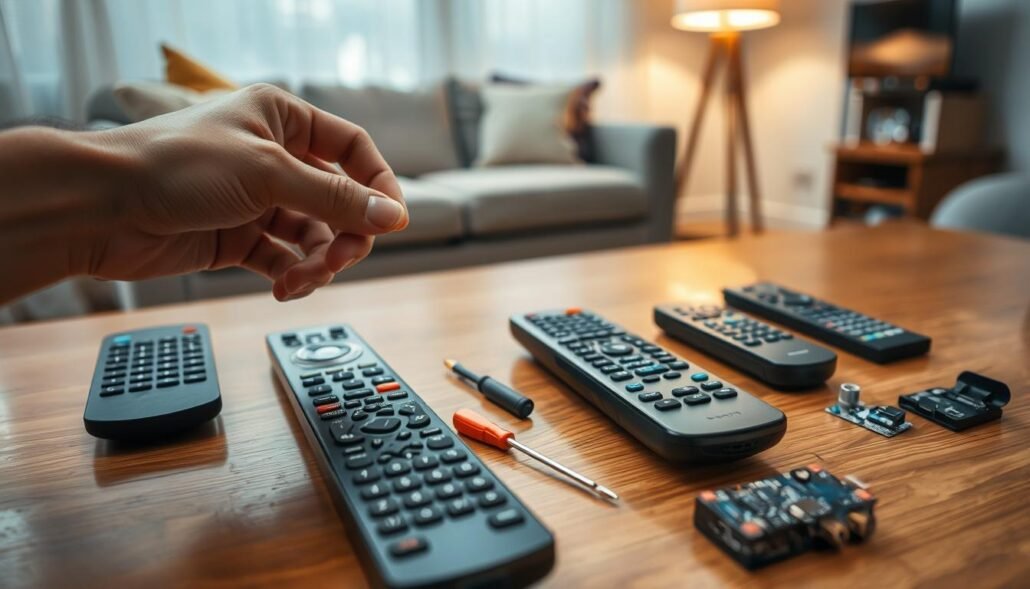
Choosing universal vs. OEM
Universal remotes handle power, volume and input switching well. OEM replacements are more likely to support deep menu navigation on the screen and advanced AVR functions.
| Option | Core strengths | Limitations |
|---|---|---|
| Universal remote | Affordable; covers power, volume, basic input | May miss setup/menu keys and special codes |
| OEM replacement | Full function support; menu and calibration access | Higher cost; model-specific |
| Used-receiver fix (example: Yamaha HTR-3067) | Buy replacement remote + source YPAO mic or do manual setup | May require extra parts; check compatibility |
Setting speakers manually
If the YPAO mic is missing, set speaker size (small/large), enter distances, pick crossover, and adjust channel levels using receiver test tones shown on screen.
- Verify model number before buying; confirm IR codes and that the remote includes Setup/Menu keys.
- Some menu trees hide advanced options in collapsible categories—use app or OEM remote to click expand.
- Keep a short log of changes with date and last edited notes for future help.
Conclusion
Practical takeaway: Most systems let you get sound fast from the front controls, but full home‑theater features often need more tools.
Best immediate path: power on, set volume, pick the input, then try network or phone app control. If HDMI switching or AVR setup is required, plan to restore full menu access.
Check the manual for exact button combos and reset steps. Change one setting at a time, verify results, and document each change so troubleshooting stays simple.
Quick decision guide: music‑only listeners will likely be fine hands‑on; home‑theater users should restore full controls. Keep a short settings log with last edited notes and dates for future reference.
FAQ
Can I operate an AVR or stereo unit without its remote?
Yes. Most receivers let you power on, change volume, and switch inputs using front-panel buttons. Simple playback and speaker output work fine, but advanced menus, on-screen setup, and some HDMI-CEC features may be limited or unavailable without a remote or app.
How do I identify whether I have an AVR or a stereo receiver?
Check the model label on the back or bottom of the unit and look at the inputs. An AVR typically has HDMI ports, digital optical/coax inputs, and surround speaker terminals. A stereo receiver usually has fewer inputs and only left/right speaker outputs. The manual will confirm the type and supported functions.
Where can I find the manual to learn front-panel functions and button combos?
Visit the manufacturer’s website (Denon, Yamaha, Onkyo, Marantz, Sony, etc.) and search the model number. Manuals list front-panel controls, button shortcuts, and how to enter service or reset modes. If the manual isn’t online, try retailer pages or user forums for scanned copies.
Which basic functions are reliably controllable without a remote?
You can usually power the unit, adjust volume, mute/unmute, select basic inputs (HDMI, optical, analog), and switch speaker outputs A/B from the front panel. Physical speaker connections and analog source playback also work without network or remote control.
What tasks become difficult or impossible without a remote?
Deep menu changes, on-screen display navigation, initial setup wizards, network setup, firmware updates, and certain surround-mode tuning often require a remote or app. Calibration routines that need a microphone, like YPAO, also need either accessories or manual setup steps.
How can I use the front panel to get sound and set core options?
Use the power button, volume knob or buttons, and the input selector to route audio. Check for a small display or indicator lights that show the selected source and volume level. Use menu or function buttons to access limited settings when available on the front panel.
How do I select HDMI, optical, or analog inputs from the panel?
Press the Input, Source, or Selector button repeatedly to cycle through available inputs. Some units use a rotary dial to choose inputs. The front display or LEDs should show which input is active—consult the manual for specific button sequences if names differ.
Can I enable or switch speaker sets (A/B) without a remote?
Yes, many receivers include a dedicated Speaker A/B button on the front. Press to toggle outputs. If speaker switching is only in the menu, you’ll need a remote or network app to change that setting.
How do I navigate menus with only a few front-panel buttons?
Use arrow, enter, or rotary controls if present. Short and long presses often trigger different actions—manuals explain these combos. If navigation is too limited, try the receiver’s web setup or a phone app when networked.
What quick resets or checks can restore usable settings?
Verify mute is off and speaker outputs aren’t disabled. Reset volume trim and balance via front controls. Many models offer a basic reset by holding a specific front button at power-on—check the manual for the exact key combo to avoid full factory resets.
How do I find the receiver’s IP address on my network?
Look in your router’s connected devices list or use a smartphone app like Fing to scan the LAN. Some receivers display the IP on the front panel or on a connected TV when using HDMI. The model manual often shows default DHCP behavior and network setup steps.
Can I open the receiver’s web setup page in a browser?
Yes, enter the IP address followed by common paths like /setup/ or /web/ if documented (example: 192.168.1.50/setup/). Available pages vary by model—newer units provide full web control, while older models may show only basic status and limited options.
What should I expect from older models’ web interfaces?
Older receivers often offer simple status screens, input selection, and firmware update checks. Full-featured remote-like control is rare on legacy models; expect basic configuration panels rather than every menu item found in the physical remote UI.
Can my phone act as a remote for the receiver?
Many manufacturers provide free apps (Denon HEOS, Yamaha AV Controller, Marantz/Denon Remote) that mirror remote functions when the receiver is on the same network. These apps cover power, volume, input select, and often deeper menu access depending on the model.
Will streaming apps control playback if the receiver handles volume?
Yes. Apps like Spotify Connect, TIDAL, or AirPlay can stream to the receiver while the app controls playback and the receiver manages volume. Functionality depends on receiver support for the specific streaming protocol.
What are my options for replacing a lost remote?
Choose an OEM replacement from the manufacturer, a compatible used remote, or a universal remote from Logitech Harmony or URC. Check compatibility lists and program codes; universal remotes can replicate most functions if they support your model.
How do I handle missing setup accessories like a calibration microphone?
You can perform manual speaker setup by measuring distances and inputting levels via panel controls or app. Use a sound meter app or reference tracks to set relative levels. If auto-calibration is essential, aftermarket mics or used original accessories may be available online.
How do I set speaker distances and levels without an auto-calibration mic?
Measure speaker distances to the listening position and enter them in the receiver’s manual setup if available. Adjust levels using balance and trim controls, then play test tones or familiar music to fine-tune by ear. Keep tweaks small and retest at listening position.


