
Goal: Help U.S. home theater owners decide if canned air is appropriate and show safer, effective ways to manage heat in audio video setups.
Electronics hate heat. A typical AVR or separate amp warms from the power supply, amplifier stages, and modern processing like HDMI and 4K boards. High chassis temperatures cut component life and can cause thermal throttling or safety risks.
This short guide focuses on practical steps that actually improve cooling rather than quick shortcuts. The short answer: canned air cleans dust, it is not a fix for active cooling and can create new risks if misused.
What you’ll learn: how to optimize airflow, target safe chassis temperatures (about 86°F/30°C up to 104°F/40°C), when to add fans, and simple placement tips that prevent overheating and avoid permanent damage.
Who benefits: owners of AVRs and separates who want reliable, warranty-safe solutions for audio video systems and display-connected workflows.
What this how-to covers and the short answer
Home AV gear often runs warm during long listening or movie sessions. Short answer: compressed spray is for dust removal, not long-term cooling.
This guide shows low-risk, practical solutions for keeping a receiver that can get hot within safe operating ranges. Expect clear targets: ideal chassis temperature around ~86°F (30°C) and avoid exceeding ~104°F (40°C).
What will be covered:
- Airflow basics and placement tips that improve passive cooling.
- When adding a fan or multiple fans makes sense for enclosed setups.
- How to measure chassis temps and spot hotspots near power and processing boards.
- A quick pros/cons look at compressed spray for cleaning versus real cooling solutions.
Follow the owner manual before cleaning or adding accessories. Cabinet clearance, dust management, and proper placement matter as much as any hardware add-on.
Action path: clean safely, optimize placement, measure temperature, then add targeted fans if needed.
Why AV receivers get hot and what “too hot” means
Most of the heat in an audio setup comes from a few predictable places inside the chassis.
Power stages and output
Power supply work converting AC to DC loses energy as heat. Output stages and amplifiers generate more heat when they deliver higher watts per channel.
Driving low-impedance speakers at high volume, such as ~100 watts per channel, speeds heat buildup and raises internal temperature.
Processing load
Modern HDMI and 4K boards add thermal stress. Extra decoding and video processing make an avr work harder and run warmer during heavy audio video tasks.
Environment and usage
Enclosed cabinets, closed doors, and blocked vents trap heat and push temperature higher over time. Long operating sessions at reference levels create more cumulative heat than casual listening.
- Aim for a chassis temperature around ~86°F (30°C); keep below ~104°F (40°C).
- Check vents for dust — clogged openings limit how fast a receiver can shed heat.
- Measure chassis temperature rather than judging by feel alone.
| Heat Source | Why it matters | Typical impact |
|---|---|---|
| Power supply | Converts AC to DC; losses become heat | Major contributor to internal temperature rise |
| Amplifiers / output stages | Deliver watts per channel; higher output = more heat | Fast temperature increase under heavy load |
| Processing/HDMI boards | 4K decoding and switching add thermal load | Raises chassis temps during video-heavy use |
| Environment | Enclosures, blocked vents, and long time at high volume | Limits cooling and accelerates wear |
Should I use canned air to cool down my receiver?
Quick answer: short blasts of compressed spray clear dust from vents, but they do not reduce ongoing heat under load.
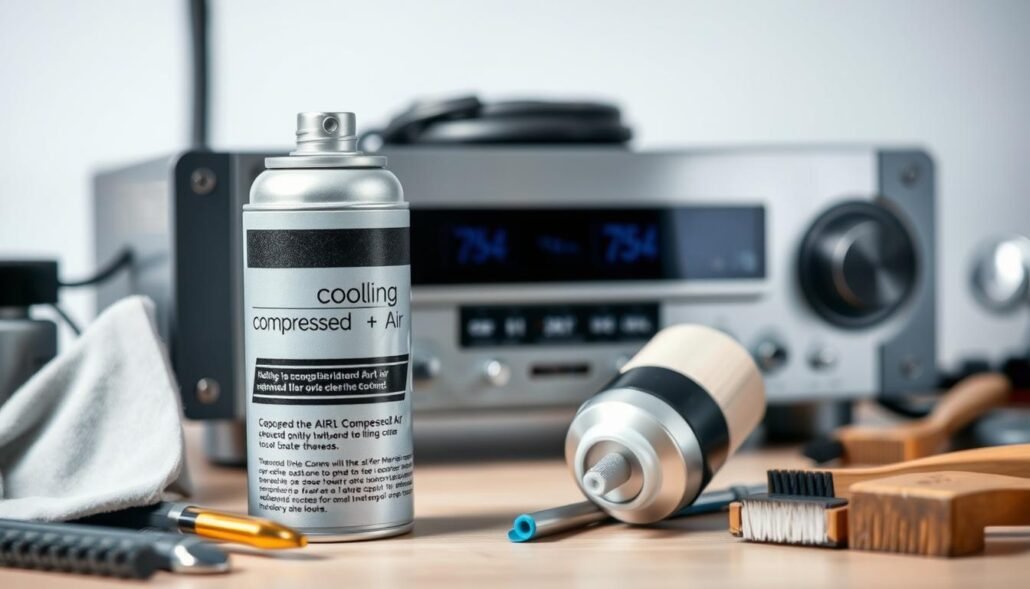
What compressed spray actually does
Cleaning removes lint and dust packed in grilles and openings. That restores blocked airflow and can help prevent higher long-term temperature.
Cleaning is maintenance, not active cooling. If the chassis runs hot during use, fans and better placement are the real fixes.
Risks when spraying electronics
- Rapid chilling can cause moisture condensation that harms circuits.
- Propellant residue may leave sticky deposits near sensitive parts.
- Close-range blasts can force debris deeper into boards and connectors.
- Spraying near open connectors raises electrostatic discharge risk.
| Action | What it helps | Limitations / risk |
|---|---|---|
| Compressed spray | Clears dust from vents and grilles | Not a heat solver; possible condensation and residue |
| Passive airflow (placement) | Improves natural heat rise and venting | Needs clearance and regular dust control |
| Fans / active cooling | Maintains lower operating temperature under load | May add noise; needs correct sizing and placement |
Safe operating approach: power down, unplug, and let the unit reach room temperature before cleaning. Use gentle, controlled bursts aimed at vents from a short distance.
Summary: use compressed spray for dust, and plan fans or airflow changes when measurements show temperatures near limits. Proper cleaning helps prevent overheating but is not a substitute for real cooling with fans.
How to use compressed air safely for cleaning (not cooling)
Let the unit rest: power down the receiver, unplug it, and give internal parts enough time to reach room temperature before any cleaning. This reduces condensation risk and protects sensitive components.
Power down and wait
Turn the unit off and remove power. Wait at least 10–20 minutes so heat dissipates. Consult the owner manual if unsure about model-specific guidance.
Blow dust from vents without overspinning fans
Use short, controlled bursts aimed at the exterior air vents and grille. Keep the can upright to limit moisture and propellant residue.
If internal fans are visible, hold a blade gently with a soft tool while blowing. That prevents high-speed free-spinning that can damage bearings.
Avoid spraying hot units or close-range blasts
Never spray into a hot chassis or press the straw against boards or connectors. Maintain a safe distance so debris does not get forced deeper and to reduce ESD risks.
- Power down, unplug, and allow time for cooling.
- Use brief bursts at receiver air vents; keep the can upright.
- Hold fan blades still when visible; do not let them overspeed.
- Keep a safe gap from sensitive boards and connectors.
- Wipe loosened dust with a dry cloth and recheck airflow paths.
| Step | Benefit | Risk avoided |
|---|---|---|
| Wait before cleaning | Prevents condensation | Avoids short circuits |
| Short bursts at vents | Clears dust from vents | Limits propellant residue |
| Stabilize internal fans | Protects bearings | Prevents fan damage |
| Follow owner manual | Model-specific cautions | Prevents warranty voids |
Passive cooling basics: improve airflow before adding fans
Letting warm air rise freely around a chassis fixes more heat issues than extra fans most of the time. Passive cooling relies on natural convection and clearances. Small layout changes often help a receiver stay closer to its ideal ~86°F (30°C) range.
Clearance and placement
Start with placement: ensure enough space around the unit so warm air can exit and cooler air can enter. Keep air vents and vents unobstructed and dust them regularly. Do not stack components unless the manufacturer allows it.
Cabinet and sunlight guidance
When using a furniture cabinet, provide open pathways for flow. Avoid placing the unit in direct sunlight or near radiators. Direct sunlight raises surface temperature and can accelerate wear.
- Create vertical breathing room above the receiver so heat can dissipate heat naturally.
- Use spacers or adjustable shelves to increase space around the chassis.
- Rearrange cables and power strips so they do not block rear vents or restrict airflow.
| Step | Benefit | Why it helps |
|---|---|---|
| Give 2–3″ clearance | Lower surface temp | Allows convection paths |
| Keep vents clean | Restore airflow | Prevents dust insulation |
| Avoid direct sunlight | Reduce thermal gain | Stops added heat load |
These passive steps often lower operating temps a few degrees and can prevent overheating without extra hardware. If hotspots persist, consider measured active cooling next.
Active cooling with fans: practical setups that work
Targeted fan layouts transform a cramped cabinet into a safe operating space.
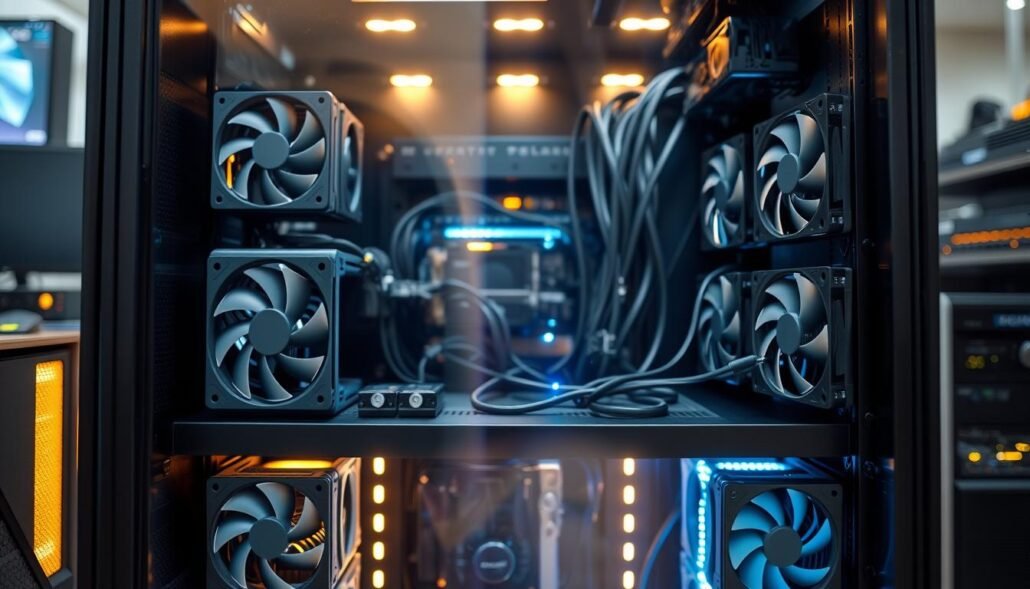
Start with an intake-low/exhaust-high strategy. Place an intake fan near the cabinet bottom to draw cool air in. Put an exhaust fan near the top so warm air escapes naturally as it rises.
Whole-unit cooling options
Example: the AC Infinity AIRCOM T9 is a whole-unit system that fits AVRs up to 17″ wide. It provides temperature-controlled operation and a quiet digital display.
Cabinet fan panels
The AC Infinity AIRPLATE T7 panel is an ultra-quiet option for enclosures. Pair a top-mounted AIRPLATE T7 with a low intake for a complete airflow path that helps dissipate heat from the power section and processing boards.
Spot cooling with USB fans
Deploy AC Infinity MULTIFAN S7 units for targeted airflow over hotspots. These USB fans daisy-chain for flexible placement behind racks or on top of a chassis.
- Use intake-low/exhaust-high to move hot air out and improve airflow.
- Consider AIRCOM T9 as an automated whole-unit system.
- Add an AIRPLATE T7 panel for quiet cabinet exhaust.
- Target hotspots with MULTIFAN S7 USB spot fans.
- Match fan noise and airflow with listening preferences.
| Type | Best for | Key benefit |
|---|---|---|
| Whole-unit (AIRCOM T9) | Single AVR or wide unit | Temp-controlled, quiet ramps |
| Cabinet panel (AIRPLATE T7) | Enclosures and racks | Low-noise exhaust with thermal trigger |
| USB spot (MULTIFAN S7) | Localized hotspots | Flexible placement, daisy-chainable |
Practical tips: start with one intake and one exhaust. Place fans near the power section or HDMI boards for maximum effect. Keep cables tidy so airflow paths remain clear. Track which fans used and their settings so tuning is repeatable after maintenance.
Measure and monitor temperature for safe operating ranges
A quick temperature log reveals how long sessions affect performance. Track readings during playback so trends appear over time rather than as a single snapshot.
Target ranges: aim for an outside chassis reading near ~86°F (30°C) and keep it under ~104°F (40°C) during heavy use. Consistent logs expose creeping internal temperature rises that can signal trouble.
Quick screening and tools
Use an inexpensive IR thermometer to measure near vents and across the top panel. Record values at start, mid-session, and after one hour for comparison.
Warning signs and quick checks
Feel for hotspots near the power supply and HDMI/processing boards as a fast screen. Listen for distortion, audio dropouts, thermal throttling, or sudden shutdowns—these are clear heat-stress signals.
- Add or reposition a fan if readings approach limits, then re-test until stable.
- Log ambient room temperature; seasonal changes affect chassis temps.
- After cleaning or repositioning, recheck numbers to confirm real heat reduction.
| Action | Why | When |
|---|---|---|
| IR thermometer log | Tracks time-based trends | Start, mid, end of session |
| Spot-feel hotspots | Quick screening method | Any warm session |
| Add fans | Lower operating temps | If temps near 104°F |
Note: sustained high heat can cause permanent damage over the long term. Make temperature monitoring a regular maintenance step alongside dusting and filter checks to prevent overheating and extend component life.
When power and layout demand more cooling
Powerful amplifiers driving several speakers raise thermal demands on the entire setup. Higher-output designs, especially those delivering around 100 watts per channel, naturally generate heat faster than modest systems.
For racks or enclosed furniture, start with a baseline: one intake fan low and one exhaust fan high. That simple intake/exhaust path clears warm air and restores steady airflow around the chassis.
- Recognize that systems with higher watts per channel and multi-speaker loads will cause faster heat build.
- Add cooling in steps; record the fans used, their placement, and measured results.
- Consult the owner manual and manufacturer guidance for internal fan behavior and test modes.
Verify speaker impedance and wiring are within spec so the avr does not take extra stress. If space remains restricted, consider a vented rack panel or relocating the receiver to improve clearance.
If the unit still runs hot after proper cabinet airflow and extra fans, contact manufacturer support to check internal cooling or possible faults.
| Condition | Recommended action | Why it helps |
|---|---|---|
| High-power amplifiers (~100 watts) | Use higher-CFM fans; monitor temperature | Matches cooling to greater heat output |
| Enclosed cabinet | Add intake low and exhaust high | Creates convective path and reduces hotspots |
| Internal fan behavior unclear | Consult owner manual / manufacturer | Follow model-specific thresholds and tests |
| Persistent overheating | Contact service support | Rules out failing internal cooling or faults |
Conclusion
Putting a clear plan in place pays off. Clean vents and keep enough space around the chassis first. Avoid direct sunlight and sealed furniture so warm air can rise away from the unit.
Keep chassis temperature near ~86°F (30°C) and under ~104°F (40°C) during long sessions. Treat compressed sprays as cleaning tools, not active cooling fixes.
If the unit still gets hot, add targeted fans with an intake-low/exhaust-high layout. Balance airflow with noise and track which fans used and their settings.
Quick checklist example: temperature check, placement check, fan placement, final temperature confirmation.
Follow manufacturer guidance before changes. With regular dusting, simple placement fixes, and measured fan steps, a thoughtful approach will dissipate heat and prevent permanent damage in a home theater setup.
FAQ
What does this how-to cover and what’s the short answer?
This guide explains why AV receivers get hot, what compressed gas spray does, safe cleaning steps, passive and active cooling options, and temperature targets. Short answer: canned air removes dust but is not an effective or reliable method for cooling; improve airflow and use fans or AV-specific coolers for sustained heat control.
Why do AV receivers get hot and when is heat a problem?
Receivers house power supplies and amplifiers that convert and dissipate energy as heat. High processing loads like 4K HDMI switching add thermal stress. Enclosed cabinets, high volume, and long operation increase internal temperature. Heat becomes a problem when it causes distortion, dropouts, thermal throttling, or automatic shutdowns.
How does power rating affect heat generation?
Higher power output — for example, receivers driving around 100 watts per channel — produce more heat in the power supply and amplifier sections. Multi-channel operation and high speaker demand raise thermal load and require better ventilation or active cooling to prevent overheating.
What does compressed gas spray actually do for a receiver?
Compressed gas spray mainly removes dust and loose debris from vents, heatsinks, and crevices. It does not lower core operating temperatures in a sustained way or substitute for airflow, fans, or cabinet ventilation designed to dissipate heat.
What risks come with using compressed gas spray?
Risks include propellant residue, accidental condensation if sprayed into warm components, and potential electrostatic discharge. Short, controlled bursts at a distance limit risk, but spraying into a hot or running unit can cause moisture and damage.
How should compressed gas be used safely for cleaning?
Power down and unplug the receiver, and allow it to cool to room temperature. Hold the can upright and use short bursts aimed at vents and chassis gaps while avoiding direct blasts that spin fans faster than normal. Keep distance to prevent moisture and propellant contact with circuit boards.
Can compressed gas cool a receiver during operation?
No. Compressed gas removes dust but does not provide continuous airflow required for heat dissipation. For active temperature control, use fans, cabinet ventilation, or whole-unit coolers designed for AV equipment.
What passive cooling steps help most?
Ensure at least several inches of clearance around the unit, keep air vents unobstructed, avoid sealed or tightly packed cabinets, and prevent direct sunlight. Proper placement and spacing significantly improve natural convection and reduce internal heat buildup.
What active cooling options work well for AV receivers?
Cabinet airflow strategies (intake low, exhaust high) help move heat out. Whole-unit coolers like the AC Infinity AIRCOM series are built for AV racks. Cabinet fan plates such as AC Infinity AIRPLATE and small USB spot fans like the AC Infinity MULTIFAN S7 can provide targeted cooling and improve overall airflow.
How should cabinet fans be arranged for best performance?
Create a path: cooler intake vents near the bottom, exhaust fans near the top. Use baffle-free airflow and maintain clearance around inlet and outlet areas. This leverages natural heat rise and reduces hotspots near the power supply and HDMI/processing boards.
What temperature range is safe for a receiver chassis?
Aim for an internal chassis temperature around 86°F (30°C) during normal use, and keep it below about 104°F (40°C) to avoid long-term stress. Manufacturer specs and the owner manual may list exact safe operating ranges for a given model.
How can hotspots and overheating be checked quickly?
With the unit off, feel for warm spots near the power supply area and HDMI/processing boards after a listening session. Watch for warning signs during use: distortion, audio dropouts, sudden volume changes, thermal throttling, or shutdowns, which indicate inadequate cooling.
When is additional cooling necessary for high-power setups?
If running high-power amplifiers, sustained multi-channel loads, or installing the receiver in a confined enclosure, add active cooling. Follow the owner manual, verify internal fan operation if present, and consider cabinet fans or whole-unit coolers for heavy use.
Should manufacturer guidance and the owner manual be followed?
Yes. Always check the owner manual for recommended clearances, rack mounting instructions, and any built-in cooling features. Manufacturer guidance supersedes general advice and helps avoid warranty issues or unintended damage.


