
Quick answer: many people search for “hdmi power” thinking a port can act like a charger for a laptop or phone. That idea comes from marketing language, small accessories labeled “HDMI-powered,” and newer specs that mention limited power on the line.
This guide will show, step by step, how to tell if a port supplies enough power, what an HDMI link actually moves (mostly video and audio signals), and when to use USB-C Power Delivery instead. Expect practical checks for ports, cables, and adapters to avoid wasted purchases.
Real scenarios: running a portable monitor, topping off a laptop on the road, or cutting cable clutter at a desk. Later sections give concrete numbers for voltage, current, and watts so you can compare standards.
Understanding HDMI Power: What HDMI Actually Does
Many users assume a single link can both feed a screen and top up a gadget, but that mixes two different design goals.
High-definition multimedia interface began as a simple goal: move high-quality picture and sound over one connector. The multimedia interface handles video signals plus audio while keeping wiring tidy.
Across the hdmi cable you find video audio signals, stereo and surround sound, plus control features like CEC that let one remote manage multiple items. Some implementations add an Ethernet channel for networked features.
There is a small power pin (often called Pin #18) on many cables, but that line supplies only tiny voltage for handshakes, signaling, and tiny accessories. This limited supply is not intended as a real charging route.
Marketing can confuse buyers: labels such as “connector-powered” or “HDMI-powered” spark the idea of charging. In reality, expect excellent AV compatibility from good cables, while true charging comes from USB charging standards.
What is “HDMI Power” and does it charge devices?
The short truth: a signal link may carry tiny voltage for control and sensors, but it is not a practical charging solution for most modern electronics.
Limited output vs real charging: Some ports provide a small current for handshakes or accessory power. That level falls far short of what a phone or laptop needs for meaningful charging. Expect slow or no battery gain when you try to top up a laptop from this line.
When the phrase becomes marketing shorthand: Manufacturers sometimes label cables or ports as “powered” to note low-voltage support. That wording can blur the difference between powering tiny accessories and actually replenishing a device battery.
- Common attempts: powering portable displays, topping off a laptop in an emergency, or hoping a monitor will feed a phone.
- Reality: port capabilities vary widely; most do not supply enough wattage for sustained use.
- Practical option: for true charging needs, use USB-C Power Delivery, a dedicated adapter, or a rated power bank.
| Scenario | Typical Expectation | Real Outcome |
|---|---|---|
| Portable monitor via video cable | Screen powered from connector | Often needs separate USB-C or adapter for reliable power |
| Topping up a laptop | Battery gain while working | Unreliable; most ports lack required wattage |
| Accessory power (CEC, adapters) | Small control signals and tiny modules | Usually adequate for low-power peripherals |
Next up: the following section lists actual voltages and watts so you can compare port output to what laptops and portable monitors really require.
HDMI Power Specs in Real Numbers (and Why They Matter)
Numbers matter: the connector has defined limits that determine real-world use, not marketing blurbs.
Standard limit
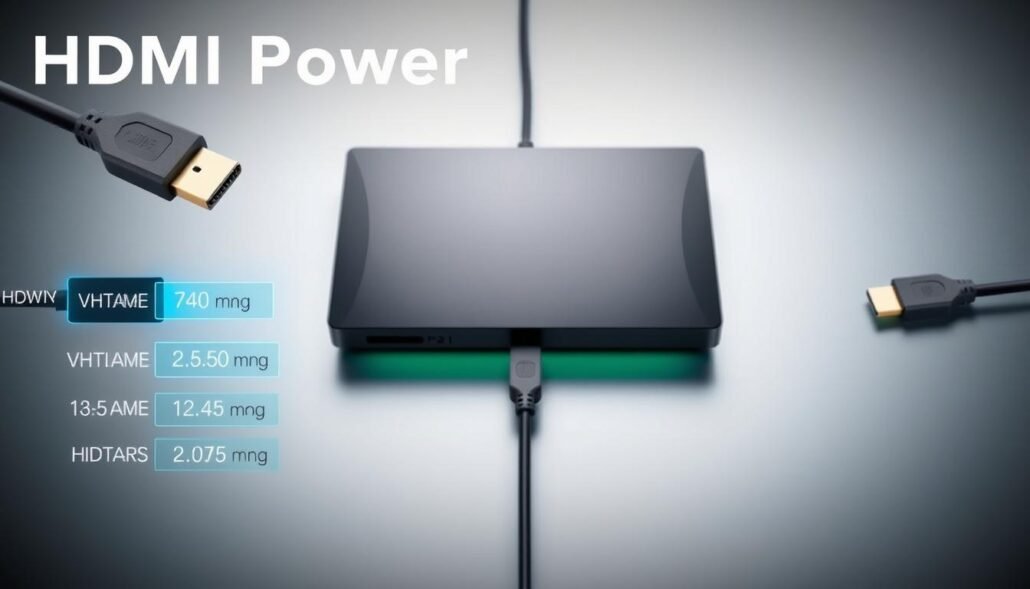
The basic spec provides 5V at 50mA, which equals about 0.25W. That is enough for tiny signaling circuits or an adapter handshake, but far too low to run most screens.
hdmi 2.1a cable power
Newer cable power in hdmi 2.1a raises the cap to 5V at 300mA (≈1.5W). It helps small modules, yet still misses the mark for portable monitors and similar gear.
Typical device needs
Many laptops and monitors rely on USB-C PD, which can deliver tens of watts up to 100W. Compare that to 0.25W or 1.5W and the gap is obvious.
- Practical takeaway: watts determine if a gadget will run, not just presence of a power pin.
- Low power leads to flicker, no boot, or separate power requirement despite a working video signal.
| Specification | Voltage & Current | Approximate Watts |
|---|---|---|
| Standard | 5V × 50mA | 0.25W |
| hdmi 2.1a | 5V × 300mA | 1.5W |
| USB-C PD (typical) | Variable, up to 20V × 5A | Up to 100W |
Where HDMI Power Helps (and Where It Doesn’t)
A link can carry picture and sound reliably, but the modest supply on that lead covers only low-power features.
Good uses: the small supply on the connector supports handshakes, detection, and tiny accessories. It can wake adapters, feed small logic circuits, and keep control signals working for audio video gear.
Not good: a portable monitor needs far more energy. The panel, backlight, controller, and speakers demand a steady supply that this link cannot provide. That is why many portable monitors list a separate power source in their specs.
In practice, you may see a screen show “No power” or enter “Power saving” until a USB lead or wall adapter is plugged in. For travel setups, plan two leads: one for video output and one for a charger, unless the display has a built-in battery.
- Supports: signaling, CEC control, tiny adapters.
- Fails at: sustained screen operation and full laptop top-ups.
- Tip: use USB-C PD when you need one cable for video and a reliable supply.
| Use case | Connector role | Reality |
|---|---|---|
| Accessory wake/detection | Provides small standby current | Works reliably for low-power modules |
| Portable monitor running | Carries video output and audio | Typically needs separate power source |
| Phone or laptop topping | Minor handshake power only | Insufficient for charging or sustained operation |
HDMI vs USB-C Power Delivery for Charging and Connectivity
Deciding between a traditional AV link and a modern USB-C setup often comes down to whether you need power along with picture.
USB-C with power delivery can supply up to 100W, making it a practical charger for many laptops. When a port supports DisplayPort Alt Mode, a single cable can handle both video output and charging.
USB-C Alt Mode and practical benefits
Alt Mode lets usb-c cables carry high-quality video while the same line supplies energy. Not every laptop port supports video, so check specs before assuming one-cable convenience.
Where hdmi still wins
hdmi remains best for consistent audio video delivery and broad compatibility with TVs, projectors, and game consoles. It excels at pure display tasks.
Choosing the right path
- Pick USB-C when you need charging plus display with minimal clutter.
- Pick hdmi when AV compatibility and stable video signals matter most.
- Confirm port specs and cable ratings to avoid surprises.
| Feature | USB-C | hdmi |
|---|---|---|
| Charging | Up to 100W via power delivery | Minimal supply for small modules |
| Video | Yes with Alt Mode on supported ports | Native, wide compatibility |
| Versatility | High: data transfer, charging, docking | High: dedicated audio video reliability |
Next: use a quick checklist to confirm which port on your laptop and monitor can actually deliver the functions you need.
How to Tell If Your Setup Can Charge Through a Port
Start by checking labels and port icons on your laptop to learn what each connector can actually supply.
Check the laptop port
Inspect your laptop manual or the maker’s website for listed capabilities. Look for USB-C PD, Thunderbolt, or DisplayPort Alt Mode notes.
If a port is data-only, it may still top up a phone but not carry video output. Trust specs rather than guessing at icons.
Confirm the monitor’s needs
Open the monitor label or manual and note required wattage and voltage. Verify whether the display accepts USB-C input or only HDMI links.
If the monitor needs 15–65W, you will likely require a USB-C PD source. If it lists low standby watts, the connector supply may suffice for small modules only.
Spot cable limitations
Not all cables carry the same signals. Some are charge-only, others limit resolution or refresh rate.
- Use certified cables for high-resolution video output.
- Avoid frayed or cheap leads that reduce compatibility or risk safety.
- Match cable rating to the laptop and monitor specs before relying on a single line for power.
| Check | Action | Outcome |
|---|---|---|
| Port label | Look for PD or Thunderbolt | Know if the laptop can supply useful power |
| Monitor spec | Read wattage/voltage | Confirm compatibility with chosen connections |
| Cable type | Use rated, certified cables | Avoid video dropouts and unsafe charging |
Practical if/then: if your laptop accepts USB-C PD for charging, it likely can power a portable monitor over the same connection. If not, plan a separate supply for the screen.
Safety note: always match voltage and current ratings, use compatible adapters, and replace damaged cables to protect your devices.
How to Connect Devices the Right Way When You Need Power and Video
Start by planning which port will carry picture and which will supply energy. That choice prevents flicker, frozen screens, and wasted adapters.
Using an AV link for video while powering the display separately
For most portable panels, use the traditional video cable for screen output and a separate USB-C or wall adapter for supply.
Steps:
- Confirm the laptop’s video output type and the monitor’s input requirement.
- Connect the hdmi cable for video and test the picture.
- Attach the monitor’s USB-C or DC adapter for stable power before finalizing settings.
Using USB-C to carry both video and energy with one cable
When a laptop supports Alt Mode and enough power delivery, a single USB-C lead can handle video and charging.
That setup simplifies connections and reduces clutter for travel and desk setups.
Using adapters: video compatibility, not extra charging
Active adapters can bridge outputs to USB-C displays for picture, but they rarely add meaningful supply. Treat adapters as a video solution, not a charging fix.
Reduce signal issues with the right standards
Use certified cables and follow modern standards such as hdmi 2.1 when high bandwidth matters. Proper cables and current adapters cut dropouts.
| Goal | Primary cable | Extra required |
|---|---|---|
| Video only | hdmi | None if monitor has own battery |
| Video + steady supply | USB-C (Alt Mode) | USB-C PD source |
| Legacy output to USB-C monitor | hdmi with active adapter | Separate power for the display |
Practical Alternatives When You’re Trying to Charge Without a Traditional Charger
If you’re away from a wall outlet, a matched external power source is the fastest route to keep a laptop alive. Pick gear that meets the laptop’s voltage and wattage needs rather than hoping a video port will help.
Power banks and portable chargers: what to match
Choose a bank that lists USB-C PD output and the right volts/amps. Look for capacity in mAh and watt ratings that meet or exceed your laptop’s input.
Solar charging: realistic expectations
Solar can refill laptops and smartphones, but charge times vary with panel size and sun intensity. Treat solar as a slow but portable option and follow the maker’s guidance for real-world timelines.
Battery-saving moves that buy you time
- Lower screen brightness and enable power-saving mode.
- Close background apps and unused browser tabs.
- Turn off Wi‑Fi or Bluetooth if not needed.
| Accessory | Key spec | When to use |
|---|---|---|
| USB-C PD power bank | Match volts & watts | Remote work, travel, airports |
| Solar panel | High-watt output and direct sun | Outdoor use, emergencies |
| Wall USB-C adapter | Certified PD rating | Best for steady charging |
Safety note: always confirm ratings, use compatible cables, and avoid frayed or damaged gear. For reliable charging, prioritize USB-C PD, a proper power bank, or a certified charger over any trickle from video links.
Conclusion
In short, treat the tiny connector supply as a handshake helper, not a charging source. ,
The bottom line: standard hdmi offers only trace power; newer cable power raises that slightly but stays far below real needs for laptops or many portable tools. Remember the key numbers: 5V×50mA (≈0.25W) and 5V×300mA (≈1.5W).
For AV work, this link shines at stable video and audio signals, broad compatibility, and reliable gaming performance. For true charging plus data transfer, pick USB-C with Power Delivery and Alt Mode or Thunderbolt.
Before buying adapters, verify port and cable capabilities. Rule of thumb: choose USB-C PD for charging; choose hdmi for audio video reliability.
FAQ
What does the term “HDMI power” actually refer to?
The phrase refers to small voltage available on an HDMI connector used for detection and accessory functions, not to a real charging supply. Manufacturers sometimes use the term in marketing, but the voltage and current are intended for signaling, EDID communication, and powering tiny interface components.
Can an HDMI cable supply enough energy to charge a phone, tablet, or laptop?
No. Standard HDMI supplies only a few milliamps at 5 volts, far below what phones or laptops require. Even the higher-capacity cable power in HDMI 2.1a (around 300mA at 5V) delivers only about 1.5 watts, which won’t charge modern mobile devices meaningfully.
Are there HDMI specifications that offer higher power than the original standard?
Yes. The original HDMI port provides roughly 5V at about 50mA. HDMI 2.1a introduced a cable power feature allowing up to 5V at around 300mA. Both remain far below USB-C Power Delivery levels used for charging larger devices.
When might the small HDMI voltage be useful?
That tiny supply can power sensor circuits, plug-in adapters, or handshaking electronics inside active cables and dongles. It helps with device negotiation, powering small inline signal boosters, or enabling certain passive accessories to work without separate power.
Why can’t HDMI power a portable monitor or TV by itself?
Portable displays typically need several watts to tens of watts. HDMI’s limited current and voltage can’t meet those demands. Monitors instead rely on dedicated power adapters, USB-C PD, or built-in batteries for their power needs.
How does HDMI compare to USB-C Power Delivery for charging and video?
USB-C PD can negotiate up to 100W (or more with newer specs) and carry high-bandwidth video via Alt Mode, so it handles both charging and display with one cable. HDMI’s strength is robust AV signaling and broad compatibility, but not significant power delivery.
Can an HDMI-to-USB-C adapter charge a device while sending video?
Most passive adapters only convert video signals and don’t add charging capability. Active adapters that include power passthrough exist, but they require a separate power source or USB-C PD input to truly charge a connected device.
How can I tell if a laptop port supports charging versus data-only functions?
Check the laptop’s specifications or labeling near the port. Ports marked with a power icon or listed as “USB-C PD” or “Thunderbolt” typically support charging. Manufacturer pages for Dell, HP, Lenovo, Apple, and others state whether a USB-C port supports Power Delivery and video output.
What should I use if I need both reliable video and device charging with one cable?
Use a USB-C cable and a device that supports USB-C Alt Mode for video plus Power Delivery for charging. This setup provides high-quality video and sufficient power for phones, tablets, and many laptops when supported by both ends.
Are there practical alternatives when no charger outlet is available?
Yes. High-capacity power banks with USB-C PD output, USB-C car chargers, and battery-backed portable monitors with USB-C input can supply real charging power. Match wattage and voltage to your device to ensure safe, effective charging.


