This short guide shows quick, practical fixes to stop sound and picture from drifting apart. Small sync errors matter — recent data shows poor alignment can spike bounce rates quickly.
Start fast: try power cycles, firmware updates, and cable swaps on TVs. For browsers, refresh pages, clear cache, or lower playback quality to cut delay. Editors can align waveforms in Premiere Pro, Final Cut Pro, or DaVinci Resolve, or use Filmora Auto Synchronization and PluralEyes for speed.
Live streams improve with OBS audio delay filters, wired microphones, and using ethernet. AI tools like Adobe Sensei, Descript, and Auphonic offer automated realignment when manual work is slow.
Follow a simple triage: identify the pattern, apply the matching fix, and test with a short clip or clap test. Small, consistent changes deliver better viewing and listening experience every time.
Why audio/video sync matters now and how to spot lip‑sync problems
Viewers notice misaligned sound and picture within seconds. In 2025, faster consumption means poor sync can cost retention fast — Wistia found a 37% higher early bounce rate when alignment is off. Small offsets harm perceived quality and trust.
Typical symptoms are easy to spot. Lips move before or after dialog, effects arrive late, or drift grows as the clip plays. These cues tell you whether a fixed offset or progressive drift is at work.
- Real-world example: a clap that doesn’t match its sound, footsteps that lead or lag the action, or dialog that seems to float.
- Check across devices and apps to see if the issue is file-based or caused by the player or hardware.
- Note whether the sound leads or lags; that single observation helps pick the right fix later.
- Sharp transients like claps or slates are perfect reference points during editing and testing.
Causes range from frame and sample rate mismatches to wireless mic latency or export/render delays. Creators should slate a clap at the start of each take and watch export settings to avoid unexpected delays in final files.
Root causes of audio delay and sync issues across devices and apps
Processing chains often make the picture arrive after the soundtrack. Decoding, color grading, upscaling, and hardware acceleration add time to the visual path. That creates a steady offset at playback, especially on smart TVs and older devices.
Frame and sample rate mismatches
Different frame rates between cameras or export settings cause gradual drift over long clips. Likewise, sample rate differences (44.1kHz vs 48kHz) or unstable clocking in interfaces slowly desynchronize tracks.
Wireless and capture latency
Wireless microphones add codec and RF latency. HDMI capture cards buffer frames. In multi‑device setups, these mixed paths can produce noticeable lag that varies with distance and signal quality.
Software, buffering, and performance
Streaming buffers, encoding queues, and heavy filters increase rendering time for the visual stream. Driver conflicts or app errors introduce inconsistent behavior, so keeping firmware and apps current is an effective method to reduce errors.
Practical tip: consolidate audio and image paths when possible. Mixers or capture devices that embed sound into the video path reduce variance and make later editing and testing simpler.
- Document device settings and versions to speed diagnosis.
- Use claps or slates for quick reference in editing timelines.
- Prefer wired paths for critical live setups to minimize variable delay.
| Cause | Typical effect | Where it appears | Quick mitigation |
|---|---|---|---|
| Decoding/post‑processing | Consistent picture lag | Smart TVs, apps, editors | Disable heavy filters; update firmware |
| Frame/sample rate mismatch | Progressive drift | Long recordings, multicam shoots | Match frame/sample rates; resample if needed |
| Wireless/capture latency | Variable lag | Live streams, multi‑device rigs | Use wired mics; reduce buffer settings |
| Network/software errors | Intermittent sync issues | Streaming, browsers | Update drivers; test other devices |
Quick fixes on TVs: cables, settings, and updates for better sync
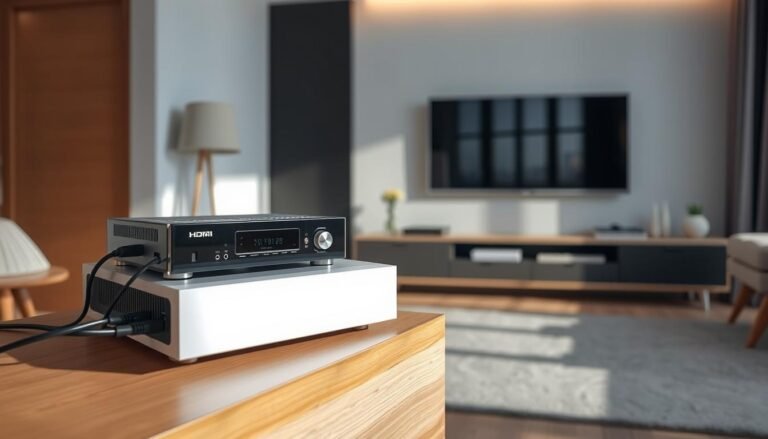
Start troubleshooting the TV path by fully powering down every device and waiting a minute before reconnecting. This clears temporary memory and often removes persistent offsets.
Next steps focus on firmware, cables, and simple menu tweaks before changing gear.
Power reset and firmware updates on smart sets
Turn off the TV and all connected devices, unplug them for ~60 seconds, then reconnect. This simple step resets processing pipelines.
Open Settings > Support or About > Software Update and apply any firmware patches. Many updates require a restart to take effect.
Check HDMI and optical connections
- Reseat every HDMI/optical cable until it clicks and swap inputs to rule out a bad port.
- Test with a fresh certified hdmi cable; poor cables mimic sync issues.
Adjust audio delay, output formats, and processing
Use your TV sound settings to nudge the Audio Delay/Audio Sync in small steps until dialog and lip motion match.
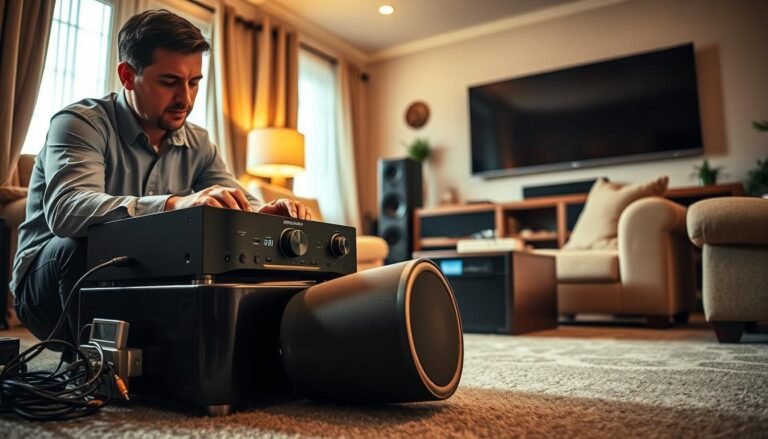
If you use a soundbar or AVR, match the TV output format (PCM, Dolby Digital, passthrough) and try toggling eARC/ARC to cut extra processing.
When to consider lower‑latency hardware
If picture processing still causes noticeable lag, consider models with faster processors. Some modern sets (for example, TCL P755) reduce perceived delay with advanced upscaling and motion handling.
- Quick test: replay a clap or short scene after each change to confirm the sync.
Fast troubleshooting for YouTube and browser playback sync
A fast refresh and a cache clear can eliminate many player hiccups. Start with the simplest web fixes before changing hardware. These steps often restore sync and cut wait time.
Basic browser checks:
- Reload the page: press F5 to reset the player’s buffers and clear minor timing hiccups.
- Clear cache/cookies: Chrome: 3 dots > More tools > Clear browsing data to remove corrupted player data.
- Change playback quality: drop to 720p or 480p to reduce buffering spikes that cause uneven audio and video arrival.
Next, isolate the issue. Try another browser or a second device to see if the fault is local to your software or platform.
Further quick checks: disable heavy extensions or use incognito, monitor CPU/GPU load, prefer wired ethernet over Wi‑Fi, and restart smart TVs from Settings > Device Preferences > Restart. If only one clip shows issues, report it and test other videos to confirm the source.
Editing solutions: practical fixes for sync in post
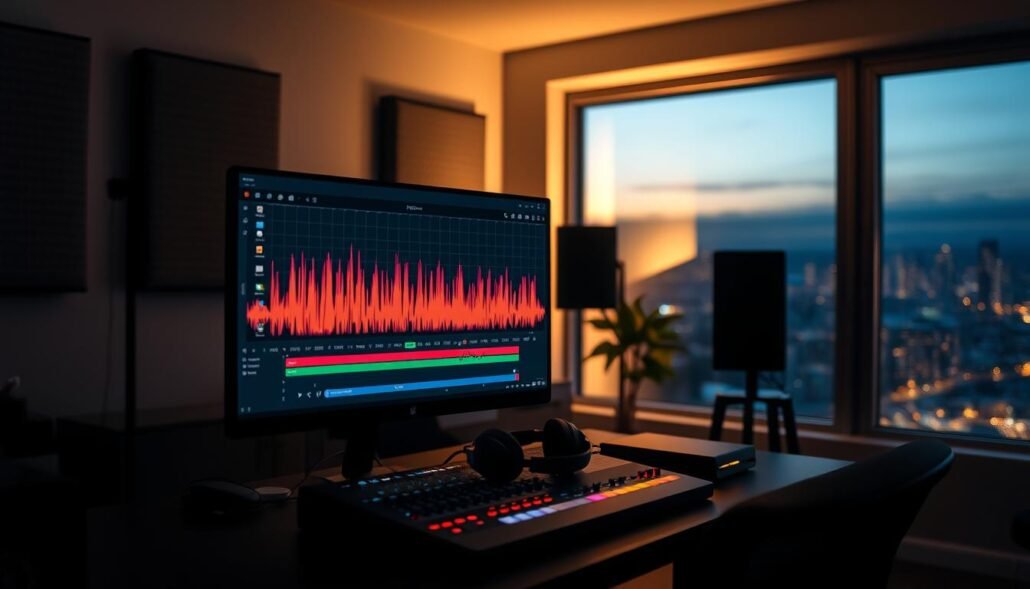
In the editor, start by lining up a clear transient—like a clap—on both tracks and zoom in until the spikes match exactly.
Manual method: Import camera clips and the external recorder. Place both on the timeline, find the clap spike, align waveforms, then mute the camera track. Trim handles and lock the synced pair before heavy cuts.
Fix drift and sample‑rate issues
Standardize the project frame rate and convert all files to 48kHz when possible. For long takes, slice at natural pauses and nudge segments back into place instead of stretching them.
Automation and AI tools
Use Filmora Auto Synchronization or PluralEyes to batch-align clips fast. NLE merge features in Premiere, Final Cut, and Resolve speed routine editing.
Try AI options like Adobe Sensei beta, Descript auto lip‑sync, or Auphonic for tough dubbing or noisy captures.
| Method | Best for | Pros | Cons |
|---|---|---|---|
| Manual waveform align | Short clips, precision | Accurate; no extra software | Time consuming for many clips |
| Automated tools | Multicam, batch jobs | Fast; consistent | May need fine tuning |
| AI realignment | Dubbing, noisy tracks | Handles complex timing | Occasional artifacts; check output |
Quick checklist: confirm frame rate, confirm sample rate, set a visible sync point, align, lock tracks, and render a short test to catch export delays.
Live streaming sync: OBS filters, hardware paths, and low-latency setups
A tight stream needs predictable paths: match rates, favor wired links, and test before going live.
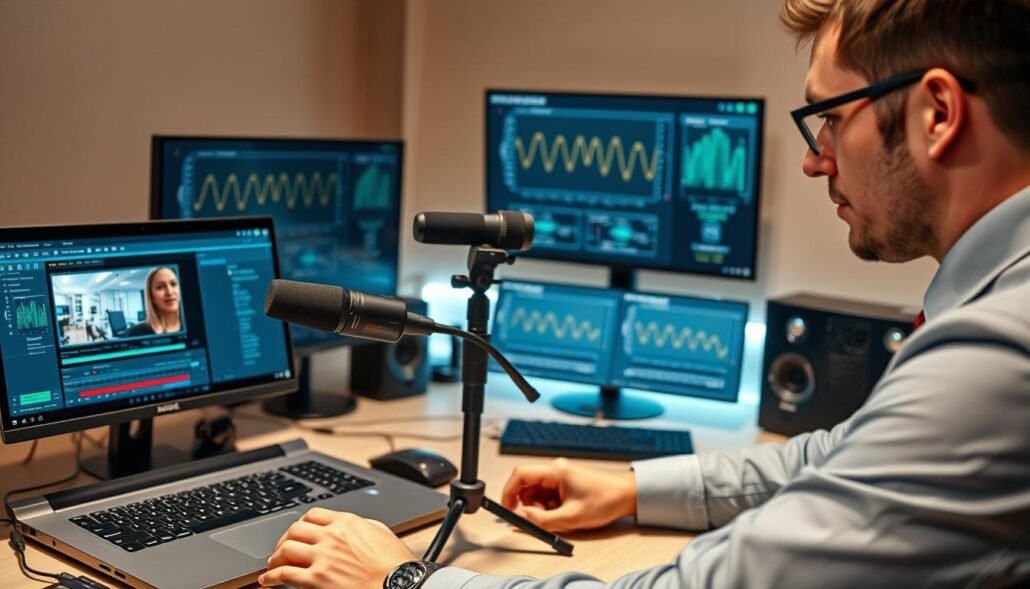
Start in OBS: add an audio delay filter (try +200–500ms) on your mic source and fine‑tune while watching a short test clip with a clear transient, like a clap.
Standardize frame rate and resolution across camera(s), encoder, and software so the pipeline does not accumulate drift. Keep encoding filters light; heavy scaling or noise reduction raises GPU load and can introduce lag.
Wired paths and consolidated capture
Prefer wired microphones (USB / XLR) and ethernet for the encoder. Avoid Wi‑Fi for critical signals to cut packet jitter and micro‑drops.
If feeds arrive separately (HDMI for camera, USB for mic), embed audio into the camera stream via a mixer or capture device. That single path reduces timing variance between streams.
- Quick checklist: run a 10–20 second clap test before each show and inspect the waveform.
- Save scene profiles with per‑scene delay values so you don’t retune every session.
- Keep capture card and interface drivers and firmware current to improve timing stability.
- Monitor the live output on a second device on the same platform to confirm viewer‑side sync.
| Action | Why it helps | Typical value |
|---|---|---|
| Add OBS delay filter | Shifts mic timing to match camera frames | +200–500 ms |
| Use wired mic & ethernet | Reduces jitter and packet loss | USB/XLR + 1 Gbps ethernet |
| Consolidate via mixer/capture | Single path reduces separate processing | Embed audio over HDMI or SDI |
| Run pre‑live clap test | Quick verification of sync before broadcast | 10–20 seconds |
Pro tips to prevent future sync issues and ensure consistent quality
Preventive steps are faster than fixes. Lock camera frame rates and set every recorder to 48kHz before shooting. That single habit removes many timing headaches in post.
Consistency matters: slate every take or use a timecode generator (for example, Tentacle Sync) to keep all devices on the same clock. When possible, record sound into the camera to reduce separate clock paths.
Lock rates, slate takes, and use timecode
- Standardize settings: match frame rate across cameras and confirm a 48kHz sample rate for recorders and timeline.
- Start each take with a slate or hand clap for a quick timing reference during editing.
- For pro shoots, use timecode to lock devices and simplify multi‑angle syncing.
Final QA across devices before publishing
Run a short QA pass on a phone, a laptop, and a TV. Platform buffers and decoders differ, so a quick check catches drift that only appears on some players.
| Tip | Why it helps | When to use |
|---|---|---|
| Single‑path capture | Reduces clock variance | Small crews, run-and-gun |
| Archive clap reference | Baseline for future re-exports | All projects |
| Keep firmware/NLE aligned | Minimizes subtle timing shifts | Team workflows |
Conclusion
Conclusion
This practical guide ties quick solutions to common symptoms so the right fix is clear.
For TVs, start with a power reset, firmware update, and hdmi or cable checks, then nudge the Audio Delay setting until lips and speech lock. For browsers, refresh, clear cache, and drop quality to cut buffering delays.
In editing, mark a visible clap, align waveforms, match frame and sample rates, and resample to 48kHz. Use Filmora Auto Synchronization or PluralEyes for batch jobs and rely on editing software workflows for final checks.
For streaming, add an OBS delay filter, choose wired paths, match rates, and run a short clap pre‑test. Consider AI tools like Adobe Sensei, Descript, or Auphonic when speed and precision matter.
Small settings and tidy hdmi connections often fix the issue fast. A brief final playback across devices ensures a consistent viewing and listening experience.