
Deciding on the right port count starts with one clear question: will the AVR serve as the central hub for your TV or projector setup today and years from now?
Modern receiver in this guide means an AV receiver that switches video and handles sound for a home theater. Choices range from basic units to models like the Onkyo TX-NR6100, which offers six hdmi ports.
Think about how many source devices you own, whether you want everything routed through the AVR, and which specs—4K/120Hz, HDR, or advanced audio—must pass through reliably.
We’ll set practical thresholds: a baseline minimum, a common sweet spot for most buyers, and when paying for a larger port bank makes sense. The guide also covers HDMI outputs, ARC/eARC, and alternatives such as switchers and soundbars.
Bottom line: choose for real-world reliability and ease of use, not just raw counts. Fewer cable swaps means fewer “no signal” moments and better day-to-day entertainment.
- Define device needs and routing plan.
- Consider specs like 4K/120 and HDR.
- Balance port count with reliability and alternatives.
Why HDMI input count matters in modern home entertainment systems
Most living rooms quickly fill with streaming boxes, consoles, and set-top gear, yet many tvs still offer only three or four hdmi ports. That gap creates daily friction: swapping cables wastes time and drains patience.
Limited ports on many TVs
Even higher-end screens often cap connectors at three or four. That means the simple act of plugging in a new device can force an hour of rerouting and guessing which connection works.
More source devices than ports is normal
Game consoles, cable or satellite boxes, and streaming sticks pile up fast. Households end up with more devices than available port slots, which makes switching painful.
Wear risk from constant cable swapping
Ports have tiny internal supports that loosen with repeated insertions. Pulling on the cable stresses thin copper conductors and shortens life. Replacing a cable is easy; repairing a damaged connection often is not.
| Item | Typical count | Common issue |
|---|---|---|
| TV connectors | 3–4 | Quickly becomes a bottleneck |
| Source devices | 3–6 | More gear than slots |
| Frequent swapping | Daily or weekly | Wear and signal drops |
Strategic fix: centralize switching with an AV hub or receiver to cut swapping and protect ports. For suggestions on reliable hubs, see this best AV receivers. Before you buy, list every permanent and occasional device you might plug in.
How to count the HDMI devices you need to connect today
Start by listing every device you want connected at once, then add at least one spare port for growth. This simple step turns guesswork into a clear plan for your home theater.
Common source devices that typically require HDMI
Make a compact checklist of usual media and video sources. Include streaming boxes or sticks, game consoles like PlayStation or Xbox, Blu‑ray and Ultra HD Blu‑ray players, and cable or satellite set‑top boxes.
Don’t forget seasonal devices and guest gear
Occasional connections matter. Laptops for slides, cameras for family videos, or a visitor’s console need easy access. One spare input avoids unplugging and frustration.
Leave margin for upgrades
Plan for the next console cycle or a new media streamer deal. If your current tally is four devices, shop for five to six total slots. That buffer gives a low‑cost solution to future needs and preserves ports.
- Quick method: count current devices, add one or two extra.
- Checklist: streaming stick, cable box, console, Blu‑ray player, PC.
- Result: fewer swaps, cleaner audio/video routing, happier shared setups.
How many HDMI inputs should a modern receiver have?
Count devices first, then add buffer. Start with every streaming box, console, and disc player you use now. Include guest laptops and seasonal gear so you avoid daily swapping.

The practical minimum for most homes
Four ports meet basic setups: TV source, one console, a streamer, and a disc player. That fills quickly, so four is only a true minimum.
The sweet spot for a typical home theater setup
Six ports suit many US households. Cable or streaming box, two consoles, disc player, PC, plus room for one future device keeps life simple.
When to step up for a larger input bank
Choose seven or eight if you run a dedicated room, keep retro players, or rotate gear often. Also check which ports pass full 4K/HDR and high frame rates. Ports that lack feature parity act like lost slots.
| Setup | Recommended ports | Why |
|---|---|---|
| Small living room | 4 | Basic sources covered |
| Typical family room | 6 | Room for growth |
| Dedicated theater | 7–8+ | Multiple players and backups |
Decision rule: pick a receiver with at least one extra port beyond your list, two if you upgrade often. More on routing and feature checks follows in the next section.
Receiver as the hub: what changes when everything runs through the AVR
Centralizing sources at the AVR turns several messy wires into a single HDMI run to the display.
Hub model in plain terms: plug consoles, streamers, and players into the receiver. Then run one cable from the receiver to the TV. The receiver handles switching and volume so the display can stay on the same input most of the time.
Daily life improves quickly. Use one remote control to change sources and the receiver keeps audio consistent across devices. You avoid constant unplugging at the TV and cut wear on those ports.
Reliability rises because fewer physical connections sit under stress. Still, the receiver must pass the video formats your gear needs. If it cannot handle a format, plug that source directly to the TV instead.
Bonus: routing everything through the AVR gives better audio control and simpler volume management for all sources. Port count matters, but the supported HDMI version and pass-through features decide whether the hub truly works.
HDMI 2.1 and feature checklists that affect how many inputs you’ll want
Begin with the most demanding device in your setup; let that drive port and feature choices.
Matching resolution and frame-rate pass-through needs
Make sure the hub passes the peak video and refresh rate your top device needs. 4K60 is a practical baseline today.
Consoles and gaming PCs may require higher frame rates or variable refresh. If one input lacks bandwidth, that slot is effectively limited.
HDR compatibility when routing through hubs
Confirm HDR formats pass cleanly through the receiver or switcher. Some hubs handle 4K but strip HDR, forcing direct connection to the display.
Why “HDMI 2.1 compatible” matters
HDMI 2.1 compatible labeling usually means higher bandwidth and future-proofing for new gear. That reduces surprise limits as you add devices.
- Use certified 48Gbps hdmi cables for the highest bandwidth links.
- Test each device for stable signal handshakes to avoid dropouts.
- Apply the same pass-through checks when you use switchers instead of the AVR.
| Feature | Minimum | Why it matters |
|---|---|---|
| Resolution/FR | 4K/60 | Basic compatibility for current video sources |
| HDR | Full HDR pass | Preserves color and dynamic range |
| Bandwidth | 48Gbps link | Reduces handshake and signal quality issues |
Next step: confirm outputs match TV or projector layout before finalizing your purchase.
HDMI outputs, not just inputs: planning the connection to your TV or projector
Deciding where your screen or projector will live helps pick the right output layout.
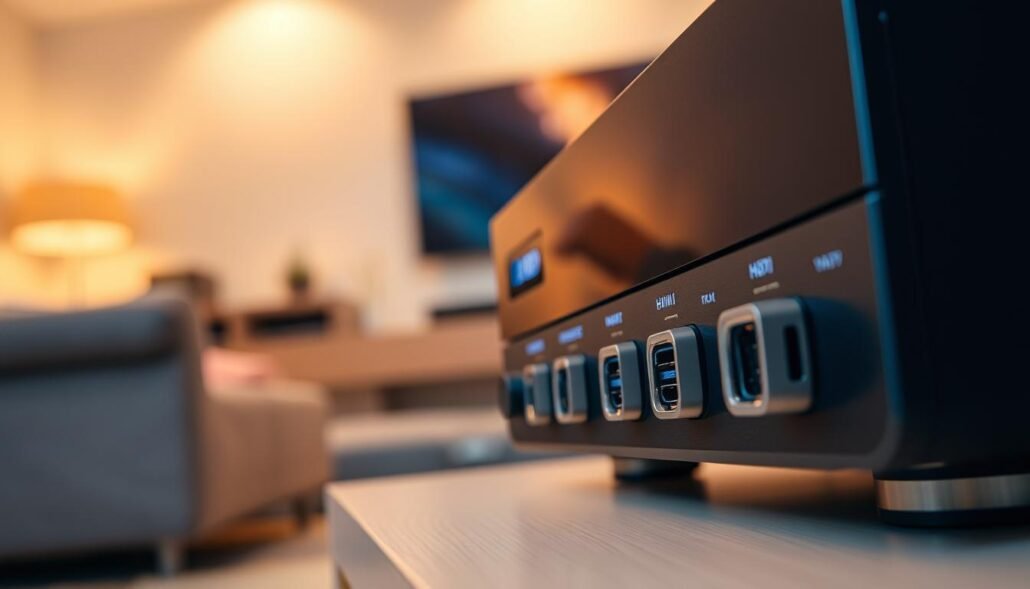
One output is fine for a single TV setup. Confirm that the output matches your display’s resolution and HDR needs so video and audio pass cleanly.
Multiple outputs add flexibility. Use dual outputs when you want the living room TV and a projector or a second screen in another room. Check whether the outputs mirror the same source or can carry different sources; models vary.
- Plan display locations before buying the receiver so wiring stays simple.
- Verify each output supports the required video and audio video formats.
- Choose multiple hdmi outputs if you expect to run both a TV and projector without extra switchers.
| Scenario | Recommended outputs | Why it matters |
|---|---|---|
| Single TV | 1 | Simple connection, fewer cables |
| TV + projector | 2 | Direct feeds, less re-wiring |
| Multi-room or demo | 2–3 | Flexibility for varied theater and display needs |
Tip: even with correct outputs, plan for ARC so TV apps can send audio back to the AVR without extra cables.
ARC and Audio Return Channel considerations for simple TV-to-receiver audio
If you stream from your TV apps, the audio return channel simplifies routing to your speaker system.
What ARC does: the audio return channel lets the TV send audio back to the receiver over the same HDMI link that carries video. That removes the need for separate optical or analog cables.
When ARC matters most
Use ARC when you rely on built‑in streaming apps, antenna TV, or smart features on the set. The receiver plays the TV sound through its speakers without extra cabling.
How ARC affects port planning
Pick the correct HDMI port on both devices. Many TVs label one port “ARC” or “eARC.” The receiver must also offer an output that supports the return channel or enhanced eARC bandwidth.
- Simpler setup: fewer separate audio connections and cleaner wiring.
- Remote ease: ARC plus HDMI‑CEC often lets one remote control volume and source switching.
- Plan inputs: ARC helps but you still need enough ports for consoles, players, and streamers.
| Use case | ARC role | Note |
|---|---|---|
| TV apps | Audio return to receiver | Use TV’s ARC port for clean routing |
| External consoles | Connect to receiver | Keeps console audio and video synced via AVR |
| Limited ports | Frees an input on the display | Consider switchers if still short |
Tip: if you need more flexibility, add a quality switcher or use optical out as a fallback. ARC simplifies most setups but verify eARC if you want lossless multichannel audio.
Alternatives if you run out of HDMI inputs or want a lower-cost solution
Don’t upgrade the whole system just to add one or two device slots. A compact hub can expand your setup and save money. Small boxes consolidate multiple sources into one display feed so you avoid constant cable swapping.
hdmi switchers as an expandable option
What they do: switchers (like 4×1 or 5×1) let several sources share a single display port. The naming shows inputs × outputs so 4×1 means four sources into one output.
Manual versus automatic
Manual models use a button on the box. They are simple and reliable. Automatic boxes detect an active device and change the path on their own. Auto switching is handy but can misbehave with certain gear.
Remote control and practical limits
Many switchers include an IR remote for couch-side changes. Note: IR needs line-of-sight to the unit. If your cabinet hides the box, use an external IR extender or choose a model with CEC support.
Soundbars as a fewer-boxes option
Some soundbars add multiple ports and act like a tiny hub. Models such as the Polk MagniFi Max AX include several jacks, but overall expansion is usually smaller than a dedicated switcher.
- Buying rule: pick a switcher with more ports than you need today.
- Match specs: confirm 4K/60 and HDR pass-through for clean picture and sound quality.
- Brand notes: consumer examples include Anker 4×1 and Monoprice 5×1 for different budgets.
| Option | Best for | Trade-off |
|---|---|---|
| Manual switch | Simple, no quirks | Requires button use |
| Auto switch | Hands-free switching | May misdetect devices |
| Soundbar hub | Fewer boxes, simpler setup | Limited expansion |
Setup and reliability tips to protect signal quality and connections
Set up with reliability in mind: plug each source once, label ports, and avoid repeated swapping that wears connectors. This saves time and prevents loose contacts that cause dropouts.
Use the right cables and avoid unnecessary swaps
Choose certified high-speed cables for long runs and for any device needing high frame rates or HDR. Use a top-quality hdmi cable for the link between your hub and display.
Keep frequently used lines short and stationary. Unplugging often stresses both the cable and the port and raises the chance of physical damage.
Prevent “no signal” issues by matching specs
Think of compatibility as a chain: source → receiver/switcher → TV. If one link lacks support for a resolution, refresh rate, or HDR format, the signal can fail.
Use 48Gbps or certified alternatives where needed and test each device individually to confirm handshake and pass-through work.
Reduce switching and remote-control frustrations
If an automatic switcher misbehaves, disable auto mode and use manual selection. That stops random input changes and keeps playback stable.
- Reseat both ends of the cable and try a shorter lead to isolate faults.
- Label inputs so guests and family pick the right port without guessing.
- Place the hub or switcher where the IR eye sees the remote, or use the receiver’s built-in switching to cut device juggling.
Bottom line: good cabling, fewer swaps, and matched device specs reduce “no signal” time and keep picture and audio consistent.
Conclusion
Aim for a setup that reduces cable swaps and keeps daily use simple.
Buy a receiver with enough hdmi ports for today’s gear plus room to grow. In most homes, six ports fit a typical home theater well and cut constant juggling of lines.
Why it matters: TVs often limit connections, and frequent swapping wears contacts and causes dropouts. Picking the right unit saves time and protects your media and entertainment equipment.
Also check for the right specs. Confirm video pass-through, HDMI 2.1 compatibility, and that hdmi inputs pass HDR and high frame rates. Verify outputs and ARC/eARC match your TV or projector.
If a new receiver is too costly, use an HDMI switcher or a soundbar with extra ports to expand capacity without replacing the whole system.
Quick checklist: count devices, add 1–2 spare ports, verify features, buy certified cables, and centralize sources at the hub for simpler daily switching.
FAQ
What is the practical minimum number of HDMI ports on an AV receiver for most homes?
Aim for at least four ports. That covers a streaming player, a game console, a Blu-ray or UHD disc player, and a cable or satellite box. Four gives basic flexibility without frequent cable swapping and protects ports from wear.
Why does the count of HDMI connections matter in a living room setup?
TVs often offer only three or four ports, so a receiver with extra sockets becomes the central hub. More ports reduce cable juggling, let the receiver handle switching and audio, and keep the TV’s limited I/O available for guest devices.
Which everyday devices typically need an HDMI port hooked to the receiver?
Common sources include streaming boxes (Roku, Apple TV, Amazon Fire), PlayStation or Xbox consoles, UHD disc players, and cable set‑top boxes. Also factor in AV receivers handling media players, PCs, and network streamers.
Should I count occasional devices like laptops or cameras when planning ports?
Yes. Count seasonal or guest gear so you don’t run short. Laptops, cameras, and party streamers may connect infrequently but still require reliable ports or a quick switcher solution.
What’s the “sweet spot” for a typical dedicated home theater AVR?
Six to eight inputs balances present needs and future upgrades. That range supports multiple consoles, streamers, disc players, a TV tuner, and room for a future device without adding external switchers.
When should I choose a receiver with a larger bank of ports?
Step up if you run multiroom systems, use multiple media sources, need several HDMI 2.1 connections for high frame‑rate gaming, or plan dual‑display outputs. Professionals and enthusiasts often pick 8+ inputs.
How does routing everything through the AVR change my cabling and setup?
The receiver becomes the single switch and amplifier. One HDMI runs to the TV or projector, simplifying connections and letting the AVR handle volume, switching, and downmixing for multi‑channel sound.
Do I need ports that support HDMI 2.1 features on every input?
Match inputs to device needs. If you use next‑gen consoles or 4K/120Hz sources, prioritize a few HDMI 2.1‑capable inputs. Not every device requires full 2.1 bandwidth, so balance cost and function.
How do HDR and high frame‑rate requirements affect port selection?
Ensure the receiver supports the resolution, HDR formats (HDR10, Dolby Vision), and frame rates you need. If the AVR can’t pass these, the picture or motion performance may drop when routing through the hub.
How many HDMI outputs should the AVR have for TVs or projectors?
One output is standard for a single display, but two outputs help with dual zones or a projector plus a TV. Multiple outputs add flexibility for multi‑display setups without extra splitters.
What role does ARC or eARC play in planning HDMI ports?
ARC/eARC lets TV audio flow back to the receiver on a single cable, reducing the need for optical connections. Reserve the TV HDMI output assigned to ARC/eARC and verify the AVR’s support for the audio formats you want to use.
What if I run out of available ports — are switchers a good solution?
Yes. HDMI switchers expand inputs affordably and come in manual or automatic varieties. Choose one with the required bandwidth (HDMI 2.1 compatible if needed), remote control, and stable EDID handling.
Should I prefer automatic or manual HDMI switchers?
Automatic switches are convenient for straightforward setups; they choose the active signal. Manual or remote‑controlled models offer consistent behavior and fewer compatibility surprises, especially with complex AVR chains.
Are soundbars an alternative when I want fewer boxes and ports?
Modern soundbars often include multiple HDMI inputs and ARC/eARC pass‑through. They simplify wiring but may not match the power and multiroom features of a full AVR if you need advanced speaker setups.
What cable and setup tips help protect signal quality and reduce issues?
Use high‑quality HDMI cables rated for your needed bandwidth, avoid unnecessary unplugging, and match resolution/frame rate settings across devices. Keep firmware updated and label cables to reduce remote‑control and switching frustration.
How can I prevent “no signal” problems when routing devices through a receiver?
Ensure all devices and the AVR support the same HDMI versions and features, set matching resolution and HDR settings, and check EDID/handshake compatibility. If problems persist, try direct connection to the display to isolate the issue.


