
Quick check: HDMI 2.1 brings higher bandwidth and new capabilities such as 4K at 120 fps, 8K, VRR, ALLM, Dynamic HDR, QMS, and eARC. Many modern TVs from LG, Samsung, Sony, TCL, and Vizio include at least one matching input.
Why that matters: Gaming consoles like PlayStation 5 and Xbox Series X and some high-end GPUs can push these modes. But a chain is only as strong as its weakest link. If any device or cable lacks a feature, you may lose it.
This guide shows how to verify real support on your unit, find official specs, and decide when to upgrade cables or gear. You will learn which features boost video or audio in a home theater and which ones matter most for games or movies.
For a shortlist of recommended units and models, see our roundup of best AV models.
What this How-To covers and why HDMI 2.1 matters right now
Find out which 2.1 capabilities deliver visible gains, which devices can use them, and how to confirm real support. This short guide highlights the features that affect picture, motion, latency, and sound so you can judge upgrades more wisely.
Key tech jump: bandwidth rises from 18 Gbps in hdmi 2.0 to 48 Gbps in hdmi 2.1, enabling 4K at 120 fps and 8K signals. That extra speed also informs cable choices; Ultra High Speed cables are needed for higher frame rates.
Most new tvs include at least one 2.1-capable input, but feature lists differ by model and case. Sources such as PS5, Xbox Series X, and recent GPUs can use these modes today.
- We map which 2.1 features (VRR, eARC, Dynamic HDR, QMS) matter for gaming and movies.
- Learn when older cables and products will still handle audio and 4K60 versus when speed upgrades are required.
- Get practical steps to check specs, firmware support, and port labels so you avoid paying for unused extras.
Is my AV receiver compatible with the latest HDMI 2.1
A quick inspection often reveals whether a unit truly supports advanced features.
Start by checking the box, manual, and official product page. Look for explicit listings of 4K/120, 8K/60, VRR, ALLM, eARC, and FRL in the spec tables. If those terms are absent, treat any generic hdmi 2.1 label cautiously.
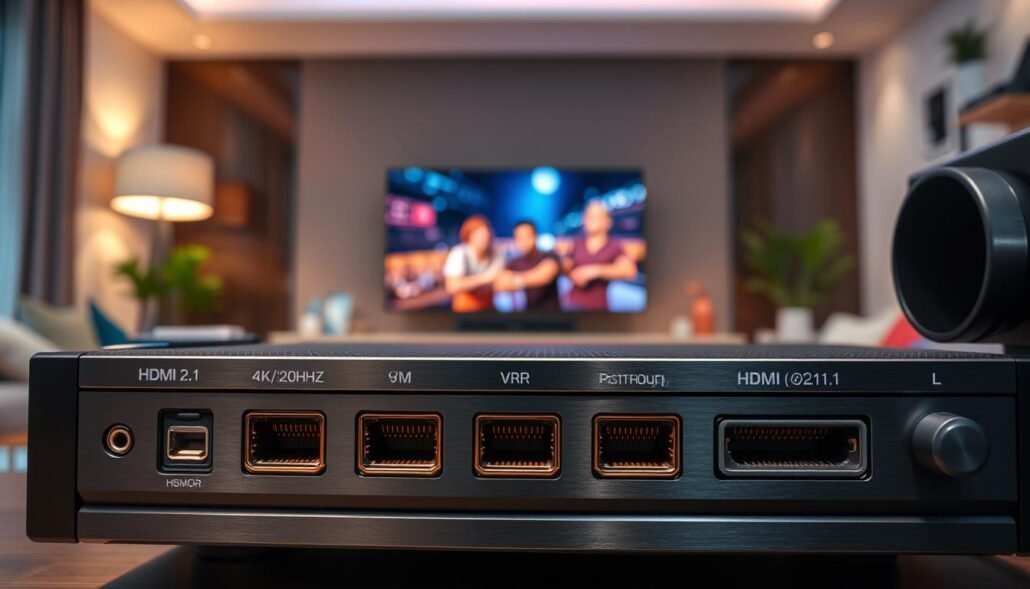
Verify port labeling using rear-panel photos. Some models put 4K/120 or 8K on specific ports only. eARC is usually tied to one HDMI OUT port.
Confirm published bandwidth per input. Ports rated near 40–48 Gbps indicate full support for high-frame-rate modes. Anything capped near 18 Gbps behaves like older hdmi generations.
- Check firmware notes — VRR or ALLM may arrive after launch.
- Download the full datasheet or contact support if specs are unclear.
- Watch for caveats like reduced chroma or bit depth at top frame rates.
| What to check | Why it matters | How to confirm |
|---|---|---|
| 4K/120 & 8K/60 | Higher frame rates and resolution | Spec sheet + port bandwidth (40–48 Gbps) |
| VRR / ALLM / QMS | Smoother gaming, reduced lag | Feature list and firmware changelog |
| eARC | Full-resolution audio like Dolby Atmos | HDMI OUT label and audio spec |
| FRL / bandwidth per port | Ensures true high-rate passthrough | Manufacturer datasheet and port notes |
Step-by-step: How to verify HDMI 2.1 features on your receiver, TV, and sources
Inspecting port labels, per-port bandwidth, and source settings helps you find bottlenecks in your audio/video chain.
Identify ports and specs on the receiver. Look for markings such as 4K/120, 8K/60, or per-port bandwidth numbers in the spec sheet. Compare each input’s listed Gbps to confirm true high-rate passthrough.
Confirm TV inputs for 4K/120 and eARC. TVs often split functions across ports; one input may handle 4K/120 while another carries eARC. Note which port is which and plan wiring accordingly.
Check source device output options. Enable 4K120, VRR, and ALLM on consoles or GPUs and verify the display reports the correct resolution and refresh rate. PS5 and Xbox Series X can output 4K120 when the chain supports it.
Update firmware and swap cables to isolate issues. Firmware can unlock VRR or QMS. Use Ultra High Speed HDMI cables for 4K120 and 8K. For audio return, many High Speed cables still handle eARC.
- Test a 4K120 game or benchmark to confirm video and audio at once.
- If a mode fails, try a direct TV connection and use eARC for audio return.
- Document which ports and cables deliver which features; keep a spare cable for quick testing.
| Check | Why it matters | How to verify |
|---|---|---|
| Port labels / per-port bandwidth | Shows true passthrough ability | Manual, spec sheet, rear-panel markings |
| TV 4K/120 vs eARC ports | Determines wiring plan | TV manual and input labels |
| Source output settings | Enables high-rate modes | Console/PC display settings and on-screen readout |
| Firmware & cable type | Can add or enable features | Update firmware; use Ultra High Speed for 4K120/8K |
HDMI 2.0 vs HDMI 2.1 explained: features that impact audio and video
Understand how the jump from 18 Gbps to 48 Gbps changes what your gear can pass and why that matters for picture and sound.
Bandwidth jump: 18 Gbps to 48 Gbps and why it matters
Bandwidth is the raw data pipe. Moving from 18 Gbps to 48 Gbps allows higher uncompressed rates and wider chroma or bit depth at high frame rates.
This extra capacity enables uncompressed 4K at 120 fps and 8K at 60 fps. For gaming, that means smoother motion and lower visible blur.
4K/120, 8K/60, and Dynamic HDR in practical terms
4K/120 benefits competitive play and fast-paced content by improving clarity and reducing input lag. 8K/60 is mainly future-proofing for very high-resolution displays.
Dynamic HDR adjusts tone mapping per scene or frame. That keeps highlights and shadow detail closer to the creator’s intent.
VRR, ALLM, and QMS for smoother motion
VRR matches refresh to source frame rates to cut tearing and stutter. ALLM switches displays into low-latency modes so controls feel snappy.
QMS reduces the blanking gap when frame rates change, so menus and app transitions feel less jarring.
eARC for full-resolution Dolby Atmos and advanced audio formats
eARC sends high-bitrate, object-based audio like Dolby Atmos from a display back to receivers without compressing it.
This makes it easy to use apps on a smart display while still getting premium surround sound from an external amp.
| Feature | Practical benefit | What to check |
|---|---|---|
| 4K/120 | Smoother motion for gaming | Per-port bandwidth and source output |
| Dynamic HDR | Better scene tone mapping | Display and source support |
| eARC | Full-resolution audio passthrough | HDMI OUT label on display and amp |
- Tip: prioritize 4K/120 and VRR for gaming, eARC for audio, and Dynamic HDR for better picture consistency.
- Confirm listed features on product pages instead of relying on version names alone.
Cables, ports, and connection paths: getting 4K/120 and 8K working
Start by mapping every link in your setup so you can see which cables and ports carry peak signals.
When to use Ultra High Speed vs High Speed
Use Ultra High Speed cables for 4K/120 and 8K/60 paths. These certified cables support up to 48 Gbps and handle the heavier data and higher bit depth that modern sources demand.
For simple 4K/60 or eARC-only audio, High Speed cable often suffices. Upgrade only when you hit bandwidth walls, signal drops, or failed modes.
FRL versus TMDS: what the chain must support
Fixed Rate Link (FRL) is the new signaling method that enables higher throughput. Older TMDS cannot reach the same rates.
Both ends — source and display or receivers — must support FRL to unlock top modes. FRL reuses existing lanes, so no new connector is required.
Practical tips
- Confirm which ports support 4K/120; one input may carry that function only.
- Keep runs short or use active Ultra High Speed solutions for long lengths.
- eARC often works over existing High Speed cable; test audio paths first if that is your priority.
- When in doubt, swap to a known-good Ultra High Speed cable and update firmware on devices to enable FRL modes.
| Item | Use case | What to check |
|---|---|---|
| Ultra High Speed cable | 4K/120, 8K/60 | 48 Gbps certification |
| High Speed cable | 4K/60, eARC audio | Length and stability |
| Signal method | High-rate video | FRL support on both devices |
Gaming scenarios: PS5, Xbox Series X, PCs, and AV receiver pass-through
Gaming setups demand that every link—console, amp, and display—can pass the same high-rate signal for true 4K120 performance.
PS5 and Xbox Series X can output 4K120, but if a receiver or soundbar in your chain lacks modern passthrough, the system will drop to older video modes. Verify that the receiver’s passthrough port and the TV’s input both support the required rate before expecting full benefits.
For PCs, enable 4K120 and VRR or G-Sync/FreeSync in GPU control panels. Confirm the display reports the expected rate to rule out a misconfigured source or driver.
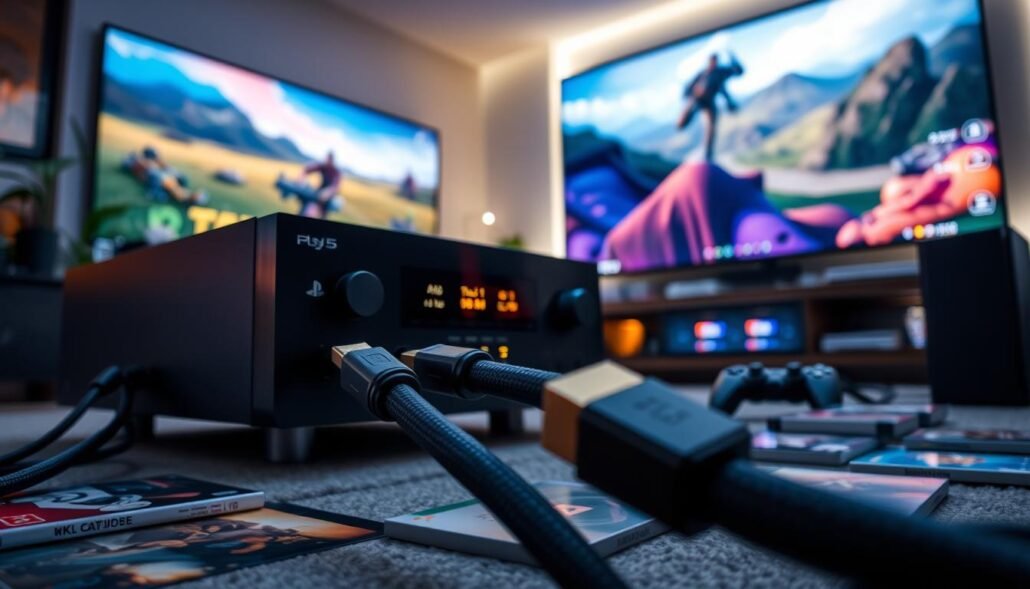
- If passthrough is missing: connect the console directly to a 2.1-capable TV input and use eARC to send audio back to the amp.
- Use Ultra High Speed HDMI cables to avoid bandwidth bottlenecks; some cables that work at 4K60 fail at higher rates.
- Enable ALLM/low-latency modes on both display and receiver for the best response.
- Keep firmware current on consoles, receivers, and tvs; updates often add or fix high-rate support.
| Scenario | Action | Why it helps |
|---|---|---|
| Console → receiver → TV | Check per-port specs | Find the weak link that caps video rate |
| Receiver lacks passthrough | Direct connect + eARC | Restores 4K120 while keeping surround audio |
| PC output | Enable 4K120 & VRR | Ensure GPU and display report correct rate |
Troubleshooting real-world issues and avoiding common pitfalls
Troubleshooting starts by isolating each link so you can find the weak element in a chain.
Color shifts and failing adapters: Cheap USB-C or passive adapters often overheat and degrade signal integrity. Reports show severe color errors at higher refresh rates — red shifting toward orange or brown — which signals a loss of data fidelity.
Try a direct run using certified Ultra High Speed cables. Remove adapters and converters first. That simple swap fixes many color and handshake failures.
Ports and feature splits: Not all products put eARC and 4K/120 on the same input. Check which ports on your TV and receiver support each function and plan wiring to preserve both audio and video.
- For dropouts at 4K120, test a shorter certified cable and different ports, then update firmware.
- If passthrough fails, connect the source to the TV and use eARC back to the amp to keep full video and premium audio.
- Keep a log of each device’s supported rates, VRR, eARC, and bandwidth so you can match features across the chain.
| Symptom | Quick fix | Why it helps |
|---|---|---|
| Color shift | Direct connect + certified cable | Restores signal integrity |
| Intermittent drops | Shorter cable, firmware update | Improves handshake stability |
| Missing 4K/120 | Bypass chain, use eARC for audio | Maintains video while preserving audio |
Models and markets: what to expect from current TVs and receivers
Manufacturers are adding high-rate ports to many current models, but feature splits remain common.
What buyers see on store pages often lists a single high-bandwidth input on midrange and flagship models from LG, Samsung, Sony, TCL, and Vizio.
That listing does not guarantee every feature. Some products place eARC on one port and a high-refresh passthrough on another. Check per-port data in manuals.
- Expect many models to advertise 4K/120 and 8K support, but confirm how many ports actually deliver that speed.
- Recent receivers from known brands may include upgraded inputs; verify port counts and firmware notes before you buy.
- For full-resolution Dolby Atmos via eARC, both a TV and a receiver must list codec support in their specs.
| Item | What to check | Why it matters |
|---|---|---|
| TV models | Per-input bandwidth and port labels | Determines if a single cable can carry high-rate video and audio |
| Receivers | Number of high-rate inputs and eARC placement | Affects routing and whether you must direct-connect sources |
| Cables | Ultra High Speed certification | Needed for peak speed modes; avoids false “8K ready” claims |
Conclusion
A short checklist helps you match game-ready frame rates and full-resolution sound to your setup. ,
Confirm exact support for 4K/120, 8K/60, VRR, ALLM, QMS, and eARC on your unit rather than relying on a generic hdmi 2.1 label.
Match sources and display ports so video and audio travel the same chain. Use Ultra High Speed cables for high-bandwidth video, while many existing runs still handle eARC audio and Dolby Atmos.
If a unit blocks a mode, connect the console or GPU to the display and return sound via eARC to keep full-rate video and premium audio. Keep firmware current, plan port assignments, and document which ports, cables, and rates worked.
Follow this checklist and you’ll know whether you truly need hdmi 2.1 now or can extend your gear’s range a little longer at home.


