Quick summary: This intro explains common causes behind failure to discover a streamer on a home setup and gives a clear path to fast fixes.
A user reported that radio played fine, yet favorite tracks froze after a few seconds. That sudden drop began within two days despite resets of router and Yamaha player.
Another owner of a WXC‑50 shared that after years of smooth use the unit stopped joining the network. Setup stalled at stage 2/2 with a connection failed 20315 error while the router seemed to work.
This section breaks down how discovery works between phone and device, why weak wifi or an unhelpful router can break a connection, and what setup errors usually look like.
What you’ll get: simple checks to confirm the system and network match, quick steps for phones and devices, plus targeted moves when content plays differently or speakers vanish.
Understanding the issue right now: what “not found” means and how it shows up
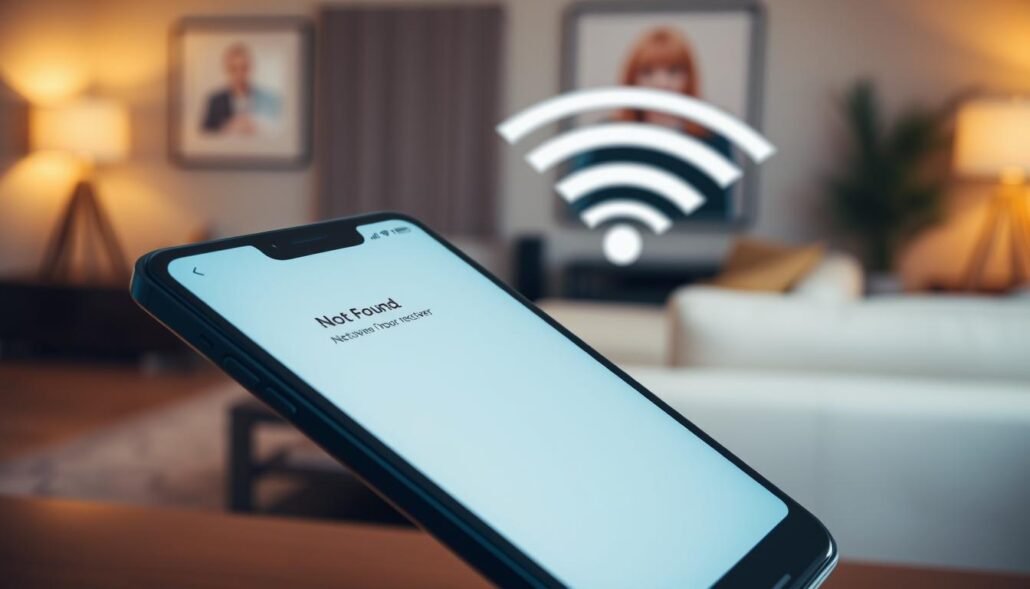
Some setups reach the final step, then stall with a repeating timeout and error code. That outcome usually means the app cannot complete device discovery on your local network. Discovery traffic fails to register, so screens stay empty or list only part of your system.
Typical symptoms include a setup timeout near stage 2/2 with a visible message such as connection failed 20315. You may also see speakers or devices appear briefly, then vanish. Phone controls can connect for a moment, then lose access again.
- Partial playback: radio streams run but on‑demand tracks freeze after a few seconds.
- Intermittent visibility: devices pop in and out of the list during control attempts.
- Generic errors without a device listed point to discovery-level blocking.
| Symptom | Likely cause | Quick check |
|---|---|---|
| Timeout at setup (stage 2/2) | Firewall, DHCP or client isolation | Restart router; toggle phone Wi‑Fi; test another network |
| Devices vanish from list | Unstable Wi‑Fi or multicast loss | Move closer to router; check SSID grouping (2.4/5 GHz) |
| Radio works, tracks freeze | Content fetch or buffering path issue | Try a different streaming service; update firmware and apps |
Why is the MusicCast app not finding my Receiver?
Short answer: connection and discovery rely on a steady home network and matching settings on both phone and device. A weak Wi‑Fi link or an unexpected router rule often breaks discovery before streaming fails.
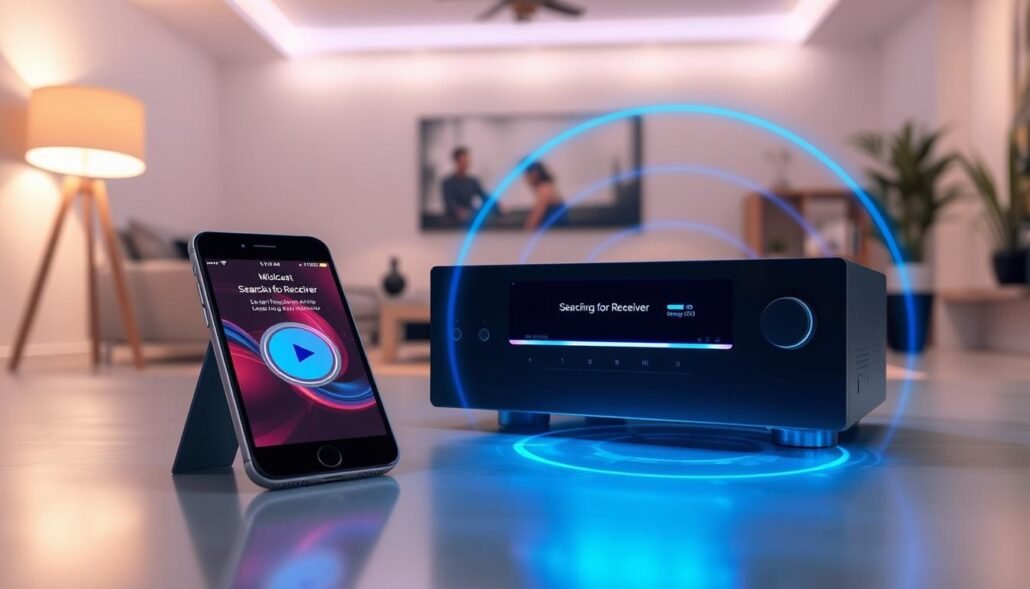
Home network instability
Wi‑Fi congestion, a weak signal, or SSID changes can stop discovery broadcasts from reaching your receiver. Move the unit closer to the access point or reduce interference to test stability.
Router behaviors and DHCP
Routers that rotate leases, enable AP/client isolation, or apply strict firewall rules will block multicast discovery. That leads to intermittent device lists and a connection that times out.
Software mismatch and service quirks
An out‑of‑date app or receiver firmware can break supported discovery methods. Also note service‑side quirks: users report Deezer radio playing while on‑demand tracks freeze, showing content paths can fail separately.
| Cause | Indicator | Quick solution |
|---|---|---|
| SSID mismatch | Device online but missing | Confirm both phone and device use same SSID |
| DHCP rotation | Intermittent commands | Reserve IP or shorten lease changes |
| Isolation/firewall | Setup timeout / error 20315 | Disable isolation; allow multicast |
Bottom line: confirm same SSID, stabilize Wi‑Fi, check router settings, and update firmware and app before re-running setup for a fast solution.
Quick fixes you can try first (no special tools needed)
A few focused checks often clear a failed setup or stuttering playback fast. Start with simple moves that verify your local network and restore clean discovery between phone and device.
Power cycle sequence that actually works
Follow this order:
- Shut down modem, then router. Wait 60 seconds.
- Power modem on and wait for full sync.
- Power router, then reboot the receiver and speakers.
- Toggle your phone’s wifi last to refresh control paths.
Verify the same network
Confirm phone and device use the exact SSID. If you see both 2.4 GHz and 5 GHz, try one band (2.4 GHz) first. This removes a common discovery blocker.
Reset stale connections and update paths
Forget and rejoin Wi‑Fi on the receiver. Toggle wifi on your phone and clear the app cache if possible.
Also update the app, receiver firmware, and streaming services like Deezer to avoid version mismatch that can cause an error during playback.
Check playback differences
Try an internet radio stream and then an on‑demand track. If radio plays but tracks freeze, suspect content or service routing rather than a full network failure.
| Quick action | When to use | Expected result |
|---|---|---|
| Full power cycle | Setup timeout or intermittent visibility | Clears stale leases, restores discovery |
| SSID check | Phone and device show different bands | Devices appear consistently in the control view |
| App & firmware update | Playback freezes or odd behavior | Removes version conflicts and playback glitches |
Keep a quick log of steps and time taken. If this sequence fails, that record saves time when you move to advanced settings or contact support for a lasting solution.
Advanced troubleshooting when connection keeps failing
If setup halts at stage 2/2 after years of stable use, treat the router and Wi‑Fi as priority suspects.
Router settings to review
Reserve a DHCP address for your device so its IP does not change. This often stops devices disappearing from control lists.
Enable multicast and broadcast forwarding and disable client isolation on guest SSIDs. Check UPnP and relax strict firewall profiles if present.
Wi‑Fi tuning
Split 2.4 and 5 GHz SSIDs and start both on 2.4 GHz for range. Manually pick less crowded channels (1, 6, 11).
On mesh systems, place the receiver near the primary node and ensure multicast passes between nodes.
Full setup redo and reset guidance
- Clear device network settings.
- Power cycle modem, then router; wait for WAN sync.
- Connect device to selected SSID, then run setup to avoid a timeout at stage 2/2.
| Action | When to use | Expected result |
|---|---|---|
| Wired test | Persistent error 20315 | Confirms if wifi causes problem |
| Factory reset (last resort) | All steps fail | Restores defaults; export settings first |
| Collect logs | Before contacting support | Speeds up replies from Yamaha or ISP |
Escalation checklist: device model, firmware, app version, router make, SSID/band, IP, whether radio streams play while tracks freeze, and exact steps and time when failure occurs. That data helps reach a fast solution.
Conclusion
Start with simple checks: confirm phone and device share the same SSID, stabilize wifi, and allow local discovery on your network to avoid recurring error states.
Differentiate by content: if radio plays while on‑demand tracks freeze, focus on content paths rather than replacing the whole system or speakers.
Long‑running setups that fail after years often follow silent router rule changes or firmware updates. A short, orderly sequence — power cycle in order, clear stale Wi‑Fi credentials, and update firmware — fixes most cases.
When deeper steps are needed, review DHCP reservations, multicast handling, and isolation settings. Keep notes with times, control replies, and model details to speed support replies.
Thanks for working through these steps. Thanks again — follow them in order and your speakers and device should return to stable music control.
FAQ
What does “not found” mean when the app can’t see my receiver?
That message means the mobile app cannot discover the receiver on your local network. It usually appears as a missing device list entry, a timeout during setup, or an error code such as connection failed 20315. Discovery uses local multicast/broadcast, so if those packets are blocked or the receiver lost its lease, the app shows nothing.
What common symptoms indicate a discovery problem?
Typical signs include devices missing from the app, setup halting at “stage 2/2,” timeouts, and specific errors like 20315. You may still stream internet radio while track playback freezes, or the receiver may appear in router client lists but not inside the app.
Could home network instability cause this?
Yes. Wi‑Fi congestion, weak signal at the receiver, or recent SSID/name changes break discovery. If your phone is on a different band or guest network, the app cannot reach the receiver. Simple signal or naming mismatches are frequent culprits.
How can router behavior block discovery?
Routers can block local discovery via client/guest isolation, strict firewall rules, or disabled multicast and UPnP. DHCP lease issues also cause the receiver to change IP addresses unexpectedly, which confuses the app during lookup.
Can mismatched software versions cause failures?
Absolutely. Running an outdated app, old receiver firmware, or old streaming service app (for example Deezer) can break compatibility. Updating both the MusicCast application and the receiver firmware often restores reliable discovery and playback.
Why would a system that worked for years suddenly fail?
Network updates, router firmware changes, ISP equipment swaps, or streaming service updates can alter discovery behavior. Older models like the WXC‑50 sometimes surface errors such as 20315 after environmental changes or software updates elsewhere on the network.
What quick power cycle actually helps?
Power down in this order: modem, then router, then receiver. Wait for each device to fully boot before powering the next. Finally, restart your phone. This sequence clears routing and name resolution glitches that block discovery.
How do I verify that phone and receiver share the same network?
Check SSID names on both devices. Ensure your phone is on the same 2.4 or 5 GHz network as the receiver. Avoid the guest network. If your router uses band steering, try assigning separate SSIDs to isolate bands during troubleshooting.
What steps reset stale connections without factory resets?
On the receiver, forget and re-add the Wi‑Fi network or run the network setup again. On your phone, toggle Wi‑Fi off and on, or forget the network and reconnect. Reinstalling the app can also clear stale cached discovery entries.
Which updates should I check first?
Update the MusicCast application, receiver firmware, and any streaming apps you use (for example Deezer). Also check router firmware. Keep all devices current to reduce compatibility issues and discovery errors.
How can I tell if it’s a service-side playback issue?
Test internet radio versus track playback. If radio streams but tracks freeze or fail, the problem may lie with the streaming service or its integration. Check service status, app updates, and whether other devices can play the same content.
What router settings should I review for advanced troubleshooting?
Inspect DHCP reservations, UPnP, multicast/broadcast settings, and client isolation or guest network options. Enable multicast and UPnP if they are off. Reserve a stable IP for your receiver to avoid lease-related discovery drops.
How do I tune Wi‑Fi to improve discovery and stability?
Create separate SSIDs for 2.4 and 5 GHz to avoid band confusion. Move the receiver closer to the router or use a wired Ethernet connection. Change crowded channels, and reduce interference from other electronics.
What if MusicCast setup times out at “stage 2/2” repeatedly?
Re-run setup after power cycling modem and router. Temporarily disable router firewall or client isolation while setting up. If possible, perform setup with the receiver wired to the router to complete configuration, then switch to Wi‑Fi.
When should I consider a factory reset?
Use factory reset when other steps fail and you need to clear persistent configuration errors. Note that a reset erases saved networks and settings. Back up any important settings and document your current network details before proceeding.
What details should I collect before contacting support?
Gather receiver model and firmware version, app version, router model and firmware, exact error codes (for example 20315), whether the device appears in router client lists, and tests you’ve run (power cycle, setup attempts, wired vs. wireless). This speeds Yamaha or ISP troubleshooting.
Are there quick checks to isolate the issue to phone, router, or receiver?
Yes. Try controlling the receiver from another phone or tablet on the same network. Connect the receiver via Ethernet and see if the app discovers it. If discovery works wired but not wireless, focus on router Wi‑Fi settings or signal strength.
What extra keywords relate to this FAQ for search and help pages?
Include connection, network, router, firmware, DHCP, UPnP, multicast, client isolation, SSID, Wi‑Fi band, Ethernet, Deezer, radio vs tracks, 20315 error, setup timeout, WXC‑50, streaming, and router firmware.