Quick help for owners who want fast, clear steps to restore control of their audio video system. This intro shows what to check first so you avoid needless parts or service calls.
The guide covers simple solutions like fresh batteries, clean contacts, and an unobstructed IR line-of-sight. It also explains why power to the unit and the outlet matters for stable video and audio.
Start low-risk: swap cells, wipe contacts, and confirm app and firmware updates. If those steps fail, the flow moves to resets and HDMI control checks with clear notes on when to escalate.
This section helps you separate remote control problems from deeper receiver faults such as protection or thermal behavior. Follow the order here to restore normal control and enjoy your devices again with minimal downtime.
Start Here: Quick Diagnostics and Safe Setup Checks
Run these fast checks first to separate simple setup problems from deeper faults. A few quick steps often restores normal control and video without tools or service.
Confirm power, outlet, and power cable to the receiver
Test the outlet with another device and try a different wall socket to confirm steady power. Reseat the power cable at both ends and inspect it for kinks or wear.
Remove surge protectors or power strips from the chain while testing. Faulty strips can interrupt the power supply and cause intermittent receiver power.
Use the front panel power button to cycle the unit. A simple power cycle helps show if the issue is with the device or the handheld control.
Verify clear line-of-sight and proper receiver placement
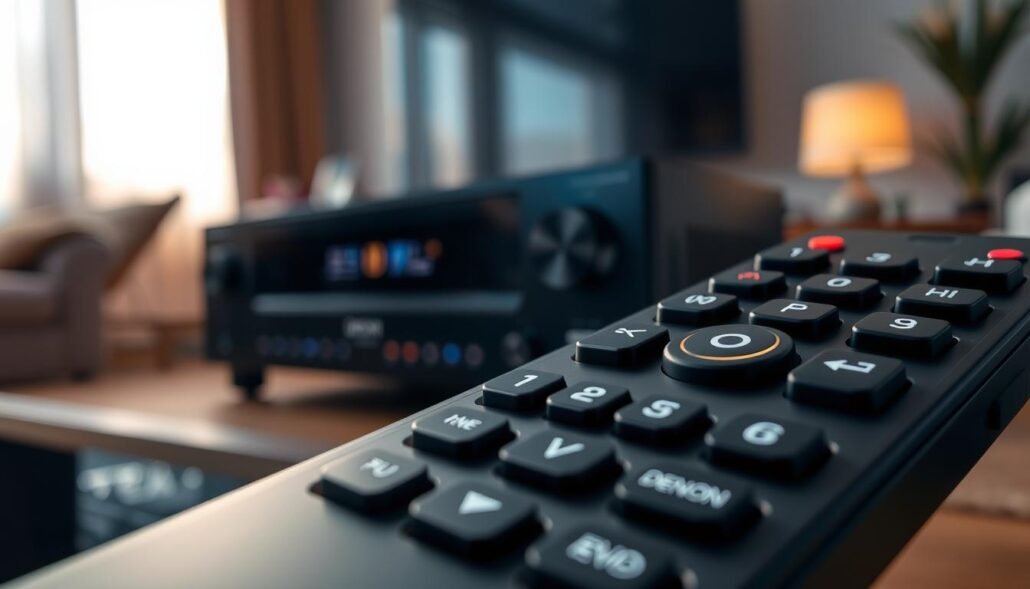
Ensure the front IR window is visible from your seating area. Move furniture, décor, or stacked components that might block sight to the sensor.
Reduce nearby reflections and bright light that scatter the IR beam. If cables or HDMI routing cover the front panel, reposition them so the sensor can “see” the remote.
| Quick Check | How to Test | Expected Result |
|---|---|---|
| Outlet & power cable | Plug lamp/tester, reseat cable | Unit powers on steadily |
| Short-range control test | Stand 3–5 ft and point at sensor | Buttons respond; confirms IR path |
| Interference check | Remove glossy panels/close curtains | Improved responsiveness |
If the unit still does not respond, replace the batteries in the remote control and perform a reset step before moving to deeper steps. Note any patterns to help diagnose a broader issue.
Troubleshooting Denon Receiver Remote : Model, Common Cause & Fixes
Quick checks and small repairs will often restore full control without service calls. Start with battery and contact care, then verify the IR path and basic settings before moving to resets or firmware updates.
Replace and reseat batteries; clean battery contacts
Replace weak batteries and wipe contacts with a dry cloth or cotton swab. Remove cells, hold the power button ~20 seconds to discharge residual power, press a few buttons briefly, then install fresh batteries.
Restore IR path and reduce interference
Clear any objects between the handheld control and the front sensor. Test at 3–5 feet while pointing directly at the sensor to confirm the unit receives commands.
Reset settings and reboot devices
Follow the user manual to reset remote control settings to default if custom programming causes control issues. For the unit, power down from the front panel, unplug for 40–45 seconds, then reconnect. Use a factory reset only as a last resort and after documenting your settings.
Update firmware, disable HDMI-CEC, and zone selection
Keep the receiver firmware and control apps current to fix bugs that affect control and video switching. If TVs respond incorrectly, turn off HDMI-CEC in the TV settings to avoid command conflicts. Also verify the remote is set to MAIN or ZONE2 and look for the blue indicator when switching zones.
Clean keypad and use a fallback control
For stuck keys, remove batteries, open the case per the manual, clean the keypad and contacts with isopropyl alcohol, and allow to dry before reassembly. If the original control stays unreliable, use Remote Control Learning or a universal IR remote as a temporary solution.
For further device-specific guidance and official instructions, see the manufacturer resource at support and guides.
Model-Specific Notes and Related AV Receiver Factors
Focus first on clear, repeatable checks that apply to the AVR-X2700H and similar units. These quick steps help you tell whether the handheld control truly failed or if a system-level fault is to blame.
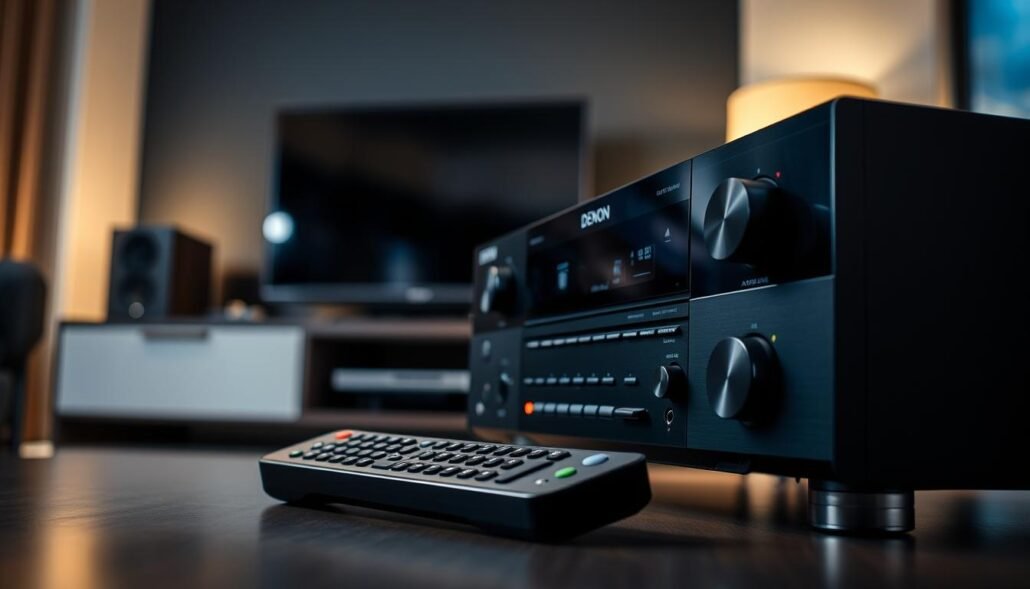
AVR-X2700H behavior and simple solutions
On the AVR-X2700H, start with fresh batteries, clean battery contacts, and an unobstructed IR path. Follow the user manual to reset remote settings if needed and keep the firmware and control apps updated.
When control problems mask system faults
Some problems mimic a broken controller. Overheating can trigger thermal shutdown, and protection mode often follows speaker wire shorts.
If you suspect protection mode, power down, inspect each speaker cable for stray strands, and reconnect channels one at a time to isolate the issue.
Connectivity and cabling considerations
For bluetooth and network glitches, update firmware, re-pair devices, and confirm the correct input is selected. For audio and video anomalies, check that HDMI cables are firmly seated and undamaged.
- Ventilation: Clear top and sides and avoid tight cabinets to reduce thermal events.
- Wiring: Methodically check speaker leads to rule out shorts before replacing parts.
- Verification: Test with a universal IR control to separate handheld faults from receiver-side problems.
When recurring problems persist, back up settings and follow the manual instructions for a factory reset as a last step. For broader comparisons and selection guidance, see an AV receivers comparison.
Conclusion
Wrap up by following a clear order: confirm outlet and steady power, ensure an unobstructed IR path, refresh batteries, and verify the remote control is responding. These steps restore basic control for many users.
Next, apply targeted solutions: reset the remote, hard reboot the receiver, update firmware and apps, and disable HDMI-CEC if commands conflict. Check zone selection so the correct zone accepts control.
If buttons still fail, clean the handheld carefully or use a universal IR remote while you continue diagnostics. When all else fails, follow the user manual and manual instructions to perform a factory reset, then re-enter your settings.
Document current settings before resets and keep firmware, tidy cables, and good ventilation to preserve functionality and reduce future problems.
FAQ
How do I do a quick power and outlet check before troubleshooting?
Confirm the receiver is plugged into a working outlet and the power cable is fully seated. Verify the front panel shows power or standby lights. Try a different outlet or test another device on the same outlet to rule out the wall circuit or power strip. If the unit has a rear power switch, ensure it’s on.
What should I look for to ensure clear line-of-sight between the handheld controller and the receiver?
Place the controller within a few feet of the receiver and point it at the IR sensor. Remove any objects blocking the front panel and avoid reflective surfaces that can scatter IR. Test at different angles—some receivers have a narrow IR reception window, so small position changes may help.
How do I replace and reseat batteries safely in the remote?
Remove old batteries and check for corrosion on contacts. Clean contacts with a cotton swab and isopropyl alcohol, let dry, then install fresh alkaline batteries with correct polarity. Avoid mixing old and new batteries or different brands. Test the remote immediately after reseating.
What steps restore the controller to default settings per the user manual?
Locate the reset procedure in your user manual—typically holding specific buttons for several seconds will clear custom codes and return factory defaults. Follow exact button combinations for your model to avoid unintended mode changes. After reset, reprogram any preferred settings.
When should I perform a hard reboot or factory reset of the main unit?
Try a hard reboot first: power off, unplug the receiver for 30–60 seconds, then reconnect and power on. Use a factory reset if problems persist and you’ve backed up settings. Note a factory reset erases calibration, network settings, and stored presets, so reconfigure afterward.
How can firmware updates and app updates affect control problems?
Outdated firmware or control apps can cause unresponsive commands and mismatched features. Check the manufacturer’s website or the receiver’s network menu for firmware updates and install the latest version. Update any companion apps on your phone or tablet to ensure compatibility.
Could HDMI-CEC or other TV features interfere with remote commands?
Yes. HDMI-CEC can let the TV or other connected equipment intercept or translate commands, creating conflicts. Disable HDMI-CEC on the TV and receiver temporarily to test whether the receiver responds normally. If that fixes it, adjust CEC settings or use dedicated device control instead.
How do I ensure the remote targets the correct zone (MAIN vs ZONE2)?
Check the remote’s operating mode indicator or display; many Denon controls let you switch target zones. Press the zone button (often labeled MAIN/ZONE2) until the correct zone appears. Confirm the receiver’s front panel shows the same active zone to match commands.
What are signs of stuck keys or debris inside the keypad and how do I clean them?
Symptoms include repeated inputs, unresponsive buttons, or a button that stays pressed. Remove batteries and use compressed air to blow out dust. For sticky residue, wipe around keys with a lightly dampened cloth or alcohol swab. Avoid disassembling unless comfortable; consult the manual if needed.
When should I use remote learning or a universal IR remote as a fallback?
If the original handheld is damaged or specific codes fail, try a universal IR remote or a learning remote to capture working IR commands from the receiver’s remote. This provides a reliable workaround while you repair or replace the original controller.
Are there model-specific quirks for the AVR-X2700H that I should know?
The AVR-X2700H can exhibit issues related to network control, HDMI handshakes, and CEC interactions. Ensure firmware is current and check HDMI cable quality for ARC/eARC setups. If the remote responds intermittently, verify the IR sensor location and disable conflicting HDMI-CEC features on connected devices.
Could remote problems indicate deeper system issues like overheating or protection mode?
Yes. If the receiver enters protection mode or overheats, it may ignore control commands. Check for unusual noises, thermal cutouts, or front-panel warning indicators. Move the unit to a ventilated spot, disconnect problematic speaker loads, and have the unit serviced if protection persists.
How do Bluetooth, network, and HDMI cabling affect control and audio/video behavior?
Wireless and wired connections can change how devices respond to commands. Bluetooth pairing conflicts, poor Wi‑Fi, or bad Ethernet can prevent app control. Faulty HDMI cables or ports can disrupt audio/video switching and CEC control. Test with known-good cables and isolate one connection at a time to find the culprit.