This quick guide explains how to diagnose why a receiver might not respond to its remote control and what to try first. You’ll get clear steps that separate a handset issue from a device problem.
Start simple: press the front-panel power button to confirm the receiver powers on. That helps you rule out power or hardware faults before you swap batteries or reset the control.
We cover common signal blockers — fluorescent lights, Wi‑Fi congestion, microwaves, and physical obstacles — and show how to make sure the sensor area is clear. For Bluetooth handsets, try toggling Bluetooth, re-pairing, and using 5 GHz Wi‑Fi to reduce interference.
Device checks include verifying outlet and cable connections, input selection, HDMI and speaker wiring, firmware updates, and ventilation. Follow these steps to save time and gather useful information if you need customer support.
Understand the Problem: Quick Checks Before Deep Troubleshooting
Begin by separating device-side power problems from control-side faults with a few fast checks. This will tell you whether to focus on the unit or the remote control.
Confirm the issue: Test power and the control separately
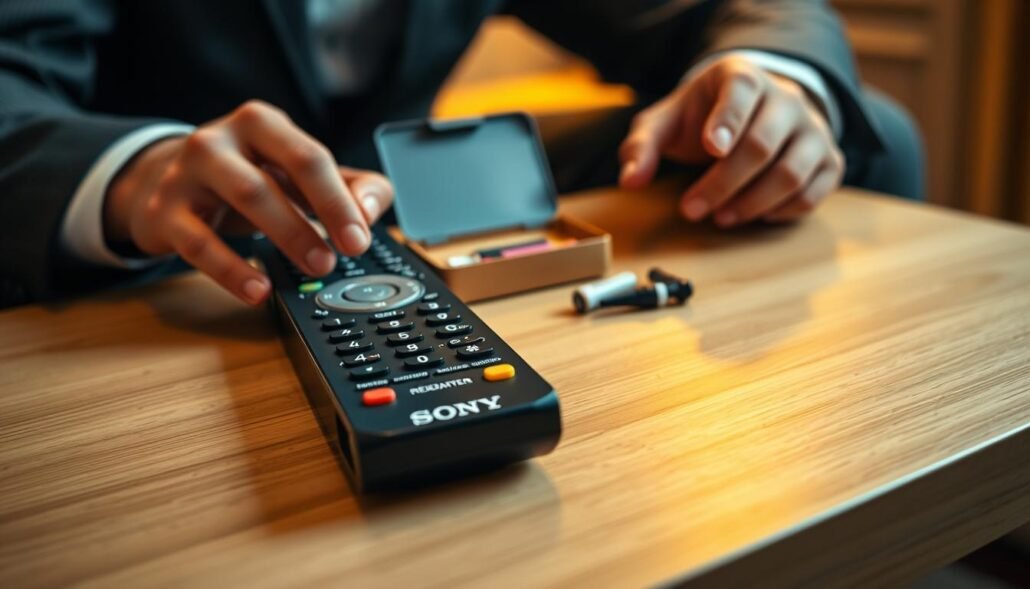
Press the front-panel power button to see if the device turns on. If it does, the handheld unit is likely at fault.
Rule out simple causes: Line of sight and batteries
- Stand a few feet away, point directly at the sensor and make sure nothing blocks the beam.
- Remove the cover and check battery polarity against +/− marks. Replace old batteries if unsure.
- If you recently unplugged the device, wait 10–20 seconds for initialization before you press power button commands.
- Use your phone camera to verify the IR LED if available; that confirms whether the button remote is emitting a signal.
| Quick Check | Expected Result | Next Step |
|---|---|---|
| Front-panel power | Device turns on | Focus on the remote control |
| Line of sight | Commands received | Look for intermittent obstacles |
| Batteries & IR | LED pulses on camera | Check device settings or pairing |
| Fluorescent lights nearby | Possible interference | Turn lights off during testing |
After these steps, you will have clear information about the issue and know whether to continue with remote-side fixes or move to device diagnostics. Use this guide as the first part of your troubleshooting steps.
Troubleshooting Remote Sony Receiver: Model, Common Cause & Fixes
Start by checking battery health and signal paths to rule out simple handheld faults before diving deeper. These quick steps help you decide whether the problem is the control or the device.
Power and batteries
Open the compartment and remove batteries to check orientation against the +/− marks. Replace both cells with fresh, same-type batteries if power seems weak.
Clean and inspect
Wipe the battery contacts and the front window. Free any stuck button to stop constant signals and battery drain.
Reduce interference
Move 2.4 GHz routers and microwaves away, test with 5 GHz Wi‑Fi, and keep the sensor area clear to improve control response.
Bluetooth and reset
If you use Bluetooth, toggle it off and back on, then re-pair the sony remote via Settings > Remotes & Accessories. To reset, remove batteries, press the power button for about three seconds, then reinstall fresh cells.
IR test and range
Point the remote at a phone camera and press a button remote control. Visible pulsing means the IR LED transmits; if not, cleaning or repair may be needed. Test at close range to confirm whether distance or obstruction causes the issue.
Receiver-Side Fixes: Inputs, Firmware, Audio/Video, and Protection Modes
Start by confirming the unit has a steady AC power connection and that the front panel responds to local button presses. This helps separate a power problem from a control issue quickly.
Verify inputs and connections
Make sure the correct input source is selected. Reseat HDMI cables at both ends and inspect speaker wiring for loose strands or reversed polarity.
If a channel is silent or the device trips, disconnect speakers one at a time to isolate a short.
Update firmware and consider a reset
Install firmware updates to fix Bluetooth and network stability problems. Back up settings first.
Note: Perform a factory reset only after you’ve tried connections and updates as a last resort.
Overheating and protection modes
Ensure vents are clear and the unit has space to breathe. Reduce excessive volume or power load to avoid thermal shutdowns.
If protection mode appears, power down and inspect wiring. Keep a note of any error messages; that information speeds support or warranty help.
- Confirm AC power and front-panel response.
- Reseat HDMI and check speaker wiring.
- Update firmware, then reset if needed.
- Clear vents and test speakers one by one.
Conclusion
Start the final check by pressing the front-panel power button and doing close-range, line-of-sight tests to see if the control or the device causes issues. After power-cycling, wait 10–20 seconds for initialization before you press power again. If the unit still does not respond, document what you tried and the exact behavior.
Replace or reseat batteries, clean contacts, test the IR with a phone camera, and re-pair Bluetooth if needed. If problems persist, update firmware or perform a factory reset only after backing up settings. For products under warranty, contact support and share firmware version and a concise timeline of steps you took as a customer.
This article section gives a clear, practical path to a fast solution and helps avoid unnecessary service calls across related products categories. Keep sensor lines clear and vents open to reduce repeat issues.
FAQ
How do I confirm whether the receiver or the remote is the problem?
Test the receiver by pressing its front-panel power button. If it turns on, the receiver works. Test the remote by pointing it at the receiver and pressing power and volume. Also try operating the receiver with its physical buttons and, if available, the Sony Control app to isolate the issue.
What simple checks should I perform before deeper troubleshooting?
Make sure nothing blocks the line of sight between the remote and the receiver’s IR sensor. Move away from strong fluorescent lights and clear the sensor area. Verify the receiver is on the correct input and that cables are seated firmly.
What is the correct way to handle batteries when a remote seems unresponsive?
Remove old batteries and replace them with fresh ones, observing proper polarity. Clean the battery contacts with a dry cloth if corroded. Use alkaline cells from a reliable brand and avoid mixing old and new batteries.
How do I clean and inspect the remote for physical issues?
Remove the batteries, press each button several times to free any sticks, and use compressed air to clear debris. Wipe the housing and IR window gently with a lint-free cloth dampened with isopropyl alcohol if needed.
Could interference from other devices block remote signals?
Yes. Wi‑Fi routers, microwaves, cordless phones and Bluetooth devices can cause interference. Move such devices away from the receiver and test again. For infrared remotes, ensure there’s a clear path; for Bluetooth remotes, reduce wireless congestion or re-pair.
How do I re-pair a Bluetooth remote to the receiver?
Put the receiver in Bluetooth pairing mode (see the user manual). On the remote, press the Bluetooth or pairing button sequence described by Sony. Remove the device from any phone or tablet that previously used it, then follow on-screen pairing prompts.
What steps reset the remote if it seems unresponsive due to static or glitches?
Remove batteries for 30 seconds, press every button once to discharge residual charge, then reinsert fresh batteries. This clears minor static faults and often restores normal operation.
How can I test if the IR emitter on the remote is working?
Use a smartphone camera or a digital camera and point the remote at the lens while pressing a button. If the emitter works you’ll see a faint purple or white light on the camera screen when a button is pressed. No light means the IR diode may be faulty.
Does distance or obstacles matter for remote performance?
Yes. Infrared remotes require a clear path within about 20 feet and a moderate angle to the receiver’s sensor. Move closer and remove obstacles to improve reliability. Bluetooth range varies, typically 30 feet with unobstructed line-of-sight.
What receiver-side checks can fix control or power issues?
Confirm the receiver is on the right input and that HDMI and speaker cables are connected securely. Inspect speaker wiring for shorts and ensure vents are clear for cooling. If a protection mode or overheating occurred, allow the unit to cool and power-cycle it.
When should I update firmware or perform a factory reset on the receiver?
Update firmware when Sony provides a stable release addressing control or connectivity issues. Use a factory reset only after other steps fail, since it clears custom settings. Back up any presets before resetting.
What if the receiver still won’t respond to any controls?
Try a different remote known to work with the same model or use the Sony mobile app as an alternative control method. If nothing works, contact Sony Support or an authorized service center—there may be a hardware fault requiring repair or replacement.