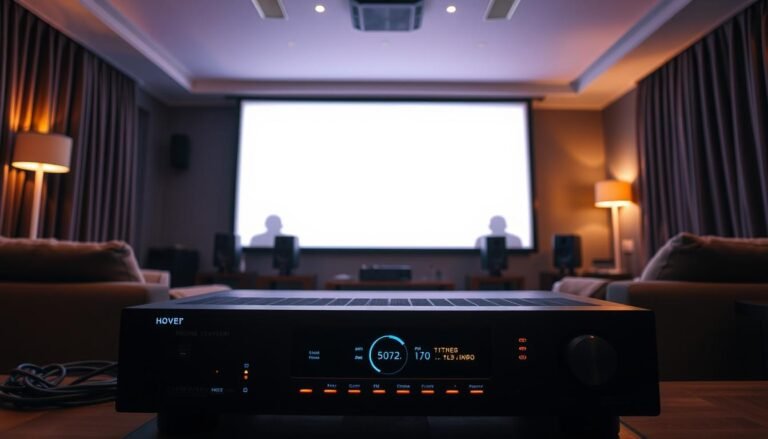
Quick clarity: If your AVR reads 2.1 while multiple speakers sit ready, this guide will help you find the cause fast. You’ll learn how the unit reports input versus what the speakers actually play and what to check first.
Common culprits include content format, source device limits, app output, or a setting that forces stereo. We’ll cover PCM, Dolby Digital, HDMI routing, and how some games and streaming apps send fewer channels than you expect.
This intro sets the path: check wiring, confirm speaker assignment, test a known 5.1 file, and inspect the source settings. Follow one step at a time to isolate the issue and restore true surround sound.
Understanding why your AVR shows 2.1 instead of surround sound
Begin with the display: it reports the incoming channel layout, not the number of connected speakers. A 2.1 indicator means the input carries left and right plus a subwoofer via bass management. A 5.1 readout signals discrete front, center, and surround channels in the stream.
Formats and apps matter. Modern streaming services, some TVs, and game consoles can send either stereo or multichannel tracks. Two apps on the same set can output different channel counts due to licensing, bandwidth, or app design.
- Display reflects signal: seeing 2.1 with five speakers connected is not necessarily a problem.
- Sources negotiate formats: consoles may output stereo PCM or bitstream for surround depending on settings.
- Downmixing happens: TVs and streamers sometimes reduce content to stereo before passing it on.
Understanding these differences helps you decide whether the issue lies with the content, the source, or the setup. Next, test a known multichannel file and check the source settings to isolate the problem.
Quick checks to rule out simple setup issues
Start with quick physical checks that often fix common setup glitches. Small wiring mistakes or a paused player can make a system report fewer channels than it actually supports.
Verify speaker wiring and AVR speaker setup
Inspect each speaker lead for correct polarity and correct binding posts. Run the AVR’s test tones or speaker setup routine to confirm every speaker plays.
Check crossover and channel assignment. A misconfigured setup can reroute or mute channels and confuse the display.
Confirm the input source actually plays
Open the source menu and make sure playback is active and not muted. Select a known-good 5.1 Blu-ray or a Dolby Digital test clip to try to get 5.1 from the system.
- Reseat the HDMI cable at both ends and try a different input on the AVR.
- In the source settings, choose bitstream or multichannel output rather than stereo-only.
- If using ARC, enable pass-through so the TV does not downmix to two channels.
- Power-cycle devices and document each change so you can identify what fixed the problem.
Content and channel formats: most streams are still stereo
Many stream and broadcast tracks are mixed as stereo, so the AVR will report a 2.1 input after bass management even when a full speaker array is connected.
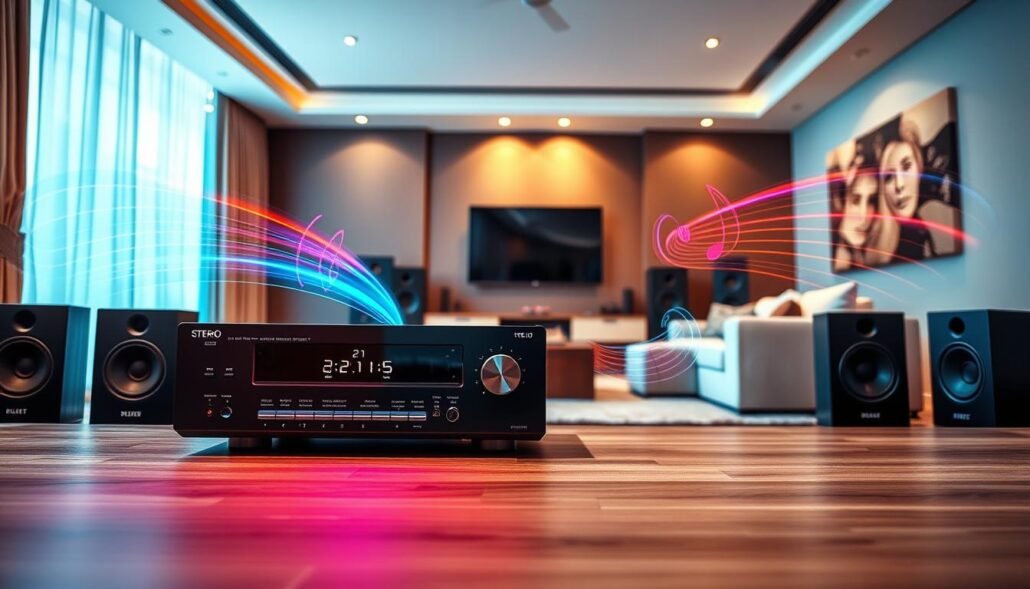
Common reality: most streaming titles, live shows, and user-uploaded video come in 2.0 or 2.1. That means the system sees left, right, and sub signals rather than discrete center and surround channels.
Understand formats to solve the problem. Dolby Digital and DTS carry compressed, discrete surround channels. PCM can be stereo or multichannel depending on negotiation between source and sink.
- SPDIF (optical/coax) supports Dolby Digital 5.1 and DTS 5.1 and, on some devices, PCM multichannel.
- If a source forces stereo PCM, switching its output to bitstream can allow Dolby or DTS to reach the AVR.
- Upmixers simulate surrounds from stereo, improving envelopment but not delivering true discrete channels.
Quick test: play a known multichannel clip with isolated center or rear effects. If the system shows multichannel and sound comes from the intended speaker, the source and format are correct. For older consoles, check that bitstream is enabled and forced stereo PCM is disabled to restore discrete surround delivery.
Why does my receiver only show 2.1 audio instead of 5.1?
Start by remembering that the display reports the incoming channel layout, not the number of connected speakers. If the track is sent as stereo, the panel will register a 2.x format even when five speakers sit ready.
When the content is stereo, your AVR reports 2.x
Content format drives the readout. Many streaming apps and some devices send two-channel tracks to save bandwidth or for compatibility. In that case the AVR sees left, right plus sub and labels the input accordingly.
Tip: pick a known multichannel title or a test file to verify the system can get 5.1. If the display flips to multichannel, the earlier 2.x was a content or source settings issue.
Licensed decoding and format negotiation can limit output to two channels
Some apps lack Dolby Digital or DTS licensing and will downmix to stereo. Also, sources often negotiate stereo PCM with the AVR by default. Switching the device output to bitstream or enabling a surround option can allow discrete channels to pass.
- Check the source settings and select bitstream/Pass Through where available.
- Reapply surround preferences after firmware changes; some consoles and players reset to stereo.
- If you want guidance on compatible equipment, see a roundup of the best AV receivers.
TV apps, WebOS, and pass-through settings that force 2-channel
A working HDMI/eARC path doesn’t guarantee the app will send discrete surround; app output often matters most.
On many LG sets running WebOS, built-in streaming apps deliver two-channel tracks even when the TV’s Digital Audio setting is on Auto. That results in a 2.1 readout on the AVR while the same hardware can pass true multichannel from other sources.
App limits versus USB and pass-through
Test with a known 5.1 file on USB. If the TV passes 5.x to the AVR, the hardware path and cables are fine and the problem lies with the app.
Pick Digital Audio options carefully
Set the TV menu to Auto, Pass Through, or Bitstream rather than PCM to avoid forced stereo. After changing the setting, check the AVR display with a confirmed multichannel title.
ARC/eARC and optical choices
Enable ARC/eARC on both TV and AVR when using HDMI; eARC supports higher bandwidth formats such as dolby digital and multichannel PCM.
- If eARC isn’t available, try the TV’s optical out; it can carry dolby digital 5.1 for many apps.
- When WebOS apps persist with two channels, connect an external streamer directly to the AVR to bypass the TV app limitation.
- Reseat the HDMI cable at the TV’s eARC/ARC port and power-cycle to refresh the handshake and verify output.
Consoles, games, and media players: enable surround in settings
Start at the source. Game consoles and media players often default to stereo to avoid compatibility problems. Changing the console output to Bitstream or a Dolby/DTS option ensures the AVR receives discrete channels rather than downmixed PCM.

Console setup tip: on systems like PS3, PS4, PS5, and Xbox, open the sound settings and pick Bitstream or Dolby/DTS instead of stereo PCM. This lets the AVR decode true multichannel and should help you get 5.1 when the content supports it.
Many titles also include an in-game sound menu. If surround remains off there, the receiver will keep reporting two-channel despite global settings. When you click expand in game audio options, confirm surround or multichannel is selected.
- Use HDMI direct to the AVR to avoid TVs forcing PCM over ARC.
- For older PS3-era gear, uncheck stereo-only PCM in the output list before testing a 5.1 game or movie.
- Music files and streaming services are usually stereo; enable a DSP upmixer in the player or AVR if you want an enveloping sound, knowing it won’t create true discrete speakers.
After firmware updates, recheck console settings and retest with a title known for good surround mixes. That quick pass often solves the most common setup issue and gets the channels flowing to your system.
HDMI, optical (SPDIF), and cable choices that impact 5.1
Signal path matters. The port and cable between a player and your AVR determine which formats can pass. Pick the right link before changing complicated settings.
SPDIF limits and practical notes
Optical and coaxial SPDIF commonly carry Dolby Digital and DTS 5.1 to most AVRs. Some devices can send multichannel PCM over SPDIF, but that is rare in consumer gear.
If you see a two-channel readout while using SPDIF, confirm the source output is set to bitstream and that the content includes a discrete 5.1 track.
Why HDMI is the better choice
HDMI supports multichannel PCM and lossless formats, so it is the top connection for reliable surround and higher-bandwidth video. Use certified high-speed HDMI cables and plug sources straight into the AVR to avoid TV downmixing.
When routing through a TV, prefer eARC where available. eARC expands bandwidth and reduces format restrictions that can force a stereo fallback.
- Set the source to bitstream for Dolby Digital or DTS when using SPDIF.
- Try direct HDMI to the AVR before blaming settings or speakers.
- Swap cables or ports if handshakes drop; intermittent connections often cause format fallback.
AVR modes and processing: Straight, Auto, Dolby, DTS, and DSP logic
How the AVR processes a track affects both what you hear and what the display reports. The unit separates input format from playback processing. That distinction helps when you troubleshoot a channel readout that looks like a two-channel mix while multiple speakers are active.
Straight/Direct versus Movie/Music modes
Straight/Direct passes the incoming signal with minimal DSP. The display mirrors the input channel count, so a stereo source will read as 2.1 even with full speaker wiring.
Movie/Music modes apply processing for tone, bass, or ambience. The AVR can upmix stereo into more channels, but the front panel may still indicate the original input format. Use Straight to confirm whether content truly carries discrete channels.
When to use upmixers like Dolby Surround or DTS Neural:X
Upmixers create surround-like sound from stereo tracks. They add envelopment for films and games when discrete channels are absent. Licensed decoding for Dolby and DTS is required for genuine bitstream modes to appear and work.
All-Channel Stereo versus true surround
All-Channel Stereo duplicates left and right across every speaker for volume and space. It fills the room but does not provide separate center or rear effects like true surround. For accuracy, set the AVR to Straight, test a known multichannel clip, then enable an upmixer if you prefer more immersion.
- When you click expand the listening mode list, pick an upmixer only for stereo content.
- If games or an app won’t get 5.1 from the source, upmixers improve immersion but won’t change the input format shown.
- Set preferred modes per input so the system’s processing logic matches each source at the moment you use it.
Conclusion
Wrap up with a short, strong, practical routine.
Start by confirming the source track is true multichannel and that the source allows Dolby Digital or DTS bitstream to pass. Test a known surround sound file while the AVR is in Straight/Direct mode.
Use direct HDMI to the AVR, check cables and connections, and verify console and player settings for games and media. If a TV app forces stereo, connect an external streamer or enable pass-through.
When testing is done, reapply your preferred processing or an upmixer for music. Make one change at a time so you can repeat the fix the next time this issue appears.