
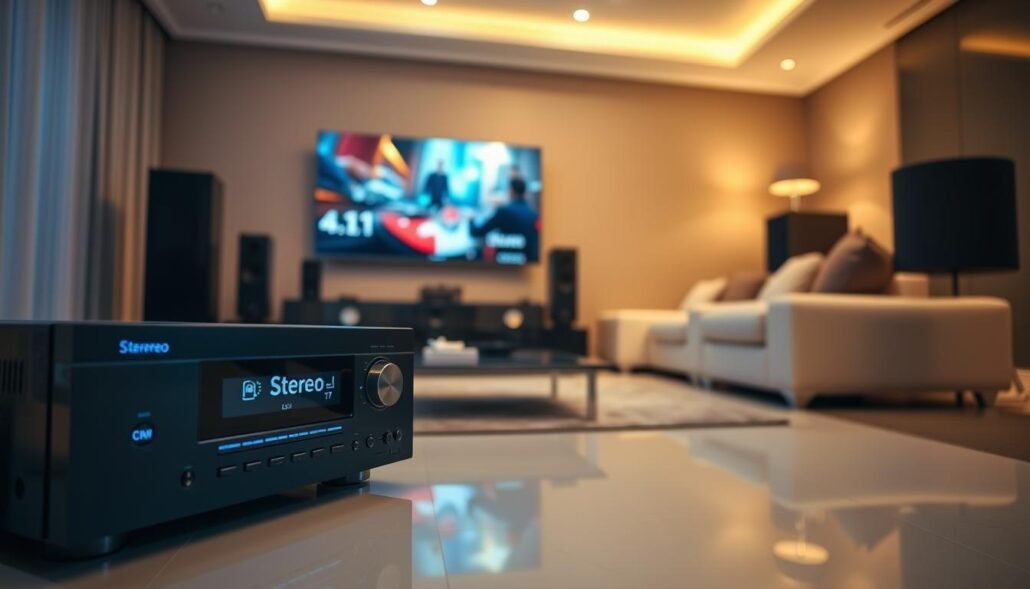
Seeing “Stereo” on the front panel can be confusing. A 5.1 track may be running, but the display often reports the input signal format rather than the processed output. That mismatch creates the core issue many users face.
In simple terms: the source device, TV, or HDMI path can force the input to two channels. Streaming apps or browsers sometimes limit audio to two channels. HDMI negotiation or TV pass-through can collapse multichannel sound to stereo.
Why this matters: true multichannel affects dialog placement, effects, and low-frequency behavior. A stereo upmix can still send sound to all speakers, but it may change the movie listening experience. This article will help you verify actual audio format and walk through fixes for PC/Windows, streaming apps, TV ARC/eARC, and AV amp settings.
What “Stereo” on a receiver display actually means for your audio signal
A front-panel readout labeled “Stereo” usually tells you the input format, not the processing applied. Many systems show the incoming stream (often PCM 2.0) even while internal DSPs spread sound to all outputs. That distinction explains why center and surrounds can still reply despite a two-channel label.
Input format vs listening mode
Input format is the raw feed from the source. Listening mode is what the amp does with that feed.
Some modes — Dolby Pro Logic II, DTS Neo or “All Channel Stereo” — upmix a stereo feed across speakers. This creates a surround effect, but it is not discrete channels from a true 5.1 mix.
When downmixing happens automatically
Devices may collapse multichannel content to 2.0 if they cannot output native surround. Apps, the TV ARC path, or an OS setting can be the weak link that forces downmixing.
- Quick test: if the panel reads Dolby Digital or DTS and shows multiple channels active, you likely have discrete surround.
- If it reports PCM stereo, the system is working from two channels and any surround is an upmix.
Why does my receiver show “Stereo” when playing a 5.1 movie?
A common root cause is the source sending two-channel PCM down the HDMI link instead of a discrete multichannel stream. That makes the front panel report a stereo input even if the title has a multichannel track available.
The source is outputting 2‑channel PCM over HDMI
Many set-top boxes, PCs, and some apps default to PCM 2.0. If the source output is stereo, the amp shows that accurately. Check the device audio output setting and switch to bitstream or multichannel if available.
Apps or browsers restrict multichannel streams
Streaming services often deliver true surround only via native apps or consoles. For example, a PS4 or Comcast box may send 5.1 to the receiver via hdmi, while a browser on Windows limits playback to stereo for DRM or codec reasons.
TV return paths, optical limits, and HDMI handshake
ARC and optical can downmix or limit formats; eARC usually carries more. A failed EDID/handshake or a marginal hdmi cable can force a stereo fallback. Use the correct ARC/eARC port and a high-quality hdmi cable to reduce this issue.
Next step: verify input status on the amp to confirm whether the signal is actually multichannel or simply upmixed.
Quick checks to confirm whether you’re actually getting 5.1 sound
Start with the input readout on the panel to verify the incoming feed. Open the Signal Info or Input Status screen and note whether it lists Dolby Digital, DTS, or PCM. This view tells you the raw format the amp sees.
What to look for in the menu: check the number of channels, sampling rate, and whether the path is bitstream or PCM. Bitstream usually means discrete surround; PCM 2.0 indicates a two‑channel feed.
Do a quick listening test with a scene that has clear rear ambience or object movement. If the surround speakers carry unique content, you likely have real multichannel. If they replay front material, that is an upmix.
Compare devices and log results
- Play the same title and timestamp on a console and on a PC browser.
- If the console shows Dolby Digital on the receiver but the PC shows PCM, the issue is on that platform or setup.
- Document each device’s view in a short log so you can change one setting at a time and rule out other causes.
Fixes for PC and browser playback when streaming services only output stereo
Browser playback often sends two-channel audio even when a native app would output surround. Many streaming sites restrict multichannel in browsers because of DRM, CDM and codec support. That leads to a stereo readout on your amp even though the title lists multichannel.
Windows checks: open Sound settings, pick the correct HDMI device, then set speaker configuration to 5.1 if available. Turn off enhancements or spatial features that force a 2.0 mix.
- HDMI device selection: pick the AVR endpoint, not the monitor speakers. Wrong endpoints send PCM 2.0.
- Format and passthrough: prefer bitstream or pass-through in apps. If a site forces stereo, try a native client or console that outputs multichannel via hdmi.
- Player behavior: in VLC check the audio output module and disable automatic downmix to keep original channels.
If a service is only accessible via PC, use a streaming stick, console, or app known to send 5.1 via hdmi. That often fixes the problem faster than endless setting changes.
Receiver, TV, and source settings that determine 5.1 over HDMI and ARC
Start by checking how the source and TV negotiate formats; that handshake decides whether the amp sees dolby digital or only two-channel PCM.
Bitstream vs PCM: the key audio setting
Bitstream sends encoded Dolby or DTS so the receiver can decode true surround. PCM hands decoded audio to the system, and that is often just stereo.
TV audio output options explained
Pass Through aims to forward the original track to the receiver. Auto negotiates the best supported format. PCM often forces two-channel output from the TV.
Consoles and set-top boxes as control tests
Use a console or cable box to confirm multichannel support. These devices usually negotiate Dolby and reliably get 5.1 for movies, games, or music.
Best cable path and cable notes
- Preferred: source → receiver → TV for the cleanest handshake.
- If you must use TV → receiver over arc, pick the TV’s labeled ARC/eARC port and a known-good hdmi cable.
- Avoid adapters and switches during troubleshooting to cut handshake variables.
Final checks: set the receiver to direct/auto surround for discrete tracks. If all speakers play but the panel reads PCM, confirm track info — some files are truly stereo or mislabeled. That saves time and clears forum confusion among members and replies.
Conclusion
The main point: the front display usually reports the incoming feed, not the processing that can fill all speakers. Check the signal/status screen to see the raw format and confirm whether the amp is decoding discrete channels or upmixing two-channel audio.
Fastest path: verify the input format on the signal info, then play the same title from a console or streaming stick and from a PC to find the weakest link. Common fixes include switching source output to bitstream, avoiding TV settings that force PCM, and using a platform known to send true multichannel.
Quick checklist: confirm the title has multichannel, confirm the app/device supports it, confirm the connection path, then confirm decoding on the amp. If PC-only playback still fails, good stereo or an upmix gives solid results. Share your device, TV, amp, and connection path if you want targeted help — thanks.
FAQ
Why does my receiver show ‘Stereo’ when playing a 5.1 movie? Explained
The display can read “Stereo” even when multichannel sound plays. Many receivers show the listening mode (two-channel playback) rather than the actual incoming stream. If the source sent two-channel PCM or the AVR downmixed the track, the front panel will typically read “Stereo” while some surround channels still get audio through processing or virtual modes.
What “Stereo” on a receiver display actually means for your audio signal?
It usually indicates the current playback or decoding mode, not necessarily the original format. The unit might be in a two-channel mode because the input is PCM 2.0, the device is set to stereo-only, or the AVR applied a downmix. Check the receiver’s input readout to confirm the incoming format (Dolby Digital, DTS, PCM).
Input signal vs listening mode: why your receiver can still play sound from all speakers?
Many receivers can upmix or use surround processing to feed rear and center speakers even if the source is two-channel. So the panel can read stereo while DSP engines distribute audio across the system, giving a surround-like result despite a 2.0 input.
When a 5.1 track gets downmixed to 2.0 automatically?
Downmixing happens when a source outputs stereo PCM, when the app or OS forces two-channel output, or when HDMI/ARC handshakes fail and the device defaults to 2.0. Some players also downmix to match device settings or codec support.
The source device is only outputting 2-channel PCM over HDMI — how can I confirm?
Check the source device’s audio settings and the receiver’s input status or signal info. If the source lists PCM 2.0 or the receiver shows PCM, the stream is stereo. Change the source to bitstream or enable multichannel passthrough if available.
The app or browser is delivering stereo even if the movie is labeled 5.1 — why?
Some streaming services limit multichannel output in browsers or on certain devices. Apps on smart TVs, consoles, or dedicated clients often support full 5.1, while browsers may deliver only stereo due to DRM, codec or container restrictions.
TV pass-through limitations: how do ARC, eARC, and optical affect multichannel sound?
Optical carries up to Dolby Digital but not high-bitrate formats; standard ARC can be limited by TV or AVR support. eARC provides full bandwidth for lossless and multichannel bitstreams. If the TV or cables don’t support eARC, the TV may downmix before sending audio to the AVR.
Can HDMI cable and handshake issues force stereo output?
Yes. A poor HDMI handshake, wrong cable type, or outdated HDMI spec can prevent multichannel passthrough. Use a High Speed or Premium HDMI cable for 1080p and a High Speed HDMI with Ethernet or Ultra High Speed HDMI for 4K/eARC, and ensure firmware is current on all devices.
How do I use the receiver’s “Signal Info” to verify Dolby Digital vs PCM?
Open the receiver’s input or status menu while the content plays. The signal info line typically lists the detected codec (Dolby Digital, DTS, PCM) and channel count. If it shows Dolby Digital 5.1 or DTS 5.1, you have true multichannel input; PCM 2.0 means stereo.
How can I compare the same title across devices to isolate the issue?
Play the same movie on a Blu-ray player, console, smart TV app, and PC. If one device shows 5.1 while others show stereo, the problem lies with the device, app, or its settings. This quick test helps identify where the downmix occurs.
Why does streaming in a browser give stereo while the service app outputs 5.1?
Browsers often lack support for the DRM and audio codecs needed for multichannel streams. Native apps use platform APIs that allow bitstreaming. Use the service’s official app on a smart TV, streamer, or console to access 5.1 where available.
Which Windows sound settings commonly block 5.1 output?
Windows may default to stereo, or the HDMI device might be set to a 2-channel format under Sound settings. Also check the audio driver, the selected playback device, and advanced format properties to enable 5.1 or higher bitrates.
How do I configure HDMI output on a PC to ensure multichannel audio?
Select the correct HDMI audio device in Playback settings, install the latest GPU or HDMI audio drivers, and in advanced properties choose the highest supported channel configuration. Use media players that support bitstreaming and select the right output format.
How do player and codec choices like VLC affect multichannel playback?
Some players decode audio to stereo by default; others can bitstream a pass-through to the AVR. Configure the player to passthrough Dolby Digital/DTS or enable output to the HDMI device directly. Check codec support and player settings for bitstreaming options.
What practical workarounds exist when a service is only accessible via PC?
Use a dedicated HDMI output from the PC directly to the AVR, run a compatible app instead of the browser, or use software that supports passthrough. Consider casting from a supported device or using a hardware streamer that handles multichannel audio.
Bitstream vs PCM: which setting decides whether you see Dolby Digital?
Bitstream sends encoded audio (Dolby Digital, DTS) to the AVR for decoding, often showing the discrete format on the receiver. PCM decodes the audio in the source device and sends raw channels or stereo. For visible Dolby Digital, enable bitstream/passthrough on the source.
TV audio output options “Pass Through,” “Auto,” and “PCM” — what do they mean?
“Pass Through” forwards the original encoded audio to the AVR, preserving 5.1. “Auto” lets the TV decide based on connected device capabilities. “PCM” forces decoded stereo, sending only two channels. Use Pass Through or Auto for multichannel via ARC/eARC.
Why do set-top boxes and consoles often succeed with 5.1 where other devices fail?
They include native apps and hardware support for multichannel bitstreaming and use correct HDMI implementations. Their apps are optimized for DRM and codecs, making them reliable sources for true surround sound.
How should I choose the cable path: source to receiver vs source to TV then ARC?
For best multichannel fidelity, run the source directly to the AVR via HDMI and then output video to the TV from the AVR. Using the TV and ARC can introduce downmixing or bandwidth limits, especially without eARC.
When should I suspect the file itself is stereo-only or mislabeled?
If every device reports stereo or the receiver’s input shows PCM 2.0, the content may be stereo-only. Check the disc or file metadata, or try another known multichannel title. Mislabeled streams occasionally occur on streaming platforms.


