
This quick guide explains what it means when a unit lingers at an initializing screen and how to read the display for useful clues.
Start with simple checks at home: power cycling, cable seating, and waiting through the normal boot cycle. These steps often solve a common issue without extra tools.
If the display shows messages or codes, that output narrows the likely cause and points to the next best solution. We cover safe configuration fixes and software steps you can try first.
This article sets a clear troubleshooting workflow, from basic checks to deeper actions. It also flags when contacting support saves time, and what details to have ready after years of device updates and quirks.
What the “Initializing” screen means and common symptoms on the display
Seeing Initializing on the front panel generally indicates the unit is launching core services. Most models finish this in under a couple of minutes. If the message does not change after 2–3 seconds multiplied into minutes, treat it as a potential problem.
Watch the panel for activity: relay clicks, LED changes, input name cycling, or menu access. No movement, no audio, and unresponsive buttons point to an error state rather than a normal boot.
- A repeating loop: logo → Initializing → blink → back to Initializing.
- Missing network icon when it normally appears.
- Error codes or unusual characters on the display — note them exactly.
- Recent input or content changes before the event may implicate an attached source.
| Symptom | Likely cause | Quick check |
|---|---|---|
| Static display, no LEDs | Power or firmware hang | Short vs long press on power; power-cycle |
| Looping Initializing | Corrupted startup service | Record exact message and model name |
| Missing network icon | Network/connection fault | Verify router and cables |
Quick checks to get past the Initializing screen
Begin with a focused power-cycle that gives the system time to fully discharge before trying other fixes.
Turn the unit off, unplug it, and wait 60–120 seconds. Those extra seconds often matter more than repeatedly tapping the power button. Plug back in and power on; many hangs clear at this stage.
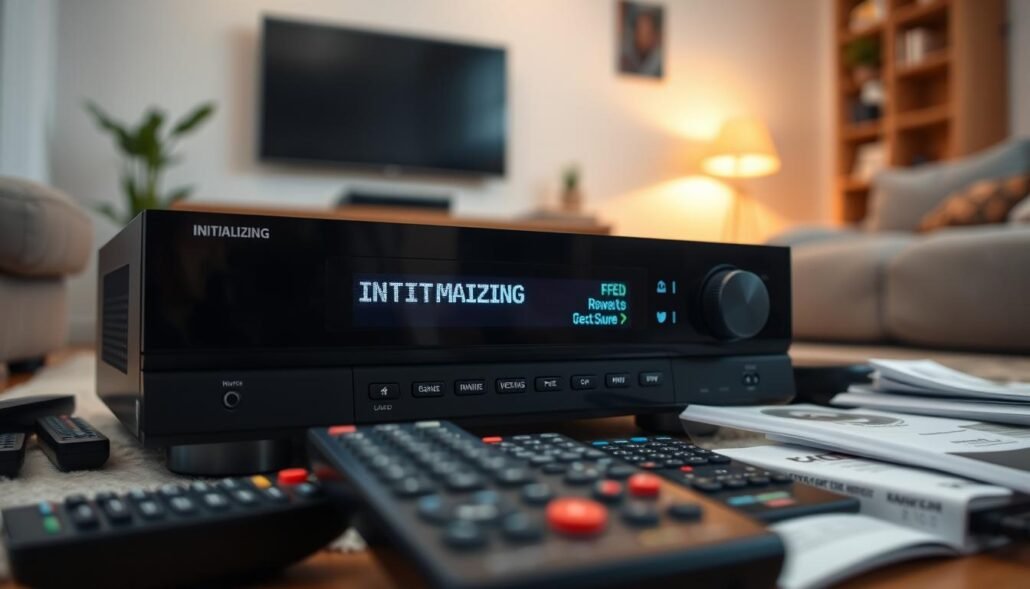
Power-cycle and soft reset: minutes vs. seconds that matter
If the display still shows Initializing, follow the soft reset in your manual. This preserves settings while clearing transient faults.
Verify HDMI and other cable connections on the rear panel
Reseat every rear-panel connection. Focus on HDMI inputs and outputs and speaker terminals.
- Test with one HDMI to the TV and disconnect other sources.
- Move the HDMI to different ports and try a known-good cable.
- Disable CEC/eARC briefly to rule out device loops.
Network basics: make sure your connection is active and stable
Check that the router is online and Ethernet clicks firmly into place. If using Wi‑Fi, confirm the SSID and password and a strong signal.
| Check | Why it matters | Quick action |
|---|---|---|
| Power-cycle timing | Discharges capacitors that keep services frozen | Unplug 60–120 seconds |
| HDMI ports/cables | Handshake failures can stall the boot process | Swap ports and cables |
| Network link | Missing network can delay services at boot | Verify router, cable, Wi‑Fi creds |
Tip: Keep the top and sides clear for airflow and document each step and any change on the display. These notes speed up further troubleshooting or support calls.
Software and firmware fixes that resolve the issue
If simple hardware fixes don’t work, a targeted software approach often restores normal operation.
Factory reset and initial setup can clear corrupted state that hides menu items or blocks services. Perform a factory reset, then complete the Initial Setup without skipping steps. Allow the display to finish its cycles; avoid pressing buttons while it reinitializes.
Running updates from settings
After the unit boots, open settings and find the update tab in the system menu. Apply pending software updates to resolve conflicts that mimic hardware errors. If the network entry returns, the device may immediately flag a firmware update.
Brand-specific notes and fallback paths
On Onkyo models such as the TX-NR717, a factory reset restored a greyed-out network item and surfaced a firmware notice. If updates fail over the network, try USB-based installs where supported to bypass online checks.
- Revisit settings after reset to confirm inputs and speaker layout.
- Keep the top clear for airflow and avoid power loss during updates.
- Document firmware versions and any display messages for support.
| Action | Why | Quick tip |
|---|---|---|
| Factory reset | Clears corrupted config hiding menu items | Complete Initial Setup fully |
| Apply software updates | Fixes startup services and compatibility | Use USB if network fails |
| Document versions | Speeds support and repeat troubleshooting | Record menu path and display text |
Configuration mismatches that keep systems stuck initializing
Configuration conflicts in a networked audio system can lock startup routines even when the hardware looks fine. A computer-based control app often shows the root cause faster than the panel.
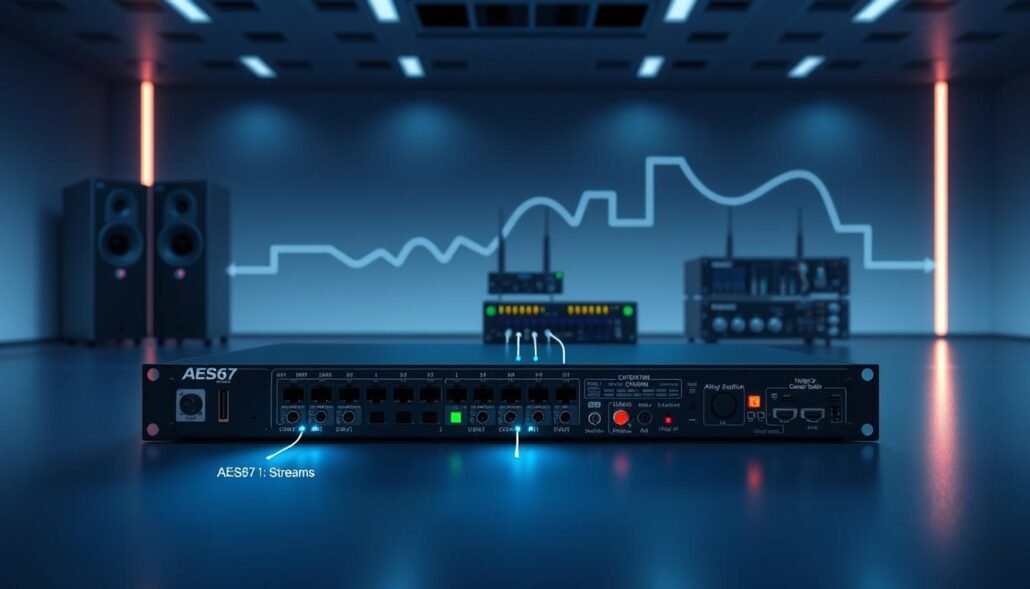
AES67 Rx vs. Tx channel counts: match channels to clear the initializing status
In Q‑SYS Designer, an AES67 Rx component will remain in an initializing loop if the transmit stream offers more channels than the receive is set to accept. The front display rarely shows a clear error, so check the channel numbers directly.
Where to verify stream details and adjust properties before reconnecting
Open the Streams tab, select the stream name, and view Details to read the channel number. Then, while disconnected from the Core, edit the Rx Properties so the receive channel count is at least equal to the Tx count.
- Disconnect from the Core before changing Properties to avoid live conflicts.
- Set the Rx channels ≥ Tx channels, then reconnect and confirm the initializing state clears.
- If an initializing condition persists, recheck IP connection integrity and clocking.
| Check | Why | Quick action |
|---|---|---|
| Stream channel count | Mismatch blocks audio services | Open Streams tab → Details → align counts |
| Core connection state | Live edits can fail or revert | Disconnect, change Properties, reconnect |
| Clocking & IP | Network timing keeps streams initializing | Verify multicast, sample rate, and IP reachability |
Tip: Keep a short checklist on your computer: stream name, channel number, sample rate, and multicast settings. This simple solution often resolves the issue faster than hardware swaps.
Wireless RC ecosystems: when scripts or radios stay on “Initializing”
Bound but unresponsive often means the link exists but controls don’t pass through. You may see telemetry and a solid LED while sticks have no effect. That pattern usually points to a script or serial configuration problem rather than broken hardware.
Telemetry, stick inputs, and Lua script stuck at Loading
Check binding first: confirm the Rx/Tx are truly bound and that telemetry values and stick movements appear together. If only sensor counts change, stop and recheck model profile and packet rate.
Flashing and timeout errors when updating transmitters or receivers
On the computer, verify the correct serial port and drivers before flashing. Errors like “RX Serial not found” or repeated retries show a connection or config mismatch.
- Allow extra seconds after power for the bootloader to appear.
- Use USB/UART to reflash if a Wi‑Fi update left the unit with a solid LED but no control.
- Use correct button sequences for bootloader mode and match the target name to the hardware.
| Symptom | Likely cause | Quick action |
|---|---|---|
| Lua stuck at Loading | Script or profile mismatch | Reload correct Lua and confirm model name |
| Flashing retries / serial error | Port/driver mismatch | Check drivers, choose correct COM port |
| Solid LED after Wi‑Fi update | Incomplete firmware write | Reflash via USB/UART with matching target |
When you need extra help, capture error messages and screenshots, note firmware versions by name, and seek community support on ExpressLRS Discord or Facebook. Volunteers there can often spot a service or configuration gap quickly.
Why is my receiver stuck on “Initializing”? Root causes by category
Begin by grouping likely causes into four clear categories to speed diagnosis. That approach narrows the hunt and points to the fastest solution.
Hardware
Failing HDMI boards, weak power supplies, or worn parts often present as a frozen screen with no relay clicks. Dust and poor ventilation at the top speed wear over the years and can worsen these issues.
Connection
Loose HDMI, CEC loops, or bad Ethernet runs keep the system waiting for handshakes. A bad cable can make the display never advance past the initial message and appear like a hardware problem.
Configuration and software
Mismatched channel counts or wrong serial modes create behavior that mimics failed hardware. Outdated or corrupted software, or an interrupted update, also causes the same frozen display.
Quick plan: Verify cables and recent part swaps, then try a controlled factory reset only after connections are confirmed. Recording what you tried builds a playbook and speeds future fixes.
| Category | Common signs | Fast action |
|---|---|---|
| Hardware | No relay clicks; static screen | Check power, clean vents, test replaced part |
| Connection | Handshake loops; intermittent link | Reseat HDMI/Ethernet, disable CEC |
| Configuration | Services initializing; channel mismatch | Align channel counts, verify serial mode |
| Software | Failed updates; corrupted config | Complete update pass, then reset if needed |
When to contact customer support and what to prepare
Document tests first. Take clear photos or screenshots of the front panel and any error text. Note the model name, serial number, and warranty status to speed intake.
Only call customer support after you complete basic power-cycle, cable reseat, and a soft reset. Include which HDMI ports and cables you tried and whether the unit attempted an update or showed a progress menu.
What to tell the team
List the exact steps you followed and the result of each. Describe network type (wired or Wi‑Fi), router brand, and whether other devices on the same network work. Note any visible display messages or error codes.
How to give useful assistance
- Share warranty details and your service location for repair planning.
- Attach screenshots and a short log of settings you changed.
- Provide computer OS and tool versions if you attempted flashing or config edits.
| Item | Why | Quick note |
|---|---|---|
| Model name & serial number | Verifies warranty and parts | Copy from label or menu |
| Photos/screenshots | Shows exact panel text | Include all visible messages |
| Steps tried & results | Avoids repeat work | List power-cycle, resets, cable tests |
| Network & HDMI details | Rules out link issues | Note wired/Wi‑Fi, router brand, ports used |
Ask the support team for a case number and the fastest contact channel. That keeps follow‑ups clear and helps technicians reproduce the issue faster.
Conclusion
, A calm, methodical approach often turns a stubborn display into a quick solution. Start with safe at‑home troubleshooting: power and cable checks first, then a targeted factory reset when needed to resolve issue without needless part swaps.
When software plays a role, run the recommended update and complete the initial setup after a factory reset. Small configuration fixes often restore menus and services that a frozen screen hides.
Keep photos, firmware versions, and notes in one location to speed any support call. These simple tips become a reliable playbook over the years and cut downtime when a part or setting needs attention.
Solution: follow the tiered checklist, document each step, then escalate to support with clear details for the fastest fix.
FAQ
Why does the screen show “Initializing” and what does that mean?
The “Initializing” message signals the system is running startup checks: hardware detection, network discovery, and software integrity. Common display symptoms include a progress bar, spinning icon, or frozen text. If the panel shows repeated retries, greyed-out network options, or no progress for several minutes, a deeper issue may exist.
How long should initialization normally take and when is it a problem?
Normal boot time usually finishes within 30–120 seconds depending on model and updates. If the device remains at the same screen past five minutes, or cycles back into “Initializing” repeatedly, treat it as an initialization loop and follow troubleshooting steps.
What quick checks can I run to get past the initializing screen?
Start with a power-cycle: unplug for 30 seconds, then reconnect. Confirm the HDMI, optical, and speaker connections at the rear panel are seated. Verify the network cable or Wi‑Fi is active. These simple steps clear transient faults in most cases.
When should I perform a soft reset versus a full power cycle?
Use a soft reset from the settings menu when the system responds but behaves erratically; this preserves settings. If the display is frozen, perform a full power cycle (unplug 30–60 seconds). Reserve a factory reset only after other attempts fail.
How do I check HDMI and cable connections correctly?
Inspect HDMI and other cables for bent pins and secure fit at both ends. Swap the HDMI cable and try a different input on the TV. For AV receivers, ensure input assignment in the menu matches the connected source on the rear panel.
What network basics should I verify before more advanced steps?
Confirm the router is online and other devices access the internet. If wired, test with a different Ethernet port or cable. For Wi‑Fi, move the router closer or use a temporary wired connection to rule out weak signal issues.
Can software or firmware cause the initialization message to persist?
Yes. Corrupt or incomplete updates can halt startup. Check the settings menu for available updates or a firmware recovery option. If the system shows a firmware notice after a reset, apply the recommended update using a USB or network download.
How do I perform a factory reset to restore missing menu items?
Factory reset steps vary by brand. Typically, navigate to System > Settings > Reset or hold a recessed button while powering on. A reset returns defaults and can restore missing menus, but it erases custom configurations—make note of important settings first.
Are there brand-specific issues to watch for during initialization?
Yes. For example, some Onkyo models may show the network option greyed out after a failed update. Consult the manufacturer’s support pages for model-specific recovery steps and firmware files to avoid repeated initialization loops.
What configuration mismatches commonly block initialization?
Mismatched streaming parameters, like AES67 Rx vs. Tx channel counts, can prevent a clean startup. Ensure channel counts and sample rates match the source. Also verify IP address, multicast settings, and stream properties before reconnecting.
Where do I verify stream details and adjust properties?
Use the device’s network or audio stream menu to view codec, sample rate, channel mapping, and IP information. Adjust settings to match the source or server prior to attempting a reconnection to avoid repeated loading states.
What about wireless RC ecosystems and scripts that remain at loading?
Wireless control systems can hang during script or telemetry initialization. Reboot both transmitter and receiver, rebind devices, and check for Lua or automation scripts that halt at Loading. Disable custom scripts temporarily to isolate the fault.
How do I resolve flashing or update errors with transmitters and receivers?
Use the vendor’s recommended firmware tool or USB method. If you see serial or timeout errors, try a different USB cable, a direct PC connection, or a longer timeout setting in the update utility. Re-attempt the update in a stable network environment.
What are the primary root causes when initialization never completes?
Four main categories cause failures: hardware faults (power supply, faulty board), physical connections (bad HDMI, loose cables), configuration mismatches (incompatible stream/channel settings), and software/firmware issues (corrupt update or settings). Identify which category first to narrow fixes.
When should I contact customer support and what information should I prepare?
Contact support after basic troubleshooting fails. Have the model and serial number, software/firmware version, a short list of steps you tried, network status, and clear photos or screenshots of the panel indicators and error messages. Include warranty details if available.
What specific details will the service team ask for?
Expect questions about power behavior, how long the device has been running, any recent updates or configuration changes, exact symptoms on the display, and whether other devices on the network are affected. Provide concise answers and attach error screenshots when possible.


