
This short guide lays out a safe, practical troubleshooting plan you can follow at home. Start at the wall outlet and move inward. The goal is to spot simple external faults before assuming an internal failure.
Look for signs such as LEDs, display activity, or a clicking relay. That helps you tell a total loss of power from a standby condition. Check cabling, fuses, and the outlet with a known-good device.
We explain the startup sequence used in most units: mains feed, standby circuits, then main supply and relays. Missing triggers or a failed standby stage can leave an otherwise healthy receiver appearing dead.
Safety first: unplug before probing, avoid speaker connections during tests, and stop if you see smoke or burning smell. Try basic resets only; call a technician if the internal supply or boards seem faulty.
Understanding power-on failures in AV receivers and what’s at stake
Start simple: these units are central hubs that accept audio and video from TVs, Blu‑ray players, consoles, and streamers, then amplify and route signals to speakers and displays. A failed startup can mean anything from a loose cord to a blown fuse or a worn control board.
How standby and protection work
How the unit handles standby, control, and protection
The standby circuit keeps a small control section active so a remote or front button can wake the main supply. When the control logic gives the go signal, relays close and the heavy components feed the amps and digital boards.
Protection circuits watch for shorts, overheating, and speaker faults. If they detect trouble, the unit may stay in standby or shut back down to avoid damage.
Common external and internal causes
External checks include the wall outlet, strips, rear switches, and secure cords. Internal issues often involve fuses, relays, regulators, or aged components in tight chassis that fail after heat cycles.
- Panel LEDs and relay clicks are quick diagnostics.
- Disconnect speakers to isolate shorts.
- Factory reset is the last resort once basic checks restore line feed.
| Cause | Diagnostic cue | Quick action |
|---|---|---|
| Dead outlet | No LEDs | Try another socket |
| Protection trip | Flash/brief LED | Disconnect speakers |
| Internal fault | No relay click | Service bench check |
Safety first and quick checks to rule out simple power problems
Confirm the unit gets a clean feed from the outlet before deeper tests. Start with safe, external checks so you avoid needless internal probing. Unplug before any inspection and keep hands dry.
Verify the outlet, power strip, and cord connection
Test the outlet by plugging a lamp or phone charger. If that works, try a different outlet on a known-good circuit.
Temporarily bypass any surge protector or smart strip and plug the receiver directly into the wall. Check that the detachable cord is fully seated at both ends. If you have a spare cord, swap it.
Standby vs. full operation: front panel button and remote behavior
Press the front panel button and watch for any LED change or display flicker. Replace remote batteries and try line-of-sight control.
Scan the rear for a master switch; some models ignore the front control when that switch is off.
Look for signs of life: display, relay click, and indicator LEDs
Listen for a relay click when the unit attempts startup. If nothing occurs, check the main fuse in the power entry area only when the cord is removed and the unit is safe to access.
Tip: Disconnect all speakers and inputs to rule out a short. Improve ventilation around the chassis to reduce thermal trips.

| Check | What to see | Quick action |
|---|---|---|
| Outlet | Live socket, lamp works | Try another wall outlet |
| Strip/Protector | No feed from strip | Bypass and test direct |
| Fuse / cord | Blown fuse or loose cord | Replace fuse with exact rating, swap cord |
Why won’t my AV receiver power on at all? Step-by-step troubleshooting
Begin troubleshooting by confirming the room outlet delivers steady current before touching the unit.
Confirm a live outlet and try a different wall socket
Verify the outlet with a lamp or phone charger. If that device works, move the receiver to a different circuit to avoid switched or marginal sockets.
Bypass surge protectors and smart plugs to isolate the issue
Plug the receiver directly into the wall. Failed surge components or smart strips can block current and create a confusing problem.
Inspect the fuse and rear-panel switches on the unit
With the unit unplugged, check the accessible mains fuse and the rear master switch. Replace a blown fuse only with the same rating. Do not keep swapping fuses if they blow again—this often points to an internal short.
Disconnect all speakers and inputs to clear protection triggers
Unplug every speaker wire, HDMI, and analog input, then try the front panel button. If the LED lights briefly then shuts, that suggests a protection event. Reconnect items one at a time to find the faulty connection.
- Verify a live outlet, then relocate the receiver to another room circuit.
- Remove surge protectors and smart plugs; plug straight into the wall.
- Check the rear master switch and fuse before pressing the front button again.
- Disconnect speakers and inputs to clear protection and isolate the problem.
| Step | What to check | Action |
|---|---|---|
| Outlet test | Wall socket live | Try another socket or room |
| Strip bypass | Surge/smart strip may fail | Plug receiver directly into wall |
| Fuse & switch | Blown fuse or master switch off | Replace with same fuse, set switch on |
| Protection clear | Short or speaker fault | Disconnect speakers, test with panel button |
Digging deeper: transformer, relay, and power supply board checks
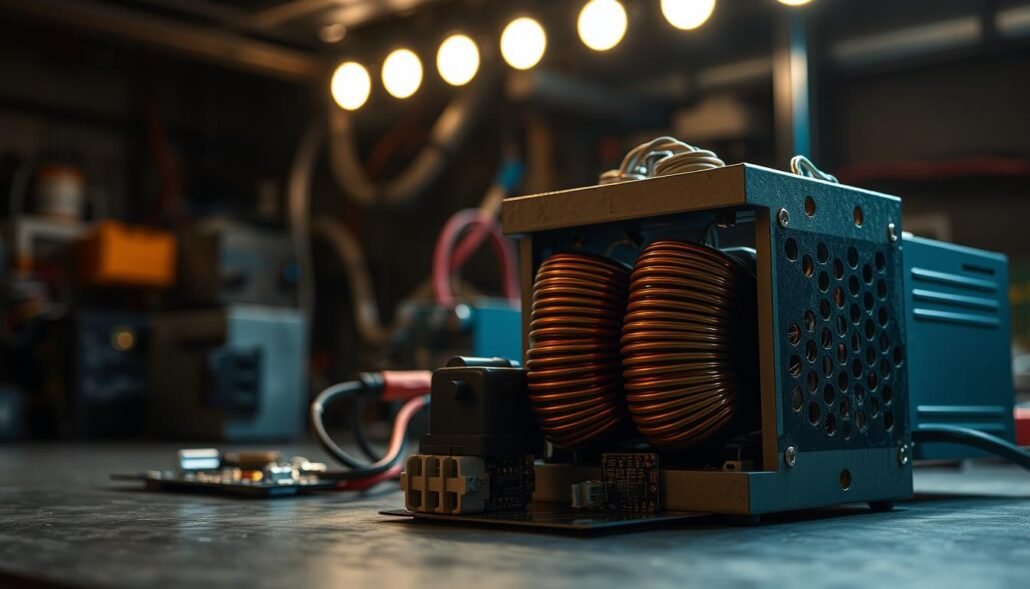
When mains reach the board but the transformer shows no secondary voltages, the turn‑on signal is likely missing.
No relay click and no secondary voltage: this usually means the control or standby path is not energizing the main relay. Mains may be present at the board input while the transformer remains isolated because its relay never receives a turn‑on voltage.
With a service manual or schematic, locate the low‑voltage rail (often 3.3V or 5V) that feeds the microcontroller. If that rail is absent, the problem is usually the standby supply, not the transformer.
Safe multimeter checks and what to trace
Unplug and follow safety steps, then verify fuse continuity and AC into the board. Measure DC on standby rails and check whether the relay coil sees its expected turn‑on voltage when the front switch is pressed.
Suspect components and repair vs replace
Inspect the relay driver transistor or IC, bridge rectifier, startup resistors, and electrolytic caps for heat damage. Small parts like relays and caps are inexpensive in the U.S., but proprietary supply boards or HDMI modules can approach the cost of a used unit.
| Symptom | Likely cause | Next step |
|---|---|---|
| No display; no relay click | Standby regulator or driver fault | Check DC on 3.3V/5V rail |
| Mains present; no secondary | Relay not energized | Probe relay coil voltage |
| Bulging caps, smell | Supply failure | Consider board repair or replacement |
Tip: if a service manual is not available, search by chassis number or consult forums. Factor age, brand history, and parts cost when choosing repair or replacement.
Resets, firmware, overheating, and protection mode tips
Before trying deep repairs, apply resets and firmware checks to rule out control bugs and corrupted settings.
Factory reset steps and when they help:
Factory reset steps and when they help
Perform a factory reset only after the unit shows basic responsiveness. Use the exact key combination in the manual to avoid unintended changes.
If the receiver remains in standby or cycles, try a firmware update from the maker’s support page. Updates can fix control firmware that causes boot or startup problems.
Thermal and speaker protection advice:
Ventilation, thermal shutdown, and speaker short protection
Improve airflow by leaving several inches of clearance around the chassis. Remove stacked gear and consider a quiet fan if the cabinet traps heat.
Protection mode often comes from speaker wiring faults. Inspect for loose binding posts, frayed insulation, or stray strands that short positive to negative.
- After wiring fixes, reconnect speakers one channel at a time at low volume to spot a persistent fault.
- Avoid rapid on/off attempts when the unit stays in standby; unplug for a minute to let relays and caps discharge.
- If a reset works, reapply only essential settings first and monitor stability before enabling HDMI‑CEC, ARC/eARC, or network features.
| Symptom | Quick fix | Next step |
|---|---|---|
| Stuck in standby | Check firmware, perform reset | Update firmware via support site |
| Thermal shutdown | Improve ventilation | Add airflow or move unit |
| Immediate shutdown with speakers | Inspect wiring for shorts | Reconnect channels one by one |
Conclusion
,Before you budget for board-level service, run a few targeted checks that often solve the issue. Start at the outlet and confirm the cord seats firmly. Bypass strips and confirm the front panel and button show consistent behavior.
Distinguish a stubborn standby state from a dead unit. Disconnect all speakers and try a single factory reset only after the unit shows a predictable response. Keep the manual nearby for hidden panel sequences and specific button combos.
If there is no relay click and the transformer never energizes, suspect the standby control or low-voltage supply rather than the transformer itself. Replace a blown fuse with the exact spec and document symptoms before any repair.
Note that tight component layout and heat shorten life. Improve ventilation, dust the chassis, and weigh repair costs versus a replacement that meets your reliability needs.


