
Quick intro: Modern receivers manage audio and video from TVs, Blu‑ray players, game consoles, and streamers, then amplify signals for speakers or a TV. A full factory reset returns the unit to its original settings, clearing user changes and stored calibrations that can cause stubborn software glitches.
When to consider this: Try basic fixes first — check power, cables, input selection, remote batteries, firmware updates, and speaker wiring. If no sound, distorted audio, lip‑sync drift, or missing HDMI video persist, a reset can help after those steps fail.
What this guide covers: You will find how to save backups, use the on‑screen menu path, and choose targeted or full wipes. The page also explains hardware reset options when the menu is inaccessible, plus cable and input checks so the problem isn’t a loose connection.
Expect clear, safe steps that work at home for most models, with notes where manuals list model‑specific actions.
Before You Reset: When a Factory Reset Helps and What to Expect
Confirm power, cables, and firmware first. A settings clear is a last resort after simple fixes fail.
When a reset makes sense: Use it after you verify outlet power, inputs, and speaker wiring yet still see persistent audio dropouts, distorted sound, muted channels, or no audio across sources.
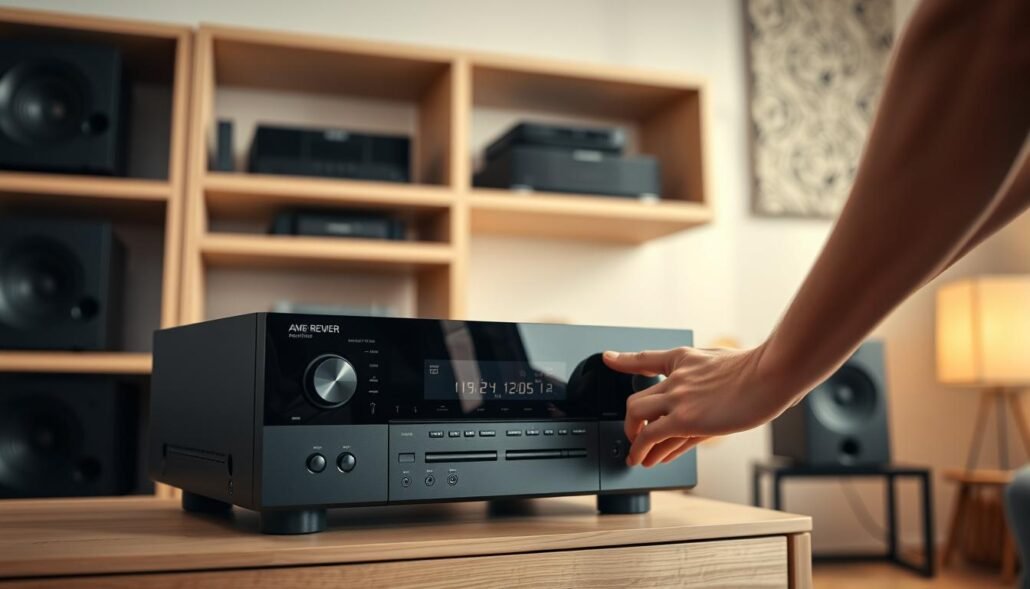
Common symptoms a reset can address
- Audio: intermittent sound, missing channels, or strange distortion after testing cables and swap checks.
- Video/HDMI: black screen through the unit, unstable picture, or HDCP handshake failures.
- Network: unit won’t join Wi‑Fi, drops from the app, or Bluetooth fails to pair even after reconnect attempts.
What a reset will and won’t fix
A reset clears custom inputs, EQ, and automatic calibrations. If the root cause is overheating, speaker wire shorts, or a bad cable, the fault remains.
| Symptom | Try First | When Reset Helps |
|---|---|---|
| No power | Check outlet and power cable | Rarely; only if internal firmware hung |
| No audio / low volume | Inspect wiring, speaker settings | Yes, if menus or profiles corrupt |
| HDMI video issues | Swap HDMI, confirm input | Yes, for HDCP or switching bugs |
| Network / Bluetooth drop | Update firmware, re-pair devices | Yes, or reset only network settings |
Tip: Document settings and confirm remote batteries before contacting support or attempting resets. Different models prompt differently, so follow your manual when available.
Preparation: Back up settings and try basic troubleshooting first
Save your configuration and confirm basic connections first; many faults clear without erasing stored data.
Start with a full settings backup: insert a supported USB drive, open the on‑screen menu, and choose General → Save/Load to preserve Audyssey and other room correction data.
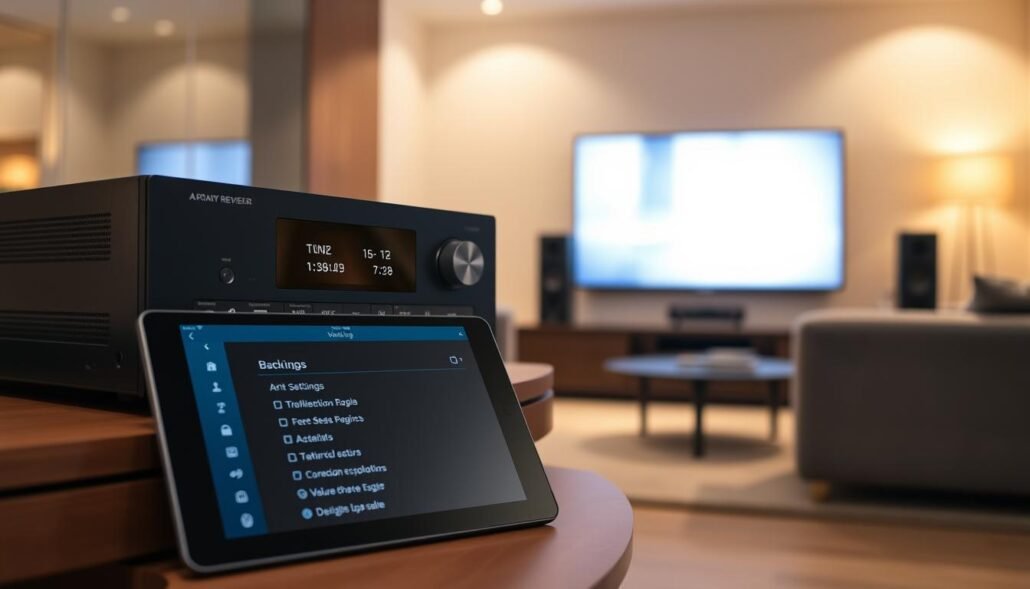
Update firmware and check network and Bluetooth
Verify your firmware is current. Apply updates via the unit’s network method or USB to fix bugs that mimic hardware faults.
Reconnect Bluetooth devices and confirm the receiver is on the correct Bluetooth input. For app control, ensure the device and receiver share the same network.
Quick pre-reset checks
- Power: plug into a known-good outlet, reseat the power cord, and avoid daisy-chained strips that cause drops.
- Inputs: confirm the active input matches the source and check source output formats for audio compatibility.
- Cabling: reseat or swap HDMI/component cables; test direct-to-TV to rule out bad cables.
- Speaker wiring: inspect both ends for loose strands or shorts that trigger protection mode.
- Ventilation: clear vents and reduce heat load; add airflow if the cabinet traps heat.
- Remote: replace batteries and keep a clear IR path; consult the owner’s manual if the remote remains unresponsive.
If these steps solve the fault, restore normal use from your saved settings. If not, you can proceed with a controlled reset knowing your profile is backed up. For additional setup guidance, see our set up a home theater page.
How do I perform a factory reset on my AV receiver to fix general issues?
Decide first whether you need a full wipe or only a network restore. Open the on‑screen menu and follow General → Factory Reset to return the unit to default settings. This path clears stored profiles, labels, and audio calibration.
Factory Reset via on-screen menu
Navigate General → Factory Reset (all settings) and confirm when prompted. The process removes input maps, Audyssey profiles, and saved EQ. Back up first via General → Save/Load to a USB drive to preserve speaker distances, levels, and crossovers.
Reset only network settings when connectivity is the problem
Select the network-only option to clear Wi‑Fi, Bluetooth, and app credentials without erasing audio profiles. This is faster and avoids redoing speaker calibration.
Microprocessor push-button reset
Some models include a microprocessor push-button sequence for menu-less recovery. Follow the exact steps in your owner’s manual; timing and button combos vary. Use these instructions only if the display is unresponsive.
What happens during a reset and how long it typically takes
The unit reboots and reapplies default system files. Expect the front panel to cycle and the process to finish in a few minutes. Avoid cutting power until the reboot completes.
| Action | When to use | Effect |
|---|---|---|
| Full factory reset | Multiple persistent faults across audio, HDMI, and menus | Clears all settings, labels, presets, calibration |
| Network-only reset | Wi‑Fi, app, or Bluetooth connection problems | Removes network credentials; keeps audio profiles |
| Microprocessor reset | Menu inaccessible or frozen display | Hardware-level restart; follow the manual |
After reset, confirm HDMI video, reload or rerun speaker calibration, and re-enter network credentials. If problems persist, consult the manual and contact manufacturer support.
Conclusion
,Close with practical guidance on saving settings, choosing the right reset path, and validating results.
Start by backing up profiles to USB, apply firmware updates, and run quick cable and input checks. Then pick the appropriate factory or network-only option and follow the unit’s instructions.
Many stubborn audio and HDMI faults clear after a clean restore of factory default files. If the problem returns after reloading settings, redo key controls manually to avoid reintroducing the culprit.
Test each source, confirm HDMI video stability, and verify network control before expanding integrations. If troubles persist, consult the owner manual and contact manufacturer support or service.
Document your configuration. With careful steps and measured testing, most receivers recover reliable performance at home.


