
Keeping firmware current unlocks new audio features and boosts stability for home theater gear. Recent 2023–2024 releases added Auro‑3D, Dolby Atmos Music via Amazon Music HD, Source‑Based Tone Mapping, Google Cast 2.0 improvements, and wider Dirac Live support.
This short guide explains what a firmware update is and why it matters. You will learn where to find the latest version and how the unit shows update notices on the TV and front panel for network‑connected models.
We cover both network and USB methods, plus safety steps like keeping power steady and leaving the device undisturbed. The goal is clear, actionable information so people can finish the process and verify the version with confidence.
Read on for concise steps, model timelines, and the benefits that arrive with each release so your products deliver the best audio experience.
Why updating your Onkyo receiver’s firmware matters right now
A timely software refresh can add three‑dimensional sound, hi‑res streaming, and video tone mapping.
Flagship and upper‑tier models recently gained Auro‑3D with Auro‑Matic up‑mixing and Dolby Atmos Music playback via Amazon Music HD. These additions change how spatial music and multichannel content reach the listener.
Source‑Based Tone Mapping (HDMI 2.1a) shifts HDR handling toward the source. That helps video look better when different brands share the chain.
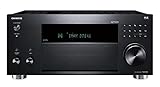
- PAC issued releases on October 28 and November 18, 2024 covering TX‑RZ50, TX‑NR7100, TX‑NR6100, TX‑NR6050, TX‑NR5100, TX‑RZ70 and TX‑8470.
- Parallel rollouts included Integra, Elite, and Pioneer lines; press notes emphasize ongoing product support.
- Other gains: Google Cast 2.0 improvements, Tidal Max up to 192 kHz/24‑bit, and more reliable Dirac Live measurements.
| Feature | Benefit | Delivery |
|---|---|---|
| Auro‑3D | Three‑dimensional music playback | On‑screen/front panel prompt or USB package |
| Source‑Based Tone Mapping | Better HDR pass‑through handling | Network or USB |
| Dirac Live improvements | Fewer measurement errors; increased delay compensation | Part of firmware version releases |
Before you start: check your firmware version, method, and requirements
Confirm the current build before making changes.
Press the Home button on the remote, highlight F/W Update or select the Firmware Update icon, and press Enter. The current firmware version appears on the TV and is mirrored on the receiver’s front panel display for straightforward confirmation.
Decide which method fits your setup. Use the network path when the connection is stable and the on‑screen prompt appears. If the environment shows instability, choose the USB package; past Ethernet issues make USB the safer method for some releases.
Prepare essentials before starting. Provide stable power to the unit, have a supported USB device ready, and set aside enough minutes so the process completes without interruption. Verify the unit recognizes the drive and that the expected prompt appears.
- Open the firmware update menu from the Home screen to view the exact version.
- Prefer update via USB when network conditions are unreliable.
- Keep version information handy and contact official support if errors appear.
How To Update Your Onkyo Receiver Firmware via USB
Follow these steps for a reliable USB installation when network updates are risky.
Download the package from the official website
Visit the brand website and locate the exact model page. Download the latest firmware package and confirm the file name matches your model before extracting.
Prepare the USB drive
Format a reliable USB storage device as recommended, then copy the extracted files to the root of the drive. Safely eject the drive to avoid file corruption.
Run the installation from setup
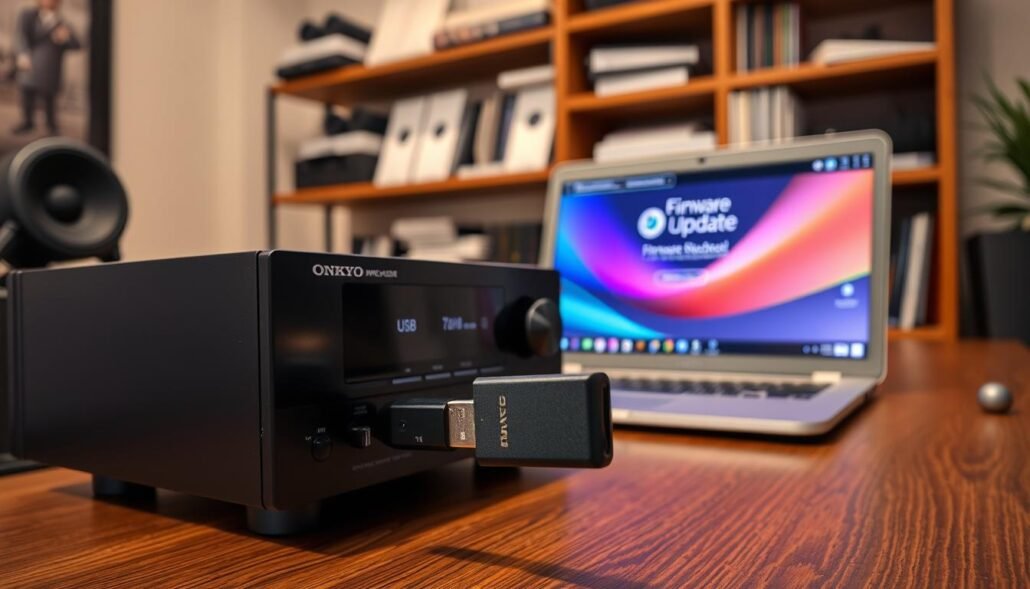
Insert the USB drive into the receiver USB port and power the unit on. Open the setup menu and select the firmware update path; follow the on-screen display prompts and avoid pressing any extra button during the process.
Verify the new version and safety notes
The unit may restart and show progress on the front panel and TV. Allow several minutes, keep power steady, and do not remove the drive until the update via USB finishes.
- If an error appears, keep the receiver powered and recheck the drive content and folder structure.
- Reattempt the process with the correct package if needed; USB installation is often more robust than Ethernet in flaky networks.
- After completion, remove the drive, power cycle if instructed, and verify the new version in the update menu.
| Step | Action | Time |
|---|---|---|
| Download | Get latest firmware from website | Minutes |
| Copy | Format drive and place files at root | Minutes |
| Install | Run via setup, watch display for progress | Several minutes |
Updating over the network and model‑specific upgrade notes
Many network‑connected AV units now notify users on the TV and front panel when a new release is available.
When a network install fits
Use a network update when the connection is stable and an on‑screen prompt appears. Follow the guided steps on the display, confirm progress, and keep the connection uninterrupted until the process finishes.
Integra and menu guidance
Integra owners should open the “Setup Firmware Menu” and follow the on‑screen sequence specific to that product line. Confirm progress on the front panel when prompted.
Model notes and notable features
Recent releases added Google Cast 2.0 for easier connection and Tidal Max for Hi‑Res music up to 192 kHz/24‑bit. Several models gained Dolby Atmos Music playback via Amazon Music HD and native Tidal playback.
| Model group | Key gains | Notes |
|---|---|---|
| TX‑RZ50 / DRX‑5.4 | Dirac Live Bass Control (license) | Optional purchase |
| TX‑RZ70 / DRX‑8.4 | Advanced features included | Preinstalled capabilities |
| TX‑8470 / DTM‑7.4 | Stereo optimizations | Two‑channel use cases |
- If a network install stalls, verify the connection and follow on‑screen guidance.
- When in doubt, download the package from the website and complete the process via a drive.

Conclusion
Keep your system current so it delivers the best audio and compatibility over time.
Small, regular checks ensure that the latest firmware and updates reach your receivers either via on‑screen prompts or a USB package. Prepare a usb drive, keep steady power, and follow the menu prompts for a smooth install.
After the process, verify the firmware version shown on the unit and test inputs, streaming, and room correction control. Stereo and multichannel products both gain from the 2023–2024 releases, including spatial music and higher‑res playback.
Need more model notes or a hands‑on review? See the TX‑RZ1100 review for practical examples that match these update methods.
FAQ
How can I tell which firmware version is installed from the Home menu?
Navigate to the receiver’s Home or Setup menu, open the System or Information screen, and look for “Firmware Version” or “Software Version.” The front-panel display and the TV on‑screen display typically show the version number; write it down before continuing.
Which method should I pick: network update or USB drive?
Use a network update for convenience when the unit is online and stable. Choose a USB drive when your network is unreliable, the update file is large, or the model documentation specifically recommends USB. USB is also preferred for major feature upgrades and recovery steps.
What are the basic requirements before starting an upgrade?
Ensure uninterrupted power, a supported USB drive formatted as FAT32 or exFAT, the latest firmware file from the official Integra or Onkyo support page, and at least 15–30 minutes of time. Disable auto-standby and close active inputs like Bluetooth or music streams.
Where do I download the latest firmware file?
Go to the official Onkyo or Integra support website, search for your exact model number, and download the listed firmware update package. Avoid third‑party sources; official pages include release notes and installation instructions.
How should I prepare my USB drive for the update?
Back up any files, format the drive to FAT32 or exFAT on your computer, copy only the firmware file into the root directory (not inside folders), safely eject the drive, and confirm the file name matches the support page instructions.
How do I start the update from the receiver’s setup menu?
Insert the USB drive into the receiver’s USB port, open Setup > System or Firmware Update, select “Update via USB,” then follow on‑screen prompts. The display will show progress; do not power off or press front‑panel buttons during installation.
How long does an upgrade usually take?
Typical installs range from 5 to 30 minutes depending on file size and model. Allocate extra time for verification and any post‑install initialization. If progress stalls beyond the documented time, consult support before forcing power off.
How can I confirm the new version installed correctly?
After the unit reboots, check the System or Information screen and the front‑panel display for the new firmware number. Play audio, test key functions (HDMI switching, network streaming, surround modes) and verify new features listed in the release notes.
What should I do if the update fails or the unit won’t boot?
First, try a powered reset: unplug the receiver for 30 seconds and reconnect. If that fails, attempt the USB recovery procedure documented for your model (some Integra models include a Setup Firmware Menu). Contact Onkyo/Integra support with model and error details if recovery does not work.
Are there model-specific notes I should know about?
Yes. Some Integra and Onkyo models use a dedicated “Setup Firmware Menu” or support Google Cast 2.0, Dirac, Tidal Max, Auro‑3D or Dolby Atmos Music patches that require manual USB installs. Always read the model’s release notes and follow any special steps.
Can firmware add new audio features like Auro‑3D or Dolby Atmos Music?
Yes. Manufacturers sometimes add features or format support through updates. Check release notes for new codecs, immersive formats, or network services. Large feature additions often recommend USB installation for reliability.
Is there a risk of losing settings after a firmware installation?
Most updates preserve settings, but major version upgrades may reset certain parameters. Note your speaker setup, network credentials, and custom EQ settings before starting. If settings are lost, restore them from your notes or backed‑up profiles if supported.
Can I perform firmware updates without a TV connected?
Some models allow front‑panel display progress and can update without a TV, but on‑screen prompts are clearer with a connected display. If you rely on USB recovery steps, having a TV makes following instructions easier.
Which file formats and USB drives are supported?
Use FAT32 or exFAT formatted drives and the exact firmware file provided by Onkyo/Integra. Avoid drives with other files or folders in the root. Very large or encrypted drives may not be recognized by the unit.
Will a network update also install all feature patches?
Network updates handle routine fixes and minor features, but manufacturers sometimes release large feature upgrades only via USB. Check the release notes; if the notes list a USB installation, use that method for full functionality.
Where can I find step‑by‑step instructions for my exact model?
Visit the official Onkyo or Integra support page, enter your model number, and download the firmware release notes and installation guide. Those documents include model‑specific procedures like the Integra “Setup Firmware Menu” and recovery steps.


