
Quick overview: This guide explains how the HDMI Audio Return Channel (ARC/eARC) works with STR-DH series gear and why TV audio might not route to your speakers. You will get fast checks, core settings, and simple fixes.
Start by using the TV input jack labeled ARC/eARC and plug the HDMI cable into the receiver’s TV OUT jack. Then enable the TV’s System Audio Control or Control for HDMI. On the unit, set <HDMI> > CTRL.HDMI = CTRL ON and, for TV input, set <INPUT> > IN MODE = AUTO.
Common symptoms include no audio, low volume, or a muted panel. A TV home screen can block audio until you exit that interface. If the TV lacks ARC/eARC, use an optical digital cable as a reliable fallback.
What you’ll find next: quick checks for cables and jacks, step-by-step menu changes, and tips on power order, cable types, and confirming volume and mute states so audio returns to your speakers.
Quick diagnostics before you dive into menus
Begin with a quick hardware check to confirm the TV and receiver are using the proper ARC/eARC HDMI ports. These simple steps can restore audio fast and avoid deep menu changes.

Confirm ARC/eARC HDMI jack usage on both TV and receiver
Make sure the TV uses the HDMI input labeled ARC/eARC and the receiver is plugged into the TV OUT jack. A non-ARC jack will not return sound to the speakers.
Use a High Speed or Premium High Speed HDMI Cable with Ethernet
Use a High Speed HDMI cable with Ethernet for standard signals. For 4K/60p, upgrade to a Premium High Speed HDMI cable (18 Gbps) to avoid intermittent sound.
Power-on sequence, volume, and muting on the display panel
Turn on the TV first, then the receiver. If “MUTING” appears on the display panel, unmute and raise volume to confirm audio is allowed through.
Switch the input and exit the TV’s Home menu
Set the receiver input to TV so audio return is active. Exit the TV’s Home screen before testing—some home interfaces block audio output.
Check physical connections are fully seated
- Gently push each HDMI and speaker plug until it clicks to ensure a solid fit.
- Disconnect nonessential devices and test with only the connected HDMI to the receiver to isolate faults.
- Verify speakers are firmly wired and not shorted at the binding posts to avoid protection mute.
If these quick checks fail, move on to the detailed settings in the next section.
Sony Receiver: Why is there no sound from ARC on STR-DH models?
Check HDMI control and audio routing first. On the TV, enable Control for HDMI (CEC) and set speakers to Audio System so the amp can manage playback via arc.
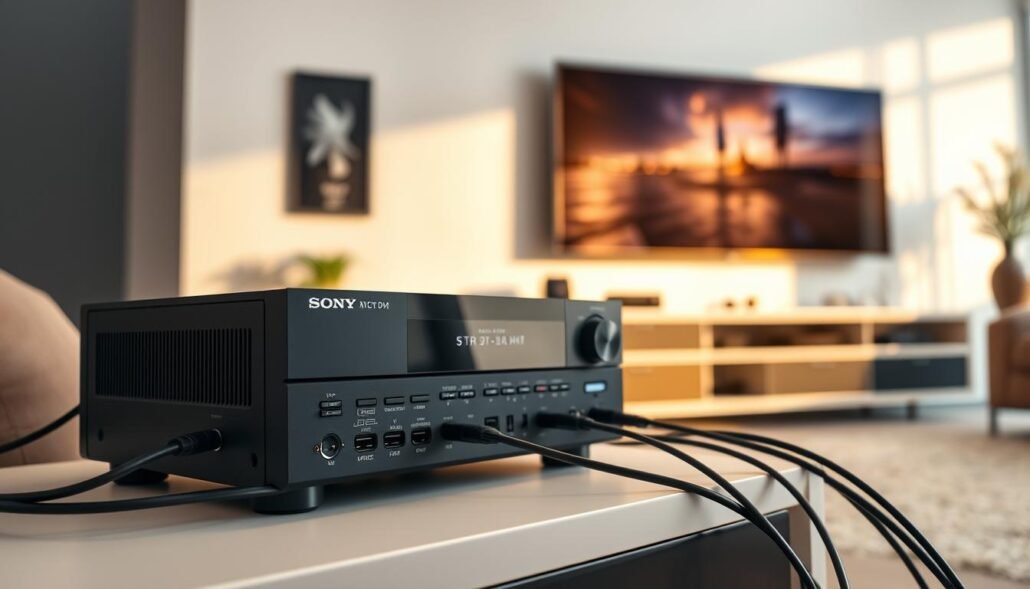
Set CTRL.HDMI and eARC behavior
On the unit, press amp menu and go to <HDMI> > CTRL.HDMI. Choose CTRL ON on the display panel to allow CEC volume and control.
Next, pick <HDMI> > EARC = ON to enable eARC when available, or OFF to force legacy arc for compatibility.
Input mode and audio output path
When using the TV input, set <INPUT> > IN MODE = AUTO. This lets the amp detect and decode audio types without manual switching.
Choose <HDMI> > AUDIO.OUT = AMP to force sound to the amp only, or TV+AMP when the TV lacks System Audio Control and you want both outputs.
Fallbacks and device nuances
If the display lacks arc/earc support, run an optical digital cable from the TV’s optical out to the amp to listen sound from apps and tuner without HDMI return.
Also check playback device HDMI format, HDCP and resolution. Some codecs need lower image resolution or PCM/Bitstream selection to pass audio. Exit the TV home screen before testing.
- If audio goes to a projector or the TV instead of speakers, set <HDMI> > AUDIO.OUT = AMP.
- Follow your TV’s operating instructions for exact CEC/eARC labels and extra steps on non-matching brands.
Common ARC pitfalls and how to fix them now
Common quirks can block audio return when gear from different brands talks via HDMI. ARC may work with non-Sony TVs, but operation is not guaranteed. Verify the TV’s eARC/ARC function and enable the appropriate setting in the TV menu before troubleshooting the amp.
Practical checks that fix most issues
- Input routing: If you try to hear a Blu‑ray or console while the receiver is set to TV input, change the input to the device’s HDMI source to restore sound.
- TV home menu: Exit the TV home screen and retest. Some displays mute return audio while the menu or guide is shown.
- Device HDMI settings: Review each device’s HDMI audio format and handshake choices and refer operating instructions for exact steps.
- AUDIO.OUT = AMP: Force audio to your speakers if the display or projector takes the audio instead.
- Cables and HDCP: Use a known-good hdmi cable and swap ports if HDCP negotiation fails; power-cycle the chain to re-establish a clean handshake.
These quick fixes cover most compatibility and routing faults. If problems persist, check firmware and consult the TV and device manuals for supported formats and advanced steps.
Conclusion
Finish with a short checklist to confirm the amp and TV are set to pass audio reliably. Press amp menu and verify <HDMI> > CTRL.HDMI = CTRL ON, EARC as needed, and <INPUT> > IN MODE = AUTO.
Make sure the TV uses its ARC/eARC jack, use a certified hdmi cable, and confirm every connected hdmi plug is firmly seated in the connected receiver and display. Set <HDMI> > AUDIO.OUT = AMP to route audio to your speakers only.
If the display lacks arc support, run an optical cable and set the receiver so you can listen sound from TV apps and tuners. For upgrades and buying tips, see next AV receiver features.
Final step: check the panel for muting or format notices, then re-check settings after firmware updates and any port changes. Refer operating instructions for brand-specific labels and steps.
FAQ
Brief for Section 1 — H1: Sony Receiver: Why is there no sound from ARC on STR-DH models? Solutions
This section outlines steps to restore audio when ARC/eARC fails with STR-DH series units. Start with simple checks: confirm the TV and amp use the ARC/eARC HDMI jack, use a High Speed or Premium High Speed HDMI cable with Ethernet, ensure the amp is powered and unmuted, set the amp input to the TV source, and make sure all HDMI and optical connectors are fully seated. If those steps fail, proceed to the amp menu settings described below.
Brief for Section 2 — Quick diagnostics before you dive into menus
Run quick diagnostics first. Verify the TV’s HDMI ARC/eARC jack is the one used. Swap in a known-good HDMI cable that supports ARC/eARC. Turn the amp and TV off, then on in the correct order (TV first, then amp). Check the amp’s display panel for input and volume status. Exit the TV’s Home menu and set the receiver input to the TV source. Finally, inspect every HDMI and audio jack for a snug connection.
Confirm ARC/eARC HDMI jack usage on both TV and receiver
Use the HDMI port labeled ARC or eARC on both devices. Other HDMI inputs won’t carry return audio. On some TVs, the labeled port is shared with a GPU-style output; double-check TV manuals if unsure. If you can’t find ARC/eARC labeling, look for HDMI ports documented as supporting Audio Return Channel in the TV’s spec sheet.
Use a High Speed or Premium High Speed HDMI Cable with Ethernet
ARC and especially eARC require cables rated for higher bandwidth. Use a High Speed or Premium High Speed HDMI cable with Ethernet, or an Ultra High Speed cable for eARC features. Cheap or damaged cables can allow video but block audio return or advanced formats like Dolby Atmos.
Power-on sequence, volume, and muting on the receiver display panel
Power devices in the recommended order: TV on first, then the amp. Confirm the amp’s display panel shows the TV input and that mute is off. Adjust volume and ensure speaker outputs are active. Some models show a mute icon or a red indicator when speakers are disabled.
Switch the receiver input to TV and exit the TV’s Home menu
Select the TV input on the amp so it listens for ARC signals. Exit the TV’s Home or setup screens; some TV software blocks the ARC handshake while menus are open. After exiting, trigger audio from the TV or a connected app to re-establish the connection.
Check physical connections are fully seated on all HDMI/audio jacks
Press each HDMI connector firmly into its port. Inspect for bent pins or debris. If using an optical cable as a fallback, verify it’s inserted straight and clicks into place. Loose plugs commonly produce intermittent or no audio.
Brief for Section 3 — H2: Sony Receiver: Why is there no sound from ARC on STR-DH models?
This section covers amp menu settings and behavior that commonly affect ARC audio. If basic checks don’t help, enable HDMI control on the TV, enable CTRL.HDMI in the amp menu, set eARC/ARC behavior, confirm input mode is AUTO, choose the correct audio output path, and use optical when the TV lacks ARC/eARC. Also consider HDCP and HDMI format settings that can block audio return.
Enable Control for HDMI on the TV and set the TV speakers to Audio System
Enable CEC-style control on the TV (often labeled HDMI Control, Bravia Sync, Anynet+, etc.). Then set the TV’s speaker output to “Audio System” or similar so the TV routes sound to the amp rather than its internal speakers. Without this, the ARC handshake may not route audio to the external amp.
On the receiver: AMP MENU > <HDMI> > CTRL.HDMI = CTRL ON
In the amp’s AMP MENU, open HDMI settings and set CTRL.HDMI (HDMI control) to CTRL ON. This lets the amp accept CEC commands from the TV and helps maintain ARC link stability. Save settings and power-cycle both units if audio still won’t pass.
Select eARC/ARC behavior: AMP MENU > <HDMI> > EARC = ON or OFF
Set the EARC parameter to match your TV’s capability. If the TV supports eARC, set EARC = ON to enable full bandwidth audio. If the TV only supports legacy ARC, set EARC = OFF. Mismatched settings can prevent the audio path from initializing.
Set input mode when using TV input: AMP MENU > <INPUT> > IN MODE = AUTO
In AMP MENU under INPUT, set IN MODE to AUTO so the amp recognizes signal types from the TV automatically. Manual input modes may lock the receiver to incompatible processing and block returned audio.
Choose audio output path: AMP MENU > <HDMI> > AUDIO.OUT = TV+AMP or AMP
Choose AUDIO.OUT to match how you want sound routed. Use TV+AMP for simultaneous TV speaker and amp playback, or AMP only to send all audio to the amp. If sound is playing on the TV but not the amp, switch AUDIO.OUT to AMP and re-test the connection.
When TV lacks ARC/eARC: use an optical digital cable as the audio return
If the TV offers no ARC/eARC, use the optical (Toslink) output from the TV to the amp’s optical input. This supports PCM and some surround formats but not full eARC bandwidth formats like high-bitrate Dolby Atmos over HDMI.
Device and TV nuances: HDCP, HDMI output formats, and resolution settings
HDCP version mismatches, incompatible HDMI output formats, or high resolution/refresh settings can interrupt the ARC handshake. Lower TV output resolution or disable advanced HDMI features temporarily to test. Update firmware on both TV and amp to fix known compatibility glitches.
When sound routes to the projector/TV: set AUDIO.OUT to AMP
If audio plays through the projector or internal speakers instead of the amp, change AUDIO.OUT in the amp menu to AMP. Also confirm the TV’s speaker setting points to the external audio system so ARC hands off sound to the amp.
Brief for Section 4 — H2: Common ARC pitfalls and how to fix them now
Common issues include TV-side settings disabled, wrong HDMI port, an inadequate cable, incorrect amp menu settings, or input mismatch. Address each item in sequence: verify TV ARC/eARC port and CEC control, swap a certified cable, set CTRL.HDMI and EARC properly, pick the TV input on the amp, and use optical as a fallback.
ARC on non-Sony TVs: supported but not guaranteed—verify TV-side settings
ARC/eARC works across brands but behavior varies. Check the TV maker’s settings for HDMI Control, audio output routing, and ARC/eARC enablement. Some non-Sony TVs require specific enable steps or firmware updates for full compatibility.
Input confusion: change the receiver to the correct HDMI source when needed
If the amp shows the wrong source, switch it to the TV input explicitly. ARC audio only appears when the amp listens to the TV-designated input. Use the front panel or remote input selector to ensure the correct HDMI source is active.


