
Quick check first: many no-picture cases stem from a simple loose connection or a worn cable. Start by confirming connections sit snug and that all devices power up. A poor fit can cut audio and video together, causing an intermittent signal.
How that feels: a loose jack may wobble, let plugs tilt, or only work at certain angles. That motion breaks the digital handshake used by modern systems and can mimic a hardware failure.
Goal for this guide is clear: isolate whether the issue lies with the receiver input, a cable run, a source device, or a settings/handshake fault. Follow a step-by-step flow to save time and avoid needless part swaps.
Note: if the unit remains under warranty or came from a store recently, confirm coverage before any invasive attempts. Modern receivers use HDCP and complex handshakes, so symptoms can overlap between settings and hardware.
Signs Your Receiver Has a Loose HDMI Port (and Not Just a Cable Issue)
Small movements that change the picture are one of the clearest clues of a mechanical failure.
Common symptoms: no signal messages, a blank screen, intermittent flicker, or audio-only/video-only behavior often appear.
These same symptoms can come from a bad cable, a TV jack, or a source device. That overlap makes isolation testing essential.
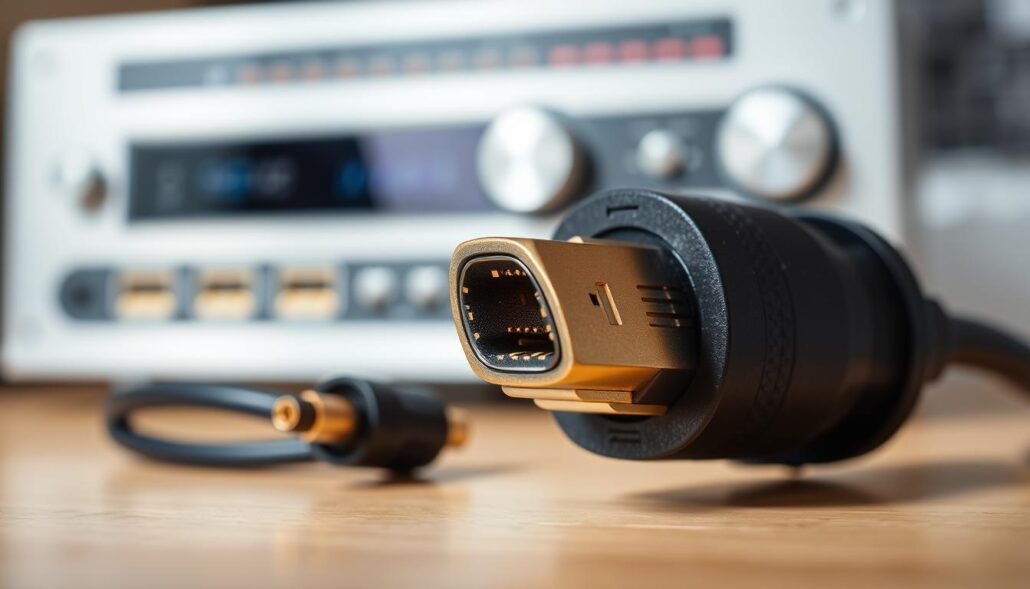
The wiggle test
Gently move the connector near each end while watching the screen. If light movement causes cutouts, a loose connector or worn port is likely.
Clues that point to the receiver
If touching the cable at one device end changes the picture but the other end is unaffected, the changing end is the primary suspect.
How wear and stress create problems
Frequent plugging and unplugging or tight bends behind an entertainment center can loosen a fit, wear contacts, or stress solder joints over time.
- A bad cable often fails consistently, regardless of movement.
- A loose port usually fails intermittently and reacts to repositioning.
Bottom line: spot patterns, run a gentle wiggle test, and compare both ends to avoid replacing parts that still work.
What should I do if the HDMI port on my receiver is loose?
Begin with a quick power and connection checklist so you can rule out simple causes fast.
Start with basics: power check and reseat connectors
Power off and back on for source, receiver, and TV. Then unplug each cable and inspect both connector ends for debris or bent pins.
Firmly reinsert each connection until it clicks. A half-seated plug often looks like a hardware problem but is just a poor fit.
Swap cables and inputs to isolate the fault
Replace the current cable with a known-good hdmi cable. Try different inputs on the receiver and the TV.
If the signal follows a cable or device, that points to a bad cable or source. If it stays on one input, the jack may be worn.
Handshake, resolution, and long-run checks
EDID and HDCP handshakes can fail and mimic a loose connection. Change output resolution to one the display supports.
For long runs over ~10 meters, test with a short, tested cable or add a repeater/extender. Change one variable at a time to find the real solution.
When a Loose HDMI Port Means Hardware Damage: Repair, Warranty, or Replacement
Visible wobble or repeated flicker when nudging a cable often means hardware, not just a worn lead.
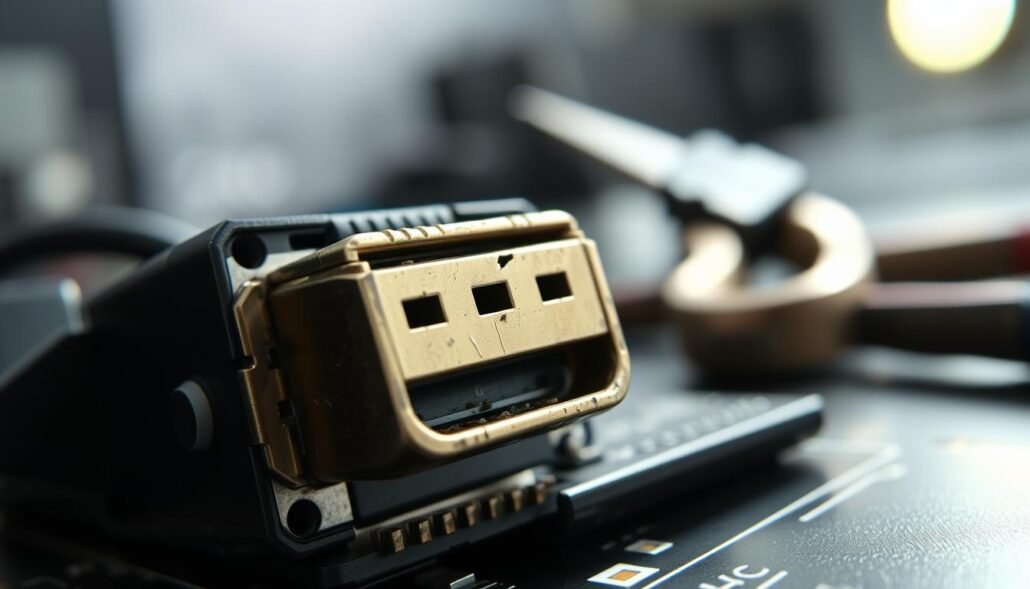
Loose jack vs. bent pins and cracked solder
Signs of true damage: bent pins, a jack that visibly rocks, or loss of signal even with multiple known-good cables. If multiple inputs fail, that often points to board-level problems rather than a single worn socket.
When professional re-soldering helps
Re-soldering can fix cracked solder joints or a loose mount at one jack. It works best for a single intermittent contact that shows clear movement.
Don’t try this at home unless you have fine tools and soldering skill. Heat can harm nearby chips and void warranty coverage.
Repair vs. replace: practical criteria
- Compare repair estimate to current model value and age.
- Factor needed features like eARC or 4K/120 when choosing replacement.
- If repair nears a large fraction of replacement cost, buy a new unit.
Warranty and U.S. service steps
Check purchase date, retailer return window, and manufacturer warranty. Use an authorized service center when required and document the problem with photos or video of the wiggle test to speed claims.
Reminder: opening the unit can void warranty, so contact service first for a proper solution.
Conclusion
A clear, stepwise check often reveals whether a signal fault is a simple cable fault or hardware damage.
First, confirm power, reseat plugs, swap a known-good hdmi cable, and try different inputs. Change output resolution or handshake settings only after basic swaps fail.
When multiple tested cables and multiple inputs still fail — and a gentle wiggle cuts the picture — the fault likely points to receiver hardware. Keep a short log: which input, which hdmi cable, and which device showed failure.
For a lasting solution, choose professional service or warranty support for a mechanically loose jack. Protect ports by minimizing strain, using rated cables, and avoiding frequent unplugging. Learn more setup tips in our home theater setup guide.
FAQ
How can I tell if a loose HDMI connector causes signal problems rather than a bad cable?
Look for intermittent loss of picture or sound, flickering, or audio-only/video-only outcomes when gently wiggling the plug. Perform a quick swap with a known-good cable and try another input on the set or receiver. If issues follow the port regardless of cable and input, the connector likely needs attention.
What basic steps help rule out simple connection problems before considering repairs?
Power down all equipment, unplug and reseat the connector at both ends, then power back on. Use a short, high-speed cable from a trusted brand like Belkin or Monoprice to eliminate a damaged lead. Test different inputs on the AV receiver and the TV or projector to isolate which device shows the fault.
How does an HDMI handshake issue mimic a loose connector, and how can it be fixed?
EDID and HDCP negotiation failures can cause no-signal or intermittent output similar to a bad contact. Try cycling power, using a different cable, or temporarily setting the output resolution to a lower, standard value supported by the display. An HDMI signal emulator or EDID programmer can help in complex setups.
When is cable length or signal integrity the real culprit, and what are practical fixes?
Long runs over 25 feet can degrade signal, causing dropouts that look like loose connections. Use an active HDMI cable, fiber HDMI, or a repeater/extender to restore integrity. Keep runs as short as practical and avoid sharp bends or EMI sources like power transformers and wireless routers.
What signs indicate physical damage to the connector that requires service?
Visible bent pins, a wobbling jack, or solder joints that lift from the circuit board point to hardware damage. If the plug doesn’t hold even after trying multiple cables and inputs, professional inspection is advisable to avoid making the issue worse.
Is re-soldering a common repair for a loose jack, and who should perform it?
Re-soldering cracked joints or replacing a damaged jack is a typical fix. Have an authorized electronics repair shop or the receiver’s manufacturer service center perform the work, since proper tools and experience prevent further board damage.
How do I decide between repair and replacing the receiver?
Compare repair estimates with the unit’s market value and model age. For modern mid- to high-end receivers from brands like Denon, Marantz, Yamaha, or Onkyo, repair often makes sense. For older or budget models, replacement may offer better long-term value and features.
What warranty or service options exist for covered units in the United States?
Check the manufacturer’s limited warranty and authorized service centers. Brands commonly offer repair through their U.S. service network; if within warranty, contact the maker—Denon, Yamaha, Sony, etc.—for return authorization. For out-of-warranty gear, request quotes from certified electronics repair shops.
Any tips to prevent future connector problems?
Avoid frequent plugging and unplugging. Label and dedicate cables for each input, use right-angle adapters or strain-relief brackets when space is tight, and secure devices to prevent movement. Use quality cables and keep cable runs tidy to reduce wear on connectors.


