
Keep your receiver cool so it avoids thermal stress, distortion, and surprise shutdowns that interrupt movies, music, and gaming. This brief guide starts with the practical goal: maintain safe temperature for long life and reliable audio performance.
Many units sit at the center of a home theater, amplifying signals from TVs, Blu‑ray players, consoles, and streamers. That amplification creates electrical losses that turn into heat inside metal cases and near sensitive components.
Overheating shows up as a very warm chassis, a temperature warning, or sudden protection mode that stops playback. Simple fixes often work: give the unit clear air around vents, lower sustained volume, clean dust from openings, and check fans or cooling accessories.
Safety first: if you smell burning, see repeated shutdowns, or notice damage, unplug the system and get service. This article will explain common causes, airflow and wiring tips, power choices that raise temperature, and step‑by‑step troubleshooting so small changes yield big payoff.
Understand why AV receivers overheat today and what “protection mode” means
High-demand audio playback makes the metal case and internal parts run hotter than you might expect. Heat builds when the amplifier works hard, and limited airflow makes that heat stick inside the box. Clear air paths and sensible loads keep temperatures safe.
Common heat sources
Core causes: sustained high power use at loud levels, an enclosed cabinet that traps warm air, stacked gear radiating into the unit, and dust blocking vents. Any one of these raises internal temperature quickly.
Protection mode versus thermal shutdown
The receiver has sensors that watch load and temperature. When a fault appears—like a wiring short to a speaker—it may enter a protection mode to cut output and avoid damage.
Thermal shutdown is strictly temperature‑triggered. Protection mode may also respond to overcurrent or impedance faults. Disconnecting speakers one at a time is a fast diagnostic.
- Ensure top and side grills are clear.
- Keep the cabinet ventilated or add a fan if needed.
- Check wiring for stray strands that cause shorts.
How can I prevent my AV receiver from overheating and shutting down?
Place the unit where fresh air flows freely and away from stacked gear that radiates extra heat. Start with simple checks that reduce load and improve cooling. Small fixes often stop protection mode trips and steady temperature rise.
Quick checks: placement, ventilation, and room temperature
Keep the chassis clear: set the receiver on an open stand with several inches of clearance. Ensure vents and slots face unobstructed air paths.
Keep the ambient room cooler during long sessions; a hot room adds to internal heat and shortens safe runtime.
Reduce power strain: sensible volume, speaker load, and listening time
Lower sustained volume and avoid long, high-power listening. Confirm your speakers match the amp’s specs to prevent low impedance loads that force extra power into the unit.
Verify firmware and settings that affect thermal behavior
Apply the latest firmware to fix operational issues that may raise workload. If protection mode appears, inspect speaker wiring for stray strands and disconnect speakers one at a time to isolate a short.
- Open stand with several inches of clearance for air flow.
- Moderate listening levels and watch for dynamic content spikes.
- Use correct speaker impedance and tidy wiring to avoid shorts.
- Update firmware and test simpler modes or EQ to reduce amplifier demand.
- Clean dust from grills and slots to restore air movement and lower heat.
Optimize airflow: ventilation, fans, and smart cabinet design
Good airflow keeps electronics running reliably. A modest plan for shelf layout and small fans prevents trapped heat and reduces protection trips.
Give the unit space and keep vents clear
Provide top and side clearance: leave several inches above the receiver and clear the sides so warm air can escape. An open shelf or ventilated cabinet lets natural air movement cool the chassis.
Add active cooling when passive airflow isn’t enough
Install a quiet 3-inch “muffin” fan or a purpose-built receiver cooling fan on the top. In one real-world example, a small fan with a toggle switch kept a Yamaha amp reliable for years; it made a brief thump at power-on, so power the fan first or mute the speakers at startup.
Closed-rack solution and dust management
For sealed cabinets, mount a top exhaust and drill small intake holes on left and right sides. Hot air rises and exits while cooler air enters the sides, creating steady circulation.
- Prefer an open shelf or ventilated stand over sealed furniture.
- Vacuum or brush vents regularly so air flows freely.
- Add filters to intake holes in dusty rooms and clean them often.
- Power fans before playback to avoid transient speaker thumps.
Speaker wiring, loads, and placement that keep your amp cool
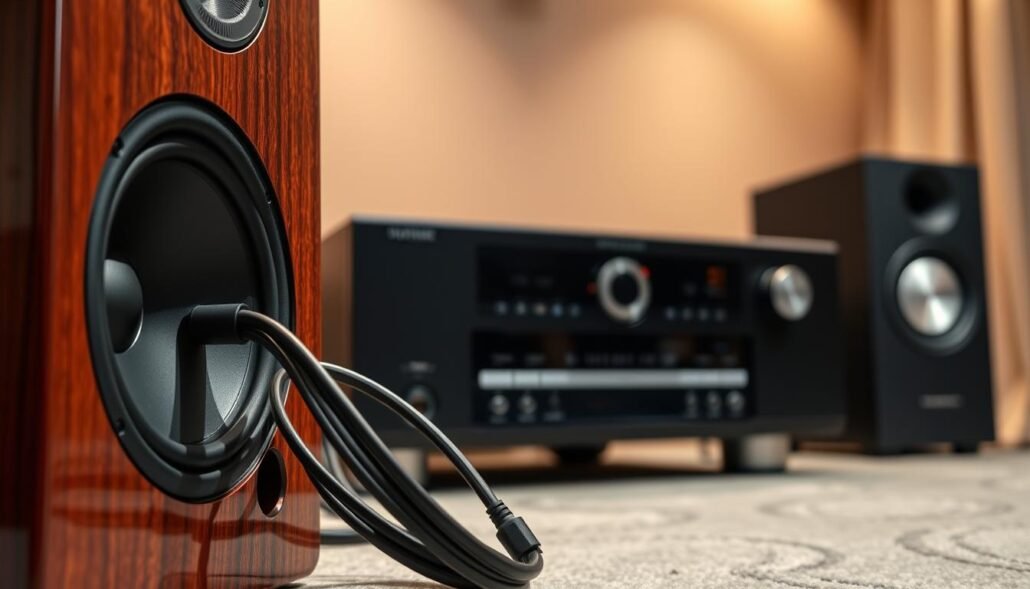
Loose or incorrect speaker connections often trigger protection or force the amp to deliver extra power. Start by inspecting terminals at both the receiver and every speaker.
Look for stray copper strands, firm screw or banana plug terminations, and no visible shorts. If protection trips, disconnect speakers one at a time to isolate the problem run.
Match impedance and avoid parallel wiring
Use speakers that meet the receiver’s rated load. Parallel wiring lowers total impedance and makes the amplifier run hotter.
- Inspect each speaker connection for tight, clean terminations without stray copper.
- Disconnect speakers one by one to find wiring faults that cause protection events.
- Match speaker impedance to the receiver rating; never daisy-chain low-impedance surrounds with demanding fronts.
- Choose proper gauge cable for run lengths to reduce losses and extra heat in wiring.
- Confirm channel assignments and polarity in setup so the amp does not compensate with excess output.
Place speakers with enough clearance from walls so rear-ported subs and active speakers do not trap heat near the receiver. After fixes, re-test at moderate volume to verify the receiver stays stable without re-entering protection.
For full system guidance, review a clear home theater setup checklist to ensure speaker configuration and placement are correct.
Power, modes, and features that impact heat
Certain playback choices and active features change how much electrical power the chassis must dissipate. That extra load often shows up as higher internal heat and a warmer receiver case.
High dynamic content and continuous output
Understand how power becomes heat: pushing channels hard for long time raises current draw and internal temperature.
Action films, EDM, and modern games have fast, loud spikes. A bit of extra volume becomes a lot more demand on the amp during those peaks.
Long sessions at elevated levels add thermal soak even if average volume seems tame. Reduce sustained output and give the unit short rests to limit buildup.
Surround modes, EQ, and room correction
Some immersive modes and aggressive EQ curves send signal to more channels at once. That raises amplifier workload and the receiver runs hotter.
Test simpler modes: switch to stereo or a basic mode and compare temperatures during the same audio track. If heat drops, the processing was the cause.
- Use sensible headroom; avoid frequent clipping that forces extra power.
- Balance sub levels so mains are not overburdened.
- Try disabling room correction or fancy upmixers briefly to isolate mode impact.
- Improve air flow and keep firmware current to reduce needless processing cycles.
Troubleshooting steps if overheating persists
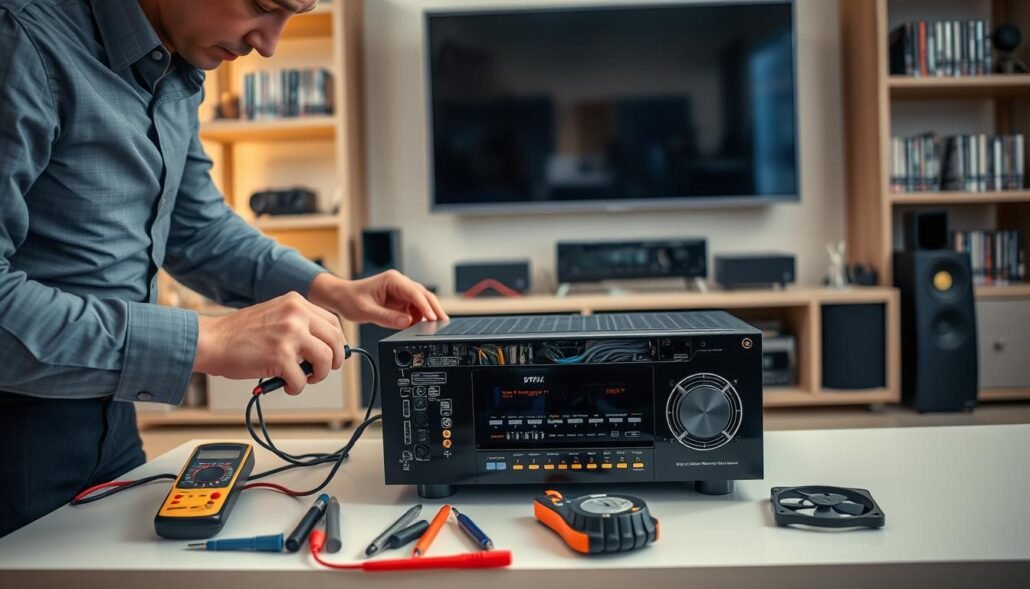
Begin isolation tests by powering the system with a minimal setup and known-good cables.
Isolate the problem: run the receiver with front left/right only, using verified speaker cables. If issues stop, add speakers one at a time to find the faulty run.
Swap sources and inputs to rule out a single component or bad cable. Recheck that air paths and grills remain clear during tests.
Software fixes and reset
Update firmware to the latest release, reboot, and monitor behavior. If faults persist, perform a factory reset per the manual to clear bad settings.
When to seek service
Observe for repeated shutdowns in short time, a hot electrical smell, or visible case damage. These signs suggest stressed components and require professional repair or manufacturer support.
| Step | Action | Expected result |
|---|---|---|
| Minimal setup | Front L/R only, known-good cables | Fault isolated to wiring or a speaker if symptoms stop |
| Component swap | Change source/input and cables | Identifies bad device or connection |
| Firmware/reset | Update firmware; factory reset if needed | Clears software issues that affect thermal behavior |
| Service | Stop use and contact support if odor or damage | Professional repair prevents further component failure |
- Verify power outlet and secure plug seating.
- Consider a quiet fan only after ruling out wiring or component faults.
Conclusion
Strong, practical steps make a big difference for a hot unit. Treat ventilation, wiring, and listening habits as one plan to cut heat and prolong life.
Start with clear air paths: lift the box onto an open shelf, leave space at the top, and clean vents often. Moderate volume during long sessions so the amp has less work to do.
Check speaker terminations and impedance to avoid shorted wiring that trips protection. Update firmware, try a leaner mode if temperatures rise, and add a quiet fan or top exhaust with side intake for tight cabinets.
If protection repeats, a smell appears, or the case shows damage, stop use and get service to protect internal components and keep audio reliable over time.


