
Quick overview: If a powered receiver produces silence, this guide gives clear steps to isolate the issue. Start simple: check power at the wall, avoid switched outlets, and confirm each unit shows life.
Safety first: Power down before touching cables. Work methodically and test after each change with volume low.
Follow this path: verify the correct input and Speaker A/B output, try a known-good audio file or device, and inspect speaker wires and terminals for loose connections or reversed polarity. If a source works on another stereo, the fault narrows to either wiring or receiver settings.
What you will learn: simple checks for power and inputs, how to reseat cables safely, and quick ways to rule out bad files or devices. These steps save time and prevent unnecessary part swaps.
Quick safety and setup checks to restore sound fast
Start with simple, safe checks. Confirm wall outlets deliver power and that any wall switch controlling an outlet is set to ON. If a plug feels loose, reseat it and try a known-good outlet.
Power and connections
Make sure every component powers up: receiver, source devices, and any surge protectors. A half-seated plug or a switched outlet can cut power without warning.
Volume, mute, and source control
Check front-panel and app controls for mute, input selection, and Speaker A/B settings. Set volume low, then unmute before testing to avoid loud surprises.
Test with known-good media
Play a different track or switch inputs. If a new file or device works, the issue likely lies with the original source or app.
| Check | What to do | Why it matters |
|---|---|---|
| Outlet power | Try a known-good, unswitched outlet | Eliminates intermittent or switched power loss |
| Cords and cables | Reseat power cords, RCA/optical cable, and speaker leads | Fixes oxidation, loose fits, and partial connections |
| Speaker wires | Inspect stripped ends, polarity, and stray strands | Prevents shorting and restores reliable contact |
| New setups | Confirm factory defaults and speaker outputs | Ensures brand new equipment uses correct wiring and settings |
Why is there no sound coming from my speakers, even though the receiver is on?
Start diagnostics at the speaker terminals and work back toward each source. Inspect each speaker wire for correct polarity: red-to-red, black-to-black. Make sure stripped ends are long enough for a solid grip and that no stray strands touch other posts.
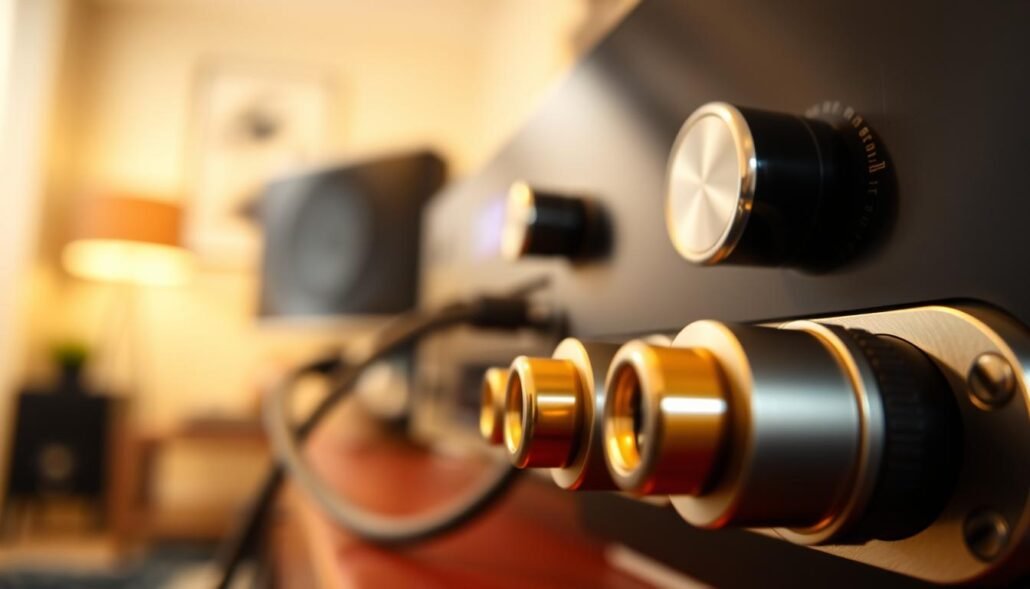
Review the receiver outputs. Verify Speaker A/B and Zone routing are set for the zone you use. Confirm the selected input shows activity on the display.
- Swap suspect cables: replace RCA, optical, or HDMI with a known-good cable.
- Test each speaker and each device on a working stereo or TV to isolate the faulty component.
- Power down before moving wires, keep volume low, and retest after each change.
| Check | Action | Result if OK |
|---|---|---|
| Speaker terminals | Verify polarity, stripped length, tight posts | Speakers receive proper amp signal |
| Receiver outputs | Enable correct zone, disable headphone routing | Output directed to speakers |
| Interconnects | Reseat or replace RCA/optical/HDMI | Restores signal path to receiver |
| Sources | Test on another system | Identifies faulty device or cables |
If all swaps still fail, the receiver set may need service. For a full setup checklist, consult our home theater setup guide.
Device and system settings that commonly mute audio
Check platform audio controls first. On many PCs and Macs, a misselected output or a driver conflict hides playback even when devices show activity.
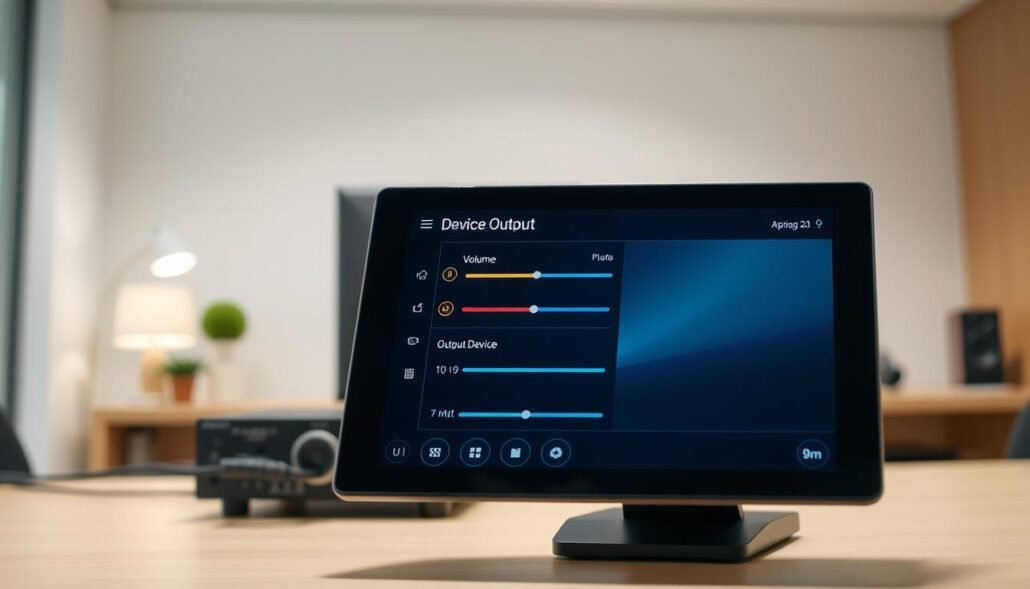
Windows steps
Right-click the volume icon, open Sound Settings, and pick the correct Output device. Run the built-in troubleshooter to detect and fix common audio routing issues.
In Device Manager, roll back or uninstall the audio driver if a recent update broke playback. For best stability, install the manufacturer driver for your exact model and update BIOS and chipset drivers when prompted.
Mac steps
Open System Settings > Sound > Output and choose built-in, display, or USB speakers. Raise Output volume and confirm Mute is off.
For USB devices, check System Information under USB to see the device listed. Reseat the cable or try another port if it does not appear.
Digital receiver setups
Select Digital Output on the computer, connect an optical cable to a digital-capable receiver input, and set the receiver to that input. Adjust listening level with the receiver’s volume control because computer volume often does not affect digital outputs.
- Quick checks: reselect receiver input, disable headphone routing or Zone switches, then retest with a known-good track.
- If driver or system fixes fail, perform a Clean Boot, run SFC/DISM, or use a repair upgrade as a last resort.
For a brand comparison and extra setup notes that help pick correct inputs on many models, see our Marantz vs Denon comparison.
Conclusion
Wrap up checks with a short, methodical sweep of power, receiver input, and speaker wiring. Make sure wall outlets deliver steady power and that your chosen input and speaker outputs match the source device.
Inspect each speaker wire at both ends. Verify polarity, remove stray strands, and reseat or replace any suspect cables. For a brand new install, review factory defaults so outputs and modes suit your speaker layout.
Test every speaker and source on a known-good stereo to isolate faults. Check OS output and driver settings, set digital output to the receiver, and keep volume low when you power up after changes.
If problems persist, note what you tried and the model of each device, then consider professional service for the component that still fails. A calm, stepwise approach often restores home systems without replacing gear.


