Few things ruin a movie night faster than realizing your surround system has gone silent in one area. You expect an immersive experience, but instead, you face a frustrating gap in your audio landscape. Identifying the root cause of these audio dropouts often feels like a complex puzzle.
This guide helps you navigate the signal path to find where the connection fails. We focus on systematic isolation techniques to pinpoint whether the issue lies within your cables, receiver settings, or the speakers themselves. By following these steps, you can effectively restore full multi-channel performance to your equipment.
You do not need to be an expert to fix these common interruptions. With a logical approach, you will quickly regain the high-quality audio your home theater deserves. Let us begin the process of restoring your complete soundstage today.
Understanding Audio Signal Flow
To solve channel issues, you must first visualize how the audio signal flow works in your home setup. Think of your sound system as a continuous chain where every link must remain intact to produce music or dialogue. When one part of this chain fails, the entire experience suffers.
The Path from Source to Speaker
The journey begins at the source, such as a Blu-ray player, gaming console, or streaming device. This device sends a digital or analog signal to your receiver or processor for decoding. Proper decoding is vital because it tells the system which specific channel should receive the audio data.
Once processed, the signal travels to the amplifier stage. Here, the low-voltage signal gains the power needed to drive your speakers. Finally, the electricity moves through your speaker wires to the transducers, which convert the energy into the sound waves you hear.
Identifying Where the Signal Drops
When you lose sound in a specific channel, you need to isolate the break in the audio signal flow. Start by checking if the issue persists across different sources. If the problem only happens with one device, the fault likely lies in that source or its specific connection.
If the silence occurs across all inputs, the issue is likely within the receiver or the speaker wiring itself. By systematically testing each segment of the chain, you can pinpoint the exact location of the failure. Understanding this logical progression makes complex troubleshooting much more manageable for any user.
Troubleshooting: Why is there no sound from specific channels ?
When you notice that specific channels in your surround sound system are not producing audio, it is time to investigate the root cause. Dealing with multi-channel audio issues can feel overwhelming, but most problems arise from simple configuration mistakes or minor hardware faults. By following a logical diagnostic path, you can quickly restore your immersive sound experience.
Common Culprits in Multi-Channel Systems
Many users encounter silence in specific speakers due to incorrect channel mapping within their AV receiver or software interface. If your system is set to a stereo mode while you are attempting to play a 5.1 or 7.1 surround track, the processor may simply ignore the rear or center channels. Always verify that your input signal matches your output configuration to ensure every speaker receives the correct data.
Another frequent issue involves zone settings on modern receivers. Many high-end units allow for multi-zone audio, which can inadvertently disable specific channels if the receiver is locked into a secondary zone mode. Checking your receiver’s display for active zone indicators is a vital step in resolving these persistent multi-channel audio issues.
Distinguishing Between Source and Output Issues
To save time, you must determine if the problem originates from the source device or the output hardware. A simple way to test this is to switch your input source; if the silence persists across different devices like a Blu-ray player and a streaming box, the issue likely lies within your receiver or speaker wiring.
Conversely, if only one specific source fails to output sound to certain channels, the problem is likely a software setting or a digital handshake error. Distinguishing between these two categories prevents unnecessary hardware disassembly. Focusing your efforts on the correct component will significantly speed up your repair process and help you avoid complex, unnecessary technical interventions.
Checking Physical Connections and Cables
Troubleshooting your audio system begins with a thorough physical inspection of every cable. While digital settings are important, physical connectivity is often the most overlooked aspect of audio maintenance. A single faulty link in your signal chain can lead to complete channel failure.
Verifying RCA and XLR Cable Integrity
Start by inspecting your interconnects for signs of wear or internal breaks. For unbalanced signals, RCA cable repair is often necessary if the center pin has become loose or the outer shield is frayed. You should gently wiggle the connectors while audio is playing to see if the sound cuts in or out.
Balanced connections require a different approach. Professional XLR cable testing involves checking for continuity across all three pins. If you suspect a cable is faulty, swap it with a known working unit to isolate the issue immediately.
Testing Speaker Wire Terminations
Maintaining high-quality speaker wire connectivity is essential for consistent audio delivery. Over time, wires can become loose or develop corrosion that blocks the electrical signal. Follow these steps to ensure your connections remain secure:
- Inspect the wire ends for fraying or loose strands.
- Ensure the positive and negative leads are not touching.
- Clean the contact points with a dry, lint-free cloth.
Identifying Loose Connections at the Binding Post
The binding post is a common point of failure in many home theater setups. If the wire is not clamped tightly, the signal may become intermittent or disappear entirely. Always verify that the metal conductor makes direct contact with the terminal surface rather than the plastic insulation.
Replacing Damaged or Oxidized Cables
Oxidation appears as a dull or greenish film on copper wire, which significantly increases resistance. If you notice heavy corrosion, it is best to trim the wire back to fresh, shiny copper. If the cable jacket is cracked or the internal shielding is compromised, replacing the cable is the most reliable solution.
| Cable Type | Common Issue | Maintenance Tip |
|---|---|---|
| RCA | Loose center pin | Resolder or replace |
| XLR | Pin misalignment | Check continuity |
| Speaker Wire | Oxidation | Trim and re-strip |
Configuring Software and Driver Settings
Software configuration is often the missing link when troubleshooting channel-specific audio failures. Modern audio systems rely heavily on software and driver communication to route signals correctly to the intended speakers. When these digital pathways become misaligned, specific channels may fall silent despite having perfect physical connections.
Updating Audio Drivers on Windows and macOS
An outdated audio driver update can cause significant communication gaps between your operating system and the hardware. On Windows, navigate to the Device Manager to check for pending updates for your sound controller. Always ensure you are using the latest manufacturer-provided software rather than generic system drivers.
For macOS users, the system handles audio through Core Audio, which is generally stable. However, if you experience channel drops, check the App Store or the manufacturer’s website for specific interface firmware. Keeping your system software current is a vital step in maintaining high-fidelity signal integrity.
Adjusting Channel Mapping in Digital Audio Workstations
If you are working within a professional environment, your channel mapping settings might be the culprit behind missing audio. Digital Audio Workstations (DAWs) allow users to route specific tracks to individual hardware outputs. If a track is assigned to an inactive or misconfigured bus, you will hear nothing from that specific channel.
Verify your I/O setup menu to ensure that every track is routed to the correct physical output. Double-check that your master bus is not accidentally muting specific channels during the export or playback process. Correcting these internal routing errors often restores sound immediately without requiring hardware repairs.
Resetting Sound Output Preferences
Sometimes, corrupted configuration files can cause your computer to ignore specific audio channels entirely. Resetting your sound output preferences forces the operating system to re-scan for available hardware and re-establish proper communication protocols. This simple action clears out old settings that may be blocking your signal path.
To perform this reset, navigate to your system sound settings and toggle the output device to a different source before switching it back. This refresh cycle often resolves hidden software conflicts. If the issue persists, consider deleting the audio configuration plist files on macOS or resetting the audio service on Windows to restore factory defaults.
Inspecting Hardware and Speaker Integrity
When cables and software settings are verified, the physical integrity of your speakers becomes the primary suspect. If a specific channel remains silent, the issue might reside within the speaker unit itself rather than the signal path. Systematic testing is required to isolate the fault and confirm if the hardware has reached the end of its service life.
Performing a Speaker Swap Test
The most reliable way to verify a faulty unit is the speaker swap test. Simply disconnect the silent speaker and connect it to a known working channel on your amplifier. If the sound follows the speaker, you have confirmed a hardware defect.
Conversely, if the original channel remains silent with a different speaker, the problem is likely upstream. This simple swap saves time and prevents unnecessary repairs on functional equipment.
Checking for Blown Drivers or Crossover Failures
A speaker driver failure often manifests as a complete lack of output or a distorted, buzzing sound. You can gently press on the speaker cone to check for mechanical resistance or scraping, which indicates a misaligned voice coil. If the cone moves freely but produces no sound, the internal wiring or the crossover network may have failed.
Crossover failures are common in older systems where capacitors degrade over time. These components act as filters, and if they fail, the signal may never reach the individual drivers. Identifying these issues early is a key part of effective passive speaker diagnostics.
Testing Passive vs Active Speaker Components
Understanding the difference between passive and active systems is vital for accurate troubleshooting. Passive speakers rely entirely on an external amplifier, making them easier to test by swapping cables. Active speakers contain built-in amplification, which adds a layer of complexity to the diagnostic process.
When performing passive speaker diagnostics, you must ensure the amplifier is not the source of the problem. For active models, check the internal power supply and the integrated amplifier module if a speaker driver failure is suspected.
| Symptom | Potential Cause | Diagnostic Action |
|---|---|---|
| No sound at all | Blown voice coil | Multimeter continuity test |
| Distorted audio | Damaged speaker cone | Visual inspection |
| Intermittent signal | Crossover failure | Component replacement |
| Humming noise | Active amp fault | Power supply check |
Analyzing Receiver and Amplifier Settings
Modern AV receivers offer complex menus that can sometimes hide the source of your audio problems. While hardware connections are vital, the internal software configuration often dictates how sound is distributed across your system. If you find that specific speakers remain silent, you must verify that the digital processing is set up correctly.
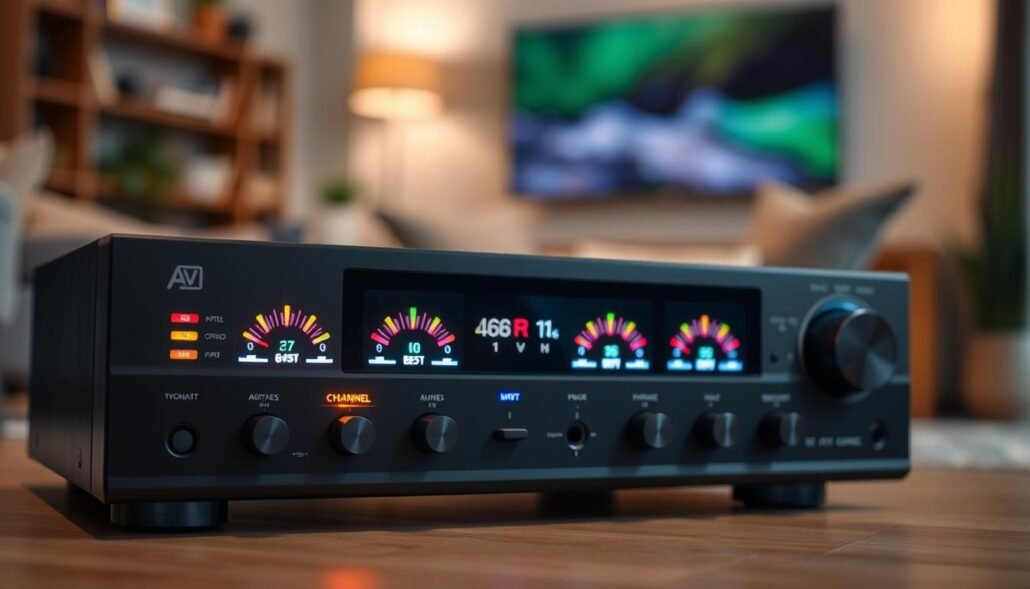
Navigating AV Receiver Channel Levels
The first step involves accessing the setup menu on your television screen. Look for the speaker configuration or level calibration section to inspect your AV receiver channel levels. It is possible that a previous calibration or accidental input has set a specific channel to a zero-volume state.
Ensure that every active speaker is set to a positive decibel value. If a channel is set to “off” or “-12dB,” the receiver will effectively silence that output. Adjusting these levels manually can often resolve persistent gaps in your surround sound field.
Disabling Mute or Zone-Specific Settings
Many high-end systems support multi-room audio, which introduces the risk of zone-specific muting. You should check your amplifier mute settings to ensure that the main zone is not accidentally disabled. Sometimes, a remote control command can trigger a mute state for a secondary zone without affecting the primary speakers.
Review the zone management menu to confirm that all outputs are active. If you are using a multi-zone setup, verify that the signal is being routed to the correct room. Disabling unnecessary zones can also help simplify the signal path and prevent accidental audio drops.
Resetting the Receiver to Factory Defaults
If you have exhausted all configuration checks without success, a factory reset may be necessary. This process clears all custom settings and returns the device to its original out-of-the-box state. Always back up your current settings if the receiver allows, as this action is irreversible.
Consult your owner’s manual for the specific button combination required to initiate a reset. Once the process completes, you will need to re-run your room calibration software to restore optimal performance. This often clears hidden software glitches that prevent audio from reaching specific channels.
| Issue Type | Common Cause | Recommended Action |
|---|---|---|
| Channel Silence | Zero-volume level | Adjust channel trim |
| Zone Mute | Multi-room conflict | Check zone settings |
| System Error | Corrupt firmware | Perform factory reset |
Advanced Network and Digital Signal Diagnostics
When your high-end audio setup fails to produce sound, the culprit often hides within the digital handshake between devices. Modern home theater systems rely on complex protocols that must communicate perfectly to deliver high-fidelity audio. If these signals fail, you may experience intermittent dropouts or complete silence across specific channels.
Troubleshooting HDMI ARC and eARC Handshakes
The Audio Return Channel (ARC) and its enhanced version (eARC) are common points of failure in modern setups. HDMI ARC troubleshooting often begins with ensuring that both your television and receiver support the same protocol version. If the handshake fails, the devices cannot negotiate the correct audio format, leading to lost channels.
- Ensure you are using a “High Speed” or “Ultra High Speed” HDMI cable.
- Toggle the CEC (Consumer Electronics Control) settings off and on again.
- Check that the HDMI cable is plugged into the specific ARC/eARC labeled port.
Resolving Digital Clocking and Sync Errors
Multi-channel audio requires precise timing to ensure that data packets arrive at the speakers in the correct order. When digital audio sync issues occur, the processor may struggle to decode the stream, resulting in stuttering or muted output. This is frequently caused by mismatched sample rates between the source device and the amplifier.
| Issue Type | Common Symptom | Recommended Fix |
|---|---|---|
| Clock Jitter | Intermittent pops | Use shorter cables |
| Sync Mismatch | Audio delay | Adjust lip-sync settings |
| Data Corruption | No sound | Power cycle hardware |
Checking Firmware Updates for Networked Audio Devices
Networked audio components require regular maintenance to remain compatible with evolving standards. Following a firmware update guide is essential to patch bugs that might cause channel dropouts or connectivity failures. Manufacturers frequently release updates that improve the stability of the digital handshake process.
Always check the manufacturer’s website or the device’s mobile application for the latest software version. Keeping your system current ensures that your hardware can handle the latest high-resolution audio formats without interruption. Regular updates are the best way to maintain optimal performance in a digital environment.
Conclusion
Fixing silent audio channels requires a methodical approach that moves from simple physical checks to complex digital diagnostics. You now possess the knowledge to isolate faults within your signal chain effectively.
Brands like Denon, Yamaha, and Sony rely on precise configurations to deliver clear sound. Applying these troubleshooting steps ensures your home theater or studio setup performs at its peak potential.
Regular maintenance remains the best way to prevent future signal interruptions. Inspect your cables and software settings periodically to keep your equipment running smoothly.
Consistent care protects your investment and guarantees a high-quality listening experience for years. Share your success stories or specific equipment challenges in the space below to help others in our audio community.
FAQ
What are the most common physical causes for a single silent channel in a home theater?
Often, the issue stems from loose RCA or XLR connections or damaged speaker wire terminations. Inspect the binding posts on your Denon or Marantz receiver to ensure the copper is making full contact. Additionally, check for oxidation on the wire ends, which can be resolved by stripping back the insulation to expose fresh Oxygen-Free Copper (OFC) or using high-quality BlueJeans Cable connectors.
How can I determine if my speaker is blown or if the amplifier is at fault?
The most effective diagnostic is the speaker swap test. Disconnect the silent speaker and connect it to a known working channel on your Yamaha or Onkyo amplifier. If the speaker remains silent, the internal crossover or the driver itself (such as a Klipsch woofer or SVS tweeter) may be failed. If the speaker works on the new channel, the issue lies further back in the signal chain.
Why would specific channels stop working after an OS update?
Major updates to Windows 11 or macOS Sonoma can sometimes corrupt audio drivers or reset channel mapping. If you are using an external interface like a Focusrite Scarlett or Universal Audio Apollo, ensure you have downloaded the latest ASIO or Core Audio drivers. You should also check the Sound Control Panel to verify that your configuration is set to 5.1 or 7.1 Surround rather than standard Stereo.
What are HDMI ARC and eARC handshake errors, and how do they affect sound?
A: HDMI ARC (Audio Return Channel) and eARC rely on a complex digital “handshake” between your Samsung or LG TV and your sound system. If this communication fails, you may experience audio dropouts or a total loss of sound in specific channels like the center channel or subwoofer. Resolving this often requires a firmware update for both devices or a hard reset of the HDMI CEC settings.
Can incorrect receiver settings accidentally silence my surround speakers?
Yes, it is common for multi-zone settings or specific DSP modes to disable certain channels. Check your Anthem or Sony receiver to ensure that “Zone 2” isn’t accidentally active or that the channel levels haven’t been calibrated to a negative infinity or mute state. If the software configuration becomes too complex to troubleshoot, performing a factory reset will restore the unit to its default Dolby Atmos or DTS:X routing.
How do I fix channel routing issues within a Digital Audio Workstation (DAW)?
In software like Ableton Live, Pro Tools, or Logic Pro, silent channels are frequently caused by incorrect I/O mapping. Open your hardware preferences and verify that your outputs are correctly assigned to the physical ports on your RME or Motu interface. If a bus is misrouted, the signal may never reach the intended studio monitor even if the software meters show an active signal.