
HDMIoften handles both video and audio in one cable, but many living rooms still have gear from years past.
Older receivers or sets may lack modern ports, a broken HDMI socket, or require a different audio path. That leaves owners needing clean, reliable ways to send sound and, sometimes, picture between devices.
This short guide sets clear expectations: some paths send only audio (optical, coaxial, RCA, Bluetooth), while others carry both video and audio (component, composite, S-Video). Digital audio options usually give the best fidelity for a home theater system.
Read on for simple help picking the right cable and input, getting the correct source selected on the receiver, and restoring sound fast. First practical step: check ports on both pieces of equipment before buying any new cable or adapter.
Check your TV and receiver ports before you connect anything
Before you touch any cables, take a minute to inspect the back panels of both devices.
Do a quick scan for all available ports and label them mentally. Look for optical (square, sometimes with a red glow), coaxial (single round RCA-style), and RCA jacks. Component groups will be labeled Y/Pb/Pr.
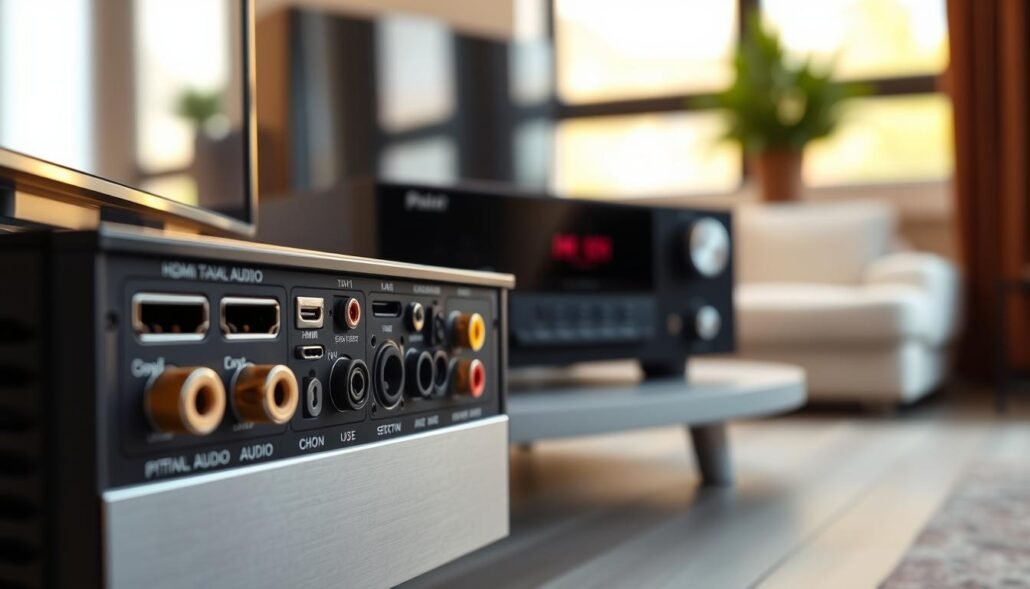
Identify outputs and inputs on each unit
Find every TV output and every receiver input. Remember: you want a TV output matched to a receiver input, not two outputs together.
Match connection type to your goal
If you want the best audio, prioritize optical or coaxial. For a simple setup, RCA stereo or Bluetooth works. For the best picture without HDMI, use component video with separate audio cables.
Confirm menus and labels
Open the TV settings and enable the audio output option if present. Then pick and label the receiver input you will use (e.g., “TV,” “AUX”). That prevents confusion during testing.
| Port Type | Appearance / Jack | Best Use |
|---|---|---|
| Optical (TOSLINK) | Square / plastic cap | High-quality digital audio |
| Coaxial | Single round RCA-style | Digital audio with simple wiring |
| RCA (red/white/yellow) | Color-coded round jacks | Analog audio and composite video |
| Component (Y/Pb/Pr) | Three colored jacks (green/blue/red) | Best non-HDMI picture; needs separate audio |
Once ports and settings are confirmed, actual connections are straightforward and depend mainly on cable type. Next, we’ll cover step-by-step hookup for each common cable.
How to Connect TV to a Receiver Without HDMI + 5 Quick Options
Optical (TOSLINK) — high-quality digital audio
Locate the square optical output on the TV and an open optical input on the receiver. Remove any plastic dust cap, then plug in the optical audio cable.
Set the TV sound output to external or optical and pick the matching receiver input for playback.
Analog RCA — quick stereo hookup
Use red and white RCA cables when both devices have stereo RCA jacks. Match red-to-red (right) and white-to-white (left).
Then select the correct analog input on the receiver for simple, reliable sound.
Digital coaxial — single-cable digital audio
Digital coax uses an RCA-style jack for one-cable digital signal. Connect the coax out on the TV to the coax in on the receiver.
Change the TV audio output and choose the coax input on the receiver for playback.
Component, composite, and S-Video — video plus separate audio
- Component (Y/Pb/Pr): three cables for better non-HD video; add red/white audio cables.
- Composite (yellow + red/white): older gear support; yellow for video, red/white for stereo audio.
- S-Video: sharper than composite for picture; still needs separate audio connection.
Bluetooth — wireless audio when supported
If your smart TV offers Bluetooth audio output, pair it with the receiver or a speaker. Look in the TV Sound menu for options like Bluetooth Speaker, Samsung SoundShare, or LG Sound Sync Wireless.
Which option to choose: pick optical or coaxial for best fidelity, RCA for ease, component/S-Video/composite when you need legacy video routing, and Bluetooth when you prefer fewer cables.
Tip: keep cable runs tidy and avoid sharp bends in optical cables to prevent signal loss. For a full setup walkthrough, visit step-by-step home theater setup.
Set the right input on the receiver and optimize your sound
Start with the simple step of telling the receiver which source you want to hear. Select the input that matches the cable you plugged in. If the receiver shows “AUX,” “TV,” “Optical,” or “Coax,” pick that exact input.
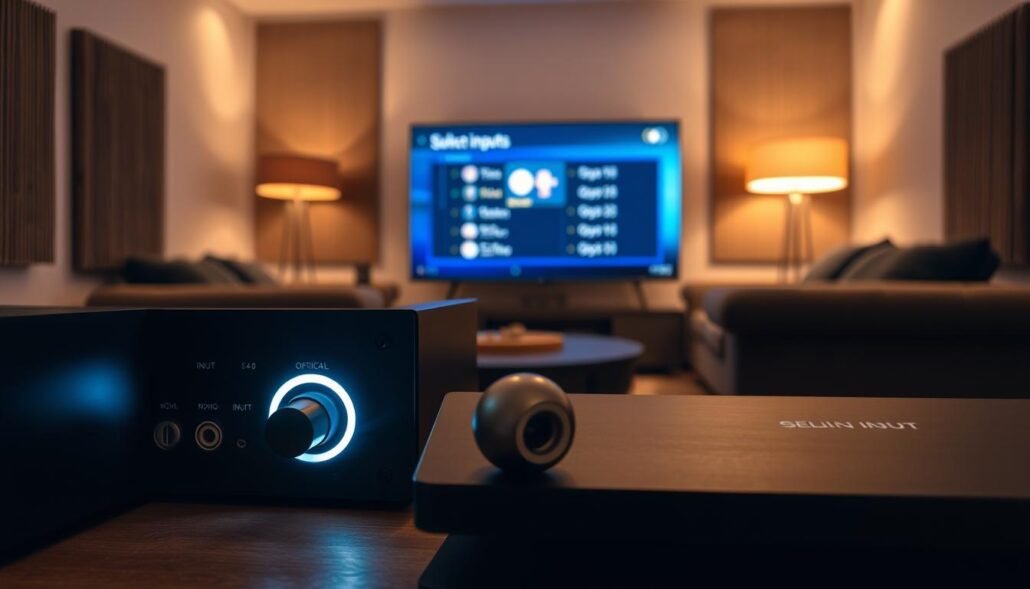
Select the correct input and test playback
Play audio from a built-in streaming app first, then try a live channel. This checks both app and broadcast signal. If sound appears on one but not the other, the issue is likely a TV setting or digital output mode.
Fix common issues
- No sound: confirm cables are fully seated, that you used TV output into receiver input, and that the receiver isn’t muted or set to another zone.
- Wrong balance: check red/right and white/left RCA plugs — reversed cables will push dialogue off-center.
- Mismatched ports: match labeled “Optical Out” on the TV with “Optical In” on the receiver and remap inputs if your model allows it.
| Problem | Quick check | Solution |
|---|---|---|
| No sound | Cable seating; correct input selected | Reseat cables, set TV audio output to external, choose matching input on receiver |
| Imbalanced stereo | RCA left/right wiring | Swap red/white to correct channels; test with dialogue-heavy content |
| Intermittent signal | Faulty cable or port | Try another cable type or update firmware, then test again |
Tip: for the best fidelity use optical or coaxial. Choose RCA or Bluetooth when ease matters. Keep firmware updated for better Bluetooth and compatibility. With inputs and settings correct, non-hdmi connections still deliver a satisfying home theater system experience.
Learn about useful receiver features at features you will want in your next AV.
Conclusion
Final tips below will help you pick the best connection and get sound playing quickly.
You can follow “How to Connect TV to a Receiver Without HDMI + 5 Quick Options” and succeed by matching available ports and selecting the right input on the receiver. For higher-fidelity digital sound choose optical (TOSLINK) or coaxial.
Use RCA or Bluetooth when simplicity matters. Legacy video paths like component, composite, and S-Video still serve older home theater systems well.
Most problems come from mismatched inputs, wrong TV audio settings, or swapped left/right RCA plugs — all easy fixes. Pick one option, connect it, select the source, test playback, and then fine-tune the receiver settings for best results.
FAQ
What ports should I check on my TV and AV receiver before attempting any connection?
Look for optical (TOSLINK), coaxial digital, red/white RCA stereo, yellow composite, green/blue/red component, and any S‑Video jacks. Also note Bluetooth capability and labeled audio outputs on your TV and labeled inputs on the receiver so you can match them correctly.
Can optical (TOSLINK) carry surround sound from streaming apps?
Yes. Optical supports up to Dolby Digital and DTS from many smart TV apps and cable boxes. It won’t pass newer formats like Dolby Atmos in most cases, but it delivers reliable digital stereo and multichannel audio for home theater systems.
When should I use red and white RCA cables instead of digital options?
Use analog RCA when either device lacks digital ports or you want a simple, low‑cost connection. RCA delivers stereo sound only and may have more noise than optical or coaxial, but it’s ideal for older receivers and basic setups.
What is the difference between digital coaxial and optical audio cables?
Both transmit digital audio. Coaxial uses an RCA cable and often provides equal fidelity to optical. Optical (TOSLINK) uses light and avoids electrical interference. Choose the one available on your gear for the best digital signal.
Can I route video through component or composite while sending audio to the receiver?
Yes. Use component (Y/Pb/Pr) or composite (yellow) for picture and connect red/white RCA or a digital audio cable from the TV’s audio out to the receiver. This separates video and audio and works well for older sources.
Is S‑Video a good choice for picture quality on older devices?
S‑Video improves chroma/luma separation over composite and offers a sharper image on legacy gear. It does not carry audio, so you must run separate audio cables to the receiver.
Can I use Bluetooth to send TV sound to an AV receiver?
Only if the TV and receiver both support Bluetooth audio profiles or you add a Bluetooth transmitter/receiver. Bluetooth is convenient but may introduce latency and generally provides lower fidelity than wired digital connections.
Why do I get no sound after making the connection?
Common causes: wrong receiver input selected, TV audio output set to internal speakers, or mismatched cable type. Set the TV’s audio output to the external port (optical/coaxial/line out), choose the matching input on the receiver, and test again.
Which connection gives the best audio fidelity for most home theater setups?
Optical or coaxial digital cables typically offer the best fidelity available without HDMI. They carry multichannel compressed audio and avoid analog noise. For highest-end formats, HDMI remains superior.
How should I label inputs and organize cables for easier setup later?
Label both ends of each cable with masking tape or colored tags and note receiver input names like “TV OPTICAL” or “TV AUX.” Keep cable runs tidy and use short, good‑quality cables to reduce interference and simplify future changes.


