Achieving peak performance from a home theater system requires more than just high-quality speakers. It demands that the core processing unit remains current with the latest software enhancements. Learning How To Update Your Denon Receiver Firmware ensures that you unlock new features and maintain system stability.
Regular maintenance of these digital components prevents common connectivity glitches. By performing a Denon receiver firmware update, you protect your investment against bugs while improving overall audio fidelity. This simple process keeps your hardware running smoothly for years.
This guide offers a clear path for managing device software without needing professional help. We will explore both network-based and manual USB methods to suit any setup. Whether you prefer an automatic connection or a direct file transfer, these steps provide the confidence needed to handle the task effectively.
Why Firmware Updates Matter for Your Denon Receiver
A Denon receiver firmware update is more than just a routine task; it is a vital step in protecting your investment. By keeping your software current, you ensure that your hardware continues to function at its peak potential for years to come. These updates address underlying bugs that might otherwise hinder your listening experience.
Enhancing Audio Performance and Compatibility
Manufacturers frequently release updates to improve Denon audio performance through refined processing algorithms. These adjustments often result in greater sound clarity and a more immersive soundstage for your home theater. Furthermore, staying updated ensures your Denon receiver audio compatibility remains current with the latest high-resolution audio formats and streaming standards.
- Access to the newest surround sound codecs.
- Better integration with modern smart home ecosystems.
- Optimized signal processing for high-fidelity audio playback.
Security Patches and System Stability
Beyond sound quality, these updates are essential for maintaining Denon receiver system stability. Software patches resolve minor glitches that can cause unexpected restarts or connectivity drops during your favorite movies. Regular maintenance also provides critical security updates that shield your home network from potential digital vulnerabilities.
By prioritizing these updates, you create a safer and more reliable environment for all your connected devices. Taking a proactive approach to your receiver’s software ensures that your equipment remains a robust centerpiece of your entertainment system.
Preparing Your Network and Receiver for the Update
Setting up your environment correctly ensures that your Denon receiver receives the latest software without interruption. Taking the time to verify your settings now will save you significant trouble later on. Proper preparation minimizes the risk of hardware damage and ensures a smooth transition to the newest software version.
Checking Your Current Firmware Version
Before initiating any update, it is vital to check Denon firmware version details to determine if an upgrade is actually required for your specific model. You can typically find this information by navigating to the “General” or “Information” tab within your receiver’s setup menu. Comparing your current version against the latest release on the official support site helps you confirm if an update is necessary.
Ensuring a Stable Internet Connection
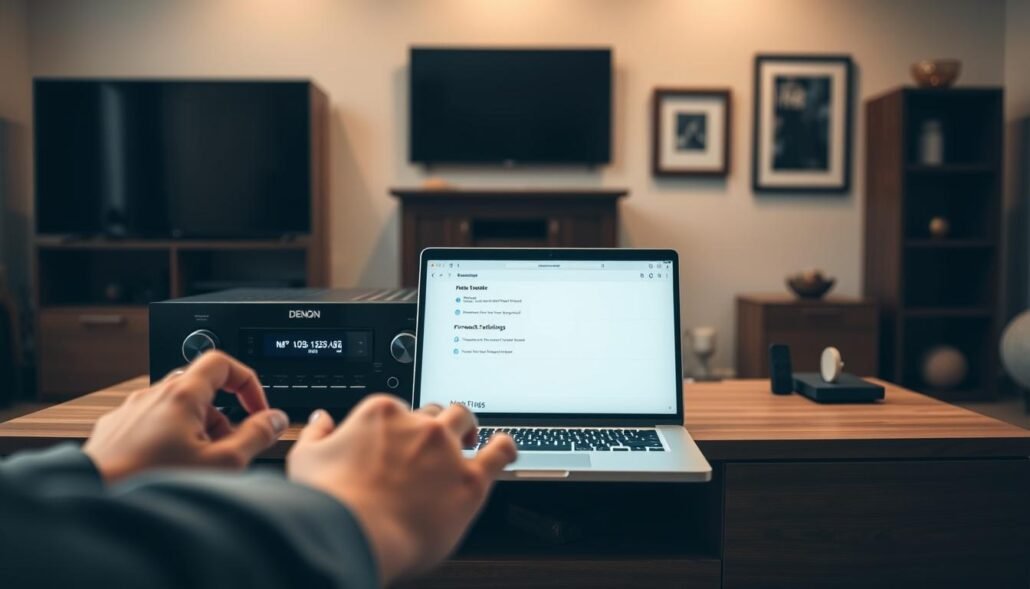
A reliable Denon receiver internet connection is mandatory for network updates. We strongly recommend using a wired Ethernet cable rather than Wi-Fi to prevent signal drops during the download process. Any interruption during the data transfer can lead to incomplete installations or system errors that may require professional service.
Power Requirements and Safety Precautions
Users must adhere to strict Denon receiver power safety protocols to protect the internal components. Ensure the receiver remains plugged into a reliable power source throughout the entire duration of the update. If possible, connect your device to an uninterruptible power supply (UPS) to guard against unexpected outages.
| Preparation Step | Action Required | Importance Level |
|---|---|---|
| Version Check | Verify current software | High |
| Network Setup | Use wired connection | Critical |
| Power Supply | Ensure constant power | Critical |
| System Status | Close all active apps | Medium |
How To Update Your Denon Receiver Firmware via Network
The most convenient method to ensure your Denon receiver has the latest features is through a direct network connection. By choosing to update your Denon receiver via network, you eliminate the need for external USB drives or complex manual file management. This streamlined approach keeps your home theater system performing at its peak with minimal effort.
Accessing the Setup Menu on Your Display
To begin the process, turn on your television and ensure it is set to the correct input for your receiver. Use your remote control to open the Denon receiver setup menu, which will appear as an overlay on your screen. This visual interface is designed to make system maintenance simple and intuitive for every user.
Navigating to the Firmware Update Settings
Once the menu is visible, use the arrow keys on your remote to scroll through the main categories. Look for the “General” or “System” tab, where you will find the firmware update options. Selecting this menu item allows the receiver to communicate directly with Denon servers to check for the latest software versions.
Initiating the Automatic Update Process
After entering the update menu, you will typically see an option labeled “Update” or “Check for Update.” Selecting this will prompt the receiver to verify if a newer version is available for your specific model. If an update is found, confirm your choice to start the download, and the system will handle the rest automatically.
Understanding Update Progress Indicators
During the installation, it is vital to monitor the Denon receiver update progress displayed on your television. The screen will provide clear feedback, showing you exactly when the device is downloading the necessary files and when it is actively installing them. Please remain patient and avoid turning off the power until the process is fully complete to ensure a successful installation.
Updating via USB for Offline or Unstable Connections
When network stability is a concern, the offline update method provides a secure path to the latest software. This approach is ideal for users who experience frequent connection drops or those who prefer to manage their system updates manually. By using a physical storage device, you ensure that the installation process remains uninterrupted and reliable.
Downloading the Firmware File from Denon Support
To begin, navigate to the official Denon receiver support website on your computer. You must locate the specific product page for your model to ensure you obtain the correct Denon firmware download. Always verify that the file version matches your hardware to prevent potential system errors during the installation.
Formatting Your USB Flash Drive Correctly
Before transferring the files, you must prepare your storage media. The receiver typically requires the drive to be formatted in FAT32 to recognize the data correctly. Using a different file system may cause the device to ignore the drive, so double-check your settings before proceeding with the Denon USB firmware update.
Executing the Manual Update Procedure
Once the files are saved to your drive, insert it into the USB port on the front of your receiver. Access the setup menu on your display and navigate to the firmware update section to initiate the Denon receiver manual update. Follow the on-screen prompts carefully to complete the process, ensuring the power remains stable throughout the entire duration.
Troubleshooting Common Update Failures
Even the most reliable home theater systems can occasionally run into snags during a firmware update. While these interruptions can be frustrating, most problems are minor and stem from simple environmental factors. Effective Denon receiver troubleshooting often involves checking your local network settings or ensuring your power source remains consistent throughout the process.
Resolving Network Connection Timeouts
A stable internet connection is the backbone of a successful software installation. If you encounter a network timeout, your receiver may struggle to pull the necessary data packets from the server. Switching to a wired Ethernet connection is often the best way to provide a more consistent data stream compared to a wireless signal.
If you must use Wi-Fi, ensure your router is close enough to the receiver to maintain a strong signal. Sometimes, a quick power cycle of your router can clear up temporary congestion. This simple step frequently resolves a Denon receiver update failure by refreshing the handshake between your hardware and the internet.
Handling Interrupted Power During Updates
Power stability is critical when your device is writing new data to its internal memory. A sudden loss of electricity during this sensitive phase can lead to system errors or, in rare cases, a non-responsive unit. We strongly recommend using a surge protector or an uninterruptible power supply (UPS) to keep your equipment safe.
If a power outage occurs, wait for the system to reboot completely before attempting to restart the update. Most modern units are designed to recover gracefully from minor power fluctuations. Always verify that your power cables are securely connected to both the wall outlet and the back of the receiver.
What To Do If the Update Freezes
It is common to feel anxious if the progress bar on your screen stops moving for an extended period. However, it is crucial to wait for a reasonable amount of time before you attempt any manual power cycles. Forcing a shutdown while the device is writing data can lead to a Denon receiver update frozen state that is much harder to fix.
Give the system at least thirty minutes to complete the task before assuming it has stalled. If the screen remains unresponsive after this period, you may need to perform a hard reset according to the manufacturer’s guidelines. Patience is your best tool when navigating these technical updates to ensure your system remains healthy and functional.
Verifying Successful Installation and New Features
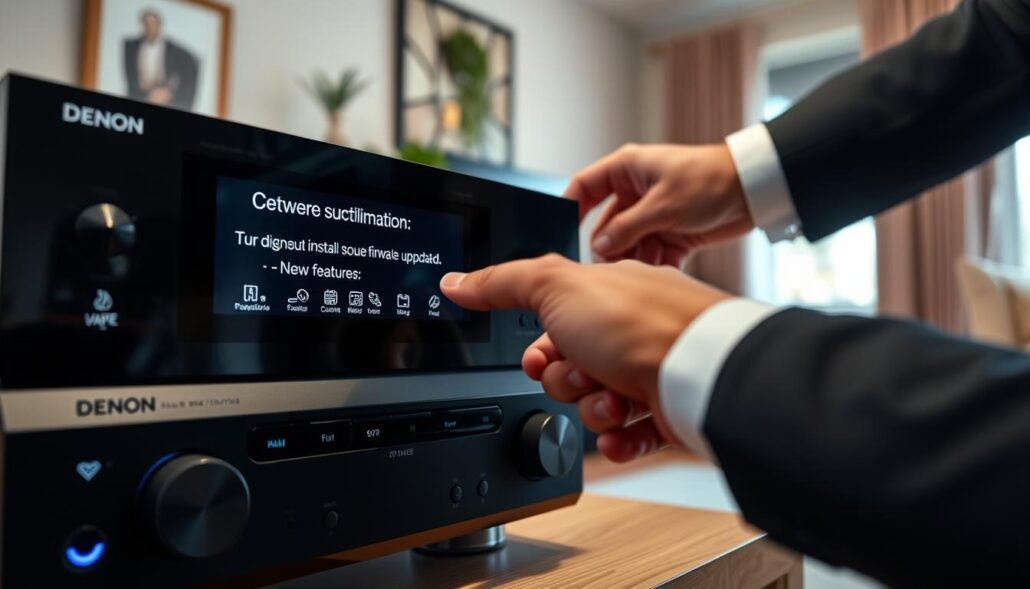
Completing the firmware update is only the first step in ensuring your home theater system runs at its peak. It is vital to verify Denon firmware installation to confirm that the new software has been correctly applied to your device. This simple process guarantees that your receiver is running the latest available code for optimal performance.
Confirming the Version Number Post-Update
To check the status of your system, navigate to the Setup menu on your television screen. Locate the “General” or “Information” tab to find the current firmware version details.
Compare this number against the latest release notes provided on the official support website. If the numbers match, your update was successful and the system is ready for use.
Testing Key Functionality After System Changes
Once you have confirmed the version, you should perform a quick check of your primary features. System changes can sometimes reset specific configurations, so it is wise to test the following areas:
- Audio Output: Ensure sound is playing correctly through all connected speakers.
- Input Switching: Verify that the receiver switches between HDMI sources without delay.
- Network Connectivity: Check that streaming services and app control remain responsive.
Regular Denon receiver maintenance includes these post-update checks to prevent future issues. By taking a few minutes to validate your settings, you ensure a high-quality listening experience for your entire household.
Conclusion
Keeping your Denon receiver firmware updated is a simple process that protects your audio equipment. Regular updates extend the life of your hardware while ensuring peak performance for years.
You now possess the knowledge to manage your system settings with confidence. Whether you choose a network connection or a USB drive, these steps keep your home theater ready for modern media demands.
Check for new software releases on a seasonal basis to maintain system health. This proactive habit prevents compatibility issues with your favorite streaming services and gaming consoles.
Your commitment to routine maintenance secures your investment in high-quality sound. Share your experience with these update methods or reach out if you have questions about specific Denon models. Enjoy the immersive audio experience that comes with a fully optimized setup.
FAQ
Why is it necessary to perform a Denon receiver firmware update regularly?
Keeping your software current is essential for maintaining system stability and ensuring compatibility with the latest audio and video standards. Updates often include security patches to protect your home network and new features like Dolby Atmos optimizations, HEOS integration improvements, and enhanced HDMI 2.1 support for devices like the AVR-X2700H.
How can I check the current firmware version on my Denon device?
You can verify your version by navigating to the Setup Menu on your television display. Go to General and then select Firmware. This information is vital for determining if your AVR-S960H or other AVR models require a manual or network-based upgrade.
What are the requirements for a successful network update?
A stable internet connection is mandatory to prevent installation errors. While Wi-Fi is an option, using a wired Ethernet connection is highly recommended for maximum reliability. Additionally, ensure your receiver remains connected to a constant power source, as a power failure during the update can damage the internal software lifecycle of the unit.
Can I update my Denon receiver without an active internet connection?
Yes, you can perform an offline update using a USB flash drive. You must download the specific firmware file from the official Denon Support website and ensure the drive is formatted to FAT32. This manual method is a reliable alternative for users with unstable networks or those managing a home theater system in a disconnected environment.
What should I do if the update progress indicator appears to freeze?
If the update stalls, it is important to wait at least 30 to 60 minutes before attempting to restart the device. Interrupting the process prematurely can corrupt the system. If the issue persists, try resetting your router or switching to the USB manual update method to bypass network connection timeouts.
How do I confirm that the new firmware has been installed correctly?
Once the receiver reboots, return to the System Information menu to confirm the version number matches the latest release. After verification, it is best practice to test key functionalities, such as Audyssey room calibration, eARC audio return, and input switching, to ensure your Denon receiver maintenance was successful and your settings remain intact.