
Short answer: A single-channel silence often points to the feed or provider, but the fault could live in your TV, apps, or receiver.
Start by checking several channels and an alternate device on the same TV. If other audio plays, the issue likely sits with that channel or service.
Next, review basic settings. Verify audio output, language, and SAP options on the TV and app menus. These quick checks keep you from doing unnecessary resets.
Then isolate the hardware path: swap inputs, test the AV receiver or soundbar, and try a second device. These simple steps separate a device fault from a provider problem.
Finally, consult provider tools like outage pages and community forums before calling support. Log channel name, time, and device details so help can act fast.
Understand the symptom: silence or missing audio on certain channels
Define the problem clearly. Begin by describing whether audio is fully absent on one channel or if certain elements, like dialogue, are reduced. This distinction points to downmix or format mismatch rather than a total failure.
Look for patterns. Switch between channels, open different apps, and play known stereo content. If the issue appears only with surround material, the difference likely lies in output or decoding settings.
Quick isolation
Check that the screen still shows normal video. If video runs but audio fails, focus on the audio chain: source → box → AVR/soundbar → TV.
- Swap inputs and try the TV’s built-in app on the same HDMI port to see whether the device or input causes the issue.
- Test another device on the same input to rule out a bad cable or port.
- Play the same content across apps to exclude provider-side encoding errors.
Note speaker behavior and settings. If only certain speakers are quiet or swapped, check output mapping and system modes. Document device, input, and active settings so you can track changes and report precise details if you need support.
Check broadcast and cable TV sources when a channel has no sound
Start by confirming the trouble affects only one broadcast feed. Flip through several stations on the set-top box and try a second input or a different device. If all other feeds play normally, the issue likely ties to that single feed or provider.
Verify other stations and inputs
Quick test: change channels, run the TV’s built-in apps, and swap inputs. This separates a box or cable problem from a TV or speaker fault.
Inspect set-top box audio settings
Open the box menu and check settings for stereo versus surround and the SAP or audio language option. Toggle between stereo/PCM and bitstream/Dolby to match your system output.
Power-cycle sequence
Follow this order for reliable results:
- Unplug the cable/satellite box.
- Then unplug the AVR or soundbar.
- Finally unplug the TV. Plug back in: box → AVR/soundbar → TV.
Provider status and community resources
Check provider outage pages and forums, such as Verizon Fios status and community threads, for reports of the same problem in your area. Note the channel, time, and device when you seek help.
- Confirm the issue is channel-specific.
- Adjust box audio settings and test formats.
- Power-cycle devices in the correct order.
If the issue persists, contact your provider with the exact channel, time, device model, and menu choices you tried to speed troubleshooting.
HDMI, ARC/eARC, and CEC handshakes that mute or misroute channel audio
HDMI handshakes can silently reroute or mute audio when ports, cables, or control features disagree. Start by confirming the TV’s ARC or eARC port and that your HDMI cable is certified and intact.
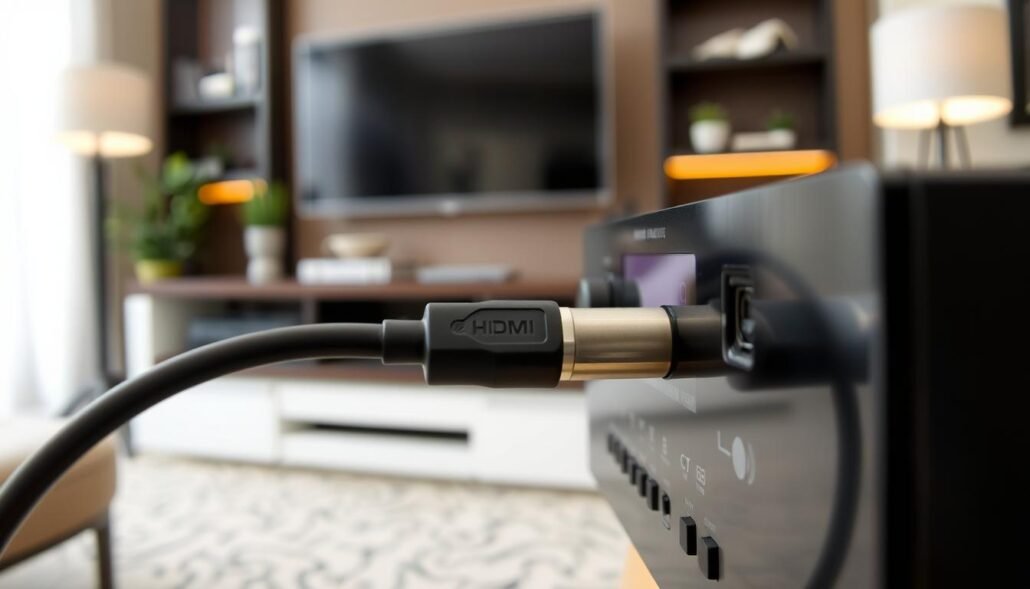
Confirm port capability and cable quality
Use the labelled ARC/eARC HDMI on the TV and a high-speed certified cable. A weak cable will break a handshake and create an audio drop for a single channel.
Toggle ARC/eARC and CEC in menus
Turn ARC/eARC off, reboot devices, then enable it again in each device menu. Disable and re-enable CEC to clear control conflicts that can change inputs or audio modes.
Lock a stable audio format
Force PCM or stereo first to confirm basic playback. Then test bitstream and Dolby Digital if PCM works. If a channel loses audio on one HDMI input, move the source to another input to rule out a port-level problem.
- Try a direct run from source to AVR, or source to TV, to isolate the path.
- Check receiver input mapping so video and audio pair correctly.
- When a single channel fails, forcing PCM is a quick diagnostic option.
Why is there no sound from specific channels ? Core causes and quick fixes
Start by confirming the TV or box is sending audio to the right output device. Select the active output in the TV, streaming box, or AVR menus and confirm the audio language or SAP option is set to the main track.
Wrong output or muted secondary tracks can make one feed silent while others play. Switch audio language, disable SAP, or pick the internal TV speaker briefly to check the track.
Surround format mismatch
If the system outputs a surround format your chain cannot decode, dialogue may vanish. Force PCM or stereo to see if audio returns.
After PCM works, choose a compatible bitstream or Dolby option that your AVR or soundbar supports.
Firmware and software mismatches
Updates can reset settings or create decoding problems. Power-cycle the chain, reapply preferred audio settings, and update firmware on TV, AVR, and set-top box.
- Confirm input matches the device you expect and disable per-input audio profiles that may differ.
- Disable virtual surround, night mode, or dialogue enhancer if they collapse levels.
- For a quick check, plug headphones into the TV or box; hearing audio there points to an external device chain issue.
Document the steps that restore audio so you can repeat them if the issue returns. These simple steps often resolve the common device and format-related issues quickly.
AV receiver and soundbar checks: input mapping and channel routing
First, trigger the device’s diagnostic tones so you can isolate which speaker or channel fails. Run the built-in test on your AVR or soundbar and listen for each position.
Speaker test tones and channel level trims
Play test tones and adjust channel level trims in the menu. Trim the center and surrounds so dialogue and effects balance correctly.
If one speaker stays quiet, briefly swap speaker wires to see whether the issue follows the speaker or the AVR output.
Input assignment and DSP modes that collapse or drop channels
Verify input assignment so HDMI and digital inputs map to the right source. A misassigned input can show video while dropping audio for a given channel.
Cycle DSP presets with the remote button to catch modes that collapse channels. Check downmix, speaker size, and crossover settings so low or high frequencies do not route away from intended speakers.
- Re-pair wireless rears or subs and confirm signal strength.
- Enable outputs for all connected speakers and save a working preset with one button.
These quick steps help narrow hardware versus configuration faults and speed troubleshooting.
Windows and PC scenarios: updates and drivers that break channel mapping
Windows updates sometimes change driver behavior and scramble multichannel routing. That can leave one speaker playing another feed or add distortion. A common case involved a Windows 10 update on a PC with an Intel i3-7100, Intel HD 630, and a Creative Sound Blaster Z where rear channels were misrouted.
First steps: roll back the audio driver or reinstall the vendor’s software suite. If you have a dedicated sound card, reinstall its control panel to restore proper mapping.
Configure speaker setup and test
Open Windows Sound settings and run Configure. Choose Stereo, 5.1, or 7.1 and run the built-in test so each speaker plays its test tone.
- Disable duplicate or virtual audio devices so apps pick the correct output.
- For HDMI audio, update or roll back the GPU driver since HDMI uses the graphics driver path.
- Turn off enhancements and spatial effects to rule out processing that reroutes or distorts audio.
Document versions of Windows, driver packages, and device firmware before contacting support. These small troubleshooting steps often fix mapping errors after an update.
Streaming apps and service-side issues that affect only some content
Start by testing the same title across apps and devices. Play identical content on two services and note whether the audio behaves the same. If one app mutes a multichannel track while another plays it, the issue likely sits with that service’s encode.
Compare the same title across apps; test a stereo-only title
Try a stereo-only file to confirm base audio works. If stereo plays but a multichannel file is silent, your device or the app may be sending incompatible output.
Clear cache, reinstall apps, and verify in-app options
Open the app menu and check audio settings like language, surround versus stereo, and passthrough option. Change one item at a time and test playback.
- Clear app cache or fully reinstall to remove corrupt preferences.
- Check device system audio and disable match-frame-rate or passthrough if present.
- Test on another TV or input to isolate the device path from the display path.
- If one service fails, report the title, app version, and device model to support.
Document the steps that restore audio so you can repeat them if the problem returns. These small steps often reveal whether the fault is app-side or in your devices.
When to contact your provider or manufacturer for help
When a single station keeps losing audio at similar times, gather details to speed up help. Start by confirming other sources play normally at home. If the problem repeats at the same time or on the same station, it’s time to call.
Collect clear evidence before you call
Log the basics: channel name/number, program title, and exact time the issue occurred. Add device make/model, firmware versions, and the key settings you tried.
Use official hotlines and community forums
Contact the provider or manufacturer through their hotline or community page to compare reports. Phrase your question clearly and list steps you already tried so a person can escalate faster.
- If a provider-side incident is active, support can give an estimated time to resolution or a temporary option.
- When hardware failure is suspected, manufacturers can arrange diagnostics or repair under warranty.
- Keep ticket numbers and chat transcripts and follow up if the problem returns.
| What to record | Why it helps | Who to contact |
|---|---|---|
| Channel name/number & time | Shows pattern and lets support check feed logs | Provider hotline or outage page |
| Device model & firmware | Identifies known system bugs or required updates | Manufacturer support or forum |
| Settings tested & steps taken | Prevents repeated troubleshooting and speeds escalation | Provider support representative |
Conclusion
Finish with a short verification loop that targets input routing and core audio formats. Follow a clear set of checks so you have a reliable way to approach the problem. Use strong, repeatable steps and document each action.
Quick recap: verify multiple channels, confirm input and output paths, and review key settings that often change after an update. Test HDMI paths, toggle ARC/eARC and CEC, and use the menu and button sequence to refresh handshakes. Force PCM first, then restore surround to limit variables.
If a software or hardware quirk persists, capture the screen, note device models and firmware, and log the exact time. That record makes it simple for a person at support to act. With these troubleshooting steps applied at home, most channel issues resolve fast and confidently.