
This short guide lays out clear steps for a safe, reliable install that can improve sound, add features, and fix bugs.
Many models check the network for updates and show a brief on-screen message at power on (about 40 seconds). That alert tells you an upgrade is ready.
The usual menu path is Setup > General > Firmware > Check for Update > Update Now. When the process starts, the TV overlay closes and progress appears on the AVR front display.
Prepare by confirming your home network and enabling Allow Update and Upgrade Notification. Auto-Update can apply an upgrade while the system is in standby, reducing downtime.
If a unit is older, contact product support for an authorized service option or a USB package. Public firmware file repositories are not available and unverified files risk damage.
Before You Start: Requirements, Connections, and Safe Update Settings
Before starting, confirm basic network and display essentials so the process runs smoothly.
Check the network first. Make sure the AVR and TV are on the same home network and that the internet connection is stable. A wired Ethernet link is best; strong Wi‑Fi can also work reliably.
Enable allow update and notification settings
Open the menu at Setup > General > Firmware and confirm Allow Update is ON. In the same settings area, turn on Upgrade Notification so the unit shows an upgrade notification on the screen when new software is detected.
What the notification looks like and timing
By default, an upgrade notification message appears on the TV at power on for roughly 40 seconds. That message gives you time to note an available update before you choose an action.
- Reseat HDMI cables and confirm the correct input if the menu screen fails to appear.
- Check that the AVR has an IP address on your router and can reach the internet; drops can stall an update process.
- Ensure power connections and surge protectors won’t be switched off during the next steps.
If you prefer later automation, you can enable standby mode Auto-Update in the same settings after you verify readiness now. To run a manual check at any time, use Setup > General > Firmware > Check for Update > Update Now.

How To Update Your Denon Receiver Firmware
Begin by navigating the setup menus so the unit can check online for a new package.
Trigger the network check and install
Open the menu and follow this path: Setup > General > Firmware > Check for Update > Update Now. Confirm the prompt so the avr can download and install over your network.
What happens during the install
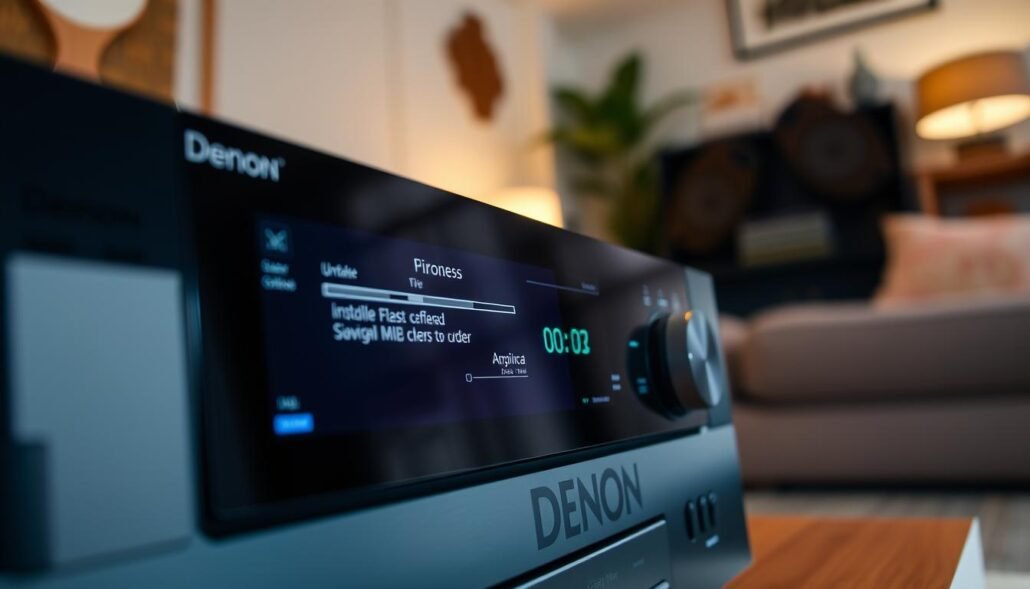
When the process begins, the TV menu screen shut and the on‑screen GUI closes. The unit moves status reporting to the front panel.
Watch the front display for a clear display upgrade progress bar and status messages. Do not power off or unplug HDMI or Ethernet while updating; interruption can corrupt the system.
Optional standby automation and post‑check
If you prefer hands‑off maintenance, enable Auto‑Update in the same menu so future updating can run in standby mode while the avr stays on the network.
After the reboot, verify inputs, eARC/ARC audio, app connectivity and HEOS sign‑ins. Test surround modes and custom speaker settings. If anything seems off, try a soft restart from the front panel and recheck sources.
| Step | Action | Why it matters |
|---|---|---|
| 1 | Open Setup > General > Firmware > Check for Update | Starts the network download and prepares install |
| 2 | Confirm Update Now | Triggers the install; menu screen shut and front display show progress |
| 3 | Allow completion and reboot | Prevents corruption and ensures new features load |
| 4 | Verify inputs, apps, and settings | Confirms normal operation and retained custom settings |
Other Ways to Update: Service Facility and USB Options
When online delivery isn’t possible, there are sanctioned alternatives for completing an upgrade.
Contact product support and they will direct you to an authorized service facility that can perform a safe upgrade using approved tools.
For older pre‑HEOS models no longer on the live server, support can provide a USB package. That package includes a secure link to the correct file and step‑by‑step instructions you must follow exactly.
- If the avr cannot complete a network install, an authorized center can run the upgrade and check hardware.
- Request the sanctioned USB package for pre‑HEOS units; the link and instructions prevent mismatched files.
- Never use random forum links; unofficial files risk system instability and bricked devices.
| Option | When to use | What you get | Key action |
|---|---|---|---|
| Authorized service | Network install fails | Approved upgrade and diagnostic | Contact Product Support |
| USB package | Pre‑HEOS models off server | Download link and written instructions | Follow steps exactly |
| Support follow‑up | Post‑install issues | In‑bench repair or diagnostics | Coordinate with center |
After any upgrade, test inputs, app. control and HEOS sign‑in. If the system still misbehaves, return to support for further diagnostics or bench service.
Troubleshooting Updates, Notifications, and App Integration
If an expected update never appears, confirm the device has a stable internet connection and that Allow Update and upgrade notification are enabled in the menu.
Wake the AVR from standby and retry a manual check if the unit was sleeping. A bad cable or wrong Wi‑Fi credentials can block checks.
When an install starts the TV menu screen shut and the front panel will show the progress. This screen shut is normal; trust the front display for status rather than interrupting power.
- If no notification: verify upgrade notification is ON, test the internet connection, and wake the unit from standby.
- If app control lags: relaunch the HEOS app., confirm the same home network SSID, and rediscover the device.
- If a process seems frozen: allow time; cutting power mid‑process risks corruption and may require service.
| Symptom | Check | Action |
|---|---|---|
| No update message | Network, allow update, standby | Wake device, confirm credentials, run manual check |
| Screen shut during install | Front display shows progress | Wait for display upgrade complete |
| App doesn’t reflect changes | App discovery, router leases | Relaunch app., reboot router |
Why these updates matter: recent HEOS releases delivered new music features and fixes via staged rollouts—examples include Tidal Hi‑Res FLAC, Qobuz Connect, Roon Ready options, and stability fixes. Rollouts can be gradual, so an upgrade notification may arrive later for some devices. If problems persist, request an official link or contact support for service.

Conclusion
Finish with a quick check of settings and version numbers so you know the system is working as intended. Use Setup > General > Firmware > Check for Update > Update Now, then watch the front display for progress as the on‑screen menu closes.
Keep Allow Update and Upgrade Notification enabled so a short on‑screen message appears for roughly 40 seconds at power on when a package is ready. Consider Auto‑Update in standby to reduce downtime.
If a network path is blocked, contact product support for an authorized service or a sanctioned USB package. Never use third‑party files and always protect the unit from abrupt power loss during an upgrade.
After reboot, follow the post‑install instructions, test inputs and apps, and note the current firmware and settings for quick comparison later.
FAQ
What do I need before starting an AVR firmware check?
Confirm a stable internet connection for the AVR and any connected TV or menu screen. Make sure the unit has power and avoid power interruptions. Verify network settings, app connectivity (HEOS or Denon AVR Remote), and that the system is not in a restricted mode that blocks updates.
Where do I enable update notifications and allow upgrades?
Go to Setup > General > Firmware (or System Update) and turn on Allow Update and Enable Update Notification. This lets the AVR check online, show an upgrade notification message, and prompt you when a new release is available.
What will I see when an upgrade is available?
The menu screen shows an upgrade notification and a summary of the new firmware. You’ll get on-screen timing estimates and a prompt to Update Now. Some models show a brief message about features or fixes before you confirm.
How do I start the firmware check and install via the menu?
Use Setup > General > Firmware > Check for Update, then select Update Now if a version is available. Follow the on-screen prompts and keep the AVR powered while the process runs.
What happens to the display during the installation?
The menu screen may shut or return to a simple progress display. The front panel or display often shows status and percentage. Do not power off or disconnect the network while the display indicates updating.
Can updates install while the AVR is in standby?
Yes. Enable Auto-Update or Standby Update in the firmware settings to allow network-based upgrades while the unit is in standby mode. The feature varies by model and requires the network to remain active.
How do I confirm the upgrade completed successfully?
After the process finishes, check the firmware version under Setup > General > Firmware version. Test key features, inputs, and the Denon or HEOS app connectivity to confirm functionality.
What if no update appears even though one was announced?
Check the internet connection, ensure Allow Update is ON, and confirm the unit isn’t blocking updates in a power-saving mode. Rollouts may be staged; if needed, consult Denon support or retry later.
My screen went blank during the upgrade — is that normal?
Yes. Menu screens often shut during installation. Rely on the front display or status LEDs to track progress. Wait the full recommended time; interrupting power can corrupt the system.
Are there alternatives to network updates?
Yes. Authorized Denon service facilities can install firmware, and older pre-HEOS models may support USB updates. Download the official file from Denon Product Support and follow the provided link or instructions for manual installation.
Why do firmware updates matter for HEOS and app performance?
Updates deliver bug fixes, feature improvements, and compatibility patches for HEOS, streaming services, and mobile apps. They can also resolve staged rollout issues and improve stability across devices in the home network.
What should I do if an update fails or the AVR won’t boot afterward?
Do not power cycle repeatedly. Contact Denon Product Support or an authorized service facility. Provide the exact model, firmware version shown before the attempt, and any error messages from the display to speed diagnosis.
How long does an online firmware install usually take?
Times vary by model and file size but typically run from a few minutes up to around 20 minutes. The on-screen progress or front display shows status in seconds or percentages; remain patient and keep the network stable.