
This short guide walks through a reliable, step-by-step process for a safe firmware update on an in-dash unit. It helps ensure smoother performance and access to added services like Spotify and improved Bluetooth.
The instructions cover many NEX wireless models and similar head units, with notes for model-specific differences. Expect to need a compatible USB storage device and a stable power source for the system during the process.
Safety first: keep power steady and never remove the USB or cut power while the software installs. This reduces risk of corruption.
Steps include both USB and app-based pathways, time estimates, and simple checks for model and current firmware info. If issues arise, Pioneer support is available Monday–Friday at 1-800-421-1404 for further assistance. The guide ends with troubleshooting and contact information so you are covered end-to-end.
Why updating Pioneer receiver firmware matters right now
A timely system refresh can unlock new services and make the touch screen feel snappier.
Keeping software current improves stability and fixes known bugs. A proper firmware update often reduces crashes and speeds menu navigation. That makes daily use smoother and less distracting.
- Streaming: Spotify integration brings quick access to playlists without extra apps.
- Voice: Alexa now supports Spanish (Mexico), Portuguese (Brazil), and Hindi (India).
- Camera: Multi-Camera System support via Datalink helps with parking and towing on compatible models.
- Home screen: Metra Axxess display widget adds faster control and glanceable info.
| Benefit | Example | Applies to |
|---|---|---|
| Stability | Bug fixes and smoother menus | Most recent models |
| New features | Spotify, language packs | Selected models |
| Vehicle integration | Multi-camera with Datalink | Units with camera support |
Not every feature reaches all models. Check release notes for the exact version content before you proceed.
Tip: routine updates extend the useful life of pioneer units and keep services aligned with new devices. Pick a time with steady power and minimal interruptions for the best result.
Confirm your model and current firmware version
Begin with a quick check of the unit’s model number and the installed firmware version shown on the screen. This prevents mismatches that can block or break an installation.
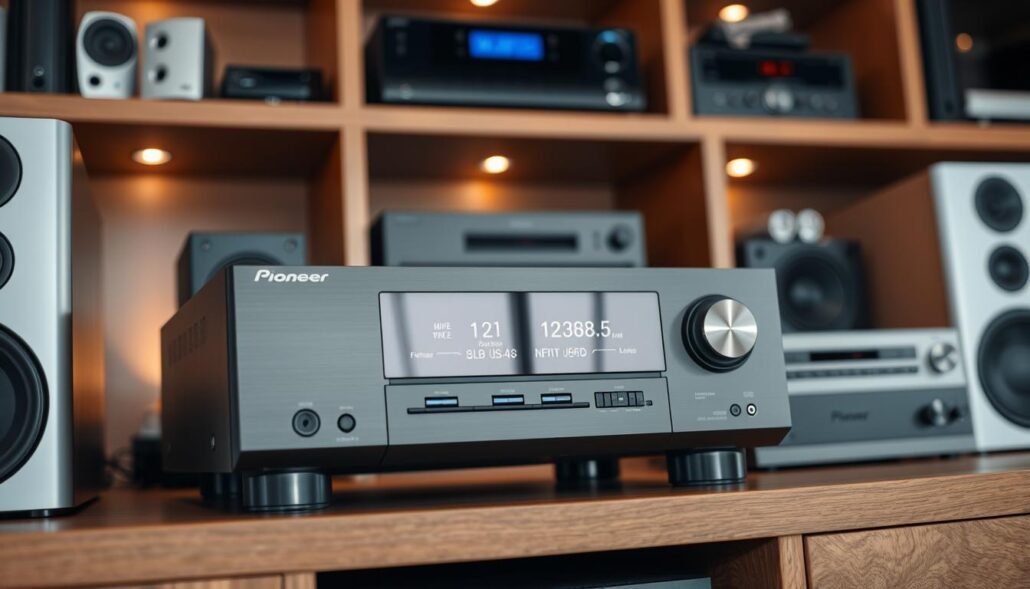
Find the exact model and download on the support website
Locate the model label on the face, chassis, or original packaging. Then visit Pioneer Support > Updates & Manuals and enter that model on the website to find the correct file and release notes.
Check the on-unit system information
On the unit, open System > System Information > Firmware information. The screen will show the installed firmware version and the model name.
Decide if a version change is needed
Record the number shown and compare it with the latest release date and notes on the support page. If the installed version matches the latest, you can skip the process unless a reinstall is advised for bug fixes.
- Match precisely: regional variants or batch differences matter.
- Bookmark: save the Updates & Manuals page for future checks.
- Need help? call Pioneer Support at 1-800-421-1404 during business hours.
| Check | Where to find it | Why it matters |
|---|---|---|
| Model number | Label on unit or box | Ensures correct download |
| Firmware version | System > System Information | Shows if an update is needed |
| Release date & notes | Pioneer Updates & Manuals page | Explains changes and regional limits |
Tip: if the model number is hard to find, use Pioneer’s “How To Find Your Model Number” resource on the support site or consult a dealer. For related gear choices, see this best AV receivers guide.
How To Update Your Pioneer Receiver Firmware
A careful prep routine helps the system read the update and finish without errors.
Prepare the storage device
Use a blank usb storage device of at least 512 MB formatted as FAT32 or NTFS. This ensures the unit can read the storage without errors.
Copy the exact update file downloaded from Pioneer’s Updates & Manuals page onto the usb. Do not rename any files or folders.
Copy files and safe eject
Place the provided files and folders in the root of the storage device. The unit expects a precise file structure, so keep items unchanged.
Safely eject the storage device from the computer to avoid corruption before moving to the vehicle.
Connect and run the on-unit procedure
Connect usb using the original usb port on the unit. Avoid hubs or adapters for reliable detection.
Open Settings > System Information > System Update > USB. Confirm the prompt and let the process run.
Wait and verify
Do not remove power, unplug the cable, or take out the storage device while the system installs. The unit will restart automatically when finished.
After restart, go to System > System Information > Firmware information and confirm the new version and model name.
| Step | Action | Why it matters |
|---|---|---|
| Prepare | Blank usb, format FAT32/NTFS | Readable storage for the unit |
| Copy | Files to root, no renaming | Receiver detects exact structure |
| Run | Settings > System Update > USB | Unit installs and restarts safely |
Other ways to update and model considerations
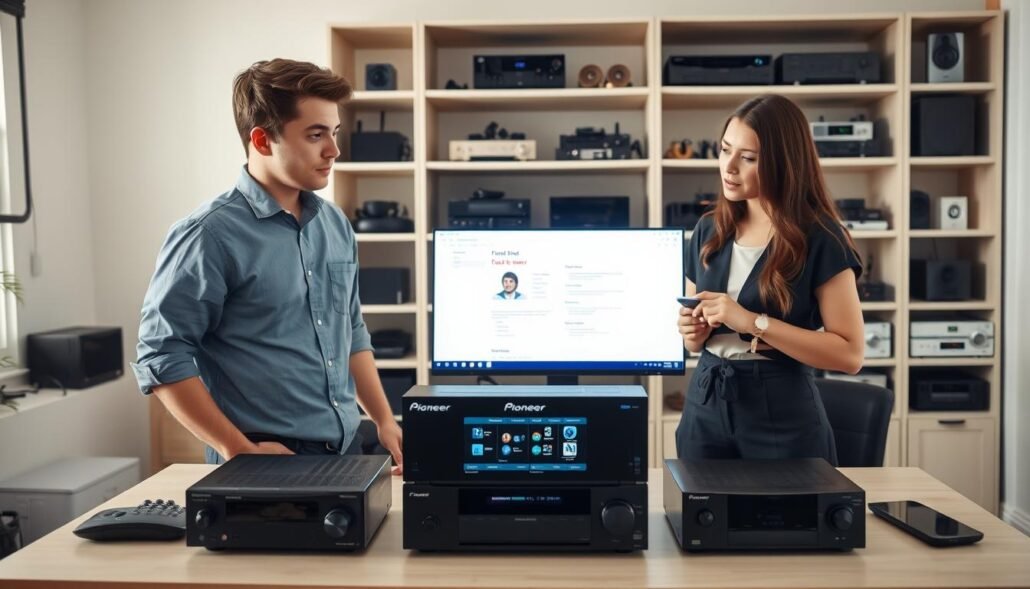
Wireless and wired paths both let you deliver the install package to a unit, depending on preference and model limits.
Using the Car AV Assist app via Wi‑Fi and Bluetooth
Pair the phone via Bluetooth and connect Wi‑Fi so the app can check and deliver the package directly to the receiver. Keep the phone near the unit and avoid switching apps during transfer.
Wireless installs are convenient but may be slower and more sensitive to drops. Many installers still prefer usb for speed and reliability.
Pioneer NEX and other models: check specific procedures and compatibility
Different models may show unique on-screen prompts. Follow the exact steps shown by the unit or the model manual.
- Check Multi-Camera and Datalink support for camera switching.
- Confirm new home widgets and display options after the process.
- Retry on a strong Wi‑Fi network or connect usb at the correct port if the app method fails.
| Method | Pros | Cons |
|---|---|---|
| Car AV Assist (wireless) | No storage device needed; convenient | Slower; sensitive to drops |
| USB drive | Fast and reliable; fewer interruptions | Requires formatted storage and correct file structure |
| Model-specific | Tailored prompts and features | Steps vary by model; check manual |
Troubleshooting, safety, and support
If the unit does not see the install package, a few quick checks usually restore normal detection.
Missing file detection
Confirm the correct package matches your model and was not renamed. Reformat the USB as FAT32 or NTFS, then redownload the file from the official website and copy the files folders exactly to the root.
Try a different USB if the unit still fails to detect the file. Some drives are incompatible with certain devices.
Power and system tips
Keep a stable power source: run the vehicle or use a reliable charger so the system does not power-cycle mid-process. Avoid touching the cable or moving the drive while writing to memory.
If an error shows on the screen, note the wording and perform a full power cycle. Reenter System > System Information > System Update and attempt again with a freshly prepared USB.
Where to get help
For further support, contact Pioneer Support at 1-800-421-1404 (Mon–Fri, PST). Use the Dealer & Installer Locator or Repair & Warranty Service on the support website if hands-on service is needed.
| Issue | Quick fix | When to get service |
|---|---|---|
| Not detected | Reformat, redownload, correct root folders | After retry fails |
| Power cycle | Keep vehicle running; avoid cable movement | If unit reboots repeatedly |
| Error messages | Record message, try fresh USB | Contact support with model and information |
Conclusion
Wrap up checklist: confirm the exact model and note the installed version number and date, then download the correct package and copy the original files onto a formatted usb storage device.
Use a blank 512 MB+ drive formatted FAT32 or NTFS and plug it into the original usb port on the unit. Follow Settings > System > System Information > System Update > USB and let the process finish without cutting power.
After the unit restarts, open System > System Information > Firmware information on the screen to confirm the new version. Recent releases improve the home experience and display options while adding core stability.
Keep the usb storage handy and record the version you installed. If steps are unclear, contact Pioneer support or a professional installer for help across models and devices.
FAQ
How do I confirm the receiver model and current firmware version?
Check the model number on the unit’s chassis or original paperwork, then visit Pioneer’s Support site and enter that model to find correct downloads. On the receiver go to Settings > System > System Information > Firmware information to see the installed version and its date.
What type and size of USB storage device should I use?
Use a blank USB flash drive formatted FAT32 or NTFS with at least 512 MB free. Larger drives are fine; remove other files and folders so the update files sit on the USB root without renaming them.
Where do I get the correct update file?
Download the update from Pioneer’s official Updates & Manuals page for your exact model. Make sure the file name and folder structure match Pioneer’s instructions before copying to the USB device.
What is the correct file and folder setup on the USB drive?
Copy only the files and folders provided in the Pioneer download to the root directory of the USB drive. Do not create extra folders or change filenames; the receiver reads specific paths and names during the process.
How do I start the update on the receiver using USB?
Insert the USB into the receiver’s front or rear USB port. On-screen go to Settings > System Information > System Update > USB and follow prompts. The system will detect the update and begin flashing the new software.
How long does the process take and what should I avoid while updating?
Update time varies by file size, typically several minutes to around 20 minutes. Keep power stable—do not turn off the vehicle or receiver, remove the USB, or disconnect cables until the unit restarts and the update completes.
How do I verify the update finished correctly?
After the receiver restarts, return to System > System Information > Firmware information and confirm the displayed version matches the release notes downloaded from Pioneer.
The unit didn’t detect the update file — what now?
Reformat the USB to FAT32/NTFS, redownload the file from the Pioneer site, and copy files again to the USB root. Try a different USB drive or port if detection fails. Confirm you used the exact model’s update package.
Can I use the Car AV Assist app or Wi‑Fi for some models?
Yes. Some Pioneer units and NEX models support updates via the Car AV Assist app or over Wi‑Fi/Bluetooth. Check the specific model’s instructions on Pioneer’s support pages for app setup and wireless update steps.
Will a firmware refresh affect settings or stored files?
Most firmware updates preserve user settings, but some major updates can reset preferences. Back up stored settings where possible and remove personal files from the USB. Review the release notes for any notes about resets or changes.
Are there common compatibility or model-specific concerns?
Yes. NEX, AV receivers, and in‑dash units may use different procedures or file formats. Always use the update made for your exact model and consult the model-specific manual on Pioneer’s website before proceeding.
What safety and power precautions should I take during an update?
Ensure the vehicle battery has sufficient charge or use a stable external power source for bench testing. Avoid interrupting power, and do not attempt updates during heavy vibration or while driving.
Where can I get help if an update fails or the unit becomes unresponsive?
Contact Pioneer Support, use the dealer & installer locator on Pioneer’s site, or seek authorized repair and warranty service. Have your model number, serial number, and firmware version information ready.
What types of improvements do recent updates often include?
Recent releases can add streaming service compatibility (for example Spotify or Amazon features), voice assistant language support, multi‑camera handling, stability fixes, and bug patches that improve audio/video sync and system responsiveness.