
This brief guide helps a typical home theater user quickly find whether the remote control or the receiver is at fault. AV gear handles audio and video from TVs, Blu‑ray players, consoles, and streamers, then amplifies and routes signals to speakers and displays.
Start with easy checks: confirm power at the outlet, inspect cables, and swap batteries while keeping polarity correct. These basic steps restore power toggling, volume control, and input selection in many cases.
This guide outlines a calm, methodical workflow. You’ll use low‑risk checks first, then test infrared output with a smartphone camera, clean a sticky button, or reset control settings if needed. Firmware updates and proper setup often resolve signal and format issues that look like a remote problem.
Follow along to match device settings to the receiver’s capabilities and reach a stable system by the end of the session.
Remote not responding? Symptoms, quick checks, and safe starting steps
If your system ignores the controller, start with clear, low-risk checks to isolate the issue fast.
Recognize the signs. Note whether power won’t toggle, volume doesn’t change, or only a few buttons respond. Recording which functions fail helps narrow the fault to the hand control or the main unit.
Begin with fresh batteries and confirm correct polarity. Slightly rotate new cells in the compartment so contacts seat firmly; poor contact causes intermittent response more often than you’d expect.
- Use a smartphone camera to check the IR emitter — a flicker on screen means the transmitter sends a signal.
- Move closer, aim directly at the IR window, and clear any objects that block the line of sight.
- If the receiver shows no power, test the wall outlet with another device and reseat the power cable at both ends.
Before opening the case, remove batteries and hold a button briefly to discharge stored power. Follow the maker’s instructions if a reset sequence exists for your model.
| Symptom | Quick check | Likely next step |
|---|---|---|
| No power | Test wall outlet; reseat cable | Try different outlet; inspect power lead |
| No volume | Replace batteries; test IR | Clean button contacts or open remote |
| Some buttons work | Log which keys fail; check for debris | Targeted cleaning or repair |
Two quick questions can guide you: did issues start after moving gear or changing a source device, and did the unit receive a recent firmware update? These clues point at input or format settings rather than a faulty controller.
Troubleshooting Yamaha Receiver Remote : Common Cause & Fixes
Start by checking the power path and button contacts before assuming a hardware failure.
Battery and power basics: Install fresh cells and confirm orientation. Inspect the spring contacts for dullness or corrosion. A quick polish with a cotton swab and isopropyl alcohol often restores reliable power to the controller.
Line of sight matters: Most models use infrared, so clear the path between the handheld unit and the receiver’s IR window. Reduce distance, aim squarely, and remove cabinet glass or décor that can weaken the beam.
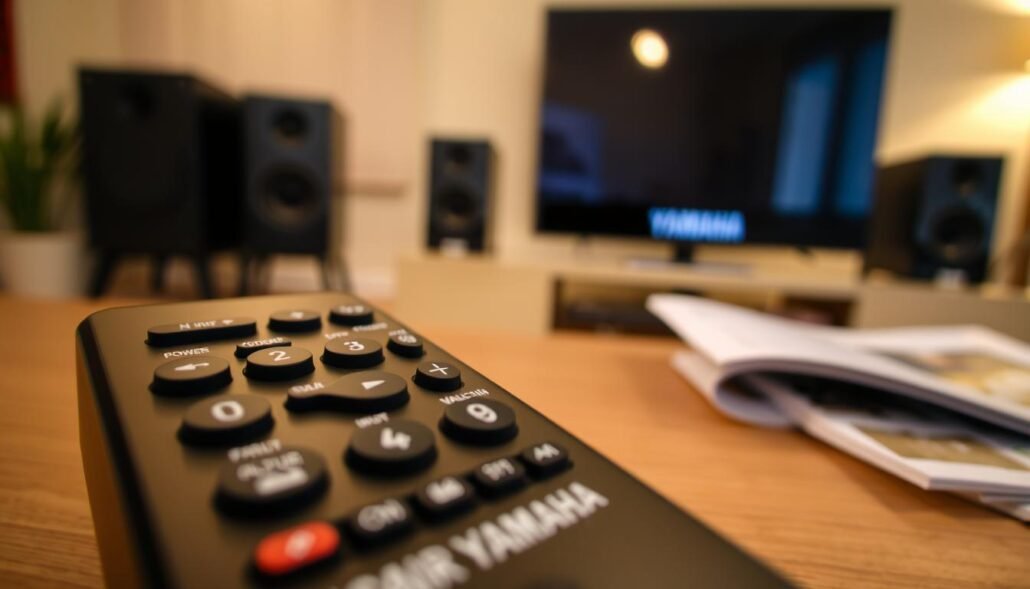
Pairing and reset: Follow the maker’s instructions exactly when performing a pairing or reset. This step clears mode locks and mismatched control layers that make volume or input keys seem dead.
Deep clean and button care
If one or two keys fail, open the case carefully with a thin tool. Clean the rubber keypad contacts and the board to remove oils and sticky film.
Use a dry paper towel and a tiny amount of isopropyl on a swab to lift residue from button wells. Scrape debris from rigid plastic holes gently to avoid damaging traces. Let all parts dry fully before reassembly.
- Mode and codes: Verify the controller is set to the correct device mode or code set.
- When to replace: If the original is physically damaged after cleaning, a universal remote with the correct codes can be a reliable short-term fix.
Receiver-side causes that feel like a “remote problem”
Always confirm the main unit has stable power and healthy speaker connections first.
No power and protection behavior: If the unit shows no lights, test a known-good outlet, reseat the detachable power cord, and check front-panel indicators. If the amplifier goes into protection it may ignore volume or power commands.
Inspect speaker runs for loose strands or shorts at binding posts. Disconnect speakers one at a time to find a faulty channel. This isolates hardware faults that mimic a dead controller.
Input and source confusion: Verify the selected input matches the physical HDMI jack your device uses. Confirm audio and video mappings in the setup menu so the chosen source sends sound to speakers and picture to the TV.
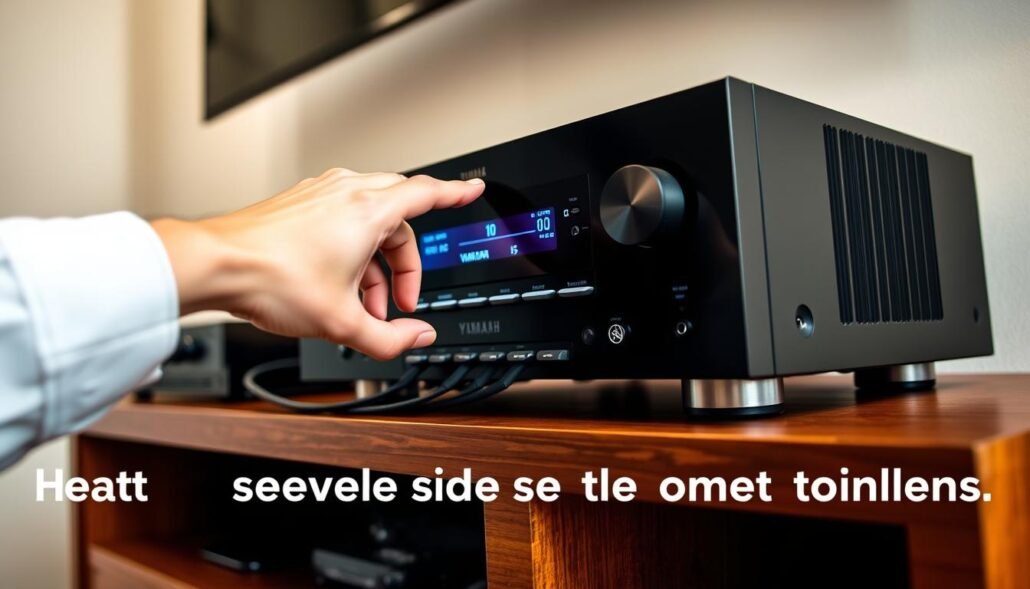
Firmware, HDMI-CEC, and network
Keep firmware current to fix handshake and decoding bugs. Temporarily disable HDMI-CEC if a TV or other device seems to seize control. Swap HDMI cables and ports, and test a known-working dvd or streaming device to narrow the issue.
| Issue | Quick check | Next step |
|---|---|---|
| No lights | Test outlet; reseat cord | Try different outlet; inspect internal fuse |
| Protection trips | Disconnect speakers | Repair or replace shorted wiring |
| No audio/video | Confirm input mapping | Swap HDMI; update firmware |
Audio/video “no response” fixes: decoder off, handshake, and factory resets
When video runs but speakers stay silent, mismatched audio formats are the usual suspects.
Decoder Off shows the unit is passing signal without applying surround processing. Check the source device’s audio output (PCM, Dolby Digital, or DTS) and set it to a format your receiver supports. Test each input one at a time so you isolate the problematic source.
Secure every HDMI connector until it clicks. Swap suspect leads for certified high‑speed cables and try alternate ports. Weak or marginal cables often cause intermittent audio and video that look like a control or button issue.
- Prefer Dolby Digital Plus or multi‑channel PCM when available; avoid unsupported bitstreams.
- Lower the source resolution (4K → 1080p) to stabilize handshakes if needed.
- Adjust lip‑sync/audio delay for dialogue drift and keep firmware current to fix decoding bugs.
If sound still fails, use a surge protector or UPS to reduce power dips, perform a factory reset after noting key settings, and consider professional repair for failing HDMI boards, DACs, or amplifier stages.
Conclusion
Close the session by confirming connections and testing one device at a time to isolate any stubborn fault.
Use this guide as a quick flow: check that the handheld unit sends an IR signal, replace batteries with correct polarity, and clear the line of sight before assuming the main unit is at fault.
If the receiver looks unresponsive, validate power delivery and rule out protection mode or input misselection. Align audio formats to remove “Decoder Off” situations that mute sound even when controls seem active.
Prioritize simple steps: reseat HDMI cables, try certified high‑speed leads, and test each device on a known‑good input. Open and clean the button pad and contacts if keys stick; this often restores function without replacement.
If you still have questions, document exact symptoms and settings before contacting support. With secure connections, careful format checks, and tidy cabling you can keep your home theater reliable through the end.
FAQ
My remote won’t power the unit. What quick checks should I do first?
Start with fresh batteries and confirm correct polarity. Inspect battery contacts for corrosion and clean with a cotton swab and isopropyl alcohol. Use your phone camera to check if the IR emitter lights when you press a button. Also try powering the unit directly from a known-good outlet and verify the power cable is fully seated.
Some buttons work but volume or source buttons don’t respond. Why?
Mixed behavior often points to stuck contacts, worn carbon pads, or a dirty membrane under the keys. Remove the battery cover and clean around the buttons. If that fails, a careful disassembly to clean or replace the rubber button contacts usually restores full function.
How can I tell if the problem is the control or the amplifier itself?
Test with another remote (a universal or a TV remote if the system supports HDMI-CEC). Use front-panel controls on the unit. If the unit responds to local buttons but not any remote, the issue is likely the handheld. If neither responds, investigate power, fuse, speaker short/protection mode, or firmware problems on the unit.
What’s the difference between IR and RF remotes, and why does line of sight matter?
Infrared requires a direct line between remote and receiver IR sensor and works within a limited angle and distance. RF (radio frequency) can work through walls and open spaces. If IR seems unreliable, remove obstructions, avoid reflective surfaces, and test from different distances and angles.
How do I reset or re-pair the remote with the unit?
Follow the user manual’s sequence for a factory reset or pairing mode—typically holding specific keys while powering the unit. If you lost the manual, common steps include removing batteries, holding a designated button while reinserting them, or using the receiver’s front-panel setup menu to accept remote pairing.
Is it safe to open my remote to clean sticky buttons? Any precautions?
Yes, with caution. Remove batteries first and work on a static-free surface. Keep small screws and springs organized. Use isopropyl alcohol and a soft brush to clean contacts. Avoid damaging flex cables or circuit traces. If you’re unsure, consider a local electronics repair shop.
When should I try a universal remote instead of fixing the original?
If the original remote has irreparable circuit damage, missing parts, or replacement is costly, a compatible programmable remote is a practical alternative. Verify device codes for your model and ensure the universal supports necessary features (volume, input, macro commands, and AV control).
The unit seems unresponsive and shows “Protection” or won’t power on. What receiver-side checks help?
Check speaker wiring for shorts or exposed strands touching chassis. Disconnect speakers and try powering on. Inspect the power cord and outlet, and reset any outlet switches or surge protectors. If protection persists, internal faults may need professional service.
My sources don’t change or HDMI inputs don’t respond—what could be wrong?
Confirm correct HDMI cable connections and that the selected input matches your source. Some devices default to sleep or output low-resolution signals that confuse the unit. Try switching cables, using different HDMI ports, or selecting the input from the receiver’s front panel.
Could firmware or HDMI-CEC cause remote control issues via the TV?
Yes. Outdated firmware or conflicting HDMI-CEC settings can prevent control handoff between devices. Update firmware on the unit and source devices, then disable HDMI-CEC or similar control features temporarily to isolate the fault.
What does “Decoder Off” mean and how does it affect audio when I press play?
“Decoder Off” usually indicates the receiver can’t decode the incoming digital audio format from your source. Check the source audio output—switch between Bitstream and PCM or change the device’s audio format (Dolby, DTS, PCM). Choosing a compatible format lets the unit decode and play sound.
HDMI handshake fails and I have no video or audio. How do I fix it?
Power-cycle all connected devices and reseat HDMI cables. Use certified high-speed HDMI cables and try different ports on both the TV and the unit. If 4K/HDCP issues appear, temporarily lower the resolution on the source to see if the handshake completes.
Are factory resets a good idea, and what will they change?
A factory reset clears custom settings, network credentials, and paired devices, which can resolve persistent control or configuration conflicts. Back up settings where possible and note speaker levels or room calibration values before resetting.
After all DIY steps, the unit or remote still fails. When should I seek professional repair?
If the receiver shows repeated protection faults, internal smoke, burning smells, or the remote’s PCB is visibly damaged, stop further DIY attempts. Contact an authorized service center or certified AV technician for diagnosis and safe component-level repairs.
What extra accessories or tools help with diagnostics and repairs at home?
Keep fresh batteries, a small electronics screwdriver set, isopropyl alcohol, cotton swabs, a multimeter for continuity and voltage checks, and a known-good HDMI cable. A universal remote or a smartphone IR app (if compatible) also helps isolate whether the issue is the handheld device.