
Quickly find whether the receiver or the remote is at fault and save time with focused checks you can do right now.
The guide explains how AV hubs route audio and video from TVs, players, and streaming boxes to your speakers. These devices support Bluetooth, Wi‑Fi, voice control, and room correction, and that feature set can make a simple control issue seem complex.
This short section shows a practical way to separate remote problems from unit-side problems. You will get fast checks for power, input selection, mute, and batteries before moving to firmware or network steps.
Expect clear steps that prevent guesswork and safe handling tips if you decide to open panels or call a pro. By the end, you’ll know the right order to test and the best way to restore reliable control without wasting time or money.
Quick diagnosis: identify whether it’s the remote, the receiver, or the connection
Start simple and rule out the easy stuff first. This saves time and narrows the problem to one of three areas: the handheld control, the main unit, or the cables and wireless links between them.
Basic remote checks
Replace batteries and confirm correct polarity. Use a smartphone camera to look for an IR flash when a button is pressed.
If the unit is programmable or was dropped, perform a quick reset per the manual to clear button glitches.
Receiver-side checks
Select the correct input that matches your TV or player. Verify volume and mute status before deeper checks.
Inspect speaker wiring for loose strands or shorts; disconnect speakers one at a time to see if protection mode clears.
Power and pairing sanity checks
Confirm the power cable is seated and test a known-good outlet. For Bluetooth, re-pair devices and set the main unit to the Bluetooth input. Update firmware if pairing fails.
Quick check summary
| Item | Action | Result to expect | Next step |
|---|---|---|---|
| Handheld | Replace batteries; IR test with phone | Visible flash = transmitter OK | Test front-panel buttons |
| Inputs & cable | Confirm input; swap HDMI or cable; try another player | Correct video/audio on-screen | Check CEC or port settings |
| Power & speakers | Test outlet; inspect power cable; disconnect speakers one-by-one | No protection light; sound returns | Repair wiring if short found |
For a deeper setup check, see the home theater setup guide for wiring and input mapping tips.
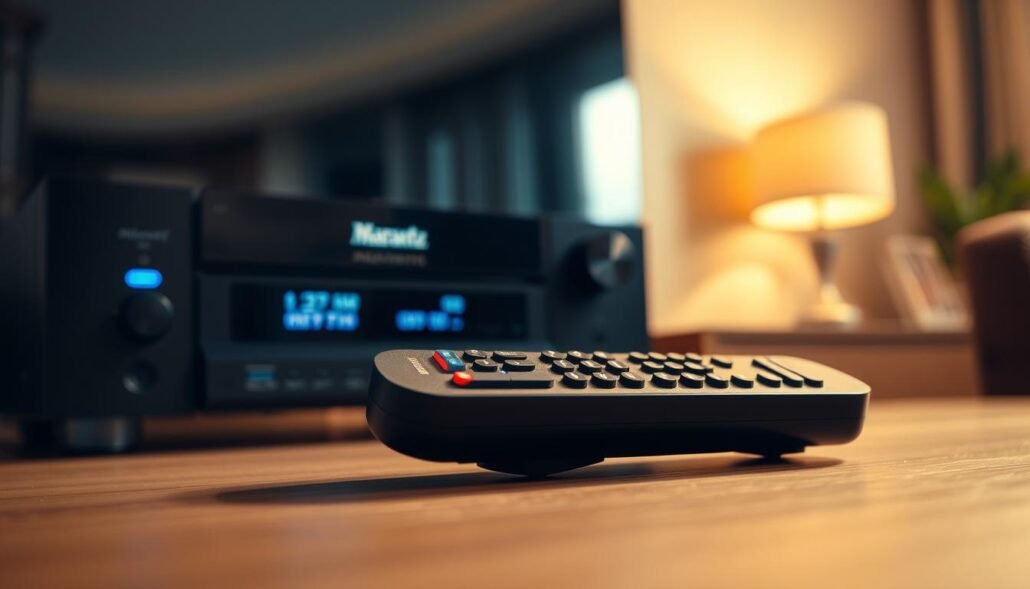
Troubleshooting Marantz Receiver Remote : Common Cause & Fixes
A short set of bench tests will quickly tell you if the issue sits in the charging circuit, the touchscreen, or the network stack.
No power or blank display: A documented repair showed several failed SMD capacitors tied to the charging dock. Replacing a 220µF 10V with a 470µF 16V and two 100µF 16V parts with 330µF 35V electrolytics restored display and charging. If the programmable remote shows no power, start by inspecting charging contacts and bench‑testing the battery pack before more invasive work.
Touchscreen hangs or unresponsive: Disconnect and reseat the touchscreen ribbon cable. If the screen powers up without the touch layer, the fault likely sits in the touch circuit. After any hardware step, install the latest software and perform a touchscreen calibration to clear ghost touches and lag.
- When commands lag or desync, update the receiver firmware to fix internal bugs and improve Bluetooth behavior.
- If Bluetooth works intermittently, re‑pair devices and confirm the unit is on the correct input—this often saves time versus a full repair.
Physical and wiring-related issues that break control signals
Loose wiring inside a handheld unit can mimic more serious failures. Small ribbon cables or connectors may shift and cause intermittent button or touchscreen response. A quick pressure test—gently pressing the case while operating buttons—can reveal a seating problem.
Loose internal cabling and safer alternatives
A field report showed that adding a small rubber band to tension a loose cable improved reliability. That makeshift idea can confirm the fault but is a temporary measure, not a long-term repair.
- Reseat the connector and clean contacts with electronics cleaner for a durable fix.
- Use Kapton tape to secure the cable routing without stressing the conductor.
- Inspect solder joints; a gentle reflow can fix lifted pads if visible.
- Remove batteries and discharge static before opening the case to avoid damage.
- Document original routing with a photo so reassembly restores the same path.
| Symptom | Quick test | Suggested next step |
|---|---|---|
| Intermittent buttons | Press case while pressing buttons | Reseat cable; clean contacts |
| One row fails | Check ribbon seating and flex | Secure with tape; inspect solder |
| Sporadic touchscreen | Reseat touch ribbon; power cycle | Reflow connector or seek repair |
If unsure, consult a technician. A professional can replace a connector instead of relying on temporary fixes. After any reseat, test all control functions from multiple angles to confirm the issue is resolved.
Advanced fixes, factory reset, and when to seek repair
A careful check of HDMI-CEC, audio delay, and ventilation often finds the root cause before you replace parts.
Pro tips for HDMI/CEC and audio delay
Rule out HDMI-CEC quirks by toggling CEC on both TV and receiver, testing with a certified HDMI cable, and swapping ports. This often clears control desync that looks like a failed handheld.
Use the audio delay setting to fix lip-sync. A mismatch can feel like slow response even when command processing is fine.
Factory reset and what to expect
Back up network, input, and speaker settings before a factory reset. A reset returns defaults and clears config corruption but costs setup time.
If remotes still misbehave after resets, re-pair Bluetooth devices and reinstall firmware. For hardware faults such as failed capacitors in programmable remotes, plan a proper repair with correct part ratings and ESD-safe technique.
Warranty and professional repair
Check warranty status first. Authorized service keeps parts genuine and avoids voiding coverage. If you contact support, keep a clear log and say thanks when they help; it speeds cooperation.
| Symptom | Quick check | Recommended next step |
|---|---|---|
| Control lag | Toggle HDMI-CEC; test other HDMI port | Adjust audio delay; update firmware |
| Single zone failure | Use front-panel buttons; note behavior | Service center review; possible board repair |
| Handheld no charge | Inspect contacts; test batteries | Component replacement by tech; follow ESD rules |
Conclusion
A steady, step-by-step approach saves time and points you to the real control problem fast.
Start with batteries, an IR check, input and volume. Move on to cable routing, speaker wiring, firmware updates, and Bluetooth pairing. That way you separate handheld faults from the main unit and the player chain.
If a programmable remote shows no display, a capacitor failure pattern has been documented; a trained tech can replace parts safely. Touch issues often clear after reseating the ribbon and installing updates.
, Re-test across sources and remotes, keep HDMI and speaker wiring tidy, and use a factory reset only after backups. When in doubt, contact authorized service and offer thanks to helpers who save you time.
FAQ
How do I quickly tell if the issue is the remote, the receiver, or the cable/connection?
Start with the simplest checks: replace batteries and test the remote’s infrared (IR) emitter with a phone camera—press a button and look for a blinking light on the remote through the camera. If IR shows but the unit doesn’t respond, try different inputs and toggle mute/volume on the front panel. Swap the HDMI or analog cable and use another device on the same input to rule out cable or input faults. If the receiver responds to front-panel controls but not to the handheld control, the problem is likely with the remote or its pairing.
What quick remote checks should I perform before assuming it’s broken?
Inspect battery orientation and contacts for corrosion, use fresh batteries, and ensure no obstructions block the IR path. Test line-of-sight at closer range and at different angles. For programmable or Bluetooth remotes, verify pairing and try re-pairing. If the remote uses a charging dock, confirm the dock supplies power and clean the charging pins.
What receiver-side checks help rule out control problems?
Verify the receiver is on the correct input and not in mute or night mode. Check speaker wiring and ensure protection mode isn’t engaged after a short or overheating event. Confirm the front-panel buttons work; if so, software or remote connectivity is often the issue. Inspect power connections and try a different AC outlet or power cable.
How do power issues and pairing affect control behavior?
Unstable power, faulty power cables, or tripped internal protection can make the unit ignore controls. For wireless remotes, Bluetooth or network selections can interfere—ensure the receiver isn’t linked to a different device. Resetting the remote pairing or toggling Bluetooth on the receiver usually restores control.
My programmable remote shows no display or won’t charge—what might be wrong?
Dead capacitors, failed charging circuitry, or worn contacts cause blank displays and charging failure. Try a different charger or battery type if supported. For display and power board issues, professional service is often required since surface-mount components and micro-soldering may be involved.
The touchscreen remote freezes or is unresponsive. Any simple fixes?
Power-cycle the remote and the receiver first. If the touch surface remains unresponsive, remove and reseat the ribbon cable (if accessible) that connects the touchscreen to the main board. Calibration or a firmware refresh may help; otherwise a replacement touchscreen or professional repair might be necessary.
Can a firmware or software update fix lag or sync issues that look like remote faults?
Yes. Outdated firmware can cause delayed responses, button mapping errors, and pairing failures. Check the manufacturer’s support page and update both the receiver and programmable remote when updates are available. Back up settings before major updates.
Could Bluetooth or network problems mimic remote control failures?
Absolutely. A receiver tied to a Bluetooth source or remote app on a phone can ignore the handheld control until you disconnect or re-pair devices. Network control conflicts and stale pairings also cause unresponsiveness—restarting network services and redoing pairings often resolves those symptoms.
How do loose internal cables or makeshift fixes affect controls, and what’s a safer alternative?
Internal ribbon cables and connectors can work loose with vibration or age, causing intermittent control or display issues. People sometimes use rubber bands to stabilize parts; instead, use proper insulating tape or replace worn connectors. For internal repairs, unplug power and seek service if you’re not experienced with electronics.
What advanced steps can I try before seeking professional repair?
Try a factory reset for the receiver and the remote after saving presets. Inspect and swap HDMI cables to isolate HDMI-CEC conflicts. Test with minimal components (one source, one TV) to eliminate downstream devices. If problems persist, note error codes and behavior to share with an authorized repair center.
What should I consider before performing a factory reset on the receiver or remote?
Back up any custom settings, room corrections, and network credentials. A reset clears presets and paired devices and may require reconfiguration of speaker setup and network settings. Follow the official reset steps for your exact model to avoid unintended firmware reverts.
When is it time to use authorized repair or warranty service?
Use authorized service if the unit is under warranty, when internal power components or boards fail, or when surface-mount repairs are needed. Authorized technicians have correct replacement parts and preserve warranty coverage. For out-of-warranty repairs, request a written estimate and part warranty before proceeding.
Any pro tips to avoid misdiagnosing remote failures?
Rule out simple items first—batteries, line-of-sight, input selection, and mute. Use a smartphone camera to check IR, and test front-panel controls to separate receiver faults from control faults. Keep firmware current and document symptoms and steps tried before contacting support to speed diagnosis.